
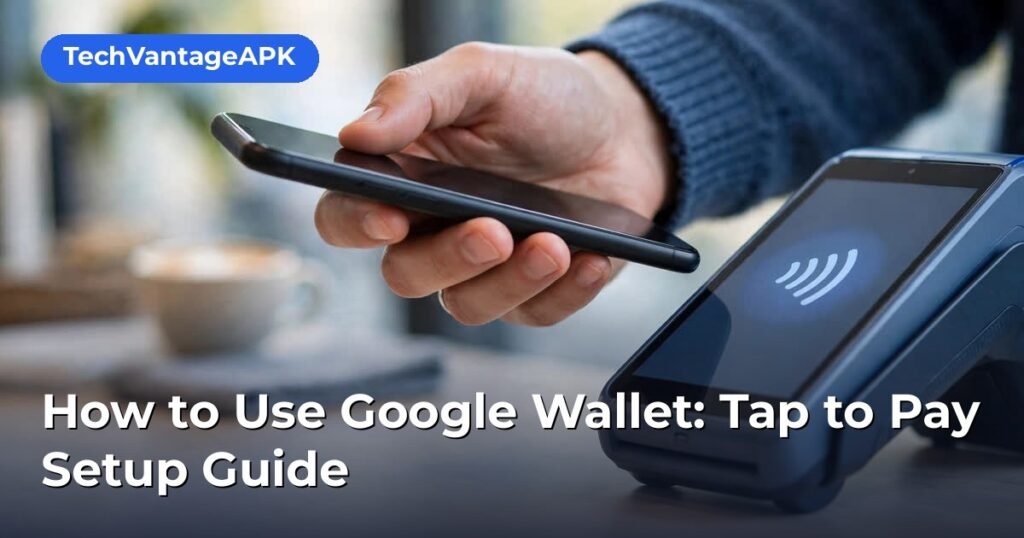
Tapping your phone to pay at checkout has gone from novelty to everyday habit. Google Wallet is Google’s digital wallet for Android: it stores your credit and debit cards, transit passes, loyalty cards, and (in supported regions) ID documents. This google wallet guide walks through complete tap-to-pay setup, the security behind it, and fixes for the most common “card not accepted” moments.
Tapping your phone to pay at checkout has gone from novelty to everyday habit. Google Wallet is Google’s digital wallet for Android: it stores your credit and debit cards, transit passes, loyalty cards, and (in supported regions) digital IDs, and lets you pay by holding your phone near a contactless terminal. Setup takes about ten minutes, and once it is done, your physical wallet can stay in your pocket for most daily purchases.
This guide covers everything from prerequisites to your first successful tap: checking that your phone and bank support the feature, adding and verifying cards step by step, setting Google Wallet as your default payment app, using transit and loyalty passes, and troubleshooting the setup problems people hit most often. It is based on Google’s official support documentation and published requirements, which change over time — if a step here does not match your screen exactly, Google’s Wallet Help pages carry the current version.
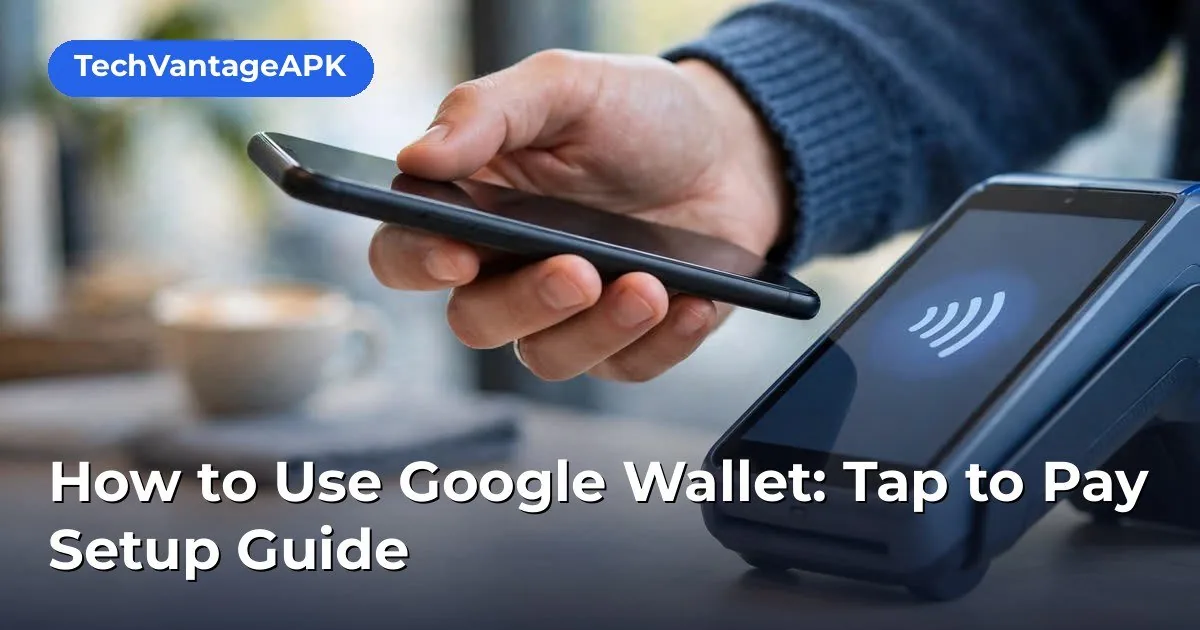
Google Wallet Explained: What It Is (and Isn’t)
Google Wallet is the consumer-facing wallet app; Google Pay is the broader payments brand that now focuses on the payment processing side. In practice: you open Google Wallet to add cards and tap to pay. The app is free and preinstalled on most Android phones sold in supported countries; if yours lacks it, it is available on the Google Play Store.
Wallet stores several item types:
- Payment cards — credit and debit cards for tap-to-pay and online checkout.
- Transit passes — bus, train, and subway fare cards in supported cities and agencies.
- Loyalty and gift cards — store loyalty programs and gift card balances.
- Event tickets and boarding passes — from supported merchants and airlines.
- Digital IDs — driver’s licenses and state IDs in participating US states, stored on-device.
Crucially, Google Wallet does not replace your bank: it tokenizes your real cards. When you tap to pay, the terminal receives a one-time virtual account number, not your actual card number — a security design called tokenization that means merchants never see or store your real details.
Before You Start: Requirements Checklist
Tap-to-pay fails most often because a prerequisite is missing. Verify these first:
- NFC hardware: Your phone needs an NFC chip. Nearly all mid-range and flagship Android phones from the last several years have one; some ultra-budget models do not. Check under Settings → Connected devices → Connection preferences → NFC. If there is no NFC toggle, your phone cannot tap to pay.
- Android version: Google Wallet requires a recent Android version — Google periodically raises the minimum (Android 9 or later has been the documented floor, with newer requirements rolling out). Update your phone before starting.
- Google Play Protect certification: The device must pass Play Integrity checks. Rooted phones, custom ROMs without certification, and some imported models fail this check and cannot use Wallet’s tap-to-pay, even with NFC present.
- A supported bank and card: Your card issuer must participate. Most major US banks (Chase, Bank of America, Capital One, Wells Fargo, Citi, American Express, Discover) support Google Wallet, along with thousands of regional banks and credit unions. Google maintains a searchable list of supported banks.
- Country availability: Tap-to-pay works in dozens of countries; transit and ID features are more limited by region. US readers are fully covered for payments.
- Screen lock: Android requires a screen lock (PIN, pattern, fingerprint, or face) for Wallet — payments will not work without one.
Step-by-Step: Adding Your First Card
With prerequisites confirmed, adding a card takes a few minutes:
- Open Google Wallet. Find it in your app drawer, or download it from the Play Store if needed. Sign in with your Google account.
- Tap “Add to Wallet”, then choose Payment card.
- Enter the card details. You can scan the card with your camera (Wallet reads the number and expiry automatically — always double-check them) or type the details manually: card number, expiration date, and CVC.
- Accept the issuer’s terms. You will see your bank’s terms and conditions for digital wallet use; accept to continue.
- Verify your identity. This is the step where most people pause. Your bank must confirm it is really you adding the card. Common verification methods:
- A text message or email with a one-time code.
- Approving the request inside your bank’s own mobile app.
- A phone call to the number on the back of your card.
Complete whichever method your bank offers. Some banks approve instantly; others take minutes to a few hours. - Wait for activation. Once verified, the card shows as active in Wallet. Some banks let you use the card for tap-to-pay immediately; a few impose a short waiting period.
Repeat for each additional card. There is no hard limit most users will hit — Wallet comfortably holds a half-dozen cards or more.
Which card should be default?
Set the card you use most often — typically the one earning the best rewards on everyday spending — as your default so taps just work without choosing each time. You can always switch cards per transaction by opening Wallet before tapping.
Setting Up Tap to Pay
Adding the card is only half the job; your phone must also be configured to route contactless payments through Wallet.
Enable NFC
- Open Settings → Connected devices → Connection preferences.
- Toggle NFC on.
- On some phones you will also see Contactless payments (or “Default payment app”) — set it to Google Wallet (listed as “G Pay” on some devices).
Samsung phones sometimes default to Samsung Pay/Samsung Wallet; if you prefer Google Wallet, change this default explicitly or you will get inconsistent behavior at terminals.
Set Google Wallet as the default payment app
- Open Google Wallet, tap your profile icon, then Tap to pay setup or Payment setup.
- Follow the checklist: NFC on, Wallet set as default, screen lock enabled, and at least one verified card.
- Wallet confirms with a “You’re ready to pay” style message when everything checks out.
Making your first payment
- Wake your phone. For small purchases (under your card network’s contactless limit — typically $50–$100 in the US depending on the network and terminal), you often do not even need to unlock: just wake the screen and hold the phone near the terminal.
- For larger amounts, unlock the phone first (fingerprint is fastest), then hold it near the terminal’s contactless symbol.
- Hold steady for a second or two until you see the checkmark and feel the vibration. The NFC antenna is usually near the top-center of the phone — if taps fail, try repositioning slightly.
That is the whole flow. No app to open, no QR code to scan — wake, tap, done.
Verification Problems: Fixing Setup Issues
Verification is the most common sticking point. Here is how to handle each failure mode, drawn from Google’s published troubleshooting guidance.
“Couldn’t verify” or verification code never arrives
- Check the contact details your bank has on file. Codes go to the phone number or email your bank associates with the account — if you changed numbers recently, update them with the bank first.
- Try a different verification method. If SMS fails, look for the in-app approval option from your bank, or request a phone call instead.
- Wait and retry. Bank verification systems occasionally lag; waiting 15–30 minutes before retrying resolves many transient failures.
- Contact your bank directly. Some issuers require you to call and verbally authorize digital-wallet enrollment, especially for business cards or recently issued cards.
Card added but tap-to-pay doesn’t work at terminals
- Confirm NFC is on and Wallet is the default payment app (see above).
- Check the card shows as verified/active in Wallet — an unverified card will not tap.
- Verify your phone passes Play Integrity (rooted or uncertified devices are blocked by design).
- Try a different terminal — a small number of older terminals have flaky contactless readers.
“This phone can’t be used to pay in stores”
This message means a hard requirement failed: no NFC, uncertified device, unsupported Android version, or regional restriction. NFC absence and failed integrity checks are not fixable with settings — they are hardware/firmware facts about the device.
Bank not supported
If your issuer does not participate, Wallet cannot tokenize its cards. Options: use a different card from a supported issuer, or check Google’s supported-bank list periodically — participation expands over time.
Transit Passes: Tapping Through the Turnstile
In supported cities and transit agencies, you can add a transit fare card directly to Wallet and tap your phone at gates and readers — often without even unlocking.
Adding a transit pass
- In Wallet, tap Add to Wallet → Transit pass.
- Search for your agency or city.
- Follow the prompts to create or link your fare account and add value or a pass.
Major supported systems include OMNY (New York MTA), Clipper (San Francisco Bay Area), TAP (Los Angeles), SmarTrip (Washington DC Metro), Ventra (Chicago), and many international systems. Availability changes as agencies onboard, so search for yours in the app.
Express transit mode
Many agencies support express mode: designate a default transit card and it works at readers with just a wake — no unlock, no app open. This is the feature that makes phone transit genuinely faster than a physical card. Enable it in the transit card’s settings inside Wallet where the agency supports it.
Loyalty Cards, Gift Cards, and Tickets
Beyond payments, Wallet consolidates the other things bulking up a physical wallet:
- Loyalty programs: Add store loyalty cards by searching the program name or scanning the barcode. At checkout, open Wallet, select the loyalty card, and let the cashier scan the on-screen barcode — then pay with your payment card.
- Gift cards: Supported merchants let you add gift card balances; they appear as scannable barcodes with the remaining balance.
- Boarding passes and event tickets: Airlines, cinemas, and event platforms can push passes directly to Wallet from confirmation emails or their apps. They surface automatically on the day of travel or the event, often with a lock-screen or notification shortcut.
A useful habit: after adding loyalty cards for your regular stores, remove the physical cards from your wallet. The phone genuinely replaces them.
Security: How Wallet Protects Your Money
Understanding the security model helps you use Wallet confidently:
- Tokenization: Terminals receive a virtual account number unique to your device, not your real card number. If a merchant’s system is breached, your actual card details are not in it.
- Authentication per transaction: Higher-value taps require you to unlock the phone, so a stolen locked phone cannot be used for large purchases. You can also require unlock for every transaction in Wallet’s settings.
- Remote lock and erase: If you lose your phone, Google’s Find My Device can lock or erase it remotely, and you can remove cards from Wallet via your Google account on the web without touching the phone.
- Transaction alerts: Your bank’s normal fraud monitoring and transaction notifications apply to Wallet purchases exactly as they do to physical-card purchases — nothing about tokenization weakens them.
- Screen lock requirement: Wallet refuses to operate without a device screen lock, closing the simplest attack path.
The realistic risk profile: tap-to-pay is at least as safe as chip-card payments, and safer than magnetic-stripe swipes, because the card number is never exposed to the terminal.
Digital IDs and Driver’s Licenses
In participating US states, you can add your driver’s license or state ID to Google Wallet. The process involves photographing the front and back of your physical ID and completing a verification step (often a short video selfie matched against the ID photo). Once issued, the digital ID is stored on your device and can be presented at TSA checkpoints in participating airports and other accepting verifiers — you choose exactly which fields to share (e.g., confirming you are over 21 without revealing your address).
Availability is state-by-state and expanding; check Wallet’s ID section to see whether your state participates. Keep carrying your physical ID: acceptance is not yet universal, and law-enforcement traffic stops still generally require the physical card.
Using Wallet for Online and In-App Purchases
Wallet is not only for terminals. Wherever you see the Google Pay button at online checkout or in Android apps, tapping it lets you pay with your Wallet cards without typing card numbers. Shipping addresses and card selection are handled in the Google Pay sheet, and tokenization protects the transaction the same way.
This is particularly useful on mobile: checking out in an app with two taps instead of typing a 16-digit number on a phone keyboard is one of Wallet’s most underrated conveniences.
Managing Cards Day to Day
Switching cards at checkout
Open Wallet before tapping, swipe to the card you want, and tap with that card selected. The default card is used whenever you tap without opening the app.
Removing a card
In Wallet, tap the card, open its menu (three dots), and choose Remove. The token on your device is deleted; your physical card and account are unaffected. Also remove cards from Wallet on the web via your Google account if the phone is lost.
Updating expired or replaced cards
When your bank issues a replacement card (new expiry, new number after fraud), many issuers push the update to Wallet automatically through account-updater services. If a card stops working after reissue, remove and re-add it manually — verification is usually instant the second time.
Transaction history
Wallet shows recent transactions per card, and tapping a transaction typically opens details. For disputes, always work through your bank or card issuer — Wallet is the conduit, not the account holder.
Practical Tips for Reliable Tapping
- Know your antenna spot. NFC antennas are usually near the top third of the phone. If taps are inconsistent, hold the upper part of the phone against the reader rather than the center.
- Cases matter. Very thick cases, metal cases, and cases with magnetic mounts can block or weaken NFC. If taps fail with a case on, test without it.
- Battery: NFC uses negligible power, but a dead phone cannot tap. Some phones support limited reserve-power transit taps after shutdown — check your manufacturer’s documentation.
- Unlock for larger purchases. Contactless limits vary by card network and terminal; when a tap is declined, unlock the phone and try again before assuming something is broken.
- International travel. Wallet works at contactless terminals worldwide wherever your card network is accepted; your bank’s foreign-transaction fees apply as usual. Transit passes are per-agency — your home city’s pass will not work in another city’s system.
Privacy: What Google Sees
It is fair to ask what data Wallet transactions generate. According to Google’s published disclosures: Google does not sell your transaction data, and tap-to-pay transaction details (what you bought, where) are primarily between you, the merchant, and your bank — Google facilitates the tokenized payment. Wallet’s privacy settings let you control personalization features, and you can review or delete Wallet activity in your Google account’s activity controls. As with any Google service, the privacy-conscious move is to periodically review these settings rather than assume defaults.
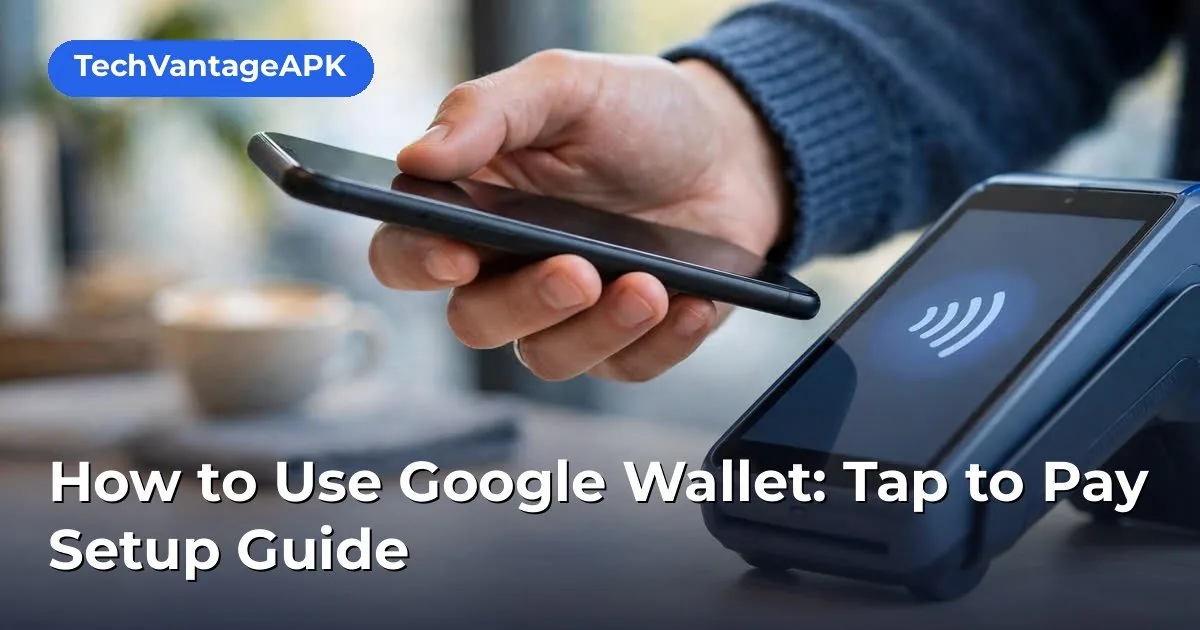
Google Wallet Security: Why It’s Safer Than Your Card
Tap-to-pay through google wallet is safer than swiping the physical card it replaces. Every transaction uses a virtual account number — tokenization — so merchants never see your real card number, and each payment requires your phone to be unlocked. Even if a terminal is compromised, the token it captures is useless for future fraud, which makes google wallet transactions fundamentally harder to exploit than magnetic-stripe swipes.
Lost phone? Your cards stay safe behind your lock screen, and you can remotely lock or erase the device. Google’s Android help center documents Wallet’s security model and the steps to remove cards from a lost device.
Related Guides
Keep exploring with these in-depth guides:
Frequently Asked Questions — How To Use Google Wallet Tap To Pay
Does google wallet work without the internet?
For a limited number of transactions, yes — google wallet stores tokens on-device for offline use. You will need connectivity eventually to refresh them, so don’t rely on offline mode for a whole trip.
Why was my google wallet card declined?
Most declines trace to the bank, not google wallet: expired tokens after a card reissue, regional blocks, or a terminal that needs a retry. Remove and re-add the card in google wallet first — that fixes the majority of cases.
Is Google Wallet free to use?
Yes. There are no fees from Google for adding cards or tapping to pay. Your bank’s normal terms apply — interest, annual fees, and foreign-transaction fees are unchanged by using Wallet instead of the physical card.
Why won’t my bank verify my card?
The most common causes are outdated contact details at the bank (codes go to the wrong number), cards that require verbal authorization (business or newly issued cards), and temporary bank-system delays. Update your contact info with the bank, try alternate verification methods (in-app approval, phone call), wait 30 minutes, then retry — or call the number on the back of your card.
Can I use Google Wallet if my phone is rooted?
Generally no. Wallet’s tap-to-pay requires the device to pass Play Integrity checks, which rooted phones and uncertified custom ROMs fail. The app may install and show cards, but contactless payment will be blocked. This is a deliberate security policy, not a bug.
Do I need an internet connection to tap to pay?
No — NFC payments work offline at the terminal. Your phone periodically needs connectivity to refresh payment tokens in the background, but a dead zone at checkout will not block a tap. (Adding cards, verification, and transit top-ups do need internet.)
What’s the difference between Google Wallet and Samsung Wallet?
Both do tap-to-pay via NFC with tokenized cards. Google Wallet is Google’s app, available on all certified Android phones; Samsung Wallet (formerly Samsung Pay) is Samsung’s, with deeper integration on Galaxy devices (and historically MST support for old magnetic-stripe terminals, now discontinued). You can use either on a Samsung phone — just set one as the default payment app to avoid conflicts.
Is tap-to-pay safe if I lose my phone?
Yes, provided you act promptly. Your cards require the phone’s screen lock for higher-value transactions, and you can remotely lock or erase the phone via Find My Device and remove cards through your Google account on the web. The thief gets tokens, not your card numbers — and your bank’s fraud monitoring still applies.
Conclusion — How To Use Google Wallet Tap To Pay
Google Wallet turns your Android phone into a complete payment tool: tokenized tap-to-pay at terminals, one-tap online checkout, transit passes with express mode, loyalty cards, tickets, and (where supported) digital IDs. The setup investment is small — confirm NFC and bank support, add and verify your cards, set Wallet as the default payment app — and the daily payoff is leaving the physical wallet behind for most errands.
When setup hiccups happen, they cluster around verification: outdated bank contact details, missing in-app approvals, or uncertified devices. Work through the fixes above methodically, and keep your bank’s phone number handy for the stubborn cases. Once it is running, tapping to pay becomes the kind of invisible convenience you stop thinking about — which is exactly the point.




What do you think?
Share your experience or ask a question. A useful conversation starts with you.
Join the discussion