For over two decades, pairing a wireless Bluetooth accessory with a mobile phone was an exercise in technological friction. Users had to hold down tiny power buttons to enter obscure pairing modes, navigate through nested system menus, wait for an unformatted MAC address or cryptic device string to populate an inquiry list, and frequently deal with failed handshakes and PIN verification errors. If you owned multiple devices—such as an Android smartphone, a tablet, and a Chromebook—you had to repeat this clumsy pairing dance across every single screen.
Google permanently solved this connectivity headache with Android Fast Pair. Engineered as a core component of Google Play Services, Fast Pair transforms wireless hardware onboarding into an instantaneous, magical single-tap experience. When you open the lid of compatible wireless earbuds, power on a Bluetooth speaker, or turn on a smart tracker next to your phone, an elegant pop-up card slides up from the bottom of your screen displaying the accessory’s official product name and photo. By mastering Google Fast Pair setup, users can effortlessly connect Bluetooth accessories Android devices support, sync credentials across their entire Google Account cloud ecosystem, and even locate lost earbuds Fast Pair integrates with Google’s crowdsourced Find My Device network. This comprehensive master guide explores how Fast Pair works, benchmarks compatible accessory categories, walks through step-by-step setup protocols, and troubleshoots common connection hiccups in 2026.
Hardware & System Compatibility Notice: Fast Pair operates on all modern Android smartphones and tablets running Android 6.0 Marshmallow or higher with Google Play Services enabled. The peripheral accessory itself (earbuds, headphones, trackers, smartwatches) must contain official Fast Pair hardware certification chips. Feature capabilities such as spatial audio head tracking, multipoint switching, and Find My Device ring alerts depend on specific peripheral hardware models.
The Underlying Technology: How Fast Pair Eliminates Bluetooth Friction
To understand why Fast Pair is so much faster and more reliable than traditional Bluetooth discovery, one must look at its multi-tiered communication architecture:
- Bluetooth Low Energy (BLE) Advertising: When a Fast Pair accessory enters pairing mode, it continuously broadcasts compact BLE advertising packets containing a unique model ID registered in Google’s hardware registry. These micro-beacons consume negligible power.
- Proximity Scanning: Modern Android devices continuously listen for these registered BLE beacons in low-power background mode. When your phone’s Bluetooth radio detects a certified beacon within close physical proximity (typically within 1 to 2 meters), it wakes the Fast Pair framework.
- Google Cloud Model Query: The Android framework queries Google servers (or local cached asset bundles) using the model ID, fetching high-resolution product photography, companion app installation links, and official branding assets.
- Asymmetric Key Cryptography: Once you tap the "Connect" button on your screen, Fast Pair establishes a secure, encrypted handshake using public-key cryptography (secp256r1 elliptic curve). The pairing keys are generated and exchanged without transmitting raw passcodes over the air, protecting you from Bluetooth sniffing attacks in public spaces.
- Google Account Cloud Sync: The pairing key is automatically saved to your personal Google Account. If you later open your Android tablet, Chromebook, or Google TV streaming box, the accessory is already paired and ready to connect with zero manual setup.
Feature Matrix: Fast Pair Capabilities Across Device Categories
Fast Pair has expanded far beyond simple wireless earbuds. In 2026, the protocol supports diverse hardware ecosystems. The table below details how Fast Pair features function across different gadget categories based on official Google hardware standards.
Accessory Category | Primary Hardware Example | Instant Pop-Up Pairing | Battery Telemetry Display | Audio Switching (Multipoint) | Find My Device Integration | Companion App Auto-Prompt |
True Wireless Earbuds | Pixel Buds Pro 2, Sony WF-1000XM5, Bose QC Ultra | Yes (Slide-up card on case open) | Yes (Individual Left/Right bud + Case %) | Yes (Seamless phone-to-tablet switching) | Yes (Ring buds + last known location) | Yes (Direct Play Store prompt) |
Over-Ear Headphones | Sony WH-1000XM5, JBL Tour One M2, Sennheiser Momentum 4 | Yes (Slide-up card on power-on) | Yes (Headphone percentage in status bar) | Yes (Intelligent multipoint routing) | Yes (Ring alerts within Bluetooth range) | Yes (One-tap app installation) |
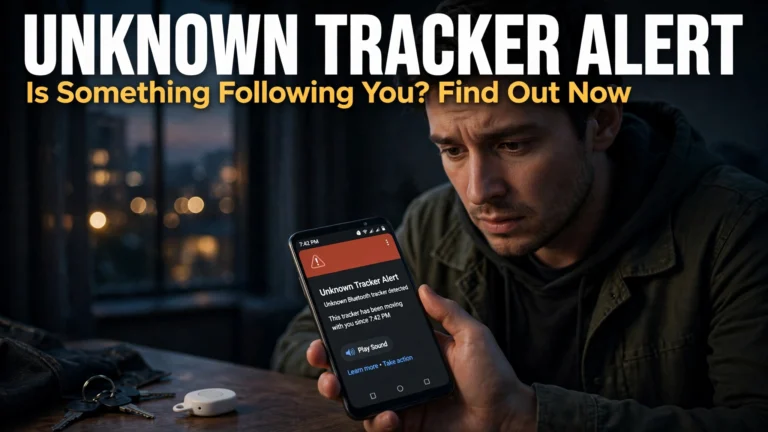
Bluetooth Trackers | Pebblebee Clip, Chipolo ONE Point, Moto Tag | Yes (Instant tag registration) | Yes (Battery status indicator) | N/A (Data tracking only) | Yes (Full Find My Device mesh network) | N/A (Built natively into Android OS) |
Smartwatches | Pixel Watch 3, Galaxy Watch 7 (Wear OS) | Yes (Instant setup card on initial boot) | Yes (Watch battery in Quick Settings) | N/A | Yes (Find My Device standalone GPS) | Yes (Prompts companion watch manager) |
Smart Home Matter Devices | Nest, Eve, TP-Link Tapo, Nanoleaf | Yes (Fast Pair for Matter commissioning) | N/A (Powered hardware) | N/A | Yes (Google Home ecosystem) | Yes (Links to Google Home app) |
Stylus Pens & Mice | USI 2.0 Active Styluses, Logitech Bluetooth mice | Yes (Prompts connection on proximity) | Yes (Stylus charge level in settings) | N/A | Basic proximity ring | Yes (Optional OEM utility) |
Step-by-Step: Setting Up a Fast Pair Accessory for the First Time
Pairing a certified Fast Pair device requires barely five seconds. Follow this universal workflow:
Step 1: Prepare Your Android Device
- Ensure that Bluetooth is turned ON in your Quick Settings panel.
- Verify that Location is enabled (required by Android for low-power Bluetooth beacon discovery).
- Ensure your smartphone has an active internet connection (Wi-Fi or mobile data) during initial setup so Google Play Services can fetch the device asset image and save the pairing key to your Google Account.
Step 2: Trigger Pairing Mode on the Accessory
- For true wireless earbuds: Place both earbuds inside the charging case, leave the lid open, and press and hold the physical button on the back or bottom of the case for 2 to 3 seconds until the LED light begins pulsing white.
- For headphones or speakers: Press and hold the power button until the pairing audio prompt chimes or the Bluetooth indicator light flashes rapidly.
- For smart trackers: Pull the battery isolation plastic tab or press the center button once to activate pairing beacons.
Step 3: Accept the Connection Card
- Bring the accessory within 1 foot of your Android phone.
- Unlock your smartphone screen.
- A sleek Google Fast Pair card will slide up from the bottom of your display, featuring the exact product image and name (e.g., "Sony WF-1000XM5").
- Tap the blue "Connect" button.
- Android establishes the encrypted connection, displays a green checkmark, and prompts you: "Device tied to your Google Account."
- If the manufacturer offers a dedicated companion app (such as Sony Headphones Connect or Bose Music), the screen will present a one-tap button to download or open the app from the Google Play Store.

Cloud Sync and Audio Switching: The Multi-Device Superpower
The true genius of Fast Pair lies in its cloud synchronization. In traditional setups, if you paired your earbuds with your phone and later wanted to watch a YouTube video on your Android tablet, you had to disconnect, unpair, and re-pair manually.
Account-Based Synchronization
When you complete a Fast Pair setup, Google encrypts the pairing token and associates it with your Google Account across the Google Cloud Key Management Service. When you pick up your Pixel Tablet or Chromebook running ChromeOS, open your Bluetooth menu: your earbuds are already listed under "Saved Devices." Simply tap them, and your connection transfers instantly.
Intelligent Audio Switching
On supported premium headphones and earbuds (such as Pixel Buds Pro and Sony flagships), Fast Pair includes Audio Switching. If you are watching a movie on your Android tablet and an incoming voice call rings on your smartphone, the headphones automatically pause the movie and switch audio channels to your phone so you can answer the call. Once you hang up, the audio seamlessly switches back to the tablet and resumes movie playback.
Locating Lost Accessories with Find My Device Integration
Losing a single wireless earbud or leaving a Bluetooth headphone case behind in a coffee shop is a common nightmare. Fast Pair directly links your accessories into Google’s massive, crowdsourced Find My Device network:
Checking Real-Time Battery Levels
Whenever your Fast Pair earbuds are connected, swipe down your Quick Settings panel or open device settings. Android displays distinct battery percentages for the Left Earbud, Right Earbud, and Charging Case. You also receive proactive low-battery notifications when it is time to recharge.
Ringing a Misplaced Earbud
- Open the Find My Device app on your Android phone (or visit google.com/android/find).
- Select your connected earbuds from your device list.
- If the earbuds are within Bluetooth range (e.g., slipped between couch cushions), tap Play Sound.
- You can choose to ring only the Left bud or only the Right bud. The earbud will emit a progressively louder high-frequency chirp, guiding you to its location.
Crowdsourced Offline Location Tracking
If you leave your headphones behind on a commuter train or in a restaurant across town, Bluetooth range is severed. Google’s Find My Device network utilizes millions of encrypted, privacy-preserving Android devices worldwide to detect the accessory’s BLE beacon. The network securely triangulates the accessory's location and updates the map on your phone, providing turn-by-turn navigation back to where you lost it.

Troubleshooting: What to Do If Fast Pair Does Not Appear
If you open an accessory case and the Fast Pair card fails to appear on your Android screen, execute this rapid troubleshooting checklist:
- Verify Google Play Services Permissions: Open Settings > Google > Devices & sharing > Devices. Verify that "Scan for nearby devices" is toggled ON.
- Cycle Bluetooth and Location: Turn Bluetooth and Location off in Quick Settings, wait 5 seconds, and toggle them back on. Location services are strictly required for low-energy beacon discovery.
- Clear Previous Pairings (Factory Reset): If the accessory was previously paired with another phone or laptop via standard manual Bluetooth, it may not broadcast Fast Pair beacons. Perform a factory reset on the accessory (consult manufacturer instructions, typically holding the case button for 10 to 15 seconds until the LED flashes orange or red) to clear memory and re-enter fresh discovery mode.
- Ensure Screen Is Unlocked: For security reasons, Android suppresses new Fast Pair pop-up cards while the screen is locked to prevent unauthorized accessories from pairing in public. Always wake and unlock your display before opening the accessory case.
Frequently Asked Questions (FAQ)
Does Fast Pair work on Samsung Galaxy smartphones?
Yes. Fast Pair is an integrated feature of Google Play Services, which is standard on all certified Android smartphones, including Samsung Galaxy devices. While Samsung also operates its own proprietary "Quick Share / Galaxy Buds" pop-up for Samsung-branded earbuds, all third-party Fast Pair accessories (Sony, Bose, JBL, Jabra) display the standard Google Fast Pair card on Galaxy phones.
Can an iPhone use Android Fast Pair?
No. Fast Pair is an Android operating system framework developed by Google. Apple iOS uses its own proprietary pairing protocol for AirPods and Beats. However, Fast Pair accessories can still connect to iPhones using traditional, manual Bluetooth settings menus.
Is my personal location shared with accessory manufacturers through Fast Pair?
No. Fast Pair handles pairing keys and device discovery strictly through Google Play Services. Third-party accessory makers receive zero access to your GPS location, Google Account credentials, or personal identity.
Does Fast Pair work without an internet connection?
Initial pairing requires an active internet connection to download the device's high-resolution visual card and sync the encryption keys to your Google Account. Once paired, however, reconnecting, battery level monitoring, and audio playback operate completely offline.
What is "Fast Pair for Matter" in smart home devices?
Fast Pair for Matter allows smart home hardware (such as smart plugs, smart light bulbs, and security sensors) to be onboarded instantly. When you power on a new Matter smart home gadget, your Android phone detects it automatically, displays a setup card, commissions the device onto your home Wi-Fi network, and adds it to your Google Home app with a single tap.
Can I rename a Fast Pair device permanently?
Yes. In your phone’s Bluetooth settings, tap the gear icon next to your paired device and select the pencil icon to rename it. Fast Pair synchronizes this custom name across your Google Account, so your earbuds will reflect your personalized name on your tablet and Chromebook as well.
Conclusion: The Seamless Standard for Modern Mobile Ecosystems
Google’s implementation of Android Fast Pair stands as one of the most successful quality-of-life enhancements in mobile computing history. By abstracting away the confusing technical complexities of legacy Bluetooth and replacing them with proximity beacons, asymmetric cloud encryption, and seamless multi-device continuity, Fast Pair delivers an effortless user experience that rivals any proprietary closed ecosystem.
Whether you are unwrapping a pair of flagship noise-canceling headphones, setting up a smart tracker for your keys, or deploying smart home Matter sensors, mastering Google Fast Pair setup ensures your Android hardware ecosystem communicates in total, unified harmony throughout 2026.