

Your laptop’s built-in webcam is probably terrible — grainy, washed out, and unflattering in anything but perfect light. Meanwhile, the camera in your pocket shoots crisp 4K video. If you want to use android phone as webcam, you can bridge that gap in about ten minutes: your phone becomes a high-quality camera, your computer treats it like any other webcam, and your Zoom and Meet calls instantly look dramatically better.
This guide shows you how to use android phone as webcam in 5 proven steps, using the best apps for the job (DroidCam, Camo, and Iriun), over both USB and Wi-Fi. We will cover setup for Zoom, Google Meet, and OBS, plus the tips that separate a decent result from a genuinely professional one.
Why Use Your Android Phone as a Webcam?

The argument is simple: even a mid-range Android phone from the last few years has a better camera than almost any laptop webcam. Phone cameras benefit from larger sensors, better lenses, sophisticated image processing, and — critically — the ability to position the camera at eye level instead of staring up your nose from below the screen.
The practical benefits:
- Sharper image. Phone cameras resolve far more detail than typical 720p laptop webcams.
- Better low light. Modern phones have night modes and large apertures that laptop cameras cannot match.
- Flexible positioning. Prop the phone on a stack of books or a cheap tripod at eye level for a flattering angle.
- Zero cost. You already own the hardware. The apps are free or cheap.
- Bonus features. Many webcam apps add portrait-mode background blur, manual focus, and exposure controls.
Whether you are in back-to-back work calls, streaming on OBS, or recording video lessons, upgrading from a laptop webcam to your phone camera is the single biggest quality jump you can make for free.
What You Need Before You Start
Gather these before step 1:
- An Android phone running Android 7.0 or newer (newer is better for camera features).
- A computer running Windows, macOS, or Linux. All three are supported by the apps below.
- A webcam app. We recommend DroidCam (best free option), Camo (best quality and features), or Iriun (simplest setup). Details below.
- A USB cable (for the most reliable connection) or a shared Wi-Fi network (for wireless convenience).
- A phone stand or tripod. Even a stack of books works. Eye-level positioning matters more than any app setting.
Optional but recommended: a charger or long cable, because streaming video drains the battery, and decent lighting — even a desk lamp aimed at your face beats any camera upgrade.
How to Use Android Phone as Webcam: The 5 Steps at a Glance

Before diving into the details, here is the full process to use android phone as webcam in brief: (1) choose a webcam app, (2) install it on your phone and computer, (3) connect via USB or Wi-Fi, (4) select the phone as your camera in your meeting app, and (5) optimize framing and lighting. Each step is explained in full below.
Step 1: Choose Your Webcam App
Three apps dominate this space. Pick one:
DroidCam — best free option. The classic choice. The free version streams 480p video over Wi-Fi or USB, which already beats most laptop webcams. The paid version (a few dollars, one-time) unlocks 720p/1080p, removes ads, and adds camera controls. DroidCam has been around for years, works on Windows and Linux, and is the most battle-tested option.
Camo — best quality and features. Camo offers the slickest experience: up to 4K streaming, portrait-mode background blur, manual focus and exposure, and a polished interface. It works on Windows and macOS. The free tier is generous for basic use; the Pro subscription unlocks the full resolution and advanced controls. If video quality is your top priority, start here.
Iriun — simplest setup. Iriun focuses on doing one thing with minimal fuss: install the phone app and the PC client, and they find each other automatically. Free for basic use with good quality, paid upgrade for 4K and removed watermark. Great for less technical users.
All three work with Zoom, Meet, Teams, and OBS — they present themselves to your computer as standard webcam devices. Our recommendation: try DroidCam free first. If you love the result and want more, evaluate Camo. Any of the three will let you use android phone as webcam reliably; the differences are in resolution ceilings and extra features.
Step 2: Install the App on Your Phone and Computer
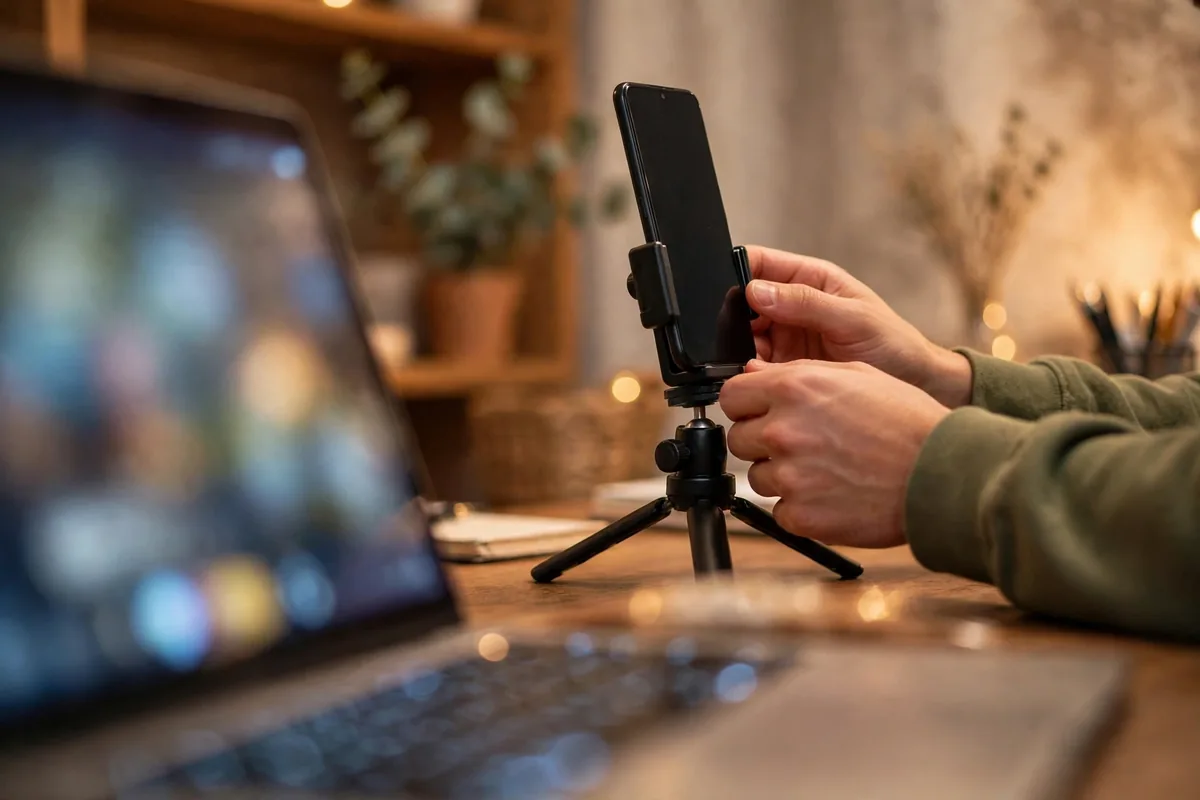
This is a two-part installation — you need the app on both devices.
- On your Android phone, install your chosen app from the Google Play Store (DroidCam, Camo, or Iriun Webcam).
- On your computer, download the companion client from the app’s official website. This is important: get it from the official site, not a random download portal. The PC client is what makes your computer recognize the phone as a webcam.
- Install the PC client and restart your computer if the installer asks. (Driver installation on Windows sometimes needs the reboot.)
- Grant the phone app its permissions: camera and microphone access are required. Deny nothing it asks for during setup — without camera permission, there is no video.
Keep both the phone app and the PC client updated to matching versions. Mismatched versions are the most common cause of connection failures.
Step 3: Connect Your Phone via USB or Wi-Fi
You have two connection options. USB is more reliable; Wi-Fi is more convenient.
Option A: USB Connection (Recommended)
- On your phone, enable Developer Options (Settings > About phone > tap Build number seven times), then turn on USB debugging in Developer Options.
- Connect the phone to your computer with a USB cable — use a data-capable cable, not a charging-only one.
- Open the webcam app on your phone and select the USB mode.
- Open the PC client — it should detect the phone automatically. If not, check that USB debugging is on and try a different cable or port.
USB gives you the lowest latency and the most stable connection, and it charges your phone while you stream. For important meetings and OBS streaming, USB is the way to go.
Option B: Wi-Fi Connection
- Make sure your phone and computer are on the same Wi-Fi network (the same band — both on 2.4 GHz or both on 5 GHz; mixed bands sometimes fail to discover each other).
- Open the webcam app on your phone. It will display an IP address and port (something like 192.168.1.5:4747).
- Open the PC client and enter that IP address, or let it auto-discover the phone.
- Tap start on the phone app. Video should appear in the PC client within seconds.
Wi-Fi is wonderfully convenient — no cables, phone can sit anywhere in the room — but it is subject to network congestion. If your video stutters on Wi-Fi, switch to USB before blaming the app. A strong 5 GHz signal makes a noticeable difference when you use android phone as webcam wirelessly.
Step 4: Select Your Phone as the Camera in Zoom, Meet, or OBS
With the connection live, tell your apps to use the phone instead of the built-in webcam.
Zoom. During or before a meeting, click the arrow next to the video icon and choose DroidCam / Camo / Iriun from the camera list. In Settings > Video you can set it as the default camera so you never have to switch again.
Google Meet. Click the three-dot menu > Settings > Video, and select your phone from the camera dropdown. Meet remembers your choice. For official Meet documentation, see support.google.com/meet.
Microsoft Teams. Go to Settings > Devices and choose the phone under Camera.
OBS. Add a new source > Video Capture Device, and select the DroidCam/Camo/Iriun device from the dropdown. In OBS you can also add the phone as a second camera angle alongside screen capture — a popular setup for tutorials and streams. The OBS project site at obsproject.com has documentation if you are new to the software.
Do a test call before anything important. Open the camera preview, check your framing and lighting, and speak a few sentences to confirm the microphone path works (you can use the phone’s mic or keep using your headset — both work).
Step 5: Optimize Quality — Framing, Lighting, and Settings
Setup gets you running; optimization makes you look professional.
Position at eye level. Stack books, use a tripod, or mount the phone on a monitor arm. The camera should be at or slightly above eye level, about an arm’s length away. Looking slightly up at the camera is flattering; looking down at a laptop camera is not.
Light your face. Face a window for the best free lighting. No window? Put a desk lamp behind your monitor aimed at your face. Avoid bright light behind you — it turns you into a silhouette. Even phone cameras cannot fix terrible backlight.
Clean the lens. A quick wipe with a soft cloth. Phone lenses collect pocket grease, and a smudged lens is the number one cause of “why does my phone webcam look hazy.”
Use the rear camera if possible. The rear camera is significantly better than the selfie camera on every phone. The catch: you cannot see the preview. Solution: position the phone, then check framing using the PC client’s preview window or a mirror behind your monitor. For most calls the selfie camera is fine, but for recordings and streams, the rear camera is worth the hassle.
Lock focus and exposure. In your webcam app, tap your face to lock focus and exposure. This prevents the pulsing brightness shifts that happen when auto-exposure hunts during a call.
Mind the battery. Streaming video is power-hungry. On USB you are charging simultaneously — no worry. On Wi-Fi, plug in a charger or you may drain 20–30% per hour.
Mute notifications. Enable Do Not Disturb on the phone before important calls. Nothing undermines professionalism like a message preview popping up — and on some setups, notification sounds route through the call.
USB vs. Wi-Fi: Which Should You Use?
| Factor | USB | Wi-Fi |
|---|---|---|
| Reliability | Excellent — direct connection | Good — depends on network |
| Latency | Lowest (~50–100 ms) | Higher (~150–300 ms) |
| Setup effort | Needs USB debugging + cable | Just the apps |
| Charging | Charges while streaming | Drains battery |
| Mobility | Tethered to the computer | Free placement anywhere |
| Best for | Important meetings, OBS streaming | Casual calls, quick setups |
Our take: use USB for anything that matters and Wi-Fi for convenience. Most people end up with a dedicated cable at their desk and use Wi-Fi only when traveling. Either way, once you use android phone as webcam for a week, going back to a built-in laptop camera feels like a downgrade.
Troubleshooting Common Problems
PC client does not see the phone. Check that both apps are the same version, that USB debugging is enabled (USB mode), or that both devices are on the same Wi-Fi network and band (Wi-Fi mode). Restart both apps. Temporarily disable your firewall to test whether it is blocking the connection.
Video is choppy or freezes. On Wi-Fi, move closer to the router or switch to USB. Lower the streaming resolution in the app settings — 720p smooth beats 1080p stuttering. Close bandwidth-heavy apps on the computer.
No audio. Decide which microphone you want: the phone’s or the computer’s. In your meeting app’s audio settings, select the right input explicitly rather than leaving it on default. If using the phone mic, make sure the phone is close enough to pick up your voice clearly.
App crashes when starting the stream. Clear the phone app’s cache, reinstall the app, and make sure no other app is using the camera. On some phones, aggressive battery optimization kills the webcam app in the background — exempt it from battery optimization in Settings.
Image is upside down or mirrored. Most webcam apps have a rotation/mirror toggle in settings. Zoom and Meet also have mirror options. This is a settings issue, not a defect.
More Ways to Put Your Phone Camera to Work
Once your phone is a webcam, you will find more uses for it. Our guide on how to screen record on Android pairs well with webcam setups for creating tutorials — record the phone screen while the phone camera captures you. If you present from your couch, learn how to cast Android to TV to put your slides on the big screen while your phone handles the camera.
And since you will be on more video calls, it is worth making sure your messaging apps are the right ones for the job. Our comparison of WhatsApp vs Telegram vs Signal covers which is best for video calls, privacy, and group communication.
FAQ
Is it free to use my Android phone as a webcam?
Yes, to start. DroidCam, Camo, and Iriun all have free tiers that already outperform most laptop webcams. Paid upgrades (typically a few dollars one-time or a modest subscription) unlock higher resolutions, remove watermarks or ads, and add pro controls. Try free first — you may never need to pay. The fact that you can use android phone as webcam at no cost is what makes this upgrade such an easy win.
Does using my phone as a webcam drain the battery fast?
Video streaming is demanding — expect 20–30% battery drain per hour on Wi-Fi. Over USB, the phone charges while streaming, so battery is a non-issue. For long sessions on Wi-Fi, plug in a charger.
Can I use the rear camera instead of the selfie camera?
Yes, and you should for the best quality — the rear camera is much better on every phone. The trade-off is that you cannot see yourself while framing the shot. Use the PC client’s preview window to check your framing, or prop a small mirror behind your monitor.
Will this work with Microsoft Teams and other apps?
Yes. These apps present your phone as a standard webcam device, so any application that can use a webcam — Zoom, Meet, Teams, Skype, Discord, OBS — can use your phone. If an app does not list it, restart the app after starting the phone stream. Once you use android phone as webcam in one app, the same setup carries over to all the others automatically.
Is there noticeable lag compared to a real webcam?
Over USB, latency is typically 50–100 ms — imperceptible in conversation. Over Wi-Fi, expect 150–300 ms, which most people do not notice but can feel slightly “off” in fast back-and-forth discussion. For anything interactive, USB is the safer choice.
Conclusion
Learning to use android phone as webcam is one of those upgrades that feels disproportionate to the effort: ten minutes of setup, and every video call you make from now on looks dramatically better. Install DroidCam, Camo, or Iriun on your phone and computer, connect over USB for reliability or Wi-Fi for convenience, select the phone in your meeting app, and spend five minutes on lighting and framing.
Your colleagues will notice the difference immediately — and they will assume you bought an expensive webcam. Let them wonder.




What do you think?
Share your experience or ask a question. A useful conversation starts with you.
Join the discussion