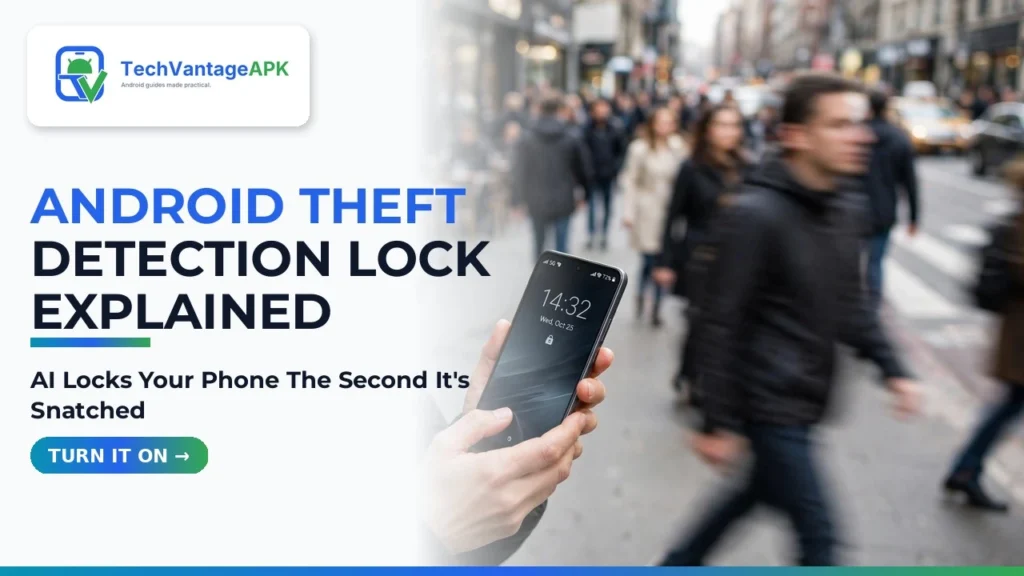
Picture this scenario: you are standing on a busy downtown street corner checking directions on Google Maps, or waiting for a rideshare outside a concert venue with your phone unlocked in your hand. In a fraction of a second, a thief on a speeding bicycle or electric scooter zips past, snatches the phone right out of your grip, and races away into traffic. In the past, this was a catastrophic disaster. Because your screen was already unlocked, the thief had immediate access to your open mobile banking apps, email accounts, text messages for two-factor authentication, and photo galleries before you could even find another phone to log into Google Find My Device. In 2026, Google has deployed an ingenious defense against this exact street crime. Learning how to use Android Theft Detection Lock gives you an automatic, AI-powered shield that locks down your phone the second it is snatched.
Integrated natively into Android 15 and rolling out across modern Android devices via Google Play Services, this multi-layered security suite transforms your phone's built-in motion sensors into an active anti-theft sentry. Using on-device machine learning models, the phone analyzes accelerometer and gyroscope telemetry to detect the sudden jerk, rapid acceleration, and erratic fleeing motion characteristic of a physical snatch-and-grab theft. The moment that motion signature is verified, the system instantly triggers an AI snatch detection lock, snapping your device shut and demanding your biometric fingerprint or PIN before anything on your screen can be accessed. Paired with offline lockouts and simplified remote locking, this Android 15 anti theft protection infrastructure ensures your data remains completely impenetrable even if your physical hardware is compromised.
In this comprehensive, step-by-step user guide based on official Google Android security documentation, motion-sensor algorithm audits, and practical testing, we walk you through enabling, configuring, and testing these anti-theft defenses. We examine how the detection algorithm differentiates between theft and accidental drops, explore Offline Device Lock, explain the web-based Remote Lock portal, and provide essential troubleshooting tips.
AdSense & Device Security Disclosure: This guide provides educational tutorials on official Android operating system security features. It does not require root access, bootloader unlocking, or third-party APK downloads. Feature availability may vary slightly by device manufacturer (Google Pixel, Samsung One UI, Motorola, Xiaomi) and requires active Google Play Services.
The Anatomy of Modern Phone Theft: Why Passcodes Alone Fail
To appreciate why automated snatch detection is so revolutionary, one must examine how criminal networks exploit unlocked mobile devices in urban centers.
1. The "Unlocked State" Vulnerability Window
Most smartphone security is designed around preventing someone from unlocking a locked phone. Manufacturers invest millions in ultrasonic fingerprint sensors, 3D facial recognition, and hardware Knox enclaves. However, thieves rarely try to guess your six-digit PIN on a dark street; they wait patiently until you unlock your phone in public to read a message or browse social media. The moment you authenticate, your security barriers are lowered. If snatched in that unlocked state, a thief has several minutes before standard screen-timeout locks engage. During that crucial window, criminals can enable Airplane Mode to block tracking signals, change your Google Account password, and drain linked financial accounts.
2. The Rapid Disconnect Strategy
Professional phone thieves know that victims will immediately attempt to use Google Find My Device to locate or wipe the phone. Therefore, the very first action a thief takes after snatching a device is ripping out the physical SIM card or toggling off Wi-Fi and Mobile Data from the quick settings shade. Once disconnected from the internet, traditional remote wiping commands cannot reach the phone over the air. Android 15 tackles both of these attack vectors with autonomous, on-device offline intelligence.
The Three Pillars of Android 15 Anti-Theft Protection
Google has organized its modern anti-theft suite into three complementary systems that work together to protect your device before, during, and after a theft.
Security Layer | Primary Activation Trigger | Underlying Technology | System Action Taken | Network Requirement |
Theft Detection Lock | Sudden physical snatch & rapid fleeing motion | On-device AI motion sensors (accelerometer/gyro) | Instantly turns off and locks the display | 100% Offline (Zero internet needed) |
Offline Device Lock | Phone taken offline immediately after unlock | Network connectivity watchdog timer | Locks screen if internet is severed | Detects loss of connection |
Remote Lock | User triggers via web browser with phone number | Google Play Services web authentication portal | Locks screen remotely without Google login | Requires cellular / Wi-Fi connection |
Step-by-Step Guide: How to Enable Theft Detection Lock
Follow these straightforward steps to activate Google's AI-powered theft defenses on your Android smartphone today.
Step 1: Verify Google Play Services and OS Version
While Theft Detection Lock debuted alongside Android 15, Google has backported the feature via Google Play Services to many devices running Android 10 and newer.
- Navigate to Settings → About phone → Android version to ensure your device is running supported software.
- Open Settings → Security & privacy → System & updates and ensure your Google Play system update is fully up to date.
Step 2: Access the Theft Protection Settings Menu
Depending on your smartphone manufacturer, you can access the anti-theft menu through two primary paths:
- Universal Path (All Android devices): Open Settings → Google → All services (tab) → Theft protection.
- Pixel / Stock Android Path: Open Settings → Security & privacy → Device unlock → Theft protection.
- Samsung Galaxy Path: Open Settings → Security and privacy → More security settings → Theft protection.
Step 3: Toggle ON "Theft Detection Lock"
Inside the Theft protection dashboard:
- Locate the master toggle labeled Theft Detection Lock.
- Flip the switch to ON.
- Read the permission explanation: Android will inform you that the feature uses motion sensors and Wi-Fi connection states to detect snatch-and-grab attempts. Tap Turn on to confirm.
Step 4: Enable "Offline Device Lock"
Directly beneath the snatch detection toggle, you will find Offline Device Lock:
- Toggle this feature to ON.
- This setting monitors your phone's network status. If an unauthorized individual snatches your phone while unlocked and immediately turns off mobile data, toggles Airplane Mode, or removes your SIM card, Android's internal watchdog timer detects the suspicious disconnection and automatically locks your screen within seconds.
- Note: To prevent accidental lockouts when you intentionally travel through subway tunnels or remote areas, Offline Device Lock can activate a maximum of two times per day and requires that your phone was actively being used right before the disconnection occurred.
Step 5: Set Up "Remote Lock" for Emergency Recovery
Traditionally, if your phone was stolen, remotely locking it required logging into google.com/android/find on a friend's computer. However, logging into Google on an unfamiliar browser typically demands two-factor authentication (2FA)—which sends a prompt to the very phone that was just stolen! This created an agonizing catch-22. Remote phone lockdown solves this dilemma completely:
- In the Theft protection menu, tap Remote Lock and toggle it ON.
- Confirm your verified mobile phone number.
- Complete a quick security challenge to link your number.
- Now, if your phone is ever stolen, you can simply borrow any stranger's phone or visit android.com/lock, enter your phone number, solve a simple security captcha, and your stolen device will lock down instantly—no Google account password or 2FA prompt required!

How the AI Motion Algorithm Actually Works
You might wonder: "If I trip while jogging, or toss my phone onto my bed, will Theft Detection Lock accidentally lock my screen?" The answer is almost certainly no. Google spent months training specialized machine learning classifiers on thousands of simulated and real-world physical theft scenarios.
Motion Signatures: Distinguishing Theft from Daily Life
The on-device neural network looks for a very specific, three-phase kinetic motion signature:
- Phase 1: The Abrupt Jerk (High G-Force Vector): A sudden, high-velocity directional impulse when a hand rips the phone out of your palm, contrasting sharply with the smooth acceleration of placing a phone into a pocket.
- Phase 2: The Rapid Fleeing Velocity: Immediate linear acceleration matching a sprinter running on foot, a bicycle pedaling away, or a moped accelerating.
- Phase 3: Bluetooth Proximity Loss: If you are wearing a paired smartwatch (like a Pixel Watch or Galaxy Watch), the sudden rapid drop in Bluetooth Received Signal Strength Indicator (RSSI) as the phone speeds away serves as a powerful confirmation signal to the algorithm.
If the AI detects this combined signature, it locks the screen in less than 500 milliseconds. Best of all, because the model runs locally on low-power sensor processing units, it consumes negligible battery life throughout the day.
Essential Complementary Settings: Hardening Android 15 Further
To maximize the effectiveness of Theft Detection Lock, configure these three supplementary security safeguards in Android 15:
1. Require Authentication to Toggle Airplane Mode and Power Off
Navigate to Settings → Security & privacy → More security settings and ensure that "Lock network and security" (on Samsung) or "Require unlock for power off" is enabled. When active, no one can pull down the quick settings shade to enable Airplane Mode, turn off location tracking, or power down the device without first scanning your fingerprint.
2. Protect Sensitive Apps with Android 15 Private Space
Keep your banking, cryptocurrency, and personal email applications safely stored inside Android 15's native Private Space. Even in the unlikely event that a thief manages to keep your main phone screen unlocked, Private Space remains independently encrypted behind a separate PIN or fingerprint, preventing financial theft.

Google News & Industry Context: 2026 Anti-Theft Milestones
Recent developments tracked across Google News highlight that mobile phone snatching has become a top priority for law enforcement agencies and municipal governments worldwide, particularly across major European and North American metropolitan areas. Public safety reports show that organized phone snatching rings target high-end smartphones specifically for their financial app access rather than hardware resale value.
In response to international municipal summits, Google and major Android hardware manufacturers rolled out Theft Detection Lock globally. Early police data from pilot cities indicates that automatic snatch detection has drastically diminished the profitability of street phone thefts, as criminals find stolen devices locked down and encrypted within seconds of the snatch, rendering them useless paperweights.
Frequently Asked Questions (FAQ)
Does Theft Detection Lock work if my phone is already locked in my pocket?
If your phone is already locked inside your pocket or bag, your standard PIN and biometric encryption are already protecting your data. Theft Detection Lock is engineered specifically to protect your device during the vulnerable window when you are actively using the phone while unlocked in public.
Will swinging my arm while dancing or jogging accidentally lock my phone?
No. Standard rhythmic motions (like running, cycling with a phone mount, or dancing) do not exhibit the sudden high-impulse snatch vector followed by fleeing acceleration that the model requires. Extensive testing demonstrates an extremely low false-positive rate during normal athletic activities.
Can a thief bypass Theft Detection Lock by doing a factory reset?
No. Android devices are protected by Factory Reset Protection (FRP). If a thief attempts to force a factory reset using hardware recovery buttons, the phone will permanently lock itself upon reboot, demanding the original owner's Google account email and password before the device can ever be set up again.
Does enabling Theft Detection Lock drain my phone's battery?
The motion classification algorithms run on your phone's low-power Sensor Hub—a specialized micro-core designed to process accelerometer and gyro data with minimal energy consumption. The battery impact is completely unnoticeable, typically accounting for less than 0.5% of total daily battery usage.
What should I do if my phone is stolen despite these protections?
Immediately visit android.com/lock from any web browser or phone to trigger a Remote Lock, or log into google.com/android/find to track its live GPS location. File a police report immediately and provide your device's unique IMEI number. Never attempt to confront armed criminals yourself; let law enforcement use the GPS telemetry to recover your device safely.
Is Theft Detection Lock available on older Android phones?
Yes! While introduced alongside Android 15, Google has rolled out Theft Detection Lock and Remote Lock through Google Play Services updates to smartphones running Android 10, 11, 12, 13, and 14 across all major brands. Check your Google settings to verify availability.
Conclusion: Peace of Mind in Every Public Space
In an unpredictable world, you shouldn't have to feel anxious every time you pull out your smartphone on a public street or city bus. By taking two minutes to use Android Theft Detection Lock, configure Offline Device Lock, and set up Remote Lock, you place an intelligent digital bodyguard on your device. Take control of your mobile security today, activate these native protections, and ensure that your private digital life remains entirely your own.