
Fix Moisture Detected Warning Samsung: 8 Fixes
You plug in your Samsung Galaxy, and instead of the charging animation you get a dreaded water-drop icon: “Moisture detected in USB port.” If you are staring at the moisture detected error Samsung Galaxy owners know all too well, do not panic — and do not keep trying to charge. This guide explains what the warning means, the eight proven fixes that clear it, and how to tell a real moisture problem from a false alarm.
The good news first: in most cases this warning clears on its own once the port dries, and the fixes below resolve the stubborn cases without a repair shop visit. The critical rule is patience — forcing a charge into a wet port is the one thing that can turn a minor warning into actual hardware damage.
Why Your Samsung Shows the Moisture Detected Error Samsung Galaxy Users Fear
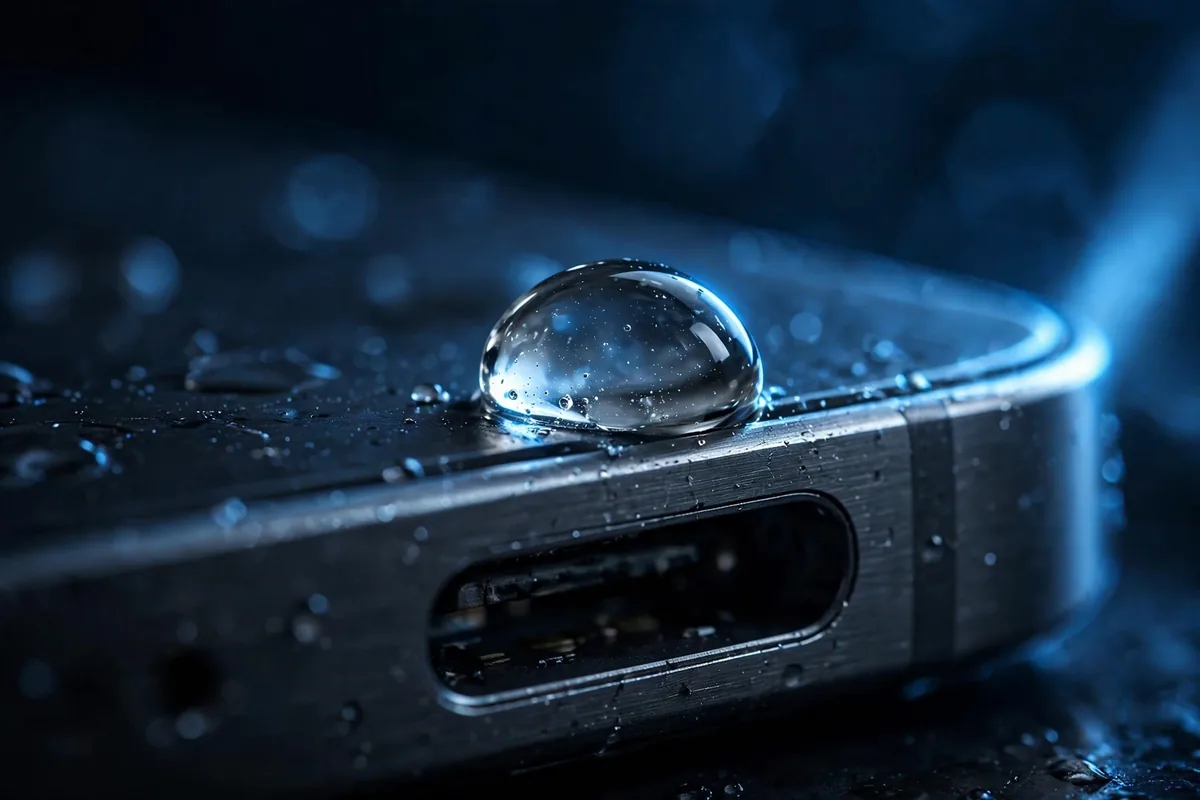
Since the Galaxy S7, Samsung phones carry a moisture sensor in the USB-C port. When it detects conductivity consistent with liquid, the phone blocks charging and displays the warning. This is a protective feature, not a malfunction: pushing current through a wet connector can corrode the pins or short the charging circuit.
Real triggers include obvious ones — rain, a steamy bathroom, sweat during a workout, or a drop in the sink. But the sensor is famously sensitive, and false positives are common. Lint packed into the port can trap humidity and mimic moisture. A recent software update has, on several Galaxy models, made the sensor oversensitive until a follow-up patch. Even rapid temperature changes (walking from air conditioning into humid outdoor air) can cause condensation the sensor reads as liquid.
Understanding which case you are in matters: a genuinely wet port needs drying time, while a false positive needs cleaning or a settings reset. The fixes below are ordered from simplest to most involved — start at the top.
How the Sensor Actually Works
The USB-C port contains two small moisture-detection pins separate from the charging pins. When liquid bridges them, resistance drops and the phone’s power management chip cuts charging current within milliseconds. The system then polls the sensor every few minutes; when readings return to normal, the warning clears automatically and charging resumes. This polling is why the fix feels like “waiting” — there is no manual reset, the phone simply re-tests until the port reads dry. It also explains phantom warnings: anything conductive enough to change the pin readings — damp lint, salt residue, even some cases’ metal shavings — looks like moisture to the sensor.
First: Do This Right Now (Safety Steps)
- Unplug the charger immediately. Do not tap “dismiss and charge anyway” if the phone offers it. Charging through moisture risks permanent port damage.
- Power off the phone if it was recently submerged. If the phone took a real dunking, turn it off and leave it off until you are confident it is dry inside and out.
- Remove the case. Cases trap moisture against the port. Take it off so air can circulate.
- Do NOT use a hair dryer on high heat, and do NOT stick anything metal into the port. Heat can damage seals and the battery; metal objects can short the pins. Both turn a drying problem into a repair bill.
- Do NOT charge wirelessly to “bypass” a soaked port unless the phone is truly dry. Wireless charging generates heat, which is the last thing a wet device needs.
8 Proven Fixes for the Moisture Detected Error
Work through these in order. Most users find the warning gone by fix 3 or 4.
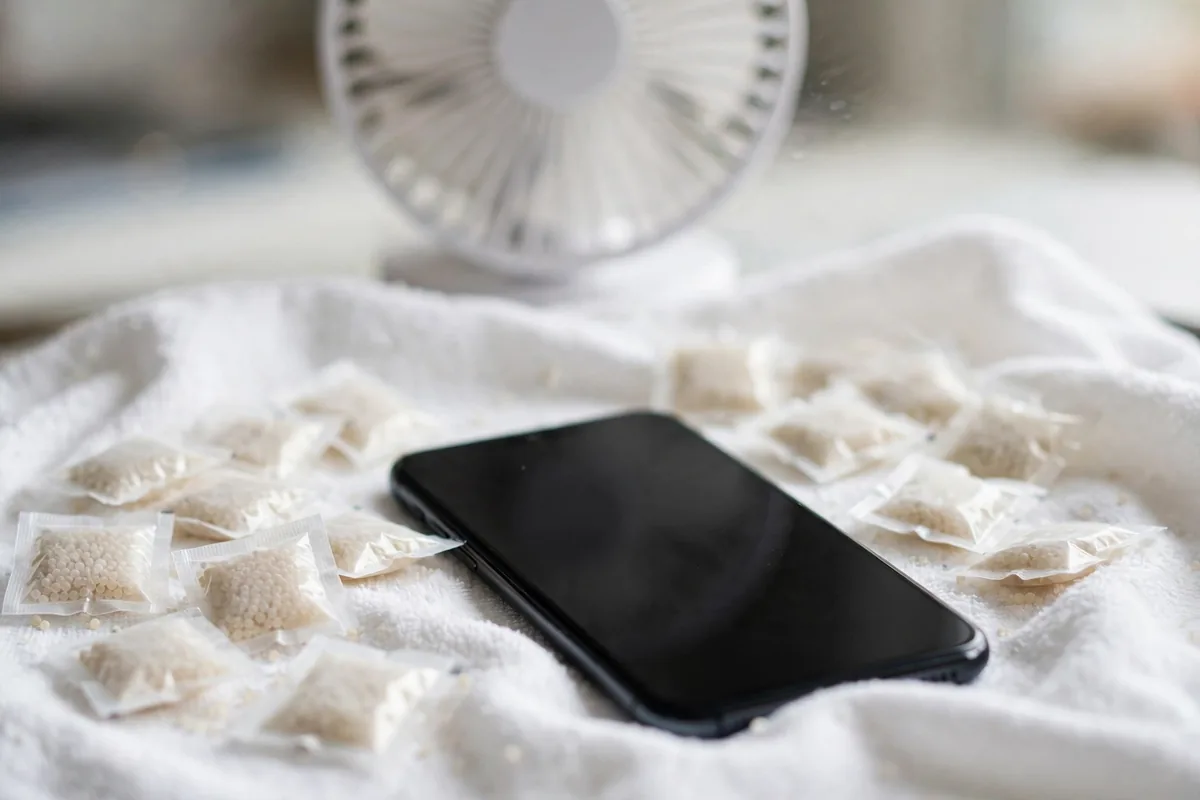
Fix 1: Dry the port with airflow. Hold the phone with the USB-C port facing down and gently shake it — 5 to 10 light shakes dislodge droplets. Then leave the phone in a well-ventilated room, port facing down, for at least 30 minutes. A fan blowing room-temperature air across the port speeds this up considerably.
Fix 2: Try the rice myth — correctly. Uncooked rice absorbs moisture slowly and can leave starch dust in the port, so it is not ideal. Silica gel packets (the kind that come in shoe boxes) work far better: seal the phone in a bag with several packets for a few hours. If you have neither, airflow alone is fine — just give it more time.
Fix 3: Clean lint and debris from the port. Power the phone off. Under bright light, inspect the USB-C port — you will often find a compacted wad of pocket lint. Gently tease it out with a wooden or plastic toothpick (never metal). This single step resolves a surprising number of “moisture” warnings, because damp lint is exactly what the sensor detects.
Fix 4: Clear the USB settings cache. A corrupted cache can leave the warning stuck after the port is dry. Go to Settings > Apps > tap the filter icon > Show system apps > find “USBSettings” > Storage > Clear cache (and Clear data if the option exists). Restart the phone afterward.
Fix 5: Charge wirelessly — once dry. If the port is dry but the warning persists, a wireless charger lets you power up while the sensor recalibrates. Only do this when you are confident no liquid remains; wireless charging a wet phone is unsafe.
Fix 6: Boot into Safe Mode. A third-party app can occasionally interfere with the charging subsystem. Press and hold the power button, then long-press “Power off” until “Safe mode” appears, and tap it. If the warning disappears in Safe Mode, a recently installed app is the culprit — uninstall suspects one by one.
Fix 7: Check for a software update. Samsung has shipped patches that recalibrated the moisture sensor on several Galaxy generations. Go to Settings > Software update > Download and install. An update will not dry a wet port, but it fixes the false-positive cases.
Fix 8: Inspect the cable and charger. A damaged cable with exposed wiring can trigger the sensor erratically. Try a different Samsung-certified USB-C cable and a different power brick. If the warning only appears with one cable, you have found your problem — replace the cable.
What the Warning Looks Like on Different Galaxy Models
The moisture detected error Samsung Galaxy phones show is not identical across generations. On recent One UI versions (5 and 6), you get a full-screen water-drop icon with the text “Moisture has been detected in your charger/USB port” and charging stops completely. Older models (Galaxy S8 through S10 era) showed a smaller notification with a “dismiss” option that some users tapped to force charging — an option Samsung later removed because it caused exactly the damage the sensor prevents. On foldables like the Galaxy Z Fold and Z Flip, the warning can also reference the hinge area sensors. If your warning looks different from descriptions online, check which One UI version you run (Settings > About phone > Software information) before following model-specific advice.
How Long Does Drying Actually Take?
For light exposure (rain, steam), 30–60 minutes of airflow usually suffices. After a real submersion, give it 24 hours powered off in a ventilated spot — the IP68 rating protects the internals, but the port cavity needs time. The sensor re-checks periodically, so the warning should clear on its own and the moisture detected error Samsung Galaxy displays will vanish without any action from you; there is no manual “reset moisture sensor” button.
Related Galaxy Fixes Worth Knowing
Charging-port issues rarely travel alone. If your battery has also been misbehaving, our Android battery draining fix guide covers 12 proven solutions from rogue apps to calibration. A sluggish phone compounds the frustration — speed up your Android phone with 14 fixes that actually work. And if this warning is one of several signs your device is aging, read when to upgrade your phone before spending money on repairs.
Samsung maintains official guidance for charging issues on Samsung Support, including model-specific notes on the moisture detection feature.
How to Prevent the Warning From Coming Back
- Keep the port clean. A monthly toothpick cleaning takes 30 seconds and prevents the lint-plus-humidity false positives that cause most phantom warnings.
- Use port covers if you work outdoors. Cheap silicone USB-C dust plugs keep rain and sweat out during workouts, hikes, or construction work.
- Dry the phone before charging after water exposure. Even “water-resistant” phones need the port dried — the IP rating covers the internals, not a wet connector being energized.
- Avoid charging in steamy bathrooms. Hot showers create exactly the condensation the sensor is tuned to detect.
- Update on time. Sensor calibration improvements ship in regular updates; postponing them leaves you exposed to the known false-positive bugs behind many reports of the moisture detected error Samsung Galaxy users post about online.
Moisture Detected vs Other Charging Errors
Not every charging problem is the moisture warning, and misdiagnosis wastes time. If your Galaxy shows “Check your charger connection” without the water-drop icon, the issue is usually the cable or brick, not moisture — try Fix 8 first. A phone that charges slowly but shows no warning at all likely has a dirty port (clean it) or a weak charger (use a 25W Samsung brick). And if the moisture detected error Samsung Galaxy owners dread appears only with one specific cable while others work fine, that cable has internal damage mimicking a sensor trip — replace it before touching any settings. Matching the symptom to the right fix is half the battle.
When to Visit a Service Center
See a technician if the warning persists for more than 48 hours in a dry environment after trying every fix above, if you see visible corrosion (green or white crust) on the port pins, or if the phone was submerged in salt water — salt accelerates corrosion far beyond what drying fixes. Also go in if wireless charging produces unusual heat, which can indicate deeper board-level moisture. Be honest about water exposure; technicians can tell, and accurate history gets you a faster diagnosis.
FAQ
Will the moisture detected error Samsung Galaxy phones show go away on its own?
Usually, yes. If the port is genuinely damp, the warning typically clears within 30–60 minutes of airflow drying as the sensor re-checks. If it persists beyond a few hours in dry conditions, you are likely dealing with lint, a cache glitch, or a false positive — work through the fixes above.
Is it safe to use wireless charging while the warning shows?
Only if the phone is actually dry. The moisture detected error Samsung Galaxy devices display blocks wired charging specifically; wireless charging bypasses the port sensor. If liquid is genuinely present, wireless charging heat can cause damage — dry first, then charge wirelessly while the sensor resets.
Can I disable the moisture detection warning?
There is no official toggle, and you should not want one — it exists to prevent short circuits. Some older models allowed dismissing it per-incident, but bypassing the protection risks corroding the charging pins. Fix the cause instead.
Does the warning mean my phone is not water resistant anymore?
No. The warning is the water resistance working as designed — the phone detected liquid and protected itself. However, water resistance degrades over time as seals age, and Samsung’s warranty does not cover liquid damage. Treat the rating as a safety net, not a feature.
Why does the warning appear when my phone never got wet?
The most common phantom causes are compacted lint holding humidity, condensation from temperature swings, a stuck USB settings cache, or an oversensitive sensor fixed by a software update. Fixes 3, 4, and 7 above address exactly these cases.
Conclusion
The moisture detected error Samsung Galaxy phones display looks alarming, but it is almost always a drying or cleaning problem — not a dying phone. Shake the port dry, give it airflow, clean out the lint, and clear the USB cache; that sequence resolves the vast majority of cases within the hour. Reserve the service center for persistent warnings, visible corrosion, or salt-water exposure. And going forward, a 30-second monthly port cleaning is the cheapest insurance against ever seeing that water-drop icon again.


What do you think?
Share your experience or ask a question. A useful conversation starts with you.
Join the discussion