
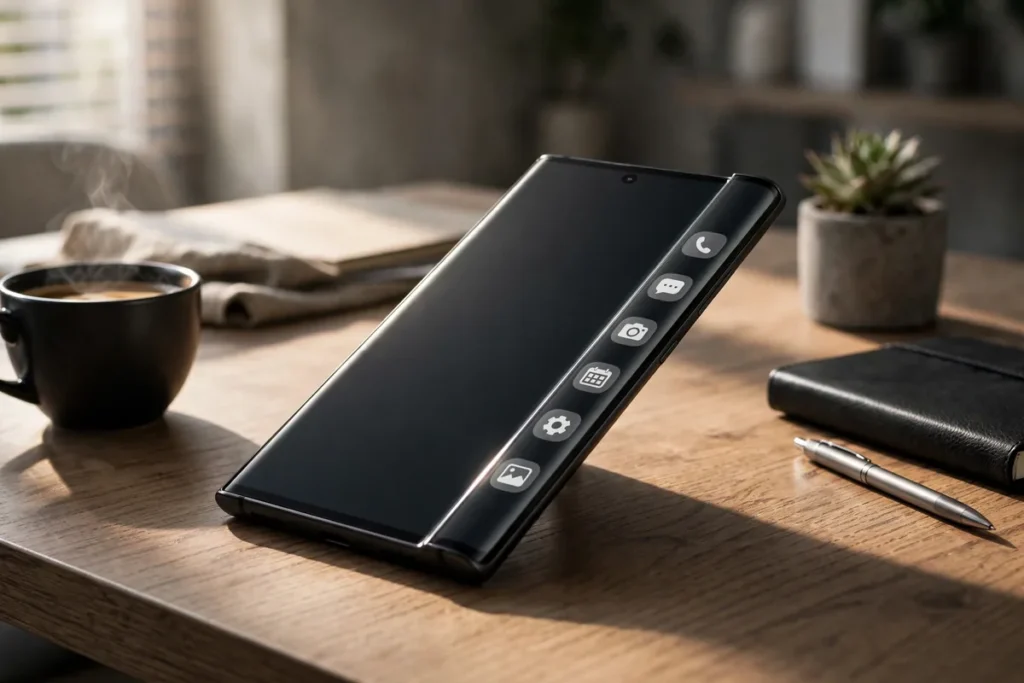
That slim translucent tab on the side of your Galaxy screen is not decoration; it is one of Samsung’s most useful features hiding in plain sight. Edge Panels slide out app shortcuts, tools, clipboard history, and smart utilities from any screen, without leaving what you are doing. These samsung edge panel tricks turn an overlooked handle into a productivity command center that saves hundreds of taps every week. See the Samsung Edge panels guide for official documentation.
This guide covers 8 practical samsung edge panel tricks for 2026: setup and customization, the most useful panels, app pairs for instant multitasking, Smart Select superpowers, and the settings that make panels feel invisible until needed.
Enable and Position Your Edge Panels
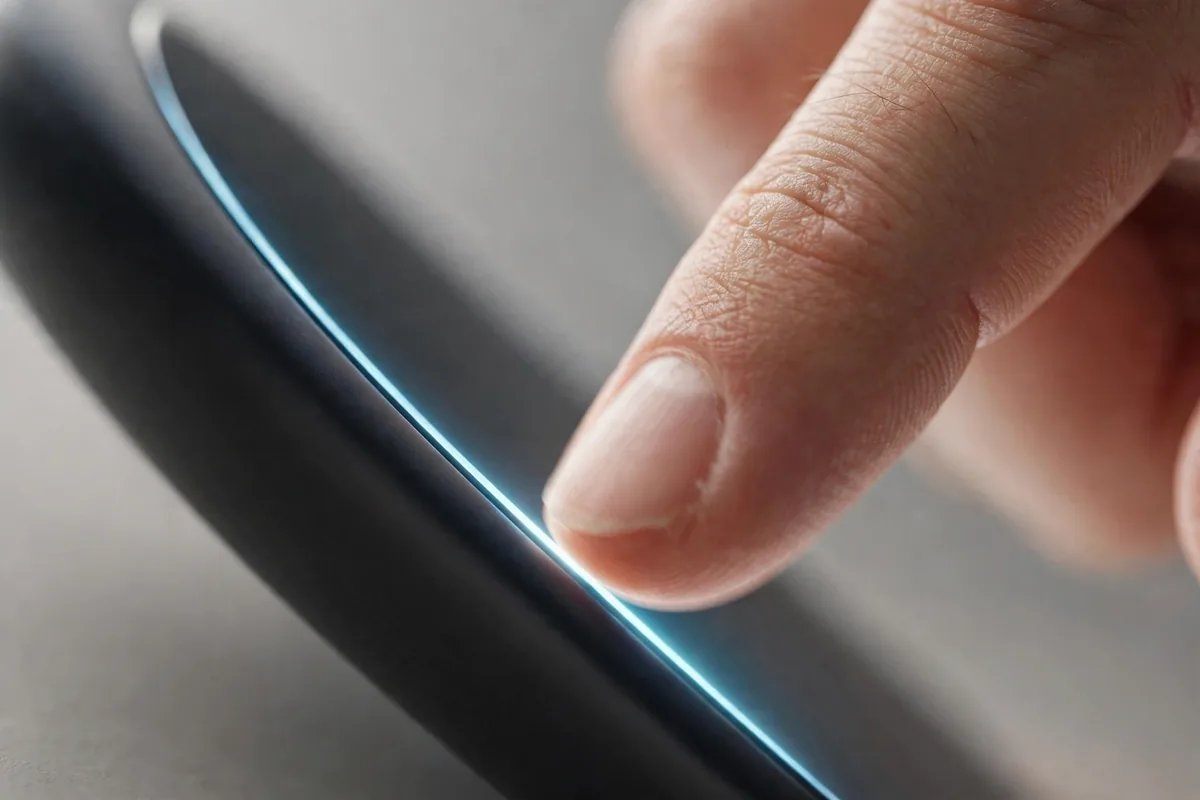
If you have never touched the feature, start here.
Setup
- Open Settings > Display > Edge panels.
- Toggle Edge panels on.
- Tap Panels to choose which panels are active.
- Under Handle settings, adjust position (left or right edge), transparency, and size.
Handle Tuning
- Transparency: make the handle nearly invisible if it distracts you; you will still feel where it is.
- Size: a larger handle is easier to grab; a smaller one stays out of the way.
- Position: place it where your thumb naturally rests, typically mid-screen on your dominant side.
This two-minute setup is the prerequisite for all other samsung edge panel tricks; an ill-positioned handle is why many people abandon the feature prematurely.
Samsung Edge Panel Tricks: Launch App Pairs Instantly
The Apps panel’s killer feature is launching two apps in split-screen with one tap.
Create an App Pair
- Open the Apps edge panel and tap the three-dot menu or edit icon.
- Select Create app pair.
- Choose two apps (e.g., YouTube and Chrome, Maps and Spotify).
- The pair appears as a single shortcut; tapping it opens both in split-screen.
Great Pairs to Try
- Maps + Spotify: navigation and music for every drive.
- YouTube + Notes: learn and take notes simultaneously.
- Calendar + Email: triage your day in one view.
- Browser + Calculator: research and compute without switching.
App pairs are the most transformative of all samsung edge panel tricks for multitaskers. Our split-screen guide covers the underlying multitasking mechanics.
Master Smart Select: Capture Anything
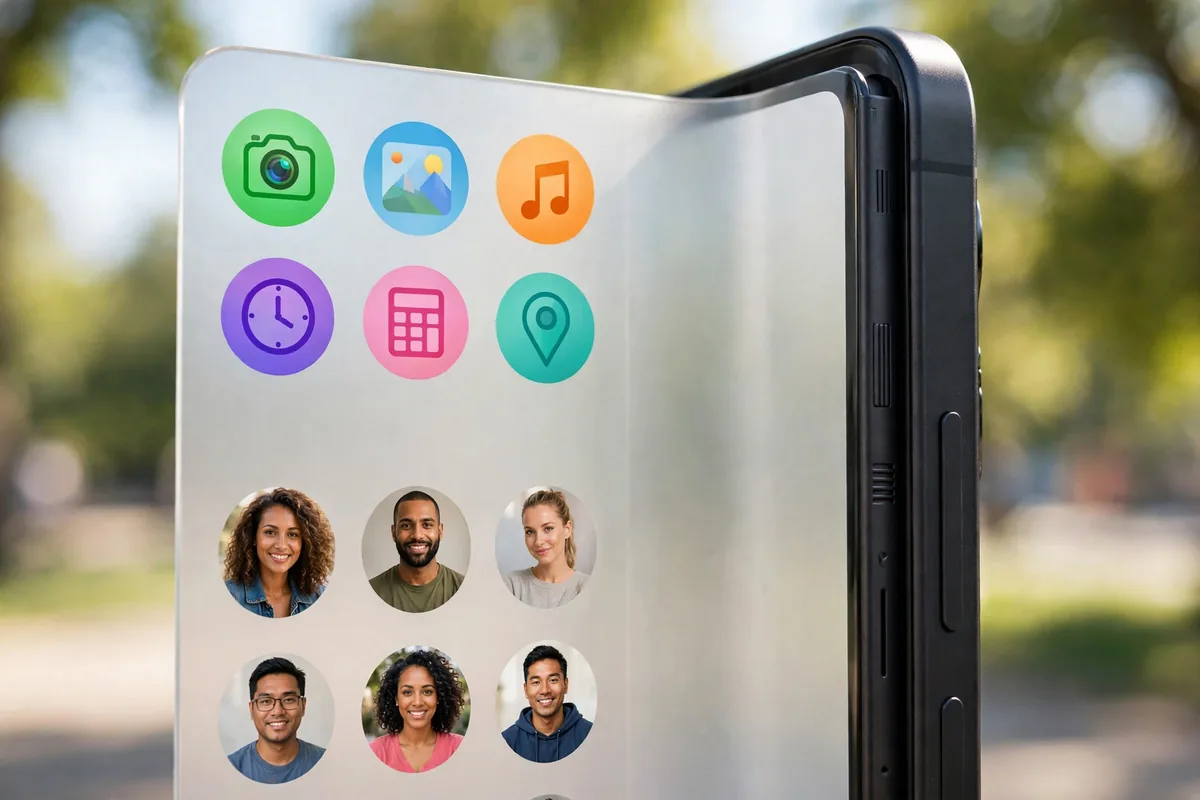
The Smart Select panel captures screen content in ways screenshots cannot.
What Smart Select Does
- Rectangle/oval capture: grab any screen region precisely.
- Pin to screen: keep a captured snippet floating over other apps (perfect for referencing a confirmation number while typing).
- GIF capture: record a short animated GIF of anything on screen.
- Extract text: pull text from the captured region via OCR.
Pro Uses
Pin a QR code to the screen while you switch apps to scan it. Capture a chat address and pin it over Maps while navigating. These samsung edge panel tricks with Smart Select replace three separate utility apps.
Samsung Edge Panel Tricks: The Clipboard Panel
Samsung’s clipboard panel in Edge keeps your copy history one swipe away.
- Enable the Clipboard panel under Edge panel settings.
- Swipe out the panel anytime to see recent copies.
- Tap any item to paste it into the current app.
Unlike Gboard’s clipboard (which is keyboard-bound), this works everywhere, including apps where the keyboard is hidden. It is one of those samsung edge panel tricks that copy-paste heavy users adopt instantly.
Quick Comparison Table
| Panel | What It Does | Best For |
|---|---|---|
| Apps | Shortcuts + app pairs | Multitasking |
| Smart Select | Advanced capture | Screenshots, GIFs |
| Clipboard | Copy history | Copy-paste work |
| Tools | Compass, ruler, torch | Utilities |
| Weather | At-a-glance forecast | Quick checks |
| Reminder | Quick notes | Capturing thoughts |
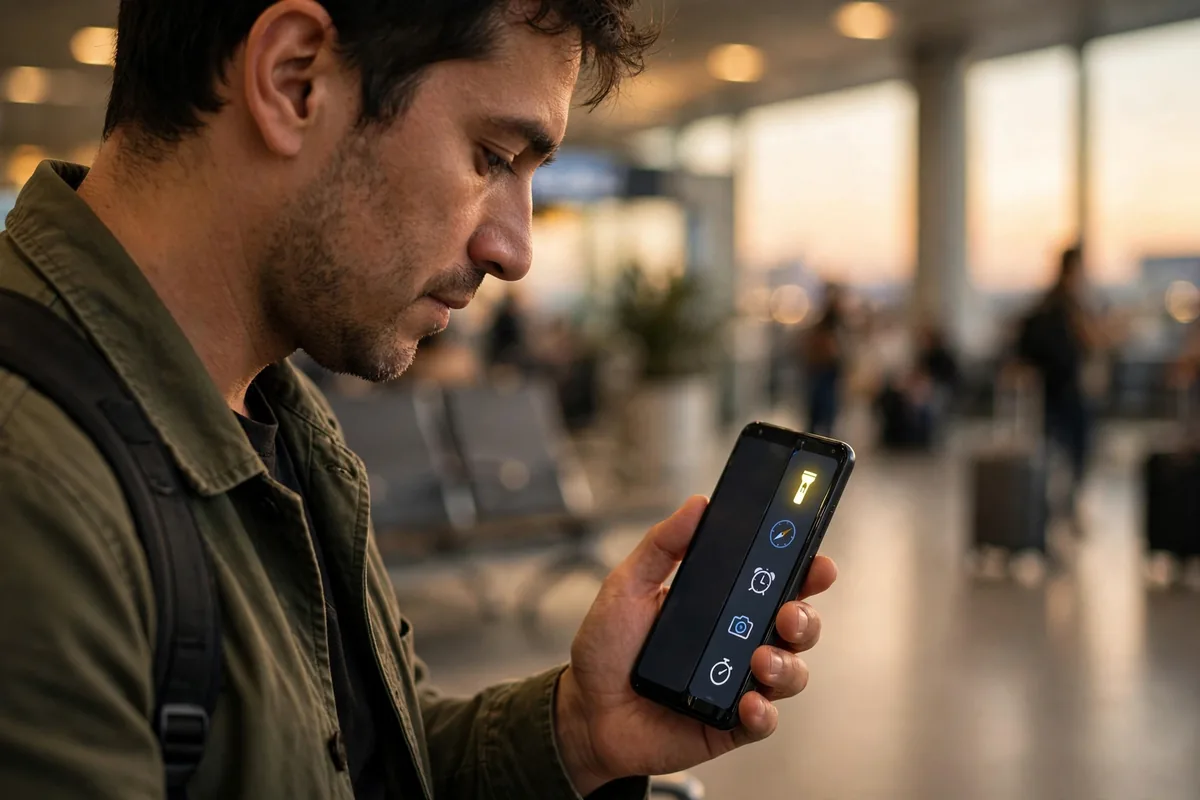
Tools Panel: Compass, Ruler, and Torch
The Tools panel packs genuinely useful instruments.
- Compass: a full compass for hiking and orientation.
- Ruler: on-screen measurement using the display.
- Torch: one-swipe flashlight brighter than the quick toggle.
- Counter: tap counter for inventories and events.
None of these merit a dedicated app, but together in one swipe they are indispensable. These samsung edge panel tricks for utilities shine in real-world moments: measuring furniture, finding north on a trail, counting attendees.
Samsung Edge Panel Tricks: People Panel for Speed Dial
The People panel puts your key contacts one swipe away.
- Enable the People panel.
- Add your most-called and most-texted contacts.
- Swipe, tap a contact, and choose call, text, or email.
Executives, parents coordinating pickups, and anyone with a short list of constant contacts save real time. It is old-school speed dial reimagined, and one of the simplest samsung edge panel tricks to set up.
Customize Panel Order and Content
The default panel set is generic; curate it ruthlessly.
- Go to Settings > Display > Edge panels > Panels.
- Reorder by dragging; put your most-used panel first.
- Disable panels you never use; fewer panels mean faster swiping.
- Download more from the Galaxy Store; third-party panels add news, sports, and finance.
Most users need only three or four panels. A bloated panel carousel defeats the purpose; these samsung edge panel tricks for curation keep the feature fast.
Samsung Edge Panel Tricks: Edge Lighting Integration
Panels and Edge Lighting combine for ambient awareness.
- Assign per-app Edge Lighting colors so the screen edge glows distinctively for key contacts.
- Edge Lighting+ (via Good Lock) adds custom effects and keyword triggers.
- The lighting works with the screen off on supported models.
This ambient notification system means you often do not need to open anything. Our notifications management guide covers the broader alert strategy these integrate with.
Related Guides
- Split Screen Android: 9 Multitasking Tricks That Work
- Android Notifications: 8 Pro Management Tips
- Best Android Launchers 2026: Top 7 Compared
Samsung Edge Panel Tricks: Tasks Panel for One-Tap Actions
The Tasks panel puts shortcuts to specific actions, not just apps, at your fingertips.
What Tasks Can Do
- Message a specific person: one tap opens a chat with your chosen contact.
- Call favorites: direct-dial shortcuts for your inner circle.
- App shortcuts: jump straight to a specific function, like composing an email or starting navigation home.
Setup
- Enable the Tasks panel in Edge panel settings.
- Tap the edit icon to add tasks: select contacts, choose actions, arrange order.
- The panel becomes a speed-dial for your digital life.
The difference from the People panel is granularity: Tasks can trigger specific actions, not just open contacts. These samsung edge panel tricks for task shortcuts compress multi-tap workflows into single gestures.
Weather and Reminder Panels for Glanceable Info
Two panels serve the “just checking” moments that punctuate the day.
- Weather panel: current conditions and hourly forecast without opening an app. Commuters check it while half-awake; travelers verify destination weather before packing.
- Reminder panel: quick-add reminders that sync with Samsung Reminders. Capture thoughts in two taps from any screen.
Neither justifies an app launch, which is exactly why they belong in Edge. These samsung edge panel tricks for glanceable information respect the reality that most phone checks take five seconds and should not cost fifteen.
Samsung Edge Panel Tricks: Gaming With Edge Panels
Edge Panels complement Samsung’s Game Launcher for mobile gamers.
- Quick app access: swipe out Discord or a walkthrough without leaving the game.
- Smart Select GIFs: capture and share gameplay highlights instantly.
- Do Not Disturb toggle: silence notifications mid-match from the Tools panel.
Competitive players lock their setup down: game in full screen, Edge handle providing controlled access to exactly the utilities they need. These samsung edge panel tricks for gaming balance immersion with practicality.
Troubleshoot Edge Panel Issues
Handle not responding
Increase handle size and reduce transparency in settings. Some screen protectors interfere with edge touch; adjust touch sensitivity under Display settings.
Panels feel slow to open
Disable unused panels to reduce the carousel length. Each active panel adds a swipe stop; three panels feel instant, ten feel tedious.
App pairs won’t create
Both apps must support split-screen mode. Some apps (certain banking and DRM video apps) opt out of multi-window; choose alternatives for those pairs.
Edge Lighting conflicts
If Edge Lighting+ customizations misbehave, reset them in Good Lock and reconfigure. Major One UI updates occasionally break custom lighting until modules update.
Samsung Edge Panel Tricks: Combine With Bixby Routines
Edge Panels become smarter when routines adapt them to context.
- Work hours: a routine could remind you to switch to your work app pair panel arrangement.
- Driving: combine with driving mode so Maps and music pairs are front and center.
- Bedtime: routines that enable Do Not Disturb pair naturally with a minimal late-night panel set.
While routines cannot directly reorder panels yet, the contextual awareness they provide complements manual panel curation. These samsung edge panel tricks for automation-adjacent workflows show how Samsung’s features stack.
Samsung Edge Panel Tricks: Finance and News Panels
Third-party panels from the Galaxy Store extend Edge into specialized territory.
- Finance panels: stock tickers and crypto prices glanceable from any screen.
- Sports panels: live scores without opening an app.
- News panels: headlines from your chosen sources.
Quality varies significantly; install one at a time and keep only what you actually check. These samsung edge panel tricks for specialized content work best when ruthlessly curated to your genuine interests.
Teach Others the Handle Exists
The biggest barrier to Edge Panels is discovery; most Galaxy owners never notice the handle.
- Show family members: a 60-second demo of app pairs converts skeptics.
- Set up for parents: configure large handles with essential contacts and apps for elderly users.
- Workplace tip: share the Smart Select pin trick with colleagues; it spreads fast.
Evangelizing these samsung edge panel tricks helps others, and teaching is the best way to discover uses you had not considered yourself.
Do Edge Panels Drain Your Battery? The Honest Answer
Edge panels run inside Samsung’s system UI, not as a separate app, so they barely register in battery stats. In normal use the impact is a fraction of a percent per day: the handle is just a small overlay waiting for a swipe, and panels only render while open.
Where battery cost actually appears is in what you put in the panels. A weather panel refreshing location every 15 minutes, a news panel auto-updating headlines, and Edge lighting waking the screen for every notification will cost you real percentage points. The panels themselves are innocent; their live content is the drain.
To keep it lean: keep three or fewer panels enabled, set weather and news panels to manual or hourly refresh, and in Settings > Display > Edge screen > Edge lighting choose “While screen is on” instead of “Always.” If you are chasing maximum standby time on a trip, toggling Edge panels off entirely at Settings > Display > Edge screen recovers the small overhead plus kills the accidental-swipe wakeups.
Beyond Stock: Good Lock and Third-Party Edge Alternatives
Samsung’s Good Lock app (free on the Galaxy Store) extends what Edge panels can do. The Edge lighting+ module adds per-app lighting colors and effects the stock settings lack, so your messaging apps can pulse blue while email glows green. One Hand Operation+ is not an Edge panel, but its swipe gestures from the screen edges overlap with panel territory; many power users run both, with short swipes triggering gestures and long swipes opening panels.
If you ever switch away from Samsung, Swiftly Switch on the Play Store recreates the edge-swipe app launcher on any Android phone, and Edge Action clones the tools panel (flashlight, ruler, compass). Neither integrates as deeply as Samsung’s native panels, but they prove the concept: once you get used to edge swipes, going back to digging through the app drawer feels broken.
FAQ
Can I back up my Edge Panel configuration?
Edge panel settings are included in Samsung Cloud backup. After a reset, restoring brings back your panel selection and arrangement.
Do Edge Panels work in landscape mode?
Yes, though the handle position adjusts. Gamers and video watchers in landscape can still swipe out panels, with the handle appearing on the appropriate edge.
Do samsung edge panel tricks work on all Galaxy phones?
Edge Panels need the curved-edge software framework, available on most Galaxy S, Note, and Z models. Some A-series phones include it; check Settings > Display for the Edge panels option.
Do Edge Panels drain battery?
Negligibly. The handle is a tiny overlay; panels only load when swiped open. There is no measurable battery impact in normal use.
Can I use Edge Panels with a case?
Yes, though very thick cases can make the handle harder to grab. Increase the handle size in settings to compensate.
Why did my Edge Panels disappear after an update?
Major One UI updates sometimes reset Edge panel settings. Re-enable under Settings > Display > Edge panels and re-check your panel selection.
Can third-party apps add Edge Panels?
Yes, developers can create custom panels distributed through the Galaxy Store. Quality varies; stick to well-reviewed ones.
Is there a way to trigger panels with gestures?
Edge Panels are swipe-based by design. For gesture navigation fans, Samsung’s One Hand Operation+ (via Good Lock) complements panels with edge gestures.
Conclusion
These 8 samsung edge panel tricks transform a forgotten screen tab into your phone’s most efficient launcher. Set up app pairs for your common multitasking combos, master Smart Select’s pin-to-screen magic, and curate your panels down to the essential few. The handle fades from consciousness while the utility compounds daily. The best samsung edge panel tricks are the ones you stop noticing because reaching for them becomes as natural as reaching for the phone itself.


What do you think?
Share your experience or ask a question. A useful conversation starts with you.
Join the discussion