
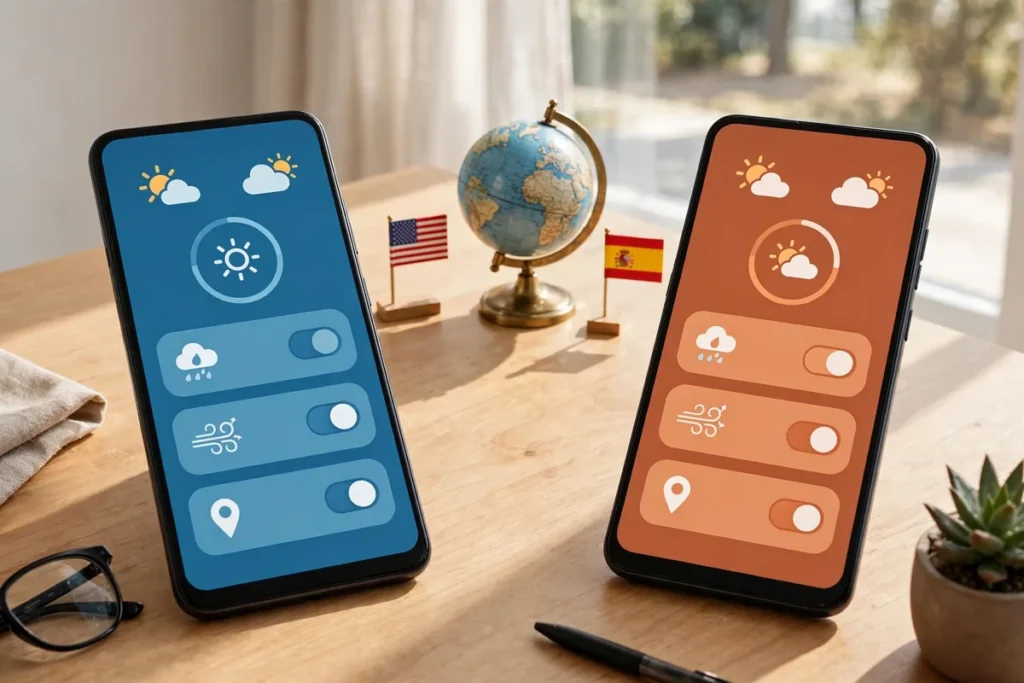
You prefer your phone in English, but your banking app only makes sense in Spanish, and your grandmother’s messaging app needs to be in Urdu. Android’s per-app language setting solves this elegantly: each app can run in its own language, independent of the system language. This guide shows you how to set it up and where it makes the biggest difference. Google documents the feature in the Android help center.
Below: what per-app languages are, the 30-second setup, real-world scenarios, how they interact with keyboards, troubleshooting, and the quirks (fallbacks, mixed-language notifications) nobody warns you about.
What It Is
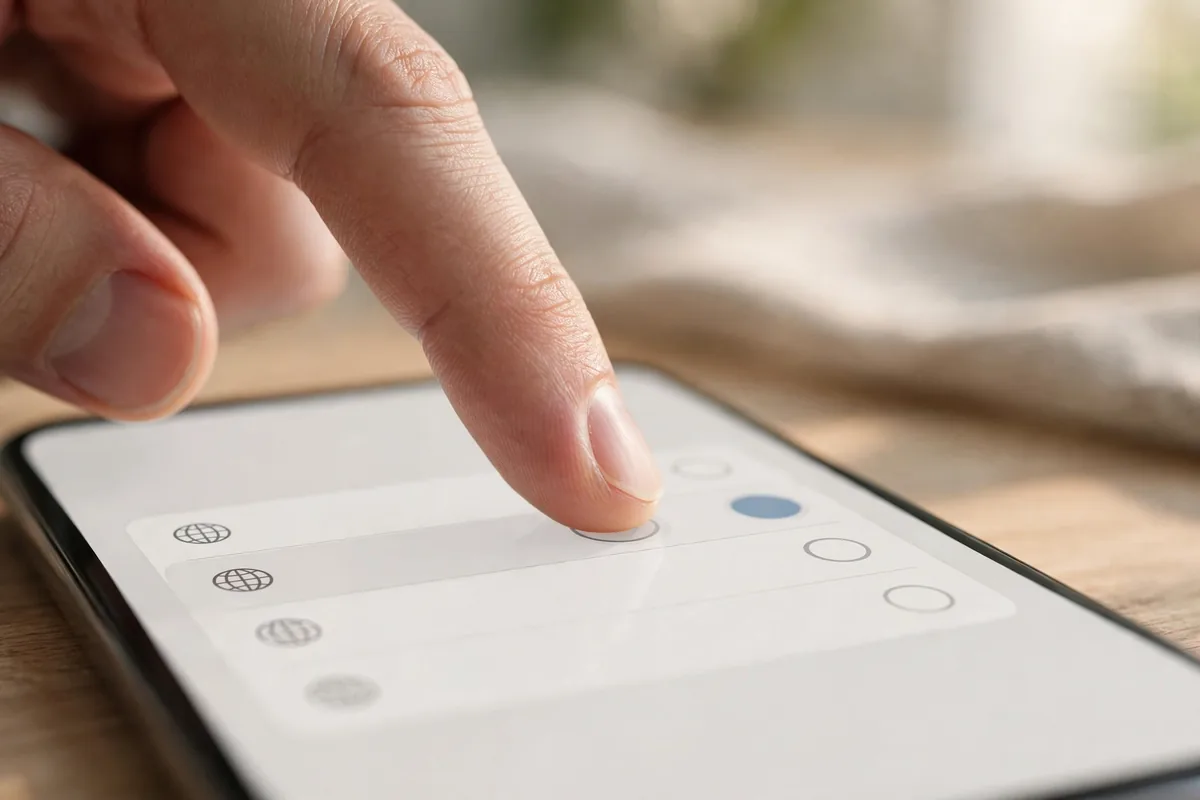
Starting with Android 13, apps can declare support for per-app language preferences — a fundamental shift from the old all-or-nothing approach.
How It Works
- System language: the default for the phone and apps without specific settings.
- Per-app override: individual apps can be set to a different language.
- App must support it: developers opt in; not every app offers multiple languages.
- Independent: changing one app’s language doesn’t affect others.
Set It Up
- Open Settings > System > Languages > App languages.
- Select the app you want to configure.
- Choose from the languages that app supports.
- The app restarts in the selected language.
Requirements
- Android 13 or newer (see our Android 16 guide for what’s new in the latest version).
- App support: the app must include multiple languages in its resources.
- System languages: add your languages under Settings > System > Languages first.
The setup takes seconds per app.
Per-App Language on Samsung One UI vs Pixel
The steps above describe stock Android, but Samsung’s One UI rearranges the menus — worth knowing if your household mixes Pixels and Galaxy phones.
On a Pixel (stock Android 13 and newer)
Go to Settings > System > Languages > App languages for one central list of every installed app that supports the feature. Tap an app, pick a language, done. There is also a shortcut: long-press any app icon, tap App info (the “i”), and look for a Language entry — it jumps you straight to that app’s options.
On Samsung One UI
Samsung moved things around. On recent One UI versions you will typically find per-app language settings under Settings > General management > App languages; on some models it sits under General management > Language instead, and older One UI versions may not offer the central list at all. Where the central list is missing, the per-app route still works: long-press the app icon > App info > Language. Paths vary by model and One UI version, so if the exact menu name differs, search “language” inside the Settings app.
Practical differences
- Central list vs. per-app: Pixels always give you the full list in one place; on some Galaxy phones you configure apps one at a time.
- Samsung’s own apps: apps like Samsung Messages or Samsung Internet often use their own in-app language settings and may ignore the system list — check inside the app.
- Same requirement: on both, the app must actually ship translations, and Android 13 is the floor for the system-level feature.
Per-App Language vs. the Alternatives
| Approach | Flexibility | Effort |
|---|---|---|
| Per-app language | High | Low |
| System language only | Low | Low |
| Multiple user profiles | High | High |
| Third-party apps | Medium | Medium |
Who Benefits Most
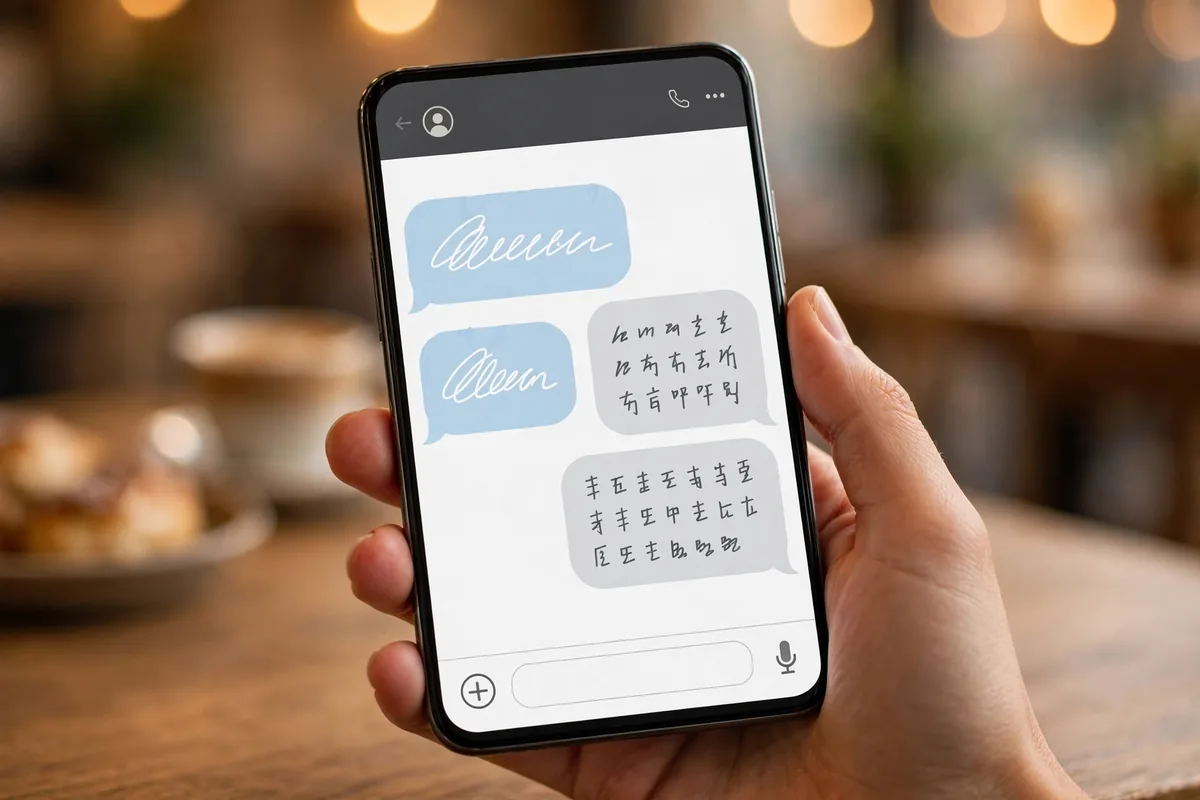
Newcomers and immigrants
Keep government and local-service apps in the official local language for accuracy while social and entertainment apps stay in your native language. Shift more apps to the local language gradually as you learn — the phone becomes a bridge between linguistic worlds.
Multinational professionals
Run client-facing tools in the client’s language and keep internal company apps in the corporate language. Before trips, switch travel apps to the destination language — local transit data is often better in the local language.
Students and educators
Run learning apps in the language of instruction while keeping reference apps in the student’s strongest language. For parent-teacher communication, school apps can follow the parent’s language while student apps follow the school’s.
Language learners
Start with one familiar app in your target language and add more over weeks — graduated immersion without travel. Learning “settings” and “notifications” in context sticks better than flashcards, and a familiar layout guides you when the language is unfamiliar.
Families sharing language duties
Parents use the phone in one language; children need apps in another. Set essential apps to an elderly relative’s native language while keeping the system familiar — using your strongest language reduces errors in critical apps like banking.
When precision matters: health apps
Understand medical information, telemedicine conversations, and dosage instructions in your strongest language. In healthcare, language isn’t convenience; it’s safety.
Keyboards and Per-App Languages
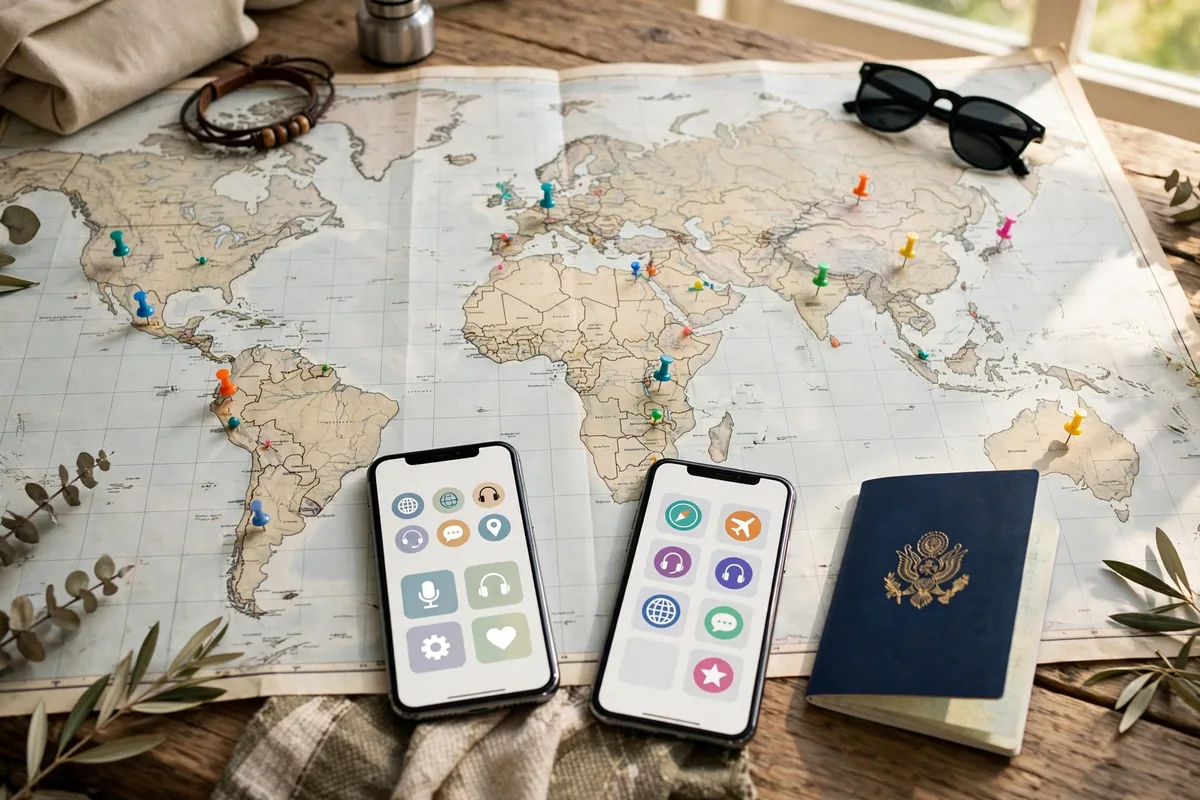
Language settings pair with keyboard configuration:
- Gboard multilingual: enable multiple languages in Gboard for smooth typing; see our keyboard guide.
- Auto-switch: Gboard can detect the app’s language and suggest the right keyboard.
- Voice typing: set voice input languages per your needs — Gboard voice input follows keyboard language settings. Google Assistant’s speech language is configured separately from app display languages.
Right-to-Left Languages
RTL languages (Arabic, Hebrew, Urdu) have special considerations:
- Layout mirroring: apps properly supporting RTL flip their entire interface.
- Mixed content: numbers and Latin script within RTL text need careful handling.
- App quality varies: some apps implement RTL better than others — set expectations accordingly.
Defaults and Fallbacks, Explained
Setting a per-app language only works when the app actually ships translations for that language — and the fallback chain matters. If you set a banking app to Spanish but the developer only translated 80% of its screens, untranslated menus fall back to your system language, then to English. That is why some apps look half-translated: it is not a bug in the setting, it is incomplete work by the app’s developer.
To check what an app really supports, long-press its icon > App info and look at the language list Android shows — only languages the app declares appear there. If your language is missing, the app simply has no translations for it, and no setting on your phone can conjure them. Contacting the developer through the Play Store listing’s support email is the only real fix; popular apps add languages based on user requests.
Fix Mixed-Language Notifications
A common annoyance: the app itself is in your chosen language, but its notifications arrive in the system language. This happens because many apps build notification text on their servers rather than on your phone — the server does not know your per-app preference. You cannot fully fix server-side text, but you can reduce it: in the app’s own settings, look for a separate notification or alert language option, which some messaging and banking apps provide independently.
For widgets and lock-screen content, the app usually follows the per-app setting correctly since those render on-device. If a specific app is stubborn, toggling its per-app language to another option and back forces Android to re-push the locale to the app, which clears stale cached strings in most cases.
Recommended Setups for Common Language Pairs
Some combinations come up constantly. Spanish system + English work apps: keep Slack, Outlook, and LinkedIn in English for professional consistency while the rest of the phone stays Spanish. English system + heritage language for family: set WhatsApp or Messenger to Urdu, Hindi, or Arabic so family chats feel natural, with Gboard’s multilingual typing covering the keyboard side.
English system + target language for learning: switch one social app — say Instagram — to Spanish or French for passive daily exposure without overwhelming yourself. Start with a single app, live with it for two weeks, and only then expand; changing twelve apps at once is how people give up on day three.
Manage Many Languages
Power users juggle three or more languages:
- Prioritize: set per-app languages only where it matters; leave the rest on the system default.
- Document: keep a note of which apps use which language for troubleshooting.
- Update awareness: app updates can reset language preferences; check after major updates.
Limitations Worth Knowing
- Not everything is covered: the Play Store itself follows the system language, and per-app settings can’t translate an app that ships English-only.
- Linguistic fingerprinting: the set of languages you use is mildly identifying — worth knowing, rarely worth worrying about for most users.
- Adoption is still growing: many apps don’t support it yet. The feature improves with each Android version.
Multilingual support is also an accessibility win: our accessibility guide covers more features that make phones usable for everyone.
Troubleshoot Issues
App not in the list
The app doesn’t support per-app languages. Contact the developer or check for updates; adoption is growing.
Language change doesn’t stick
Force-stop the app and reopen it. Some apps cache language settings aggressively.
Missing languages
The app may not include your desired language. Per-app options are limited to what the developer provides.
System vs. app conflicts
If an app ignores your setting, it may be overriding with its own in-app language selector. Check the app’s internal settings.
Troubleshooting: When Apps Ignore Your Language Choice
Sometimes an app appears in the App languages list, you pick a language — and nothing changes. Work through these in order:
- The app never shipped your language. The list only shows languages the developer declared. If yours is absent, the app has no translations for it — the only real fix is requesting the language through the developer’s Play Store support email.
- The app opted out of the system feature. Developers can decline per-app language support even on Android 13+. These apps typically have their own language menu inside the app’s settings — use that instead of the system list.
- An in-app selector is overriding the system. If an app has its own language setting, it wins over Android’s per-app choice. Set the in-app option to “System default” (or “Follow system”) and let the system-level setting take over.
- Stale cached strings. Some apps cache their interface aggressively. Force-stop the app, then clear its cache under Settings > Apps > [app] > Storage > Clear cache. Toggling the per-app language to another option and back also forces Android to re-push the locale.
- Below the Android 13 floor. The whole feature needs Android 13 or newer. On older versions the setting simply does not exist, and sideloaded “language switcher” utilities from that era no longer work reliably — upgrading the OS is the fix.
One last pattern: an app that obeyed your choice for months and suddenly reverts usually just received a major update. Recheck its entry in App languages after big updates; developers occasionally reset locale handling when they restructure the app.
Quick Reference
- Path: Settings > System > Languages > App languages.
- Requirement: Android 13+, app must support multiple languages.
- Best practice: configure only the apps where language truly matters.
- Maintenance: recheck after major app updates.
FAQ
Can I set a different language for the Play Store?
No, the Play Store follows the system language. Per-app settings apply to installed apps, not the store itself.
Do widgets follow per-app language?
Widgets generally use the app’s configured language, though some system widgets follow the system language instead.
Does per-app language work on Samsung phones?
Yes, it’s an Android 13+ platform feature. Samsung’s One UI includes it under Settings > General management > Languages (path may vary slightly by model).
Will it translate apps that are English-only?
No. Per-app language only selects among languages the developer included. It cannot translate an app that lacks translations.
Does it use extra storage?
Minimal. Language resources are part of the app; selecting one doesn’t download significant extra data in most cases.
Can I set different languages for work profile apps?
Yes, work profile apps appear separately and can have their own language settings independent of personal apps.
Why do some apps show a mix of languages?
The app may not have translated every string. Untranslated elements fall back to the system language or English.
Do per-app language settings transfer to a new phone?
In most cases, yes — your per-app choices are included when you restore from a cloud backup onto a new device. A few apps reset to the system language after a restore, so it is worth a quick pass through Settings > System > Languages > App languages after setting up a new phone.
Can several apps share one language while the rest stay different?
Absolutely. Each app’s setting is independent, so you can set five apps to Spanish, three to Urdu, and leave everything else on the system default. There is no limit beyond the languages each app actually ships.
Conclusion
Per-app language settings acknowledge a simple truth: people live in multiple languages, and their phones should too. Set your banking app to Spanish, your messages to Urdu, and your system to English — all at once. The configuration takes minutes, and the comfort lasts as long as you own the phone.


What do you think?
Share your experience or ask a question. A useful conversation starts with you.
Join the discussion