

If your phone jumps from 40% to 5% in minutes, dies at 20%, or sits at 100% for suspiciously long before plummeting, your battery gauge — not necessarily your battery — may be lying to you. Learning how to calibrate Android battery properly resets the software that estimates remaining charge, so the percentage on screen matches reality again.
Battery calibration does not magically restore a worn-out battery’s capacity. What it does is retrain Android’s battery stats file, which tracks the relationship between voltage readings and percentage points. Over months of partial charges and software updates, that mapping drifts, and the phone starts guessing wrong. Calibration wipes the drift and rebuilds an accurate map.
Below, we explain what calibration actually does, the signs you need it, and six easy steps to calibrate Android battery properly — plus when calibration will not help and what to do instead.
What Battery Calibration Actually Does
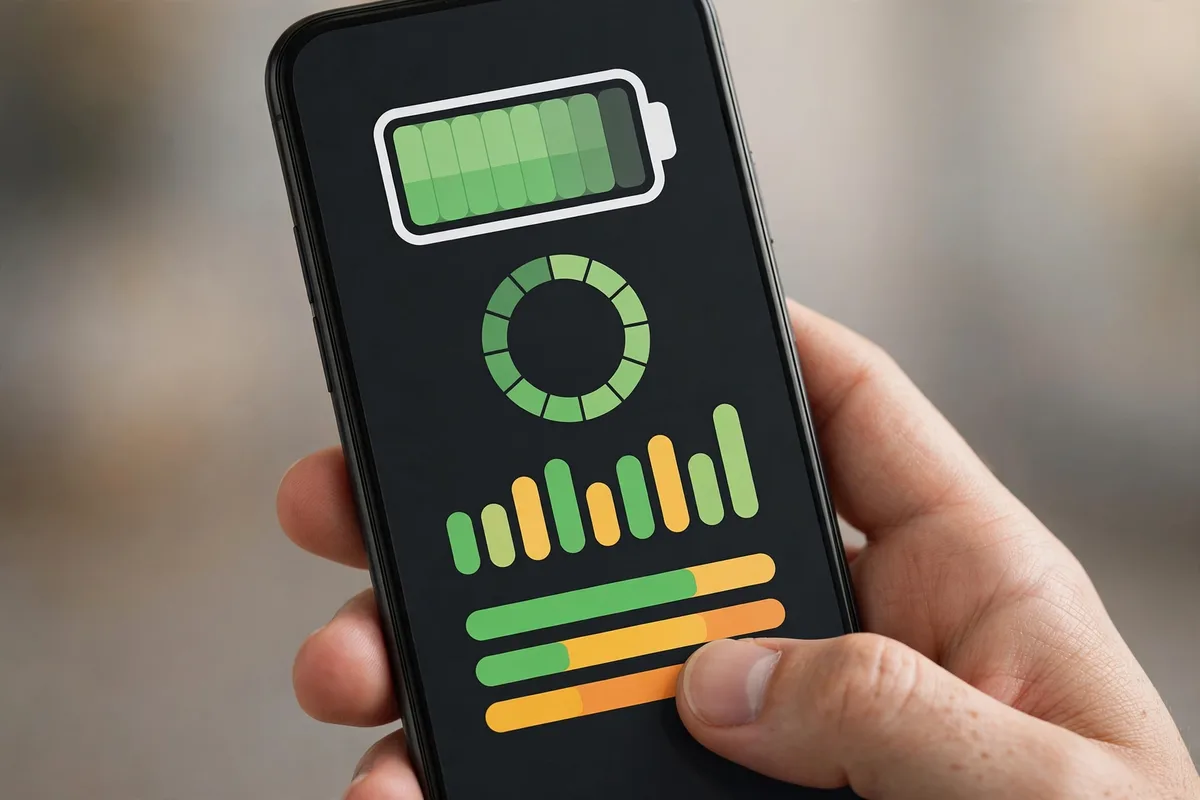
Android estimates battery percentage from voltage curves, not from a fuel gauge. The operating system keeps a file of statistics (batterystats) that records how the battery voltage behaves across the full charge range. When this data gets stale — after OS updates, long periods of shallow charging, or months of heavy use — the estimate drifts from reality.
Calibration forces the phone to relearn the curve: drain to empty, charge to full without interruption, and let the system record fresh reference points. Afterward, the 20% warning means 20% again, and the phone stops shutting down “unexpectedly” at 15%.
6 Signs You Need to Calibrate Your Android Battery
| Symptom | What you see | Calibration likely helps? |
|---|---|---|
| Sudden shutdowns | Phone dies at 15–25% without warning | Yes |
| Stuck percentage | Sits at 100% (or any number) for a long time, then drops fast | Yes |
| Fast final drain | Goes 40% → 5% in minutes | Yes |
| Won’t charge to 100% | Gets stuck at 85–95% despite hours on charger | Sometimes |
| Inconsistent readings | 60% after restart, 30% before | Yes |
| Battery visibly swollen | Case bulging, screen lifting | No — replace it |
If your phone drains unusually fast for other reasons, calibration alone will not fix it — check our guide on fixing fast Android battery drain first to rule out runaway apps.
How to Calibrate Android Battery Properly in 6 Steps
Follow these steps in order, and do not skip the waiting periods — they are what make calibration work.
Step 1: Drain the battery completely
Use your phone normally until it shuts itself off from low battery. Streaming video or gaming speeds this up. When it powers down on its own, try turning it on once more and let it die again — this ensures the battery is truly at its floor.
Step 2: Leave it off and unplugged for 30 minutes
Resist the urge to plug in immediately. Letting the phone rest allows residual charge to settle and gives the battery’s protection circuit time to reset. This rest period is a key part of learning how to calibrate Android battery properly — skipping it leads to less accurate results.
Step 3: Charge to 100% while powered OFF
Plug in the original charger (or a quality equivalent) and charge with the phone completely off. Do not turn it on mid-charge, do not unplug to “check,” and avoid wireless charging for this session if possible — wired charging gives the most consistent voltage readings.
Step 4: Keep charging 30–60 minutes past 100%
When the screen shows 100%, the battery is not always truly full — trickle charging continues. Leave it plugged in for another half hour to an hour. This tops off the cells completely and gives Android a true “full” reference point.
Step 5: Unplug, power on, and use normally
Turn the phone on and use it as usual. Do not immediately plug it back in. Let the battery discharge naturally through a normal day of use. Android is now recording fresh voltage-to-percentage data with your new full/empty reference points.
Step 6: Repeat the full cycle once more (optional but recommended)
For the most accurate results, run the drain-to-empty → charge-to-full-off cycle a second time. Two full cycles give Android enough data to build a reliable curve. After this, your percentage readings should track reality closely.
Important: Modern lithium-ion batteries do not need regular full discharges the way old nickel batteries did. Calibrate only when you see the symptoms above — typically every 2–3 months at most. Frequent deep discharges actually wear lithium batteries faster.
Do You Need Root to Calibrate an Android Battery?
No. Older guides suggested deleting the batterystats.bin file with root access, but Google changed this years ago — the file is wiped automatically on a full charge anyway. The six-step drain-and-charge method above works on every Android phone without root, custom recovery, or third-party “calibration” apps.
In fact, avoid battery calibration apps from the Play Store. Most just run an animated placebo while showing ads; none can do anything the manual cycle does not do better. Stick to the official path — Google’s Android support documentation covers battery care basics without the gimmicks.
Battery Calibration Myths (Especially for Rooted Phones)

Several myths refuse to die. Here is the truth:
- Myth: Deleting batterystats.bin calibrates the battery. False on modern Android. The system regenerates this file on every full charge; manually deleting it with root does nothing useful.
- Myth: You must drain to 0% weekly. False and harmful. Lithium-ion batteries degrade faster with deep discharges. Calibrate only when readings are wrong.
- Myth: Calibration increases battery capacity. False. It only fixes the measurement of capacity. A battery at 80% health stays at 80% health — the gauge just reports it honestly.
- Myth: Charging overnight damages calibration. Mostly false. Modern phones stop charging at 100% and trickle. Overnight charging is fine; it is heat, not timing, that ages batteries.
For the deeper technical picture of how Android manages power and battery statistics, the Android developer documentation explains the power-management APIs manufacturers build on.
7 Tips to Keep Your Battery Healthy After Calibration
Calibration fixes the gauge; these habits protect the battery itself:
- Keep charge between 20% and 80% for daily use — this range stresses lithium cells the least. Many phones now offer an 80% charge limit in settings; turn it on.
- Avoid heat. Do not leave your phone on a car dashboard or game while fast-charging under a pillow. Heat is the number-one battery killer.
- Use the original charger or a certified equivalent. Cheap chargers deliver unstable voltage.
- Turn off what you do not use. Bluetooth, NFC, and location scanning drain power silently in the background.
- Kill runaway background apps. A single misbehaving app can undo all your battery care. See our guides on stopping background apps on Samsung phones and stopping apps running in the background on any Android.
- Update your software. Battery-drain bugs get fixed in updates; running a year-old OS version often means running known power bugs.
- Enable adaptive battery. Android’s built-in Adaptive Battery learns your usage and restricts rarely used apps automatically (Settings → Battery → Adaptive preferences).
When Calibration Will Not Help
Calibration only fixes bad readings. It will not help if:
| Situation | Why calibration fails | What to do instead |
|---|---|---|
| Battery health below ~80% | Cells physically hold less charge | Replace the battery |
| Phone gets hot and drains fast | Hardware or runaway process issue | Check battery usage stats, factory reset, or service |
| Swollen battery | Dangerous chemical degradation | Stop using it; get professional replacement |
| Drains even when powered off | Possible board-level short | Professional repair |
| Brand-new phone with bad drain | Software bug or defective unit | Update OS, or warranty claim |
If your battery genuinely drains too fast even with accurate readings, work through our Android battery draining fast fix guide — it covers the 12 most effective solutions in order.
How Long Does It Take to Calibrate Android Battery Properly?
Plan for roughly a full day. The drain phase takes however long your normal use needs to empty the battery (typically 4–8 hours of active use, or leave a video looping to speed it up), the 30-minute rest is fixed, and the powered-off charge takes 2–3 hours plus the extra top-off hour. The second cycle repeats the pattern. You cannot rush the process — the waiting periods are what let the battery’s voltage settle and give Android clean reference points.
A common question is whether you need to calibrate Android battery properly on a brand-new phone. Usually not: new phones ship with fresh battery statistics. But if a new phone shows erratic percentages out of the box — often after a major OS update during setup — one calibration cycle will sort it out. Similarly, after every major Android version upgrade, the battery stats can drift, and a single proper calibration after the update is good preventive maintenance.
Another frequent question: does calibration help with battery health readings from apps like AccuBattery? Indirectly, yes. Those apps estimate capacity by comparing charge sessions against the system’s reported percentages. When you calibrate Android battery properly first, the system’s percentages become accurate, and third-party health estimates become far more reliable. So if you want a trustworthy health reading before deciding on a battery replacement, calibrate first, then measure.
Finally, remember that calibration and good charging habits work as a pair. Calibrating Android battery properly fixes the gauge once; keeping daily charges in the 20–80% band, avoiding heat, and using certified chargers keep the underlying battery healthy so the gauge stays honest for months. Think of calibration as resetting the odometer’s accuracy and healthy habits as maintaining the engine — you need both for the long run. Done right, a single proper calibration can keep your readings honest for several months of normal use.
FAQ
How often should I calibrate my Android battery?
Only when you notice wrong readings — sudden shutdowns, stuck percentages, or big jumps. For most people that means every 2–3 months at most. Routine monthly calibration is unnecessary and deep discharges wear the battery.
Does battery calibration work without root?
Yes. The drain-to-empty and charge-to-full-while-off method works on all Android phones without root. Old root-only methods (deleting batterystats.bin) are obsolete on modern Android versions.
Will calibrating my battery make it last longer?
It makes the percentage display accurate, which can feel like better battery life because the phone stops dying “unexpectedly.” It does not increase actual capacity or fix a degraded battery.
Is it bad to drain my phone to 0%?
Occasionally, for calibration, it is fine. Doing it frequently accelerates lithium-ion wear. For daily use, recharge around 20% and avoid letting the phone die regularly.
My phone still shuts down at 20% after calibration — what now?
Run the two-cycle process once more. If it still happens, the battery’s actual capacity has likely degraded past the point where recalibration helps — check battery health in settings (or with an app like AccuBattery) and consider a battery replacement.
Check Battery Health First: Brand-by-Brand Paths
Before calibrating, check whether the battery itself is the problem — no amount of gauge-resetting fixes worn-out cells. The path depends on your phone:
- Samsung (One UI 6+): Go to Settings > Battery > Battery protection to see protection settings, and run the Samsung Members app > Support > Phone diagnostics > Battery status check for a health verdict. Samsung also shows cycle count on some models under Settings > About phone > Battery information.
- Pixel: Pixels show battery cycle count under Settings > About phone > Battery information on recent Android versions. There is no built-in “health %” figure, so pair the cycle count with observed behavior: over 500 cycles with noticeably shorter days means degradation.
- Any phone — AccuBattery method: Install AccuBattery, grant the permissions, and use the phone normally for a week. The app measures actual milliamp-hours per charge session and estimates capacity against the design rating. Calibrate first using this guide’s six steps, then measure — accurate gauge readings make AccuBattery’s estimates far more trustworthy.
- Xiaomi / OnePlus / Motorola: Check Settings > Battery for any health or protection section; several brands now include maximum-capacity estimates and 80%-limit charging options. Where the brand offers no health figure, the AccuBattery method is the fallback.
Rule of thumb: if measured health is above 85%, calibration is worth doing — the cells are fine and the gauge is the suspect. Below 80%, skip straight to battery replacement options; calibration will only briefly mask the decline.
Conclusion
Learning how to calibrate Android battery properly takes just one single day of patience: drain fully, rest, charge to 100% while off, top off, and repeat. That is all it takes to fix lying percentage readings, stop surprise shutdowns, and trust your battery gauge again.
Remember the limits: calibration fixes measurement, not chemistry. Pair it with healthy charging habits — the 20–80% rule, avoiding heat, and taming background apps — and your battery will serve you reliably well for years. If calibration does not solve your problem, the battery itself may be worn out, and a replacement is the honest fix.




What do you think?
Share your experience or ask a question. A useful conversation starts with you.
Join the discussion