
Your Galaxy phone is busy even when the screen is off. Apps wake up to sync, check for updates, track your location, and preload content — and on Samsung phones, the toolkit for taming them is bigger (and better hidden) than on any other Android brand. If your battery drains overnight or your phone feels sluggish by afternoon, background apps are the usual suspects.
This guide shows you how to stop background apps Samsung phones keep alive — from sleeping apps and per-app battery controls to Modes and Routines automation. Once you stop background apps Samsung-style with the methods below, expect noticeably better standby battery.
This guide answers the question Galaxy owners ask most — “how to stop apps running in background android samsung” — with every One UI method that actually works: the famous sleeping-apps lists, per-app battery controls, automation with Modes and Routines, and the nuclear options for stubborn apps. It is written specifically for Samsung Galaxy phones running One UI 6 and One UI 7 (Android 14/15) — the menus, names, and paths are Samsung’s, not stock Android’s, which is why the generic guides never quite match what you see on screen.
[Screenshot: Samsung Settings > Battery > Background usage limits screen]
Why Samsung Handles Background Apps Differently
Stock Android manages background apps with Adaptive Battery and app standby buckets — effective, but blunt. Samsung layers its own system on top: sleeping apps, deep sleeping apps, and never sleeping apps, plus aggressive auto-sleep for apps you have not opened recently. One UI is famously strict — sometimes too strict, which is why this guide also covers what NOT to restrict (missed alarms and silent messaging apps are the classic self-inflicted wounds).
The goal is not to freeze everything. It is to give each app the background access it actually needs: full for messaging and alarms, limited for social media, none for that shopping app you open twice a year.
Method 1 — Stop Background Apps Samsung: Sleeping Apps
This is Samsung’s headline feature and the first place to go.
Steps:
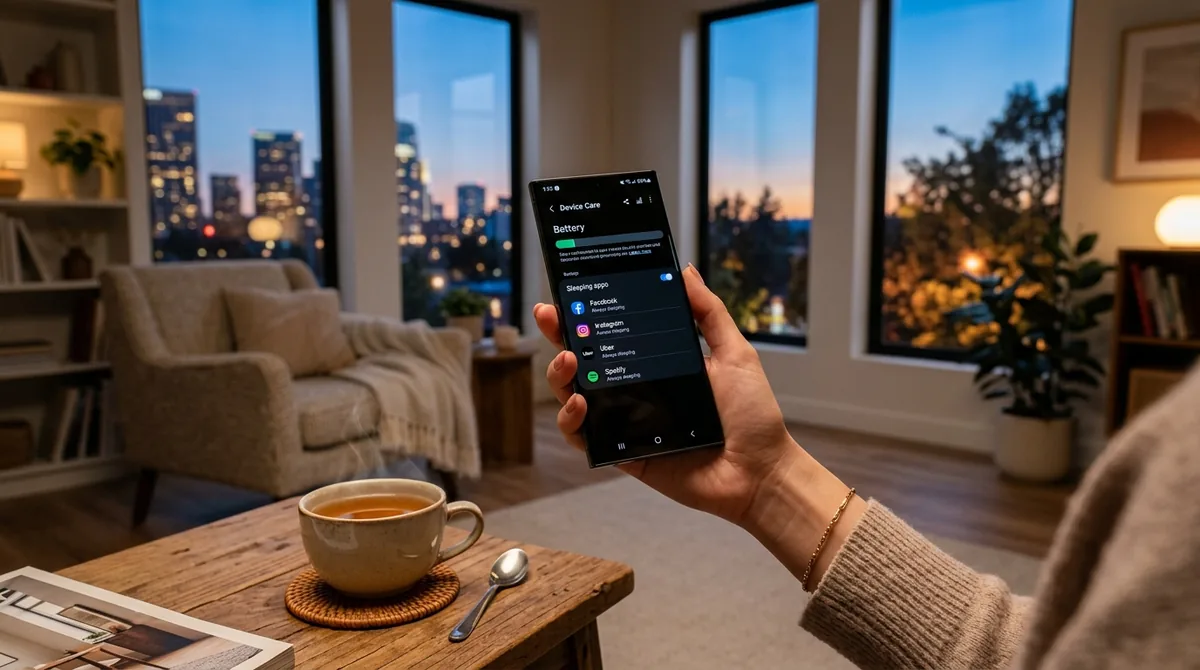
1. Open Settings > Battery > Background usage limits.
2. Turn on Put unused apps to sleep — One UI automatically sleeps apps you have not opened in a while. This alone handles most of the problem with zero maintenance.
3. Tap Deep sleeping apps > + and add apps manually: games you rarely play, shopping apps, food delivery apps you use monthly, duplicate utilities. Deep-sleeping apps never run in the background — no syncing, no notifications — until you open them. Perfect for apps you want installed but silent.
4. Tap Sleeping apps for the middle tier: apps run occasionally in the background but are heavily restricted. Good for social apps you check manually anyway.
5. Open Never sleeping apps and prune it: only messaging apps, email, authenticators, smart-home apps, and health/fitness trackers belong here. Remove anything that does not need instant background access.
How to tell which apps to target: go to Settings > Battery, tap View details, and sort by usage. Any non-essential app with high background usage (as opposed to screen-on usage) is a candidate for deep sleep.
[Screenshot: Battery usage details screen highlighting background vs. foreground usage per app]
Method 2 — Per-App Battery Controls (App Info > Battery)
The sleeping lists are global policies. Per-app controls are the scalpel.
Steps:
1. Long-press any app icon > tap the ⓘ (App info) icon — or go to Settings > Apps, tap the app.
2. Tap Battery.
3. Choose one of three modes:
– Unrestricted — the app can run freely in the background. Reserve for messaging, email, alarms, navigation, and music/podcast apps.
– Optimized (default) — Android manages the app with standard background limits. Right for most apps.
– Restricted — the app cannot run in the background at all and may not send notifications. Use for apps you open manually and never need alerts from.
When to use Restricted vs. Deep sleep: Restricted is quicker for one-off apps and lives right in App info; Deep sleeping apps is better for managing a whole list in one place. They achieve similar results — pick whichever workflow you prefer.
Warning: setting a messaging app to Restricted is the #1 cause of “why am I not getting notifications” complaints on Galaxy phones. If notifications stop after you change these settings, check here first.
Method 3 — Block Background Mobile Data Per App
Some apps are well-behaved on Wi-Fi but burn through mobile data (and battery, via the cellular radio) in the background. Samsung lets you cut just the background data without affecting the app otherwise.
Steps:
1. Go to Settings > Apps, tap the app > Mobile data.
2. Turn off Allow background data usage.
The app works normally when open; it simply cannot use mobile data while in the background. Updates, syncs, and preloads wait for Wi-Fi. This is ideal for video and social apps that prefetch content aggressively.
Companion setting: on the same screen, consider turning off Allow data usage while Data saver is on for non-essentials, and use Settings > Connections > Data usage > Data saver on days you need maximum endurance.
Method 4 — Turn Off Background Location for Greedy Apps
Location is the most expensive background permission — GPS plus network scans, repeatedly. Many apps request “Allow all the time” during setup when “Only while using” would do.
Steps:
1. Go to Settings > Location > App location permissions (or Settings > Apps > [app] > Permissions > Location).
2. Change everything that does not truly need always-on location to Allow only while using the app or Ask every time.
3. Only navigation, family-safety, and fitness-tracking apps genuinely need Allow all the time.
Retail and social apps with always-on location are pure drain. Revoke first; if a feature breaks, the app will ask again.
Method 5 — Let Adaptive Battery Learn (and Give It Time)
Settings > Battery > Adaptive battery (on some builds under More battery settings) uses on-device learning to limit background activity for apps you rarely use. It needs roughly a week of usage patterns to get smart — do not judge it on day two.
It works quietly alongside the sleeping lists rather than replacing them. Keep it on; there is no downside.
If you stop background apps Samsung recommends leaving alone — like your launcher, keyboard, or messaging app — notifications may arrive late, so exempt anything you depend on.
Method 6 — Automate With Modes and Routines
Manually toggling restrictions gets old. Modes and Routines (Settings > Modes and Routines) automates the whole strategy:
Example routine — “Night lockdown”:
1. Tap Routines > +.
2. If: Time period > 11:00 PM – 6:00 AM.
3. Then: Power saving > On; Mobile data > Off; Location > Off; Sync > Off.
4. Save.
Example routine — “Work focus”:
1. If: Time period > 9:00 AM – 5:00 PM, weekdays.
2. Then: restrict background data for your chosen social apps, enable Do Not Disturb with exceptions for calls.
Routines can even change per-app battery behavior indirectly through power saving mode. Set it once; your phone enforces your background policy forever.
[Screenshot: Modes and Routines setup screen for a battery-saving routine]
Method 7 — Developer Options: Background Process Limit (Advanced)
For a global cap on background processes, Developer options has the blunt instrument:
- Enable Developer options: Settings > About phone > Software information > tap Build number 7 times.
- Go to Settings > Developer options > Background process limit.
- Choose At most 2–4 processes (or “No background processes” for extreme testing only).
Caution: this overrides per-app intelligence with a hard ceiling. Messaging apps can be killed, widgets may not refresh, and music can stop. Most users should prefer Methods 1–2; use this only if you understand the trade-offs, or temporarily to identify whether background load is causing sluggishness.
Also in Developer options: Suspend execution for cached apps is a safer middle ground — it freezes cached processes aggressively without a hard count limit.
Method 8 — Stop Auto-Start and “Appear on Top” Abuse
Some apps relaunch themselves at boot or draw over other apps to stay alive. Check two spots:
- Auto-start: Samsung does not expose a single auto-start manager like some Chinese skins, but Device care > Battery > Background usage limits plus App info > Battery > Restricted effectively covers it.
- Appear on top / Picture-in-picture: Settings > Apps > Special app access > Appear on top — revoke for apps that have no business overlaying your screen. Fewer persistent overlays = fewer resident processes.
What NOT to Restrict (Learn From Others’ Mistakes)
Background restriction backfires when applied blindly. Never deep-sleep or restrict:
- Messaging apps (Messages, WhatsApp, Telegram) — you will miss texts and calls.
- Email — push email stops; you will only see mail when you open the app.
- Alarm/clock apps — restricted alarms can fail silently. Yes, really.
- Authenticator apps — you want these instant.
- Smart home / security cameras — motion alerts stop.
- VPN apps — killing the VPN drops your tunnel without warning.
- Health apps paired with a watch — sync breaks.
The golden rule: restrict apps whose notifications you always ignore. If you have ever tapped one of an app’s notifications, leave it alone.
Troubleshooting: “I Restricted Apps and Now Things Are Broken”
- Missing notifications? Check Settings > Battery > Background usage limits > Never sleeping apps — add the affected app. Then check App info > Battery — set it back to Optimized or Unrestricted.
- Music/podcasts stopping? Set the player app to Unrestricted and exclude it from power saving.
- Widgets not updating? Widgets need background refresh — keep their apps at Optimized minimum.
- Delayed messages on Wi-Fi? Some routers’ aggressive power saving interacts badly with restricted apps; the fix is still on the phone side — Unrestricted for the messaging app.
- To undo everything: Settings > Battery > Background usage limits > remove apps from Deep sleeping/Sleeping lists, and set Put unused apps to sleep back on for automatic (safe) management.
Compared with stock Android, it is easier to stop background apps Samsung-style because One UI bundles sleeping apps, deep sleeping apps, and adaptive battery in one place.
Samsung vs. Stock Android: What’s Actually Different
| Capability | Samsung One UI | Stock Android (Pixel) |
|---|---|---|
| Sleeping / deep sleeping app lists | Yes — the signature feature | No equivalent |
| Per-app Unrestricted/Optimized/Restricted | Yes (App info > Battery) | Yes, similar |
| Auto-sleep for unused apps | Yes, on by default | Via Adaptive Battery learning |
| Background process limit | Yes (Developer options) | Yes (Developer options) |
| Modes and Routines automation | Yes — deep system integration | No (third-party apps only) |
| Per-app background mobile data toggle | Yes (App info > Mobile data) | Yes, similar path |
If you followed a generic “how to stop apps running in background android” guide and could not find the menus, this is why — Samsung’s best tools do not exist on Pixel phones, and vice versa.
Frequently Asked Questions — 16 Stop Background Apps Samsung
Will I miss notifications if I stop background apps Samsung runs?
Only if you restrict the wrong apps. When you stop background apps Samsung flags as rarely used, messaging and email apps you use daily are left alone — but always check notification delivery after restricting anything.
Will stopping background apps make my Galaxy phone faster?
It helps standby battery life and reduces random slowdowns more than raw speed. If your phone lags while you are actively using it, background apps are probably not the cause — check storage space and consider a restart first.
Is it safe to put apps in deep sleep?
Yes — deep sleep only stops background activity. The app launches normally when you tap it, and you can remove it from the list anytime. The only “risk” is missing notifications, which is the intended effect.
Why do restricted apps keep coming back after updates?
Major app updates and One UI upgrades occasionally reset battery optimizations. After any big update, spend two minutes re-checking Background usage limits — it is the most common reason “my battery got worse after the update.”
Does closing apps from the Recents screen stop them running in background?
Mostly no — swiping away usually just removes the UI; the background service may continue. Use the sleeping lists instead. Constantly swiping apps closed can actually increase battery use, since relaunching costs more energy than resuming a cached app.
Should I use a third-party task killer from the Play Store?
No. They cannot do anything One UI’s built-in tools do not already do better, and many run their own persistent background service — the exact problem they claim to solve.
How is this different from Power saving mode?
Power saving mode is a temporary, system-wide throttle (CPU limits, darker screen, restricted background). The methods in this guide are permanent, per-app policies — finer control that does not degrade your experience while active.
The winning combo: sleeping apps + adaptive battery + blocked background data for the worst offenders. To stop background apps Samsung keeps waking, review the list monthly — and see Google’s Android help center for stock-Android differences.
Key Takeaways
- Start gentle: to stop background apps Samsung phones run, begin with sleeping apps before touching per-app battery restrictions — the safest way to stop background apps Samsung owners can repeat monthly.
- Background usage limits (sleeping/deep sleeping lists) are Samsung’s killer feature — start there.
- Use App info > Battery per-app modes for precision: Unrestricted for messaging, Restricted for apps you open manually.
- Cut background mobile data and always-on location for the greediest apps.
- Automate with Modes and Routines so the policy enforces itself.
- Never restrict messaging, alarms, email, or VPN apps — missed notifications are the classic self-inflicted wound.
Related reading: Stop Apps Running in Background Android: 9 Proven Tips, Clear App Cache on Samsung: 5 Easy Steps (2026), Clear App Cache on Android: 6 Safe Steps (2026)
Written by the TechVantageAPK editorial team. Learn more about us.


What do you think?
Share your experience or ask a question. A useful conversation starts with you.
Join the discussion