Google Authenticator vs Microsoft Authenticator (2026)
Two-factor authentication is the single most important security habit, and the Google Authenticator vs Microsoft Authenticator choice decides how painless it feels. Both generate time-based one-time codes, both are free, and both work with thousands of sites. But they differ on cloud backup, push approvals, password management extras, and ecosystem fit. Lose your phone without a backup and you are locked out of everything — so this decision matters more than most app choices. This Google Authenticator vs Microsoft Authenticator comparison covers security, backup, features, and usability to name the safer 2FA app for 2026.
Authenticator FAQ
Which is better for a new user? Microsoft Authenticator — cloud backup on by default means a lost phone is a minor inconvenience, not a disaster.
Can I use both? Yes — split accounts between them, or keep one as backup. Redundancy is good for 2FA.
Account Recovery: Where the Two Differ Most
Losing your phone tests every authenticator, and this is where Microsoft pulls ahead for most people. Microsoft Authenticator backs up to your Microsoft account with encrypted cloud backup enabled by default — sign in on a new phone and your codes restore. Google Authenticator’s cloud sync is opt-in and tied to your Google account; if you never enabled it, a lost phone means going through each service’s account-recovery flow individually, which can take days for financial accounts.
Whichever you use, the non-negotiable habit is exporting backup codes at setup time. Every service that offers TOTP also offers 8 to 10 single-use recovery codes — screenshot them into an encrypted note or print them. Recovery codes bypass the authenticator entirely, so they are your escape hatch regardless of which app you chose. Store them somewhere that survives losing your phone: a password manager’s secure note or a fire safe, not your camera roll.
Google Authenticator vs Microsoft Authenticator: Security Compared
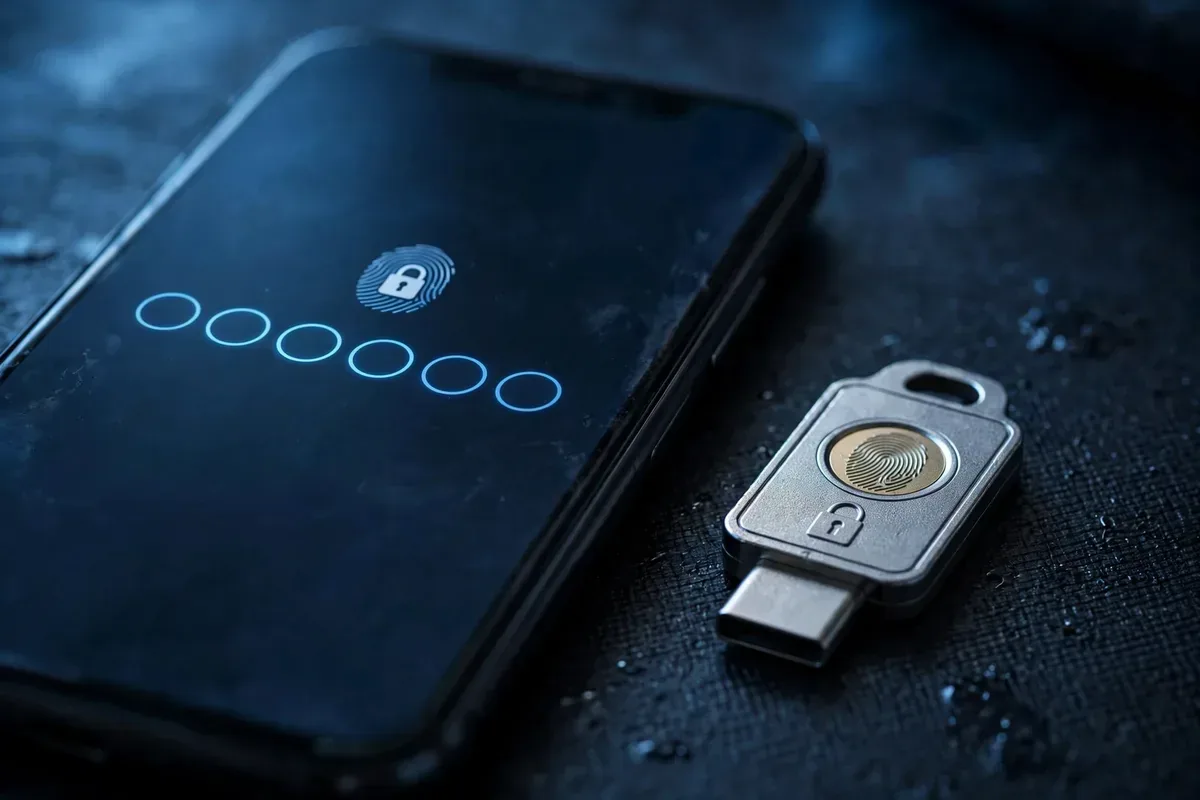
google authenticator vs microsoft authenticator illustration
Both apps implement the same TOTP standard (RFC 6238): six-digit codes rotating every 30 seconds, generated from a secret shared at setup. Cryptographically, they are identical — neither is “more secure” at the code-generation level. The security differences are in everything around the codes.
Microsoft Authenticator supports push-notification approvals for Microsoft accounts: instead of typing a code, you tap “Approve” (and now match a number, defeating push-bombing attacks). This is both more convenient and more phishing-resistant than typing codes. Google Authenticator is codes-only — no push approvals for anything.
Both apps now offer cloud backup of your 2FA secrets: Google backs up to your Google account, Microsoft to your Microsoft account (with encryption). This was Google Authenticator’s historic weakness — lose your phone, lose everything — now fixed. Both support biometric app locks. Both are free of ads and data harvesting. In the Google Authenticator vs Microsoft Authenticator security matchup, Microsoft’s number-matching push approvals give it a narrow edge for Microsoft-account users; for everything else, they tie.
Cloud Backup and Account Recovery
This is the most important section for most users. Google Authenticator now syncs your codes to your Google account automatically (sign in and enable sync). If your phone is lost, stolen, or upgraded, install the app on the new device, sign in, and your codes reappear. This fixed the app’s biggest historical flaw.
Microsoft Authenticator has offered encrypted cloud backup longer: back up to your Microsoft account (iCloud on iOS, Microsoft cloud on Android), restore on a new device by signing in. Microsoft’s backup also covers more account types and has been battle-tested for years.
Critical advice regardless of app: save your backup codes. When you enable 2FA on any important account (Google, Apple, banking), the site gives you one-time backup codes — print them or store them in your password manager. If both your phone and cloud backup fail, these codes are your last resort. Our passkeys setup guide covers modern login security that pairs perfectly with an authenticator app.
Features Beyond 2FA Codes
Microsoft Authenticator is the more ambitious app. Beyond TOTP codes, it includes: push approvals for Microsoft accounts, password autofill (it can serve as your password manager with sync across devices), address/payment autofill, and enterprise features (it is the required app for many corporate Azure AD setups). For Microsoft 365 users, it is essential infrastructure.
Google Authenticator is deliberately minimal: codes, organized with drag-to-reorder and a search bar, plus QR-code transfer between devices. Recent updates added the long-awaited cloud sync and a refreshed interface, but Google has resisted feature creep. If you want an app that does one thing well, this minimalism is a virtue.
The tradeoff: Microsoft Authenticator’s extras make it a genuine hub for identity (codes + passwords + push), while Google Authenticator’s simplicity means less to go wrong. Power users in Microsoft’s ecosystem should pick Microsoft; minimalists and Google-centric users should pick Google.
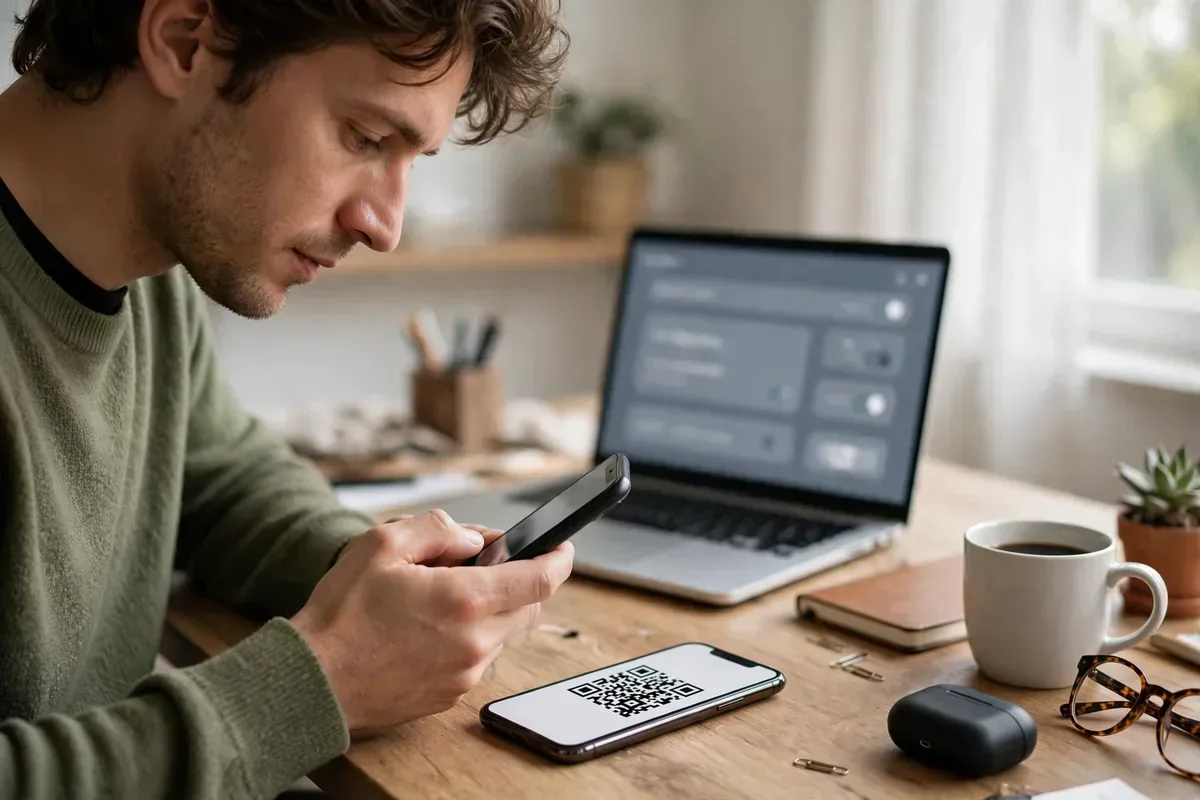
Android App Experiencegoogle authenticator vs microsoft authenticator illustration
Both Android apps are clean and reliable. Google Authenticator’s interface is spartan: a list of accounts with countdown timers, dark mode, and organization via drag-and-drop. It launches fast and does its job with zero friction. The recent redesign added account icons and better search — small but welcome.
Microsoft Authenticator’s app is busier but more capable: tabs for codes, password autofill management, and backup settings. Its widget and notification-shade code copying are thoughtful touches. Biometric unlock works flawlessly on both.
Battery and performance are non-issues — authenticator apps sip resources. Both support Android’s autofill framework for password filling (Microsoft more fully). If authenticator notifications ever misbehave, our background app tips help keep security apps running reliably.
Google Authenticator vs Microsoft Authenticator: Head-to-Head Scorecard
Category
Google Authenticator
Microsoft Authenticator
Winner
TOTP code generation
Standard, reliable
Standard, reliable
Tie
Push approvals
No
Yes (number matching)
Microsoft
Cloud backup
Yes (Google account)
Yes (Microsoft account)
Tie
Password autofill
No
Yes (full manager)
Microsoft
Simplicity
Excellent
Good
Google
Microsoft 365 integration
None
Essential
Microsoft
Google ecosystem fit
Native
Works fine
Google
Enterprise support
Basic
Azure AD standard
Microsoft
App size/speed
Tiny, instant
Larger, still fast
Google
Which App for Which User?
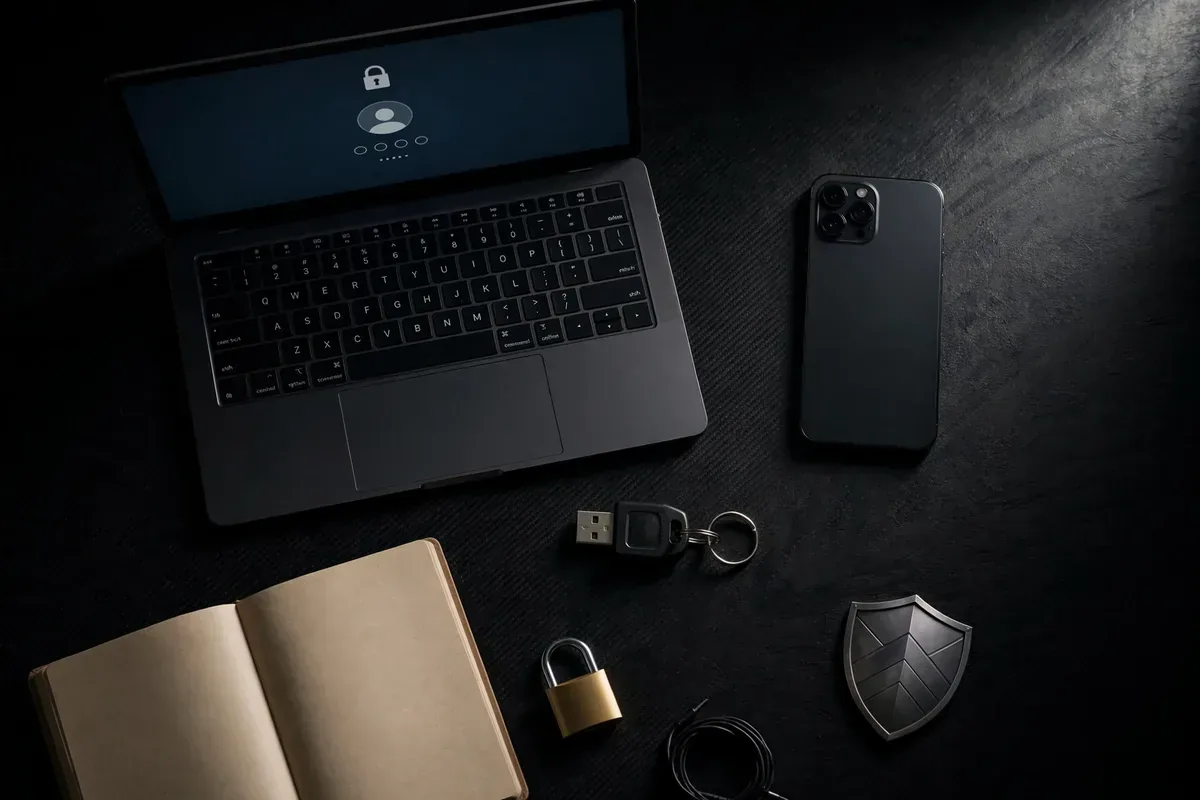
google authenticator vs microsoft authenticator illustration
Google-account-centric users — Gmail, Google Workspace, Android-first — should pick Google Authenticator. It syncs to the account you already have, stays out of your way, and does its one job perfectly. Setup guides for Google services reference it by default.
Microsoft 365 users — Outlook, Teams, OneDrive, corporate Azure AD — should pick Microsoft Authenticator. Push approvals alone justify it, and many workplaces require it. Its password autofill can replace a separate password manager for casual users.
Everyone else: either works. Both support all standard TOTP sites (banks, social media, crypto exchanges). The deciding factors are which cloud account you trust for backup and whether you want push approvals. Note-takers organizing their digital life will appreciate our note-taking apps roundup for the broader productivity picture.
Migrating Between Authenticators
Switching is straightforward but requires care — this is security infrastructure, not a casual app swap. The safe method: for each account, disable 2FA on the site, then re-enable it while scanning the new QR code with the new app. Tedious for dozens of accounts, but bulletproof.
The faster method: both apps support QR export/import. In Google Authenticator, use Transfer accounts > Export; in Microsoft Authenticator, enable cloud backup then restore on the new setup. Test 2-3 logins before wiping the old app. Never delete the old authenticator until you have confirmed the new one works everywhere — and keep those printed backup codes regardless.
The Verdict
Choose Google Authenticator if you want the simplest reliable 2FA: minimal interface, Google account sync, zero learning curve. It does one thing perfectly — get it from Google’s support page.
Choose Microsoft Authenticator if you want more: push approvals with number matching, password autofill, and essential Microsoft 365 integration. It is the more capable app for users who live in Microsoft’s world — details at Microsoft.
For most Android users, either app is a massive upgrade over SMS 2FA (which is vulnerable to SIM-swapping). In the Google Authenticator vs Microsoft Authenticator debate, the real loser is anyone still using text-message codes. Pick one today, enable cloud backup, print your recovery codes, and lock down your digital life.
Setting Up 2FA: Step-by-Step for Beginners
If you have never used an authenticator, the Google Authenticator vs Microsoft Authenticator setup is equally simple. Download your chosen app, then pick one important account — your email — and enable 2FA in its security settings. Choose “authenticator app” (not SMS), and the site shows a QR code. Open the authenticator app, tap the plus icon, scan the code, and enter the six-digit code the app generates to confirm. Done — that account is now dramatically harder to hack.
Repeat for your other critical accounts in priority order: email first (it resets everything else), then banking and finance, then social media, then everything else. Each setup takes about a minute. As you go, save each site’s backup codes somewhere safe — a password manager’s secure notes or a printed sheet in a drawer. Do not skip this: backup codes are the difference between a 5-minute recovery and a weeks-long account nightmare.
Disaster Recovery: When Everything Goes Wrong
Phone lost, stolen, or factory-reset without backup? Do not panic — the Google Authenticator vs Microsoft Authenticator recovery paths both start with cloud restore. Install the app on your new phone, sign into the same Google or Microsoft account, and your codes should sync back. This works if you had backup enabled before the loss.
If cloud restore fails, work through your accounts using saved backup codes — this is why you saved them. No backup codes? Contact each service’s support for identity verification recovery; major providers (Google, Microsoft, Apple) have processes for this, though they take days and require ID. Banks may require in-person visits. The painful lesson: 2FA without backup codes trades one risk (hacking) for another (lockout). Enable cloud backup today, print backup codes tonight, and store them somewhere fire-safe. Future you will be grateful.
Authenticator Apps vs Passkeys vs Hardware Keys
Zoom out from the Google Authenticator vs Microsoft Authenticator duel for a moment: where do authenticator apps sit in the broader security landscape? Above them are passkeys and hardware security keys (YubiKey), which are phishing-resistant — even if you are tricked into visiting a fake site, the cryptographic check fails and your credentials stay safe. TOTP codes, by contrast, can be phished in real time by sophisticated attacks. For your most critical accounts (primary email, banking, domain registrar), upgrade to passkeys or a hardware key.
Below authenticator apps is SMS 2FA — better than nothing, but vulnerable to SIM-swapping, where attackers convince your carrier to port your number. Authenticator apps eliminate that entire attack class. The practical hierarchy: use passkeys where offered, authenticator apps everywhere else, SMS only as a last resort. Both Google and Microsoft authenticators are excellent rungs on this ladder — the important thing is climbing off SMS entirely.
FAQ
Which is safer, Google or Microsoft Authenticator?
Both use identical TOTP cryptography. Microsoft’s number-matching push approvals add phishing resistance for Microsoft accounts. Both are vastly safer than SMS 2FA.
Does Google Authenticator have cloud backup now?
Yes. Google Authenticator now syncs codes to your Google account — the historic “lose phone, lose everything” problem is fixed.
Can I use Microsoft Authenticator for Google accounts?
Yes. Both apps work with any site supporting standard TOTP 2FA, regardless of ecosystem.
What happens if I lose my phone?
Restore from cloud backup on your new device (both apps support this), or use the backup codes you saved when enabling 2FA. This is why saving backup codes matters.
Should I switch from SMS 2FA to an authenticator app?
Absolutely. SMS codes can be intercepted via SIM-swapping. Authenticator apps are immune to that attack and take minutes to set up.
Conclusion
The Google Authenticator vs Microsoft Authenticator winner depends on your ecosystem. Google’s app is the minimalist’s choice — simple, fast, synced to your Google account. Microsoft’s app is the power user’s choice — push approvals, password autofill, and enterprise integration. Both are free, both are secure, and both crush SMS-based 2FA. The only wrong answer is postponing 2FA entirely: enable it on your email and banking today, back up your codes, and make your accounts dramatically harder to hack. Set a calendar reminder to review your 2FA setup yearly — remove old devices, verify backups still work, and upgrade eligible accounts to passkeys. Security is a habit, not a purchase, and the Google Authenticator vs Microsoft Authenticator choice is simply about picking the habit you will actually keep.
Qamar Abbas is the founder and CEO of Qamar Digital Ventures LLC, a New Mexico-based web design and SEO agency. He writes hands-on, research-backed guides about Android apps, APK guides and mobile how-tos for a US audience, tested on real devices and updated regularly.







What do you think?
Share your experience or ask a question. A useful conversation starts with you.
Join the discussion