
Robocalls and spam calls are a daily plague, but Pixel owners have a secret weapon most never fully exploit. Call Screen lets Google’s AI answer unknown callers on your behalf, ask who they are and why they are calling, and show you a live transcript while you decide whether to pick up, all without you saying a word. Learning pixel call screen how to use properly means spam never reaches your ears, legitimate callers get through smoothly, and you reclaim the simple pleasure of answering your phone without dread.
This guide covers everything about pixel call screen how to use in 2026: setup, manual versus automatic screening, reading live transcripts, the spam database that powers it, and advanced configurations. If you own a Pixel, these pixel call screen how to use tips will change your relationship with incoming calls.
What Call Screen Is and Why It Matters

Call Screen is Google’s AI receptionist built into the Pixel Phone app. When an unknown number calls, the Assistant answers with a natural voice, explains that the call is being screened, and asks the caller to identify themselves.
The Experience
- You see a live transcript of the conversation as it happens, like closed captions for the call.
- Suggested responses appear: ask for more info, tell them you will call back, or mark as spam.
- You can pick up mid-screen at any moment, or let the caller leave the interaction.
The psychological shift is profound. Instead of the anxiety of “unknown number, do I dare?”, you watch the transcript and make an informed decision. This is the flagship reason to learn pixel call screen how to use, and it works on every Pixel from the 6 onward. For broader spam protection, our spam call blocking guide covers carrier-level tools that complement screening.
Pixel Call Screen How to Use: Initial Setup
Setup takes two minutes and only needs doing once.
- Open the Phone app on your Pixel.
- Tap the three-dot menu, then Settings.
- Tap Spam and Call Screen (or Call Screen on older versions).
- Review each category: Spam, Possibly faked numbers, First-time callers, and Private or hidden.
- For each, choose Ring phone, Automatically screen, or Decline.
Recommended Configuration
- Spam: Automatically screen and decline robocalls. This is the nuclear option against the worst offenders.
- Possibly faked numbers: Automatically screen; these are often spoofed.
- First-time callers: Ring phone but with screening available via the Screen call button, so legitimate new contacts still reach you.
- Private/hidden: Automatically screen or decline, depending on whether anyone legitimate ever calls you from a blocked number.
This tiered setup is the heart of pixel call screen how to use well: maximum aggression against known spam, gentle handling of unknown-but-possibly-legitimate callers.
Screen a Call Manually
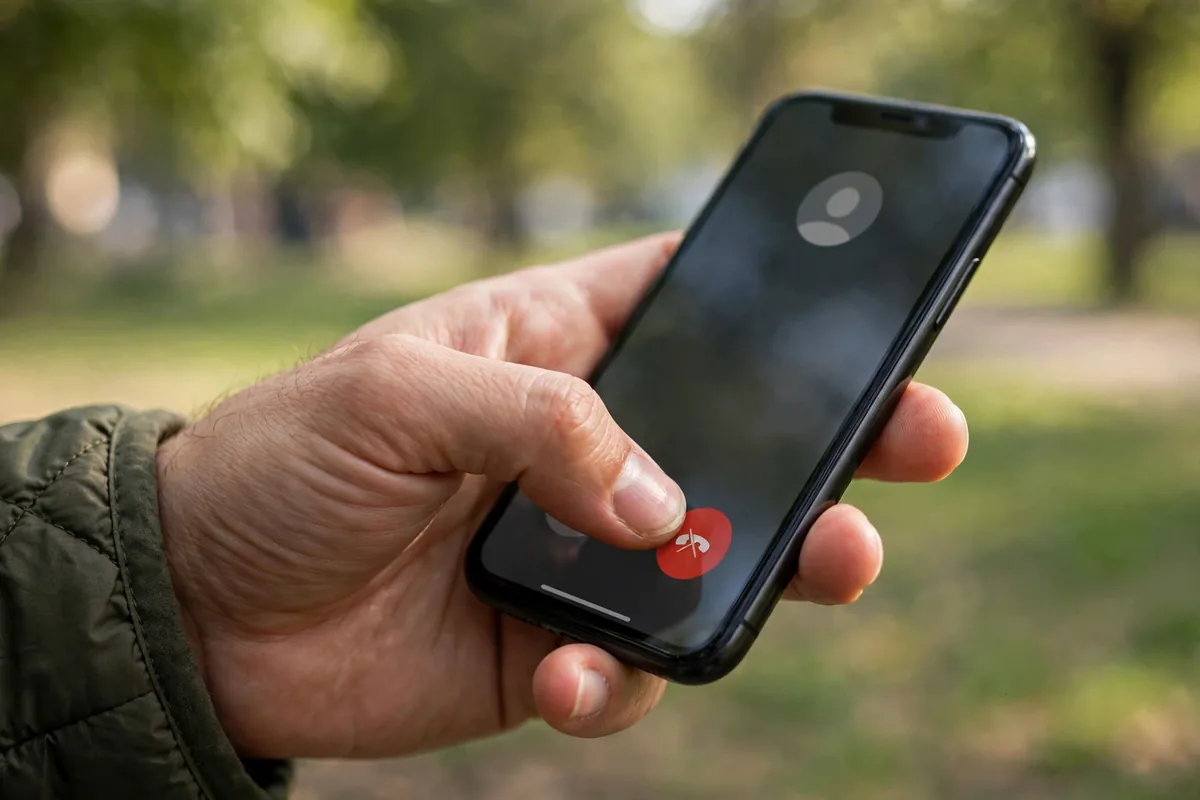
Even with automatic rules, you will sometimes want to screen on demand.
- When the phone rings, tap Screen call instead of Answer or Decline.
- The Assistant answers and begins the screening script.
- Watch the live transcript and tap a suggested response or pick up.
Manual screening shines for numbers that look legitimate but you do not recognize: the dentist’s office calling from a new line, a delivery driver, a recruiter. It is one of those pixel call screen how to use skills that becomes reflex within days.
Pixel Call Screen How to Use: Automatic Screening Deep Dive
Automatic screening is where the feature truly earns its keep, handling calls without any action from you.
How Automatic Screening Behaves
- The Assistant answers silently in the background; your phone may not even ring for declined robocalls.
- You get a missed call notification with the transcript attached, so you can review what the caller wanted.
- Legitimate callers hear a polite request to state their business, and you see it all in real time if you are watching.
Tuning Aggressiveness
Start conservative (screen but do not auto-decline) for a week, then review the transcripts. If legitimate callers are being screened smoothly and spam is being caught, increase aggressiveness. The transcript history is your feedback loop for dialing in these pixel call screen how to use settings perfectly.
Read and Act on Live Transcripts
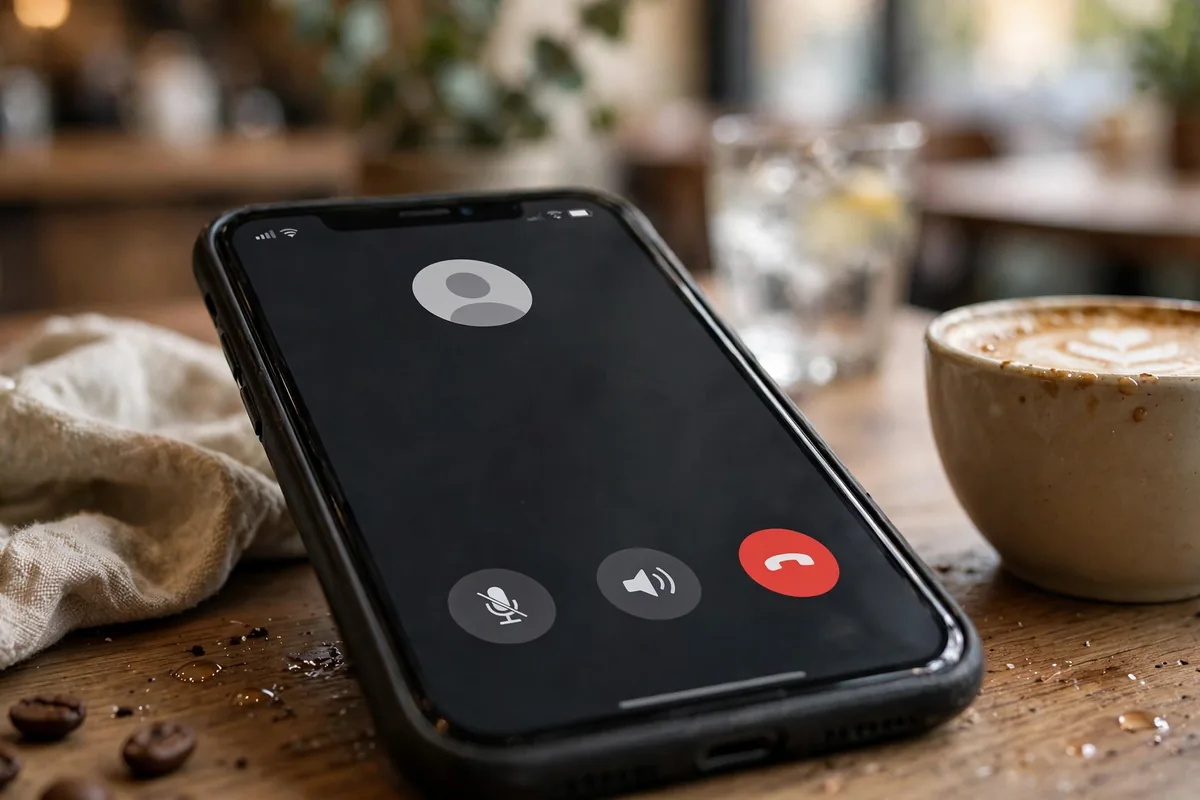
The transcript is the whole point; learn to read it efficiently.
- Caller identification: the first thing the Assistant extracts is who is calling and why.
- Spam tells: robotic pacing, refusal to answer, or immediate hangups are visible in the text.
- Quick actions: tap “Ask who’s calling” for more detail, “Tell them I’ll call you back” for a polite deflection, or “Report as spam” to feed the database.
Transcripts are saved with your call history, so you can search them later. Ever wondered what that screened call last Tuesday wanted? The answer is in your recents.
The Spam Database: How Google Knows
Call Screen’s accuracy comes from Google’s massive spam intelligence network.
- Crowd-sourced reports: millions of users marking calls as spam trains the system.
- Call pattern analysis: robocall dialers have detectable calling patterns.
- STIR/SHAKEN verification: carriers now cryptographically verify caller ID, and unverified calls get extra scrutiny.
Your own “Report as spam” taps contribute to this network, making the system smarter for everyone. It is a rare virtuous cycle in tech: the more people use pixel call screen how to use features actively, the better it gets for all Pixel owners.
Pixel Call Screen How to Use: Quick Comparison Table
| Setting | Spam | Faked Numbers | First-Time | Private |
|---|---|---|---|---|
| Recommended | Auto-decline | Auto-screen | Ring + manual | Auto-screen |
| Phone rings? | No | Optional | Yes | Optional |
| Transcript saved? | Yes | Yes | Yes | Yes |
Call Screen for Business Owners and Freelancers
If unknown numbers are potential customers, screening needs a gentler touch.
- Never auto-decline first-time callers if they might be clients; use manual screening instead.
- Customize your screening greeting if your Pixel version allows it, mentioning your business name.
- Review transcripts promptly; a screened client who gets no callback is a lost client.
- Whitelist regulars by saving them as contacts, which bypasses screening entirely.
This balanced approach is the professional version of pixel call screen how to use: spam blocked, opportunities preserved. For managing business communications more broadly, our accessibility features guide covers live captioning that pairs well with screened calls.
Handle Specific Scenarios
Job Hunting
Recruiters call from unknown numbers constantly. Set first-time callers to ring with manual screening available, and pick up the transcript the moment it starts. You will never miss an opportunity or waste time on a robocall again.
Doctor’s Offices and Deliveries
These legitimate callers often trigger screening. The transcript shows their purpose immediately; pick up mid-screen with full context. Many users report that screened legitimate callers are pleasantly surprised by the professionalism.
Persistent Harassers
For a specific number that will not stop, block it outright (long-press in recents > Block). Call Screen plus blocking is the complete solution; screening handles the unknown, blocking handles the known.
International Calls
Screening works on international numbers, though the Assistant’s language follows your phone’s language setting. Multilingual households should note this limitation when configuring pixel call screen how to use for family members.
Pixel Call Screen How to Use: Language and Voice Options
The screening voice and language are configurable on newer Pixels.
- Go to Phone Settings > Spam and Call Screen > Call Screen.
- Look for Voice options to choose the Assistant’s screening voice.
- Set the language to match your primary calling language.
A natural-sounding voice gets better cooperation from legitimate callers; the robotic early versions sometimes confused people. The current voices are remarkably human, which is part of why the feature works so well now.
Review Screened Calls in History
Every screened call leaves a record worth reviewing.
- Open the Phone app’s Recents tab.
- Screened calls show a transcript icon; tap to expand.
- From here you can call back, block, or report as spam.
Make this review a weekly habit for the first month. You will calibrate your settings faster and catch any misclassified legitimate callers. After that, the system largely runs itself, which is the promise of pixel call screen how to use done right: set it, tune it, forget it.
What Call Screen Cannot Do
Honest limitations keep expectations realistic.
- Not available on all carriers: a few carriers restrict the feature; check Google’s support pages for current availability.
- Emergency callbacks: screened numbers calling back within minutes may still be screened; save important numbers as contacts.
- Voicemail interplay: if you also use carrier voicemail, understand which system answers first to avoid conflicts.
- Non-Pixel phones: this is a Pixel exclusive; other Android phones need third-party alternatives.
Google’s official Call Screen documentation maintains the current carrier and region availability list.
Pixel Call Screen How to Use: Combine With Other Defenses
Call Screen is the star, but the supporting cast matters.
- Carrier spam blocking: enable your carrier’s free spam tools (T-Mobile Scam Shield, AT&T ActiveArmor, Verizon Call Filter) for network-level filtering.
- Do Not Disturb exceptions: let starred contacts ring through while everything else gets screened.
- Silence unknown callers (the nuclear option): sends all non-contacts straight to voicemail; use only if screening feels like too much interaction.
Layer these with the pixel call screen how to use configuration above and spam calls effectively cease to exist in your life. Our Android 16 features guide covers the latest system-level call protections.
Related Guides
- Block Spam Calls Android: 7 Powerful Methods
- Android Accessibility: 12 Features Worth Using
- Android 16 Features: What’s New in 2026
Verified Calls vs. Call Screen: Know the Difference
The Phone app actually carries two separate defenses, and they handle different callers. Verified Calls (Phone app > Settings > Caller ID and spam > Verified Calls) shows the business name and logo for legitimate companies registered with Google, so you see “Chase Bank“ instead of an unknown number. Call Screen handles everyone else: the unknowns, the spoofed numbers, the silent callers. Enable both. Verified businesses identify themselves on the way in; every other unknown caller meets the Assistant first. One requirement: Verified Calls needs a data or Wi-Fi connection to verify in real time, so on a weak signal it may show nothing. That is exactly when Call Screen’s on-device screening matters most, and learning pixel call screen how to use alongside Verified Calls gives you layered protection.
Train the System: The Spam Reporting Loop
Call Screen gets smarter when you report. After a screened call, open Recents, tap the call, and report it as spam, or mark “not spam“ if a legitimate caller was flagged. Those reports feed Google’s spam database, the same one powering automatic screening for every Pixel owner. A minute of reporting after a spam wave measurably reduces future junk for the whole community. Equally important: review your screening history monthly at Phone app > Settings > Spam and Call Screen > Call Screen history. If a doctor’s office, school, or delivery driver got flagged, un-mark them so future calls ring through. This feedback loop is the difference between a good spam filter and a great one, and it is the most overlooked part of pixel call screen how to use well.
FAQ
Does pixel call screen how to use guidance differ by Pixel model?
The core feature works on Pixel 6 and newer. Newer models add voice options, faster on-device processing, and deeper automatic screening settings. The setup path is the same across supported models.
Do callers know they are being screened?
Yes, the Assistant introduces itself and explains the call is being screened. Most legitimate callers cooperate without issue; robocallers typically hang up immediately, which is the desired outcome.
Does Call Screen work without an internet connection?
The on-device models handle basic screening offline on newer Pixels, but full functionality including transcription quality benefits from connectivity. Screened call records sync when you reconnect.
Can I screen calls in languages other than English?
Support has expanded to several major languages. Check your Phone app’s Call Screen language settings for the current list; availability varies by region and Pixel model.
Will screening annoy legitimate callers?
In practice, rarely. The interaction takes seconds, the voice sounds natural, and most people understand spam is out of control. Business callers in particular are accustomed to screening systems.
Does automatic screening use my mobile data or minutes?
Screening happens through Google’s systems and does not consume your plan minutes for declined robocalls. Data usage for transcripts is negligible.
Can I turn off Call Screen for specific contacts?
Yes. Anyone saved in your contacts bypasses screening automatically based on your per-category settings. For finer control, add trusted numbers to contacts and they will always ring through normally.
Conclusion
Learning pixel call screen how to use effectively is one of the highest-value configurations a Pixel owner can make. The tiered setup, spam auto-declined, suspicious numbers screened, first-time callers rung through with manual screening ready, eliminates the vast majority of unwanted calls while preserving every legitimate one. Review your transcripts for the first few weeks, tune the aggressiveness to your life, and then enjoy the unfamiliar sensation of a phone that only rings for people who matter. These pixel call screen how to use tips take minutes to apply and pay off with every silent, spam-free day that follows.


What do you think?
Share your experience or ask a question. A useful conversation starts with you.
Join the discussion