
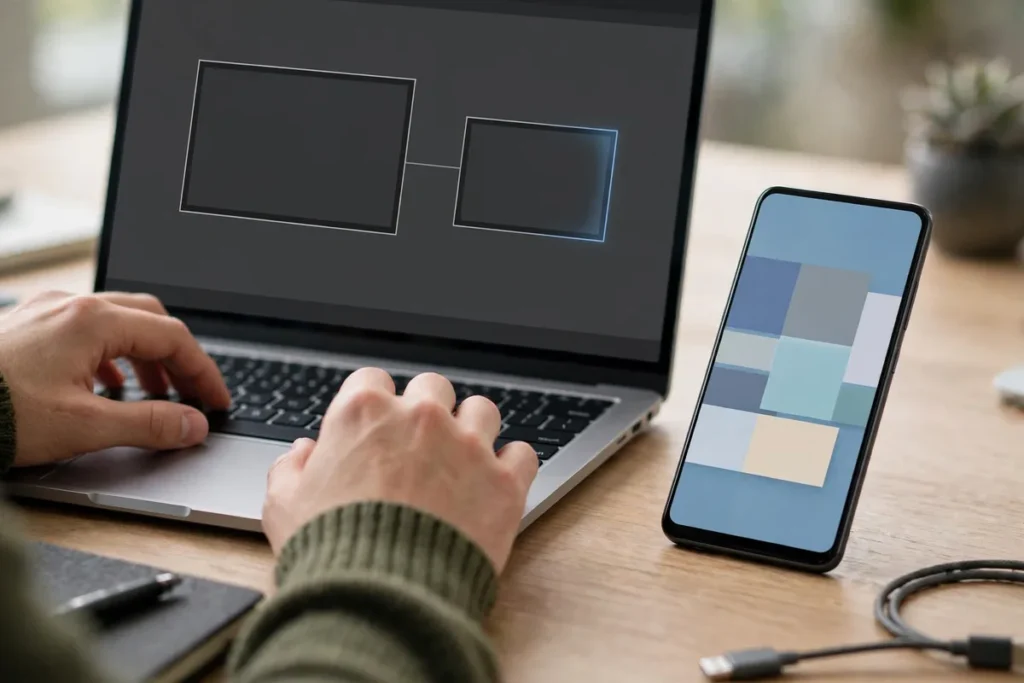
Use Android Phone as Second Monitor: Pro Guide
Your Android phone has a gorgeous, high-resolution display that sits idle while you work on a cramped laptop screen. Why not put it to work? When you use Android as second monitor, you gain extra screen real estate for chat windows, reference documents, music controls, or monitoring tools — without buying any new hardware. This pro guide covers the best wired and wireless methods for Windows and Mac, step-by-step setup, and the lag-busting tweaks that make the experience genuinely usable.
Why Use Android as Second Monitor?

A second display is one of the biggest productivity upgrades you can make — studies consistently show it cuts window-switching and keeps reference material visible. But portable USB monitors cost real money, and they are one more thing to carry. Your phone, on the other hand, is already in your pocket, already charged, and already has a sharp, color-accurate screen.
Common ways people use Android as second monitor include: parking Slack, Discord, or Teams on the phone while the main screen stays focused; keeping documentation or a tutorial video visible while coding; running a music player or system monitor; and using it as a dedicated preview screen for streamers. It will not replace a 27-inch 4K panel for serious design work, but for auxiliary tasks it is remarkably effective — especially over a wired connection.
What You Need Before You Start
The requirements are modest, but getting them right avoids most setup headaches:
- An Android phone or tablet running Android 7.0 or newer (newer is better for performance).
- A Windows 10/11 PC or a Mac. Most apps support both; a few are Windows-only, which we will flag.
- A connection method: Wi-Fi (same network for both devices), USB cable (fastest, most reliable), or both.
- A companion app installed on both the phone and the computer. The phone app comes from the Play Store; the desktop driver comes from the developer’s website.
- Realistic expectations: wireless mirroring adds latency (typically 50-150ms). Wired connections can get under 30ms — fine for everything except competitive gaming.
Charge your phone or keep it plugged in during long sessions; driving the display at full brightness with constant screen updates drains the battery noticeably.
Method 1: Spacedesk — The Best Free Option
Spacedesk is the go-to free solution to use Android as second monitor, and it is genuinely free for personal use with no watermarks or time limits. It works over Wi-Fi, USB tethering, or a direct network cable, and supports Windows 7 through 11 as the host.
Setup:
- Install spacedesk from the Play Store on your phone.
- Download the spacedesk DRIVER for Windows from spacedesk on your PC and install it (reboot if prompted).
- Connect both devices to the same Wi-Fi network.
- Open the phone app — your PC should appear automatically. Tap it to connect.
- On Windows, open Display Settings: your phone now appears as a second display. Arrange it, set resolution, and choose Extend.
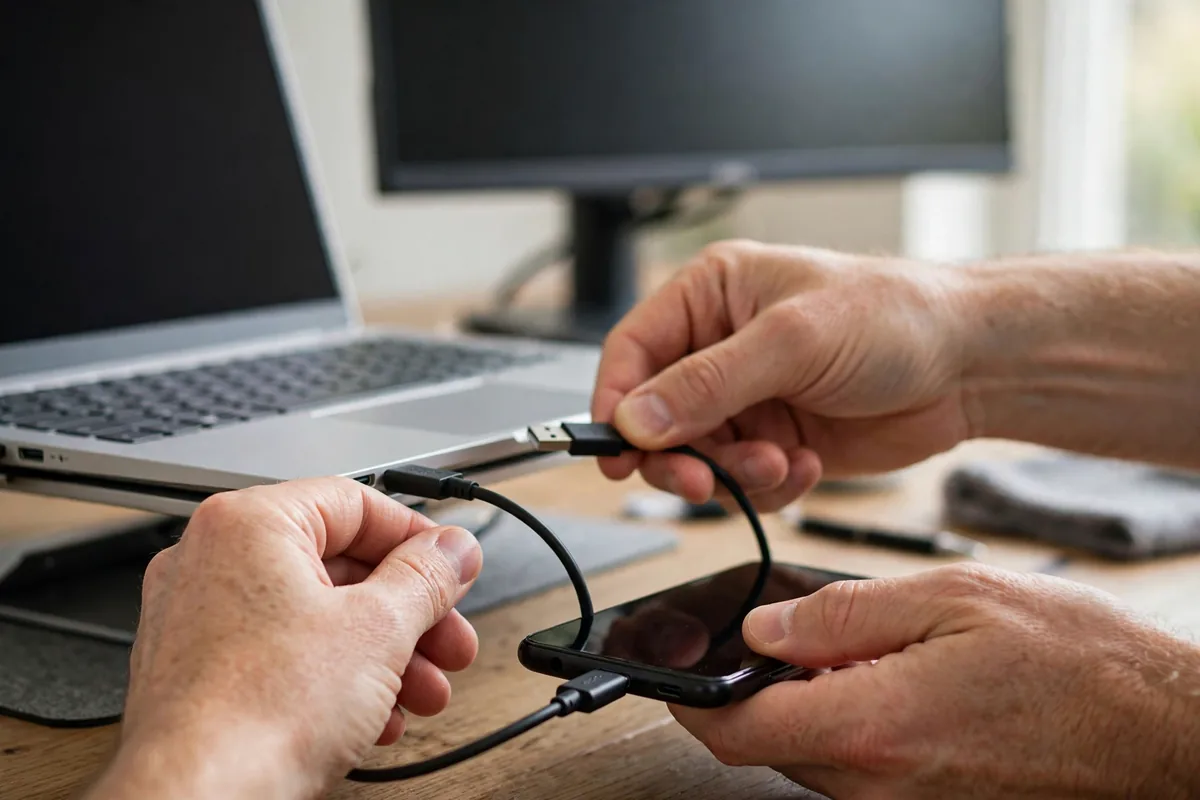
Spacedesk supports touch input from the phone back to the PC, which is handy for scrolling documents. For the lowest latency, enable USB tethering on the phone instead of Wi-Fi: connect via cable, turn on USB tethering in Settings > Network, and select the USB connection in the spacedesk app. This single change often cuts lag in half.
The trade-offs: image quality over Wi-Fi can show compression artifacts in gradients, and there is no Mac host support — spacedesk is Windows-only on the computer side. For a free tool, though, it is outstanding. For anyone wanting to use Android as second monitor without spending a cent, spacedesk remains unbeatable.
Method 2: Duet Display — Best Performance and Mac Support
If you want the smoothest experience and use a Mac, Duet Display is the premium answer. Originally famous for turning iPads into Mac displays, its Android support is mature, and it offers both wired and wireless connections with noticeably better encoding than free alternatives.
Setup:
- Install Duet Display on your Android phone from the Play Store.
- Download the Duet desktop app for Windows or Mac from the official site and install it.
- Connect the phone via USB cable (recommended) or join the same Wi-Fi network.
- Open the phone app and tap connect; accept the on-screen prompts on the computer.
- Configure the display in your OS display settings as an extended monitor.
Duet’s advantages are lower latency, sharper text rendering, and handy extras like using the phone as a graphics tablet or touch bar. The cost is a subscription or one-time purchase depending on current pricing — check the site for the latest model. For professionals who will use the second screen daily, the price is easy to justify.
Note that Duet requires an account for some features, and the free tier is limited — evaluate whether the trial convinces you before paying.
Method 3: SuperDisplay — Best Wired-Only Simplicity

SuperDisplay takes the opposite approach from spacedesk: USB-only, no network fuss, minimal latency. If your use case is a fixed desk setup where the phone sits next to your laptop on a cable anyway, this is arguably the cleanest way to use Android as second monitor.
Setup:
- Install SuperDisplay on the phone.
- Install the Windows driver from the developer’s site.
- Enable USB debugging is NOT required — just connect the cable and select file transfer / USB tethering mode if prompted.
- Launch the app on both ends; the phone screen becomes a display almost instantly.
Because it skips the network stack entirely, SuperDisplay delivers the most responsive feel of any option here — close to a real wired monitor for desktop tasks. Downsides: Windows host only, paid app (one-time purchase), and obviously no wireless freedom. For a permanent desk companion screen, it is hard to beat.
Comparison: Which Method Should You Choose?
| Spacedesk | Duet Display | SuperDisplay | |
|---|---|---|---|
| Price | Free | Paid | Paid (one-time) |
| Windows host | Yes | Yes | Yes |
| Mac host | No | Yes | No |
| Wireless | Yes | Yes | No |
| Wired (USB) | Yes (tethering) | Yes | Yes |
| Latency | Medium | Low | Lowest |
| Touch input | Yes | Yes | Yes |
| Best for | Budget / trying it out | Mac users, pros | Fixed desk setup |
If you are on Windows and just want to experiment, start with spacedesk — it costs nothing and takes five minutes. Mac users should go straight to Duet Display. And if you know you want a permanent wired side-screen, SuperDisplay’s simplicity wins.
7 Tips to Reduce Lag and Improve Quality
However you connect, these tweaks make the experience dramatically better:
- Use USB whenever possible. A cable beats even great Wi-Fi for both latency and stability. USB tethering mode is the secret weapon for spacedesk.
- Use the 5GHz Wi-Fi band if you must go wireless. The 2.4GHz band is crowded and slow — switch both devices to your router’s 5GHz network.
- Lower the phone’s display resolution in the app settings. You do not need 1440p on a 6-inch side screen; 1080p or even 720p looks fine and halves the bandwidth.
- Drop the frame rate to 30fps for static content like documents and chat. Save 60fps for video.
- Reduce color quality slightly if the app allows it — the difference is invisible on a small auxiliary screen.
- Close bandwidth hogs on the PC during sessions: pause cloud sync, torrents, and 4K streams on the same network.
- Keep the phone cool and charged. Thermal throttling on the phone slows encoding; remove thick cases during long sessions and keep brightness moderate.
With these applied, most users report the setup feels “good enough to forget it is a phone” for chat, docs, and monitoring.
Great Use Cases for Your New Second Screen
Once it is running, you will find uses everywhere. Developers keep API docs or Stack Overflow on the phone while code stays on the main screen. Writers park research or outlines there. Students follow a lecture video on the phone while taking notes on the laptop. Streamers use it as a chat or OBS preview monitor. And everyone loves it for music controls and messaging apps — no more alt-tabbing just to skip a track.
It also pairs beautifully with other Android productivity tricks. If you like squeezing more from one device, learn split-screen multitasking on Android to divide the phone screen itself, or cast your Android screen to a TV when you want to go bigger instead of smaller. Your phone is a display chameleon — this guide just unlocks one more of its forms.
Content creators get a bonus use: while the phone serves as a monitor, you can still use its cameras independently. Record a talking-head video with the rear camera while the screen shows your script — a neat teleprompter-plus-monitor combo. And if you ever need to capture what is happening, check our guide to screen recording on Android.
Once you use Android as second monitor every day, you will wonder how you ever worked without the extra space.
Troubleshooting Common Problems
Phone does not appear in the app: Both devices must be on the same network (check that one is not on a guest network or VPN). Disable the PC firewall temporarily to test; if it works, add an exception for the display app.
Black screen on the phone: On Windows, open Display Settings and make sure the display is set to Extend, not “Disconnect this display.” Also try lowering the resolution.
Extreme lag: Switch to USB tethering, drop to 5GHz Wi-Fi, or lower resolution and frame rate as described above. Close other network-heavy apps.
Touch input not working: Enable the touch/HID option in the phone app’s settings, and on Windows check that the display is not set as the primary monitor (touch mapping can get confused otherwise).
Disconnects every few minutes: This is usually Wi-Fi power saving on the phone. Set Wi-Fi to stay awake (Settings > Network > Wi-Fi preferences), keep the phone plugged in, and disable battery optimization for the display app.
FAQ
Can I use Android as second monitor for a Mac?
Yes, but your options are narrower. Duet Display is the best choice with full Mac host support over USB and Wi-Fi. Spacedesk and SuperDisplay are Windows-only on the computer side, so Mac users should skip those. Setup on Mac is the same idea: install the phone app, install the Mac driver, connect, and arrange the display in System Settings > Displays.
Is it possible to use Android as second monitor over USB only?
Absolutely — and it is the best-performing method. SuperDisplay is USB-only by design. Spacedesk supports USB tethering mode, and Duet Display works great over a plain USB cable. Wired connections give you the lowest latency, no Wi-Fi dependence, and they charge the phone simultaneously. For a desk setup, wired is the pro move.
Will using my phone as a monitor damage the screen or battery?
Normal use will not damage the screen, though static images left for many hours can contribute to burn-in on OLED panels — use dark mode and let the screen sleep when idle. Battery-wise, the phone will drain faster and run warmer; keeping it plugged in during sessions avoids deep discharge cycles, which is actually gentler on long-term battery health than repeatedly draining to zero.
Can I use two Android devices as two extra monitors?
Most apps support a single client per host, but you can mix methods: for example, spacedesk for one phone and Duet Display for a tablet on the same PC. Performance depends on your network and CPU. In practice, one phone screen plus your main display covers most needs — a second phone screen has diminishing returns unless you have a specific monitoring wall in mind.
Does it work for gaming?
For turn-based games, strategy titles, and keeping Discord or a map visible while gaming on the main screen — yes, wonderfully. For fast-paced competitive gaming on the phone screen itself, no: even the best wired setups add 20-40ms of latency, and the small screen is a disadvantage. Use the phone as your auxiliary display (chat, stats, inventory) and game on the real monitor.
Conclusion
Learning to use Android as second monitor is one of those upgrades that feels like cheating: no new hardware, five minutes of setup, and suddenly you have more screen real estate everywhere you go. Start free with spacedesk to prove the concept, switch to a wired connection to kill the lag, and upgrade to Duet Display or SuperDisplay if you want the premium experience. Whether it holds your chat apps, your documentation, or your music controls, that idle phone screen is too good to waste — put it to work.




What do you think?
Share your experience or ask a question. A useful conversation starts with you.
Join the discussion