

Your phone’s camera is also one of the most powerful search engines ever built, if you know how to point it. Google Lens analyzes whatever you aim at: plants, products, landmarks, math problems, restaurant dishes, and foreign text, then returns instant, actionable answers. These google lens tricks turn idle curiosity into instant knowledge and solve everyday problems, from identifying a mysterious rash on your houseplant to finding where to buy the chair in a coffee shop photo. See the Google Lens help for official documentation.
This guide covers 10 practical google lens tricks for Android in 2026, spanning homework help, smart shopping, dining confidence, and the pro settings that make Lens faster and more accurate.
Solve Homework With Step-by-Step Help
Lens’s homework mode is the standout of all google lens tricks for students and parents.
How to Use It
- Open the Google app or Google Lens and point at the problem.
- Tap the Homework filter (graduation cap icon).
- Highlight the specific question; Lens returns step-by-step explanations, not just answers.
Why It Beats Just Googling
- Shows the work: math problems get full step-by-step solutions explaining each operation.
- Multiple approaches: science and history questions surface explainer videos and articles.
- All subjects: works for equations, chemistry diagrams, historical photos, and literary quotes.
The pedagogical design matters: Lens teaches rather than just answering, which makes it a legitimate study aid instead of a cheating shortcut. Parents helping with homework they barely remember themselves call this one of the most valuable google lens tricks in the entire Google ecosystem.
Google Lens Tricks: Shop Anything You Can Photograph
See it, snap it, buy it. Visual shopping is Lens’s most commercially powerful trick.
- Point Lens at any product: furniture, clothing, gadgets, packaging.
- Tap the Shopping filter.
- Browse visually similar products with prices and retailers.
Shopping Pro Tips
- Photograph in good light with minimal background clutter for the best matches.
- Crop tightly on the item; Lens matches what is in the frame.
- Screenshot works too: Lens any product photo from social media or websites.
- Compare prices across the surfaced retailers before buying.
That chair in the restaurant, those shoes in a music video, the lamp in an Airbnb photo: all purchasable in under a minute. This is one of those google lens tricks that fundamentally changes how you shop, turning the entire physical world into a browsable catalog.
Identify Plants, Animals, and Landmarks Instantly

The natural world becomes labeled with Lens pointed at it.
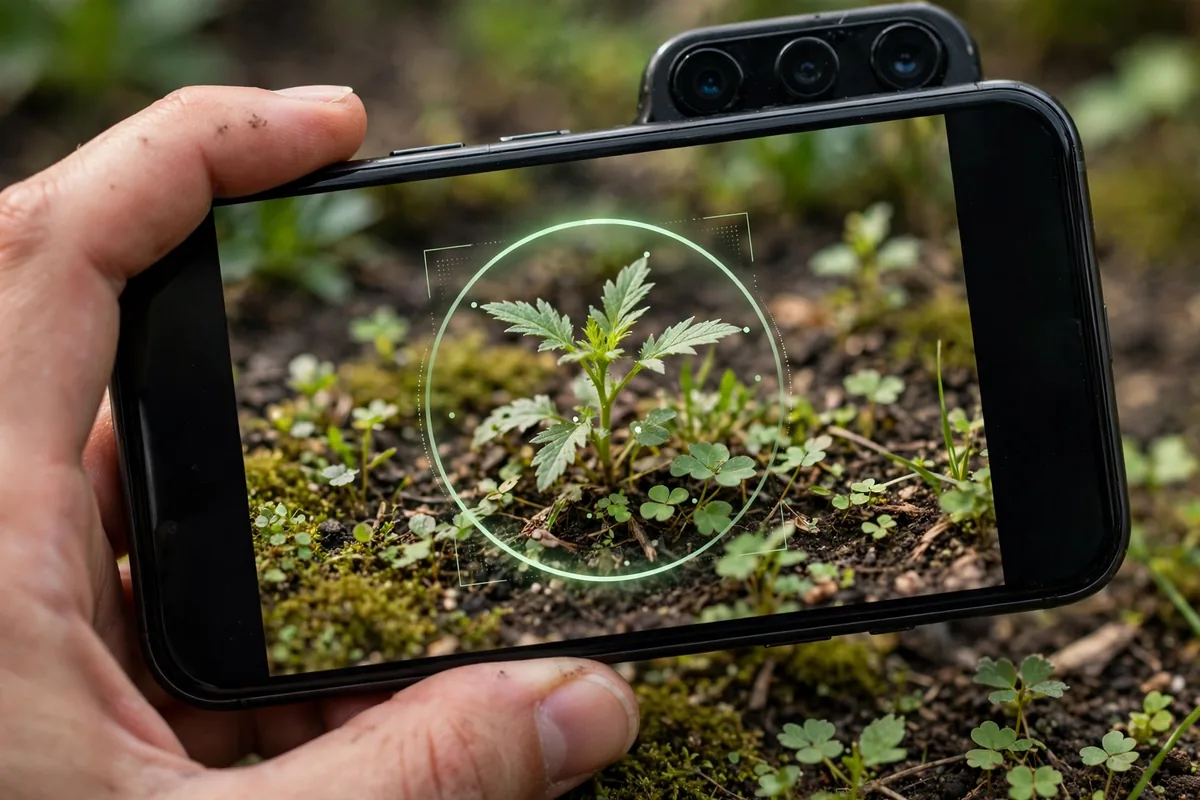
- Plants: identify species and get care instructions; distinguish the houseplant from the weed.
- Animals: identify dog breeds, insects, and wildlife from photos.
- Landmarks: point at buildings and monuments for history, hours, and reviews.
Hikers identify trail mushrooms (though never eat based on an app), gardeners diagnose plant problems, and travelers learn the story behind every beautiful building. Pair landmark discovery with offline navigation by downloading maps before you go; our Android 16 features guide covers what’s new for travelers on the latest Android.
Google Lens Tricks: Translate Menus and Signs Live
Lens includes full translation of any text it sees.
- Point at foreign text and tap the Translate filter.
- Choose target language; translations overlay the original in real time.
- Works on menus, signs, packaging, and documents.
Unlike the dedicated Translate camera mode, Lens translation lives alongside shopping and search, so you can translate a product label then immediately shop for it. For deep translation workflows, our best keyboards guide covers Gboard’s inline translation.
Extract and Copy Text From the Real World

Lens’s text selection turns physical text into digital text.
- Point at any text and tap the Text filter.
- Select the words you want; copy, listen, or search them.
- Paste into notes, messages, or documents.
Business cards become contacts, whiteboards become meeting notes, book quotes become citations, all without retyping. Students photograph textbook pages and search key terms instantly. This is one of the most utilitarian google lens tricks, saving retyping time every single day.
Google Lens Tricks: Quick Comparison Table
| Filter | Best For | Example Use |
|---|---|---|
| Homework | Step-by-step solutions | Math problems |
| Shopping | Find and buy products | Furniture, fashion |
| Translate | Live text translation | Menus, signs |
| Text | Copy physical text | Business cards |
| Dining | Restaurant dishes | Menu photos |
Decide What to Order With Dining Intelligence
Point Lens at a restaurant menu or a dish photo for instant intelligence.
- Menu translation and explanation: unfamiliar dishes get descriptions and photos.
- Popular dishes: Lens surfaces what other diners photograph most at that restaurant.
- Dietary checks: identify ingredients in dishes when you have restrictions.
Adventurous eaters use this to order confidently in unfamiliar cuisines, while cautious diners use it to avoid surprises. Either way, these google lens tricks make dining out more fun and less anxious.
Search Your Screenshots and Gallery
Lens works on existing photos, not just the live camera.
- Open any photo in Google Photos.
- Tap the Lens icon.
- Analyze products, text, landmarks, or animals in the image.
Screenshot a product from Instagram, Lens it for purchase links. Photograph a wine label at dinner, Lens it for reviews and pricing. Your camera roll becomes a searchable visual database, and this retrospective analysis is one of the most overlooked google lens tricks.
Google Lens Tricks: Get Homework Help Without the App
Lens is accessible from multiple entry points, so use whichever is fastest.
- Google app search bar: tap the Lens icon for instant access.
- Camera app: many Android cameras include Lens in the “More” modes.
- Circle to Search: circle anything on screen to Lens it immediately.
- Google Photos: the Lens button on any photo.
Reducing the friction to three seconds or less is what turns Lens from a novelty into a habit. Put the fastest entry point on your home screen; these google lens tricks only work if you actually remember to use them.
Scan Barcodes and QR Codes Universally
Lens reads every code format without a dedicated scanner app.
- Product barcodes: get prices, reviews, and nutritional info.
- QR codes: open links, join Wi-Fi networks, and add contacts.
- Book ISBNs: see ratings and summaries before buying.
One app replaces three single-purpose scanners. It is a small thing, but consolidating these utilities into Lens is exactly the kind of simplification that makes a phone feel well-designed.
Identify That Song, Artwork, or Font
Lens’s visual matching extends to culture and design.
- Artwork: point at paintings and sculptures for artist, title, and museum information.
- Album covers and posters: identify media and jump to streaming or purchase options.
- Fonts and design: identify typefaces in logos and signage for design work.
Museum visits become self-guided tours, and designers build reference libraries by photographing interesting typography. These cultural google lens tricks turn every outing into a learning opportunity.
Google Lens Tricks: Troubleshoot With Visual Search
Weird error light on your dashboard? Strange plant growing in the yard? Unfamiliar tool in the garage?
- Photograph the mysterious object or symbol.
- Lens matches it against the visual web.
- Get identification plus how-to guides, manuals, and fix videos.
Car owners identify dashboard warnings, homeowners identify pests and weeds, and DIYers identify fasteners and fittings. Visual troubleshooting is one of the most practical google lens tricks because it works on problems you cannot describe in words; when you do not know what something is called, you cannot Google it, but you can photograph it.
Privacy and Accuracy Settings Worth Knowing
Lens is powerful, which means its settings deserve a minute of attention.
- Search history: review and delete Lens search history under your Google account’s Web & App Activity.
- SafeSearch: keep it on if kids use the device; visual search can surface unexpected content.
- Location: Lens works better with location for landmarks and businesses, but you can deny it for general use.
- Verify critical IDs: never make medical, safety, or financial decisions solely on a Lens result; treat it as a starting hypothesis.
These guardrails keep the google lens tricks fun and safe rather than risky. Our stop app tracking guide covers the broader privacy settings that complement these.
Related Guides
- Best Photo Editing Apps Android: 10 Top Picks
- Android 16 Features: What’s New in 2026
- Google Wallet: Complete Tap to Pay Setup Guide
Google Lens Tricks: Real-Time Skin and Health Lookups (With Caution)
Lens can identify skin conditions, rashes, and insect bites visually, which is useful for initial orientation.
- What it does well: matches visual patterns to likely conditions with informational articles.
- Critical limitation: this is not a diagnosis; many conditions look alike and only professionals diagnose.
- Best practice: use Lens to decide urgency (pharmacist today vs. doctor this week), then get real medical advice.
These health-related google lens tricks are genuinely useful for triage but dangerous as conclusions. Treat every result as a question to bring to a professional, never as an answer.
Compare Prices While Standing in the Store
Showrooming, checking online prices while in a physical store, is Lens’s killer retail move.
- Photograph the product’s barcode or the item itself.
- Switch to the Shopping filter.
- Compare the shelf price against online retailers instantly.
Some stores price-match on the spot when shown a lower price; others will not, but you can always order online. Either way, these google lens tricks ensure you never overpay from ignorance. The few seconds it takes have saved shoppers hundreds over a year.
Diagnose Sick Houseplants
Point Google Lens at a struggling houseplant and it identifies the species, then surfaces care guides and common disease matches. This works best when you photograph the symptom, not just the plant: a close-up of yellowing leaves, brown spots, or webbing gets far more useful results than a wide shot of the pot. Lens compares your photo against gardening databases and forums, often returning the exact condition — spider mites, root rot, or simple underwatering.
Cross-check the diagnosis before treating. Lens shows visually similar images alongside its guess, so compare your plant’s symptoms against those photos rather than trusting the first label. For confirmation, the results usually link to university extension services and gardening communities where you can read about treatment options and, if needed, post your own photo for a second opinion from experienced growers.
Identify Car Parts and Warning Lights
That mystery warning light on your dashboard is a perfect Lens target. Photograph the instrument cluster and Lens identifies the symbol, explains what it means, and tells you whether it is safe to keep driving. It handles the cryptic ones well — the difference between a tire-pressure warning and a traction-control fault, for example — and the results typically include the relevant page from your car’s manual.
Lens also identifies physical parts under the hood. Photograph the engine bay and tap individual components to learn what each one is: the coolant reservoir, the brake fluid cap, the air filter housing. This is genuinely useful before a road trip or when a mechanic mentions a part you have never heard of — a thirty-second Lens check tells you whether the quoted repair involves a $20 filter or a $2,000 component.
FAQ
Are google lens tricks free to use?
Yes, Google Lens is completely free with no premium tier. All filters, including homework help and shopping, work without payment or subscription.
How accurate is Lens for homework?
Very accurate for standard math, science, and history questions at the K-12 and early college level. Obscure or poorly photographed problems may confuse it; clear, well-lit images get the best results.
Does Lens store my photos?
Lens processes images through Google’s servers; history is tied to your Web & App Activity settings. You can pause or delete this history anytime from your Google account.
Can Lens translate handwriting?
Printed text translates reliably; neat handwriting works reasonably; cursive and stylized script are hit-or-miss. For important translations, verify with a second method.
Why does shopping mode show irrelevant results?
Background clutter and poor lighting are the usual culprits. Crop tightly on the product, photograph against a plain background, and ensure the item fills most of the frame.
Is there a Lens app or only integrations?
Both. A standalone Google Lens app exists on the Play Store, and Lens is integrated into the Google app, Camera, Photos, and Circle to Search. Use whichever entry point is fastest for you.
Can Lens identify people in photos?
No. Google Lens does not perform facial recognition on private individuals. It can identify public figures in some contexts, but it will not name ordinary people in your photos.
Does Lens work on iPhone too?
Yes, Google Lens is available on iOS through the Google app. The filters and capabilities are the same, though entry points differ slightly from Android’s deeper system integration.
Conclusion
These 10 google lens tricks turn your camera into an all-purpose answer engine. Students get step-by-step homework help, shoppers buy anything they can photograph, diners order with confidence, and the curious identify everything from plants to paintings. Put Lens one tap away on your home screen, learn the filter that matches your life, and start pointing your camera at questions instead of typing them. The best google lens tricks share a simple magic: they answer questions you could not have phrased as a text search, because some things you can only show, not tell.


What do you think?
Share your experience or ask a question. A useful conversation starts with you.
Join the discussion