
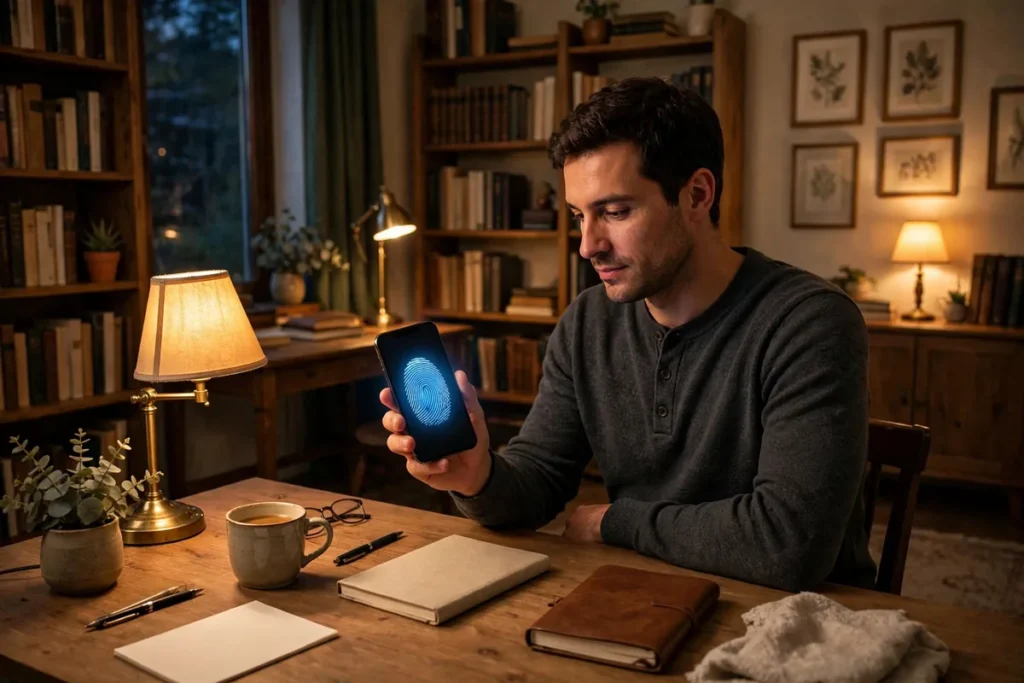
Everyone has photos on their phone they do not want popping up in the gallery when a friend swipes through, appearing in shared albums, or surfacing in a memories slideshow at the worst possible moment. The google photos locked folder solves this cleanly: it is a private, encrypted space inside Google Photos where selected photos and videos hide behind your screen lock, invisible everywhere else in the app. These google photos locked folder tips cover setup, the critical backup rules most people miss, and how it differs from other hiding options. For official guidance, see the Google Photos help center.
Whether you are protecting sensitive documents, surprise party plans, or simply personal memories, this guide to the google photos locked folder shows you how to keep them truly private on Android in 2026.
What the Locked Folder Does and Does Not Do
The Locked Folder is not just a hidden album; it has specific behaviors worth understanding before you move anything into it.
What Gets Protected
- Hidden from the main grid: locked items vanish from Photos, search results, memories, and albums.
- Biometric gate: opening the folder requires your fingerprint, face, or PIN every time.
- Excluded from sharing: locked items cannot be added to shared albums or partner sharing.
- No cloud visibility: items do not appear on other devices unless you explicitly enable backup for the folder.
Important Limitations
- Screenshots can still capture the folder’s contents while it is open; the lock guards access, not the screen.
- If you forget your device credentials and reset the phone, unbacked-up locked items are gone permanently.
- Some gallery apps may still show the underlying files if they were not moved properly; always move, never copy.
Understanding these boundaries is the foundation of using the google photos locked folder safely rather than with false confidence.
Set Up the Locked Folder in Minutes
Setup takes less than two minutes and only needs doing once.
- Open Google Photos and tap Library (or Collections on newer versions).
- Tap Locked Folder under Utilities.
- Authenticate with your fingerprint or PIN to initialize it.
- The folder is ready; it appears as a distinct section that always requires authentication.
On Pixel phones the Locked Folder may also integrate with the system gallery. On Samsung and other brands, it lives inside the Google Photos app specifically. This is one of those google photos locked folder basics that everyone should configure before they need it, not after an awkward moment.
Move Photos and Videos Into the Locked Folder
Move Individual Items
- Open the photo or video in Google Photos.
- Tap the three-dot menu and select Move to Locked Folder.
- Confirm; the item disappears from its original location immediately.
Move in Bulk
- Long-press one photo, then tap additional items to select a batch.
- Tap the three-dot menu and choose Move to Locked Folder.
- Confirm once for the entire selection.
Move Directly From the Camera
On Pixel phones, you can save new captures straight to the Locked Folder.
- Open the Camera app and tap the photo gallery icon or settings.
- Choose Locked Folder as the save location.
- New shots go directly into the locked space, never touching the main grid.
This camera integration is one of the most practical google photos locked folder features for sensitive documents like IDs or medical records; they never exist in the open gallery even for a second.
Google Photos Locked Folder: The Backup Question
This is the section most guides gloss over, and it is the most important.
Locked Folder Backup Is Off by Default
- Items in the Locked Folder are stored only on your device unless you enable backup specifically for the folder.
- If you lose or reset your phone without backup, the items are unrecoverable.
- To enable backup: open the Locked Folder, tap the three-dot menu, and turn on Back up Locked Folder.
The Trade-Off
Backing up means your private items upload to Google’s servers (encrypted in transit and at rest, protected by your account). Not backing up means total loss if the device dies. There is no universally right answer.
- Enable backup if the photos are irreplaceable (family documents, sentimental originals).
- Keep it local-only if the content is sensitive enough that any cloud copy feels wrong and you accept the loss risk.
Whatever you choose, decide consciously. Our Android backup guide covers full-device backup strategy that complements this decision.
Organize Inside the Locked Folder
The folder supports basic organization so it does not become a junk drawer.
- Search works inside the folder after authentication, including people and object recognition.
- Create albums within the Locked Folder for categories like Documents, Personal, and Surprises.
- Add descriptions to photos for context you will appreciate later.
A little organization now saves frantic scrolling later, and it costs nothing since the folder’s search is just as capable as the main library’s.
Google Photos Locked Folder: Quick Comparison Table
| Feature | Locked Folder | Archived | Hidden .nomedia |
|---|---|---|---|
| Biometric lock | Yes | No | No |
| Hidden from search | Yes | Partial | App-dependent |
| Cloud backup option | Yes (opt-in) | Yes | No |
| Shared album exclusion | Yes | No | No |
Locked Folder vs. Archive: Know the Difference
Google Photos also offers Archive, and people confuse the two constantly.
- Archive merely removes items from the main grid; they remain fully searchable, shareable, and visible in albums. It is decluttering, not protection.
- Locked Folder adds authentication, excludes items from search and sharing, and optionally keeps them off the cloud entirely.
Use Archive for screenshots and memes you want out of sight. Use the google photos locked folder for anything genuinely private. Mixing them up is the most common privacy mistake in Google Photos.
What Happens When You Switch Phones
Phone upgrades are where Locked Folder users get burned, so plan ahead.
- If backup was enabled: sign into the same Google account on the new phone, open the Locked Folder, authenticate, and items sync down.
- If backup was off: you must manually move items out of the Locked Folder before wiping the old phone, then re-lock them on the new device.
- Verify before wiping: open the folder on the new phone and confirm every item arrived before factory-resetting the old one.
This verification step is non-negotiable. Our new phone setup guide includes a migration checklist that covers this alongside everything else.
Google Photos Locked Folder: Partner Sharing and Shared Albums
The folder is deliberately isolated from all sharing surfaces.
- Locked items never appear in partner sharing, even if you share your entire library with a spouse.
- You cannot add locked items to shared albums; move them out first if you change your mind.
- Memories and creations (collages, animations) never include locked content.
This isolation is the point, but it surprises people who share their whole library and assume everything is included. Audit your sharing settings under Settings > Sharing to confirm the boundaries match your expectations.
Secure the Rest of Your Photo Privacy
The Locked Folder is one layer; complete photo privacy needs a few more.
- Disable photo backup for sensitive folders: Screenshots and Downloads can back up separately; exclude folders you do not want in the cloud.
- Review shared albums: old shared albums may contain photos you forgot about; leave or delete them.
- Check app access: under Android settings, confirm which apps have photo access and switch to the limited photo picker where possible. Our app permissions guide walks through this.
These google photos locked folder companion steps close the gaps the folder itself does not cover.
Recover Deleted Photos From the Locked Folder
Deleted locked items go to the trash like everything else, with the same 60-day window.
- Open the Locked Folder and authenticate.
- Tap Trash within the folder’s menu.
- Select items and tap Restore.
Note that the main trash and the Locked Folder trash are separate; check both if something is missing. For photos deleted from outside the folder, our deleted photo recovery guide covers every recovery method.
Google Photos Locked Folder: Kids, Guests, and Borrowed Phones
Handing your phone to a child or friend is the number-one scenario the Locked Folder exists for.
- Before handing over: move anything sensitive into the folder; it takes seconds per batch.
- Guest mode alternative: Android’s guest mode hides your entire profile, which is stronger but less convenient for quick sharing.
- Screen pinning: pin the specific app so the borrower cannot wander into Photos at all.
Layer these based on the situation: Locked Folder for daily life, screen pinning for quick handoffs, guest mode for extended loans. Together they cover every “can I borrow your phone?” scenario without awkwardness.
Audit Who Can See Your Photos
Periodically review the broader sharing landscape, because the Locked Folder only protects what is inside it.
- In Google Photos, go to Settings > Sharing and review partner sharing and shared albums.
- Check Settings > Apps on Android for which apps hold photo library permission.
- Remove old devices from your Google account under Manage devices; a forgotten tablet still signed in can see everything except the locked content.
A quarterly five-minute audit keeps your photo privacy airtight. The google photos locked folder handles the secrets; the audit handles the surroundings.
Related Guides
- Backup Android Phone: 7 Ways to Protect Your Data
- Recover Deleted Photos Android: 6 Methods That Work
- Android App Permissions: 7 Powerful Privacy Tips
FAQ
Is the google photos locked folder truly encrypted?
Items are protected by your device’s secure lock and excluded from Google’s normal photo processing while locked. With backup enabled, they upload encrypted in transit and at rest under your account’s protection. It is strong consumer-grade privacy, not deniable encryption.
What happens to the Locked Folder if I change my screen lock?
Changing your PIN or biometrics does not affect the folder; it follows your current device authentication. If you remove your screen lock entirely, the folder cannot be secured and Photos will warn you.
Can I hide the Locked Folder’s existence?
The folder entry remains visible in the Library, though its contents are sealed. There is no built-in way to hide the folder itself; anyone opening Photos can see that a Locked Folder exists.
Does the Locked Folder work on iPhone?
Yes, Google Photos on iOS includes the Locked Folder with the same behavior, protected by Face ID or passcode. Backup and device-transfer rules work identically across platforms.
If I delete Google Photos, do locked photos survive?
Locked items live in Google Photos’ private storage. Deleting the app does not delete the data immediately, but a factory reset without backup destroys unbacked-up locked items permanently.
Can Google see my locked photos?
With backup disabled, locked items never leave your device. With backup enabled, they are stored in your Google account like any backup, protected by your account security and encryption in transit and at rest.
How many photos can the Locked Folder hold?
There is no separate limit; the folder shares your device storage and Google account storage quota like everything else. Extremely large video collections may require a Google One storage upgrade if you enable backup.
Hide Photos From Third-Party Gallery Apps Too
Moving a photo into the Locked Folder removes it from shared storage, which means other gallery apps — Samsung Gallery, your file manager’s media view, even WhatsApp’s photo picker — can no longer see it either. This is the key difference from simply moving files into a hidden folder: a dot-folder hides photos from some galleries but leaves the file readable to any app with storage permission. The Locked Folder keeps items behind your screen lock, so the protection is real, not cosmetic. Test it yourself after moving a sensitive photo: open your phone maker’s gallery app and search — it will not be there.
Device Folders: The Leak Most People Miss
The Locked Folder only protects what you put in it. The bigger leak is automatic: WhatsApp images, screenshots, and downloads land in device folders that Google Photos backs up and displays by default. Open Google Photos, go to Library, and review which device folders have backup switched on — a screenshot of a boarding pass or a received document photo can sync to the cloud and surface in Memories without you ever opening the main camera folder. Switch off backup for folders you do not want in the cloud, and move anything sensitive into the Locked Folder the day it arrives, not “later.”
Conclusion
The google photos locked folder is the right tool for genuinely private photos: biometric-gated, excluded from search and sharing, and optionally kept entirely off the cloud. Set it up now, move sensitive items in bulk, and make the conscious backup decision rather than discovering the default during a phone upgrade. Combined with a quarterly sharing audit, these google photos locked folder practices give you complete confidence that your private photos stay private, no matter who borrows your phone or swipes through your gallery.


What do you think?
Share your experience or ask a question. A useful conversation starts with you.
Join the discussion