
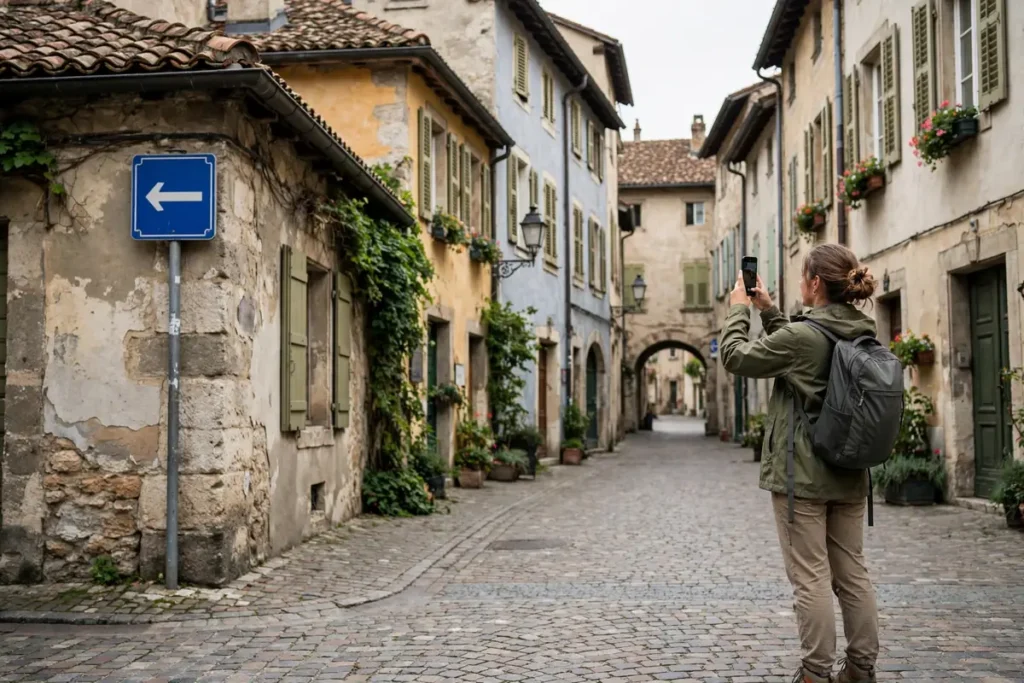
Standing in front of a Japanese train station sign, an Italian restaurant menu, or a German rental agreement, your phone’s camera can become a universal translator. The best google translate camera tips turn the Google Translate app into an augmented-reality interpreter: point your camera at foreign text and watch it transform into English live on screen, hold real-time bilingual conversations, and translate entire photo galleries without typing a word. These google translate camera tips are the difference between traveling anxiously and traveling confidently. See the Google Translate for official documentation.
This guide covers 9 pro-level google translate camera tips for Android in 2026, from instant camera translation to conversation mode mastery, offline packs, and the settings that make everything faster.
Use Instant Camera Translation Like AR
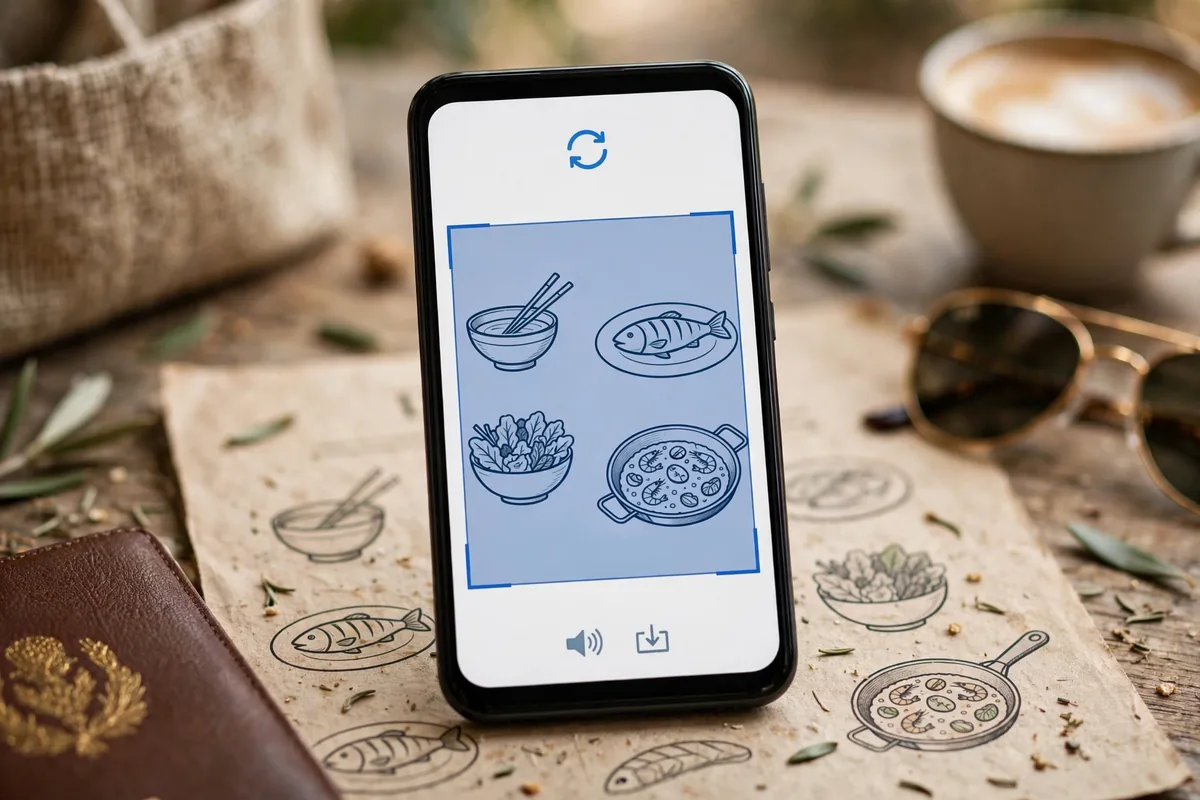
The camera’s instant mode overlays translations directly onto the live view, replacing foreign text in place.
How to Activate It
- Open the Translate app and tap the Camera icon.
- Set the source and target languages at the top (or leave source on Detect language).
- Point your camera at the text; translations appear overlaid in real time.
Getting the Best Results
- Hold steady for a second; the overlay stabilizes as the app locks onto the text.
- Good lighting matters more than anything else; the camera cannot translate what it cannot read.
- Get close to small text like ingredient lists; fill the frame with the content.
- Keep the phone level; extreme angles confuse the text detection.
Street signs, menus, and posters translate beautifully. Handwriting and highly stylized fonts are harder, but printed text in good light works remarkably well. This is the flagship of all google translate camera tips, and it feels like science fiction the first dozen times.
Google Translate Camera Tips: Import and Translate Existing Photos
You do not need to translate in the moment; the app works on photos you already took.
- Tap the Camera icon, then the gallery/import button.
- Select a photo containing foreign text.
- The app detects text regions; tap each to see translations, or view the full overlay.
This is perfect for translating screenshots from foreign websites, photos of documents someone sent you, and whiteboard pictures from international meetings. Batch-translate a whole set of travel photos in minutes. For keyboard-based translation while typing, our best Android keyboards guide covers Gboard’s inline translate feature.
Master Conversation Mode for Real-Time Dialogue
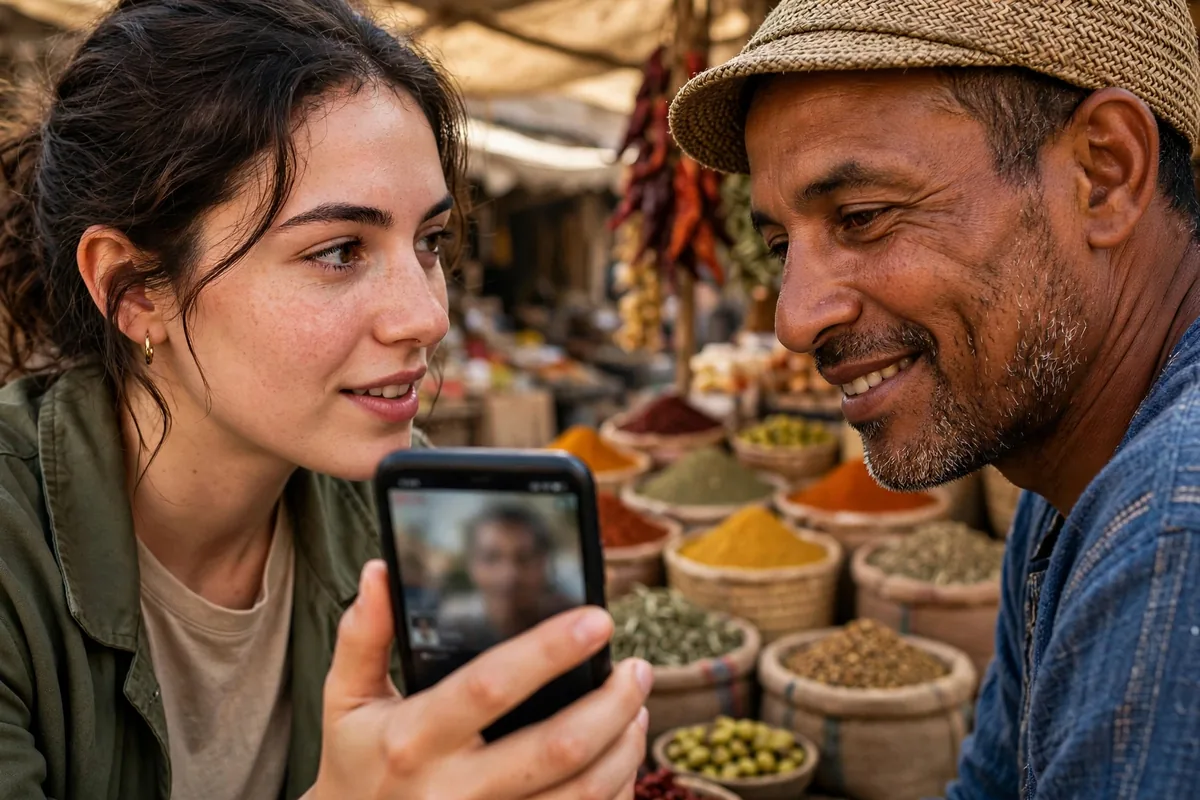
Conversation mode turns your phone into a bilingual interpreter for face-to-face talks.
How to Use It
- Open Translate and tap Conversation.
- Set both languages at the bottom.
- Tap a language’s microphone and speak; the app speaks the translation aloud.
- Enable Auto mode to detect who is speaking without tapping.
Conversation Pro Tips
- Use in a quiet environment; background noise is the biggest accuracy killer.
- Speak in short sentences; the translation quality drops with long, complex utterances.
- Show the screen to the other person so they can read along while it speaks.
- Download both languages offline before traveling (more below).
Hotel check-ins, taxi directions, market haggling, and medical situations all become manageable. This is one of those google translate camera tips adjacent features (it lives in the same app) that travelers rank as genuinely life-changing.
Download Offline Language Packs Before You Travel
Translation without internet is essential abroad, and it requires preparation.
- In the Translate app, tap your profile picture, then Downloaded languages.
- Download every language you might encounter, in both directions.
- Camera translation, conversation mode, and text translation all work offline once packs are installed.
Storage and Management
- Packs range from 30MB to 200MB each; download on Wi-Fi before departure.
- Offline camera translation is slightly less accurate than online but entirely usable.
- Keep packs updated; translation models improve regularly.
The golden rule of these google translate camera tips: download languages at home, not at the airport on expensive roaming data.
Google Translate Camera Tips: Quick Comparison Table
| Mode | Best For | Needs Internet? |
|---|---|---|
| Instant camera | Signs, menus, posters | Better with, works without |
| Photo import | Screenshots, documents | Better with, works without |
| Conversation | Face-to-face dialogue | Better with, works without |
| Text typing | Messages, emails | Optional |
| Transcribe | Lectures, speeches | Recommended |
Translate Handwriting and Drawn Characters
Encounter characters you cannot type? Draw them.
- In the text translation tab, tap the pen/handwriting icon.
- Draw the character with your finger.
- The app recognizes it and translates immediately.
This is invaluable for Asian languages where you recognize a character visually but cannot pronounce or type it. Combined with camera translation, these google translate camera tips cover every input method: see it, draw it, or photograph it.
Use Transcribe Mode for Speeches and Tours
Transcribe mode provides real-time translation of ongoing speech, like subtitles for real life.
- Tap Transcribe in the Translate app.
- Select source and target languages.
- Hold the phone near the speaker; translated text streams live.
Guided tours, conference talks, and announcements become accessible. It is not perfect for rapid or overlapping speech, but for a single speaker in reasonable conditions it is remarkably effective. Save the transcript afterward for reference.
Google Translate Camera Tips: Translate Your Whole Screen
Android’s system-level translation can translate text in any app.
- Circle to Search: circle any on-screen text to translate it instantly.
- Recent apps screen: some Android versions offer translate on the app-switcher screenshot.
- Gboard: the translate icon in the keyboard translates as you type.
These system integrations mean you rarely need to open the Translate app for quick jobs. The camera remains king for the physical world, while these handle the digital one. Our Android 16 features guide details the latest system translation improvements.
Save Phrases to Your Phrasebook
Build a personal dictionary of translations you use repeatedly.
- After any translation, tap the star icon.
- Starred phrases collect in the Phrasebook (Saved in newer versions).
- Organize by creating themed collections: travel essentials, business meetings, medical needs.
Pre-translate critical phrases before a trip: allergies, medical conditions, hotel address, emergency contacts. Having them starred means no fumbling with the app when it matters most. This preparation is one of the most practical google translate camera tips for anxious travelers.
Google Translate Camera Tips: Lens Integration and Visual Search
Google Lens and Translate share DNA; use them together.
- Lens for objects: identify landmarks, plants, and products visually, then translate any text Lens finds.
- Translate in Lens: the Lens app itself offers translation of detected text with a richer visual interface.
- Shopping abroad: photograph a product, identify it with Lens, translate the packaging with camera mode.
The two apps complement each other: Lens understands what things are, Translate understands what words mean. Travelers who master both never feel lost.
Pronunciation and Dictionary Depth
Tap any translated word for pronunciation, definitions, and alternatives.
- Speaker icon: hear the translation spoken natively; play it for the other person.
- Dictionary entries: see alternate meanings to pick the right nuance.
- Slow playback: tap again for slowed pronunciation when learning.
This turns every translation into a micro language lesson. Regular travelers pick up genuine vocabulary this way, and the slowed playback is perfect for practicing before you need the phrase live.
Related Guides
- Best Android Keyboards 2026: 5 Top Picks
- Google Wallet: Complete Tap to Pay Setup Guide
- Android 16 Features: What’s New in 2026
Google Translate Camera Tips: Translate Documents Like a Pro
For multi-page documents, a systematic approach beats ad-hoc snapshots.
- Photograph every page in order, keeping the phone parallel to the paper.
- Import each photo into Translate’s camera mode and capture the translations.
- Star key phrases as you go so critical terms stay accessible.
- Compile in Keep or Docs: paste the translated segments into a document for a readable whole.
Rental agreements, medical forms, and school notices all yield to this workflow. It is slower than instant mode but produces a permanent, reviewable translation. For truly critical documents, these google translate camera tips get you 90% of the way; a human translator covers the last 10% where precision matters legally or medically.
Handle Menus and Food Labels With Confidence
Food is where translation anxiety peaks: allergies, dietary restrictions, and mystery ingredients.
- Menus: use instant camera mode line by line; photograph the full menu first so you can browse translations at leisure.
- Ingredient labels: import photos of packaging for careful reading of allergen warnings.
- Ask for confirmation: show the translated screen to staff to verify; the combination of your translation plus their nod is the safest approach.
Travelers with allergies should pre-translate their restriction phrases and star them in the phrasebook before every trip. This preparation, combined with on-the-spot google translate camera tips, makes dining abroad safe and enjoyable rather than stressful.
Google Translate Camera Tips: Accessibility Uses Beyond Travel
Translation tools serve accessibility needs that have nothing to do with tourism.
- Low vision: point the camera at small print and read the enlarged translation instead of squinting.
- Cognitive accessibility: simplify complex documents by translating them into plainer phrasing in your own language.
- Language learning: translate children’s books and comics to build vocabulary in context.
- Workplace inclusion: translate safety notices and instructions for multilingual teams.
These applications show why google translate camera tips belong in an accessibility toolkit, not just a travel guide. The same features that decode a Tokyo subway map also make daily life more navigable for millions of people.
Read Medication and Safety Labels Correctly
Camera translation earns its keep on pharmacy labels and safety warnings when you travel. Point the camera at a prescription bottle or over-the-counter medicine box and the app overlays the translated dosage instructions in real time. This works best on printed labels with clean typography; embossed text on pill bottles and tiny folded inserts translate poorly, so unfold inserts flat on a table and photograph them in good light instead.
Be careful with dosage numbers and units. Translation engines occasionally misread similar-looking characters — a 5 can become a 6 in blurry photos, and milligrams versus micrograms is a thousand-fold difference. After translating, verify every number against the original by comparing digit by digit, and for anything health-critical, confirm with a pharmacist using the translated text as a starting point, not the final word. The same caution applies to allergy warnings on food packaging and safety instructions on rental equipment.
Fix Translation Mistakes With Manual Corrections
Camera translation is fast but imperfect, and knowing how to correct it on the spot separates casual users from power users. When the overlay looks wrong, tap the text to open it in the main Translate view, where you can edit the source text manually. This matters most with stylized fonts on signs and menus, where the camera misreads decorative lettering.
Common fixes
- Wrong language detected: tap the source language and lock it manually instead of using Auto-detect, which gets confused by multilingual signage.
- Fragmented sentences: the camera translates line by line; tap through to the full text view to see the sentence reassembled correctly.
- Proper nouns mangled: street names and restaurant names translate literally by default; switch to the dictionary view to see the original term preserved.
If a translation keeps failing, switch to photo mode: capture a still image, then drag to select exactly the text block you want. The still image gives the engine a stable, high-resolution frame to work with and produces noticeably better results on complex layouts like newspaper columns or multi-language brochures.
FAQ
Do google translate camera tips work for all languages?
Camera translation supports 100+ languages, though accuracy varies. Major European and Asian languages work excellently; rarer languages may have limited offline support. Check the downloadable languages list for your specific needs.
How accurate is instant camera translation?
For printed text in good lighting, very accurate for common language pairs. Stylized fonts, handwriting, and poor lighting reduce accuracy. Always double-check critical translations (medical, legal) with a second method.
Can I translate without giving the app camera permission?
No, camera translation fundamentally needs camera access. If you are uncomfortable, use photo import with existing images or text translation instead, which need no camera permission.
Does conversation mode work for phone calls?
Not directly in the Translate app, but Android’s Live Translate on Pixel and Samsung devices can translate live calls. Check your phone’s call settings for live translate options.
How much data does offline translation save?
Everything runs on-device once packs are downloaded, so zero mobile data is used. This is crucial abroad where roaming charges make every megabyte expensive.
Can I translate text in videos?
Point camera mode at a paused video frame to translate on-screen text. For spoken dialogue, use Transcribe mode pointed at the speaker or the device’s audio output.
Which languages support offline camera translation?
Most major languages offer downloadable packs including camera support. Some rarer languages support text-only offline translation. The app clearly labels each pack’s capabilities before you download.
Does the app save my translation history?
Yes, recent translations are saved and searchable unless you disable history in settings. This is handy for revisiting phrases, but privacy-conscious users should clear it periodically.
Conclusion
These 9 google translate camera tips turn your phone into a universal translator for the physical world. Download language packs before you travel, master instant camera mode for signs and menus, and keep conversation mode ready for human interactions. The preparation takes twenty minutes at home and pays off every single day you spend abroad exploring with curiosity instead of caution. With these google translate camera tips in your pocket, language barriers become minor inconveniences rather than trip-defining obstacles, and that confidence changes how you travel everywhere you go.


What do you think?
Share your experience or ask a question. A useful conversation starts with you.
Join the discussion