

Fix Android Boot Loop Issue: 7 Working Ways
Few phone problems inspire panic like a boot loop: your Android shows the logo, goes dark, shows the logo again — forever. The good news is that you can often fix Android boot loop without PC, using only the phone’s built-in recovery and safe modes. This guide walks through 7 working methods in order from gentlest to most drastic, explains why boot loops happen, and tells you exactly when the problem is hardware and no software trick will help.
What Is a Boot Loop and Why Does It Happen?
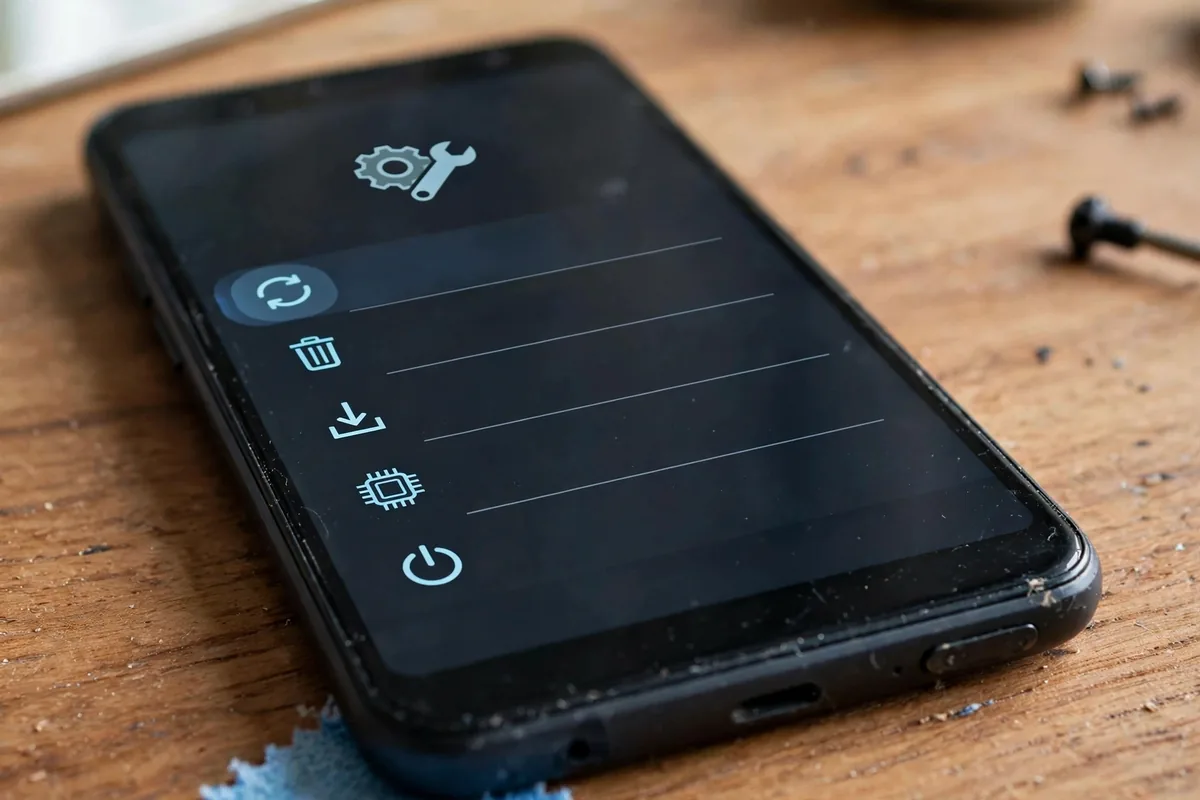
A boot loop means Android starts loading, hits a fatal error, and reboots before reaching the home screen — then repeats indefinitely. The phone is not dead; it is stuck in a crash-restart cycle during startup.
Common triggers include:
- A bad system update that corrupted boot files or left incompatible caches behind.
- An incompatible app or Magisk module (on rooted phones) that hooks into the boot process.
- A full storage drive — Android needs free space to boot; a completely full phone can loop.
- Corrupted cache partition after an interrupted update or a dying storage chip.
- Failing hardware, especially the power button (stuck = constant reboot signal) or degraded flash storage.
- Overheating during boot, which forces a thermal shutdown mid-startup.
Knowing the likely cause helps you pick the right fix, but the methods below are ordered so you can simply work top to bottom. Every one of them can fix Android boot loop without PC access, using nothing but the phone itself.
Fix Android Boot Loop Without PC: Before You Start
A quick prep routine makes everything below safer and more effective:
- Charge to at least 50%. Plug the phone into a wall charger (not a laptop USB port) for 20-30 minutes. A dying battery mid-fix can corrupt things further. If the loop prevents charging normally, recovery mode usually still charges — we will get there.
- Remove the case. Overheating contributes to boot failures; give the phone airflow.
- Accept the data risk honestly. Methods 1-4 preserve your data. Method 5 (factory reset) erases everything. If your photos and files are not backed up anywhere, that stings — which is exactly why everyone should back up their Android phone regularly, before disaster strikes.
- Note what changed. Did the loop start right after an update, a new app install, or a drop? That clue points at the culprit.
With that done, start with Method 1.
Method 1: Force Restart the Phone

A force restart cuts power to the system more completely than the loop’s own reboots, clearing stuck hardware states. Press and hold Power + Volume Down together for 10-20 seconds (on Samsung, it is Power + Volume Down; on most others the same combo works — some Pixels use just a long Power hold). Keep holding past the first logo until the screen goes fully black, then release and power on normally.
This alone resolves transient boot loops caused by a one-time glitch — perhaps a third of all cases. If the phone boots normally, immediately uninstall any app you installed just before the trouble and restart once more to confirm stability. If it loops again, move on; you lost nothing trying.
Method 2: Boot Into Safe Mode
Safe Mode loads Android with only pre-installed system apps — no third-party apps, no widgets from the Play Store, no auto-start services. If a rogue app is crashing the boot process, Safe Mode bypasses it entirely, which makes this the single most diagnostic step to fix Android boot loop without PC.
How to enter Safe Mode when the phone will not boot normally:
- Power the phone completely off (force restart, then hold power until it shuts down).
- Press and hold Power until the logo appears, then immediately press and hold Volume Down until the phone finishes booting.
- You will see “Safe mode” in the corner of the screen.
If the phone boots fine in Safe Mode, a third-party app is your culprit. Go to Settings > Apps, sort by recently installed or updated, and uninstall suspects one by one — start with anything installed in the last few days, especially “cleaner,” “booster,” antivirus, or customization apps. Reboot normally after each removal until the loop stops.
If Safe Mode also loops, the problem is deeper than any app — continue to Method 3.
Method 3: Wipe the Cache Partition from Recovery Mode

The cache partition holds temporary system files. When it corrupts — common after interrupted updates — Android can fail to boot while all your personal data remains perfectly intact. Wiping it is safe: it deletes no photos, apps, or settings.
Entering recovery mode (with the phone powered off):
- Samsung: hold Power + Volume Up until the logo appears, then release.
- Pixel / Motorola / most others: hold Power + Volume Down to reach the bootloader, then use volume keys to select Recovery mode and press Power.
- Xiaomi: hold Power + Volume Up.
In recovery, navigate with the volume keys and select with the power button:
- Select “Wipe cache partition” and confirm.
- When done, select “Reboot system now.”
This fixes a large share of post-update boot loops, and it is often the fastest way to fix Android boot loop without PC intervention. If your recovery menu shows no “wipe cache” option (some newer phones with seamless updates hide it), skip to Method 5’s factory reset — the cache is managed differently on those devices.
Method 4: Remove the SD Card and SIM Card
It sounds unlikely, but corrupted SD cards are a genuine cause of boot loops: Android’s media scanner can choke on a damaged card during startup and crash the boot sequence. A failing SIM can cause similar issues on some firmware.
Power the phone off, eject the SIM tray, remove both the SD card and SIM, then power on. If the phone boots, you found it — back up the SD card’s contents on another device, format the card (or replace it; cards are cheap, data loss is not), and reinsert. This two-minute check has saved countless users from an unnecessary factory reset, so never skip it when you need to fix Android boot loop without PC.
Method 5: Factory Reset from Recovery Mode
If Methods 1-4 all fail, a factory reset is the definitive software fix that will fix Android boot loop without PC in nearly all software-caused cases: it wipes the data partition and returns Android to a clean state. This erases your apps, settings, and files on internal storage — there is no way around that without a PC-based backup, which is why it sits at Method 5, not Method 1.
In recovery mode:
- Select “Wipe data/factory reset” and confirm (you may need to type “yes” on some phones).
- Select “Reboot system now.”
- The first boot takes several minutes — be patient and keep the charger connected.
- Set up the phone fresh. When offered, do not auto-restore all apps immediately — install them gradually so you can identify whether one of them was the original cause.
After a clean reset, most software-caused boot loops are gone for good. If the loop survives even a factory reset, you are almost certainly dealing with hardware — see the hardware section below.
Method 6: Check for a Stuck Power Button
Here is a cause almost nobody suspects: a physically stuck or damaged power button sends a continuous “reboot” signal, creating a perfect artificial boot loop. Signs include the phone rebooting the instant it reaches the lock screen, or the button feeling mushy, recessed, or overly sensitive.
Test it: power the phone off, then press the power button repeatedly and firmly 20-30 times to work the mechanism loose — pocket grit sometimes jams it. Boot the phone while being careful not to lean on the button. If the loop stops, a cleaning or button replacement (cheap at any repair shop) is the real fix. Cases with tight button cutouts can also press the button constantly — try booting with the case removed.
Method 7: Cool It Down, Drain and Recharge
For loops caused by overheating or confused battery calibration, a full power cycle of the battery itself can help. Power the phone off completely (or let the loop run until the battery dies — keep it in a cool, ventilated spot, never on a hot surface). Once dead, leave it off for 30 minutes, then charge with the phone still off for at least an hour before powering on.
This rarely fixes true software corruption, but it resolves thermal and battery-state edge cases, and it costs nothing to try before concluding the phone needs service. While you wait, it is worth reading the signs it is time to upgrade your phone — a phone that boot-loops from failing storage may be telling you its hardware days are numbered.
When It Is a Hardware Problem
Be honest with the evidence after trying all 7 methods. If a factory reset from recovery does not stop the loop, software is not the problem. Likely hardware culprits:
- Degraded flash storage — the memory chip can no longer reliably hold the system image. Common on phones 4+ years old.
- Damaged power IC or button flex — the phone cannot maintain stable power through boot.
- Water damage or board-level faults from drops.
At this point, get a repair quote — but weigh it against the phone’s value. A motherboard replacement often costs more than a used replacement phone. If you do move on, our guide to set up a new Android phone will get you migrated quickly and securely. For model-specific recovery instructions, check Google’s Android help or Google Pixel support.
FAQ
Can I really fix Android boot loop without PC?
Yes — you can fix Android boot loop without PC in most cases. Safe Mode, recovery mode, cache wipes, and factory resets are all built into the phone and need no computer. A PC only becomes necessary for advanced fixes like flashing firmware with manufacturer tools — which is rarely needed for the common causes (bad apps, corrupt cache, stuck buttons). Work through the 7 methods above before assuming you need a computer.
Will wiping the cache partition delete my photos?
No. The cache partition holds only temporary system files — things Android rebuilds automatically. Your photos, videos, apps, messages, and settings live on the data partition, which a cache wipe does not touch. It is one of the safest troubleshooting steps on Android. Only “wipe data/factory reset” erases personal files, and the menu labels the two options distinctly.
How do I enter recovery mode if the button combo does not work?
Button combos vary by brand and sometimes by model year. Try Power + Volume Up, then Power + Volume Down, holding each for a full 15 seconds from a powered-off state. On Samsung phones, you may need to connect the phone to a charger or PC via USB while holding the buttons (yes, even though the fix itself needs no PC — the cable just changes the boot behavior). Check your manufacturer’s support pages for the exact combo for your model.
My phone boot-loops only when the charger is plugged in. Why?
That pattern points at the battery or charging circuitry: the phone draws different power while charging, and a degraded battery or faulty charge IC can brown out mid-boot. Try a different charger and cable first (use the manufacturer’s spec), then try booting on battery alone after a full off-state charge. If the behavior is consistent, the battery likely needs replacement — a cheap fix at most shops.
How can I prevent boot loops in the future?
Keep 10-15% of storage free (Android misbehaves when full), install system updates on Wi-Fi with a good charge, avoid “RAM booster” and sketchy cleaner apps, and restart your phone weekly. Most importantly, maintain a real backup — with your data safe, even a worst-case factory reset is a 30-minute inconvenience instead of a catastrophe. A phone that has started boot-looping from storage wear is also giving you an early warning to plan an upgrade.
Conclusion
A boot loop feels catastrophic, but the fix is usually within reach: force restart, Safe Mode, a cache wipe, and checking the SD card resolve the majority of cases, and a recovery-mode factory reset handles nearly everything else — all without a PC. The key is working in order from least to most destructive, so you never erase data to fix a problem a simple reboot would have solved. And if every software method fails, you will know with confidence that it is hardware — which is itself valuable knowledge before you spend money at a repair shop. To fix Android boot loop without PC tools is entirely realistic; you just need the right sequence and a little patience.


What do you think?
Share your experience or ask a question. A useful conversation starts with you.
Join the discussion