

An Android battery draining fix starts with finding the real culprit — and it is rarely the battery itself. Rogue background apps, a screen stuck at full brightness, aggressive 5G searching, and years of cache buildup drain power far faster than normal aging. This 2026 guide gives you 12 proven fixes: how to spot battery hogs, restrict background activity, tune adaptive battery and charging, tame the display and radios, and know when the battery (or the phone) genuinely needs replacing. Work top-down — most people find the Android battery draining fix they need in the first four steps. Each Android battery draining fix below includes where to tap, so you can work through them in about twenty minutes.

Why Is My Android Battery Draining So Fast?
Modern Android phones do a lot of work behind the scenes: syncing email, fetching notifications, tracking location, updating widgets, and maintaining network connections. Any one of these can turn into a battery hog when something goes wrong. Before jumping to fixes, it helps to understand the most common causes of fast battery drain on Android:
- Rogue or misbehaving apps. An app stuck in a sync loop or constantly polling the network can use more power than everything else combined. Social media, streaming, and navigation apps are frequent offenders.
- Background activity. Apps you rarely open may still refresh content, upload photos, or check for updates around the clock.
- High screen brightness and refresh rate. The display is typically the single biggest power consumer. A 120Hz screen at full brightness uses noticeably more power than a 60Hz screen at half brightness.
- 5G connectivity. 5G radios can draw more power than LTE, especially when the signal is weak and the phone works harder to stay connected.
- Location services. GPS is one of the most power-hungry sensors in your phone. Multiple apps requesting your location all day adds up fast.
- Aging battery. Lithium-ion batteries lose capacity over time. After a few hundred charge cycles, your battery may only hold 80 percent of its original charge.
The fixes below address each of these in turn. Start with Fix 1 and work your way down — most people find their problem in the first few steps.
Fix 1: Check Which Apps Are Using the Most Battery
Pro tip: screenshot your battery-usage screen before changing anything — that baseline proves which Android battery draining fix actually worked. Re-check after each change; if an Android battery draining fix shows no improvement in 24 hours, revert it and move on. Keep that screenshot: it turns every Android battery draining fix from guesswork into measurement.
Never guess when Android will tell you exactly where your power is going. Your first step is always the battery usage screen.
- Open Settings > Battery > Battery usage (on Samsung: Settings > Battery and device care > Battery).
- Look at the list of apps and their battery percentages since the last full charge.
- Tap any app to see details: how much time it ran in the foreground versus the background.
An app using a large share of battery while running mostly in the background is your prime suspect. Common examples include social media apps, weather widgets, and cloud backup tools. On most phones you can tap the app right from this screen and change its battery setting — more on that in the next fix.
Fix 2: Restrict Background Activity for Battery Hogs
Once you have identified the culprits, cut off their background access. This is the single most effective fix for unexplained drain.
- Go to Settings > Apps and tap the misbehaving app.
- Tap Battery (or Battery usage).
- Choose Restricted (on Pixel) or Restrict background activity (on Samsung: Background usage limits > Put unused apps to sleep).
On Samsung phones, you can also go to Settings > Battery and device care > Battery > Background usage limits and add apps to the Sleeping apps or Deep sleeping apps lists. Deep-sleeping apps only run when you open them directly.
A word of caution: do not restrict messaging, email, or alarm apps you rely on, because restriction can delay notifications. If you start missing notifications after restricting apps, that is almost certainly the cause — read our notification troubleshooting guide to undo it properly.
For a deeper walkthrough of controlling what runs in the background, see our guides on how to stop apps running in the background on Android and how to stop background apps on Samsung.
Fix 3: Turn On Adaptive Battery (and Adaptive Charging)
Adaptive Battery is Android’s built-in machine learning feature that learns which apps you actually use and limits power to the ones you rarely touch. It is on by default on most phones, but it is worth confirming:
- Go to Settings > Battery > Adaptive Battery and make sure it is enabled.
- On Pixel phones, also enable Adaptive Charging (under Settings > Battery), which slows overnight charging to reduce long-term battery wear.
- On Samsung, the equivalent is under Settings > Battery and device care > Battery > More battery settings: enable Adaptive battery and Protect battery (which caps charging at 80 or 85 percent).
Adaptive Battery takes a few days to learn your habits, so give it time before judging. Adaptive Charging and Protect battery extend your battery’s overall lifespan, which means less drain-related misery a year from now.
Fix 4: Turn Down Screen Brightness and Refresh Rate
The display is usually the biggest single power draw on a phone. Two display settings make an outsized difference:
- Brightness: Use adaptive brightness (Settings > Display > Adaptive brightness) so the phone lowers the screen in dim rooms automatically. Manually dragging brightness to maximum all day is one of the fastest ways to drain a battery.
- Refresh rate: If your phone has a 90Hz or 120Hz display, consider dropping it to 60Hz when battery matters. On Pixel: Settings > Display > Smooth Display (toggle off). On Samsung: Settings > Display > Motion smoothness and choose Standard (60Hz).
- Screen timeout: Set it to 30 seconds (Settings > Display > Screen timeout) so the display never stays on longer than it needs to.
Dropping from 120Hz to 60Hz is not very noticeable in everyday use, but it can meaningfully reduce screen power draw during long scrolling sessions.
Fix 5: Use Dark Mode
If your phone has an OLED or AMOLED display (most flagship and many mid-range phones do), dark mode genuinely saves power. OLED pixels turn off completely to display black, so dark interfaces use less energy than bright white ones.
- Go to Settings > Display > Dark theme and turn it on (or schedule it from sunset to sunrise).
- Enable dark mode in your most-used apps too — many (Google apps, X, Reddit, YouTube) have their own dark theme toggles.
The savings vary with how much of the screen is actually black, but the difference is real on OLED panels. On phones with LCD screens, dark mode will not save battery, though it is easier on the eyes at night.
Fix 6: Tame Location Services
GPS is one of the most power-hungry components in your phone. Many apps request your location far more often than they need to.
- Go to Settings > Location > App location permissions.
- Review which apps have Allow all the time or Allow only while using the app. Downgrade anything that does not genuinely need constant location (shopping, social, and utility apps rarely do).
- Turn off Location accuracy extras you do not use: under Settings > Location > Location services, disable Wi-Fi scanning and Bluetooth scanning unless you need them for features like Find My Device or smart-home pairing.
- Consider turning location off entirely when you do not need it, using the Quick Settings tile.
Navigation apps will still work fine with While in use permission. The goal is to stop the dozen other apps from pinging GPS all day.
Fix 7: Manage 5G, Wi-Fi, and Mobile Data
Your radios are always working, and weak signals make them work harder. A phone hunting for signal in a dead zone can drain surprisingly fast.
- Prefer Wi-Fi when available. Wi-Fi generally uses less power than cellular data. Connect to trusted networks instead of relying on mobile data.
- Consider switching 5G to LTE/4G. On Pixel: Settings > Network & internet > SIMs > Preferred network type and choose LTE. On Samsung: Settings > Connections > Mobile networks > Network mode and choose 4G/3G/2G (auto connect). If you are not doing anything that needs 5G speeds, LTE can noticeably reduce drain — especially on marginal 5G signals.
- Use Airplane mode in dead zones. If you know you will have no signal for hours (basement office, rural area, flights without Wi-Fi), airplane mode stops the radio from burning power searching for a tower.
- Turn off mobile data when on Wi-Fi. Most Android phones handle this intelligently, but if you notice drain while on Wi-Fi, check Developer options to ensure Mobile data always active is off.
Fix 8: Update Your Apps and Android System
Battery drain is sometimes caused by a bug — in an app or in the system itself. Developers and Google routinely fix power-hungry bugs in updates.
- Open the Google Play Store, tap your profile icon, and go to Manage apps & device > Updates available. Update everything, especially any app that appeared high in your battery usage list.
- Go to Settings > System > Software update (Samsung: Settings > Software update > Download and install) and install any pending Android update.
Major Android releases often include battery optimizations and improved adaptive battery behavior. If a specific app update introduced drain, updating to the next release usually resolves it — or temporarily switch to the app’s lite version if one exists.
Fix 9: Test in Safe Mode
If no single app stands out, a third-party app may still be the problem. Safe mode temporarily disables all downloaded apps, letting you see whether a pre-installed system process or a downloaded app is responsible.
- Press and hold the power button until the power menu appears.
- Press and hold Power off until you see the Reboot to safe mode prompt, then tap OK.
- Use the phone normally for a few hours (or overnight) in safe mode and watch the battery.
If battery life is dramatically better in safe mode, a downloaded app is the culprit. Restart normally to exit safe mode, then uninstall recently installed or suspicious apps one at a time, starting with the most recent. If you also notice misbehavior beyond battery — freezes or repeated crashes — see our guide on why apps keep crashing on Android, which covers the same uninstall-and-isolate approach.
Fix 10: Clear the Cache of Problem Apps
Corrupted cached data can cause an app to loop, retry, and waste power. Clearing an app’s cache is safe — it does not delete your logins, photos, or personal data.
- Go to Settings > Apps and tap the suspect app.
- Tap Storage & cache > Clear cache.
- Restart the phone and watch battery usage for a day.
Do this for any app that looked suspicious in Fix 1, especially social and messaging apps. For a full walkthrough, see our guides on how to clear app cache on Android, clearing cache on Android 15, and clearing cache on Samsung phones.
Fix 11: Check Battery Health
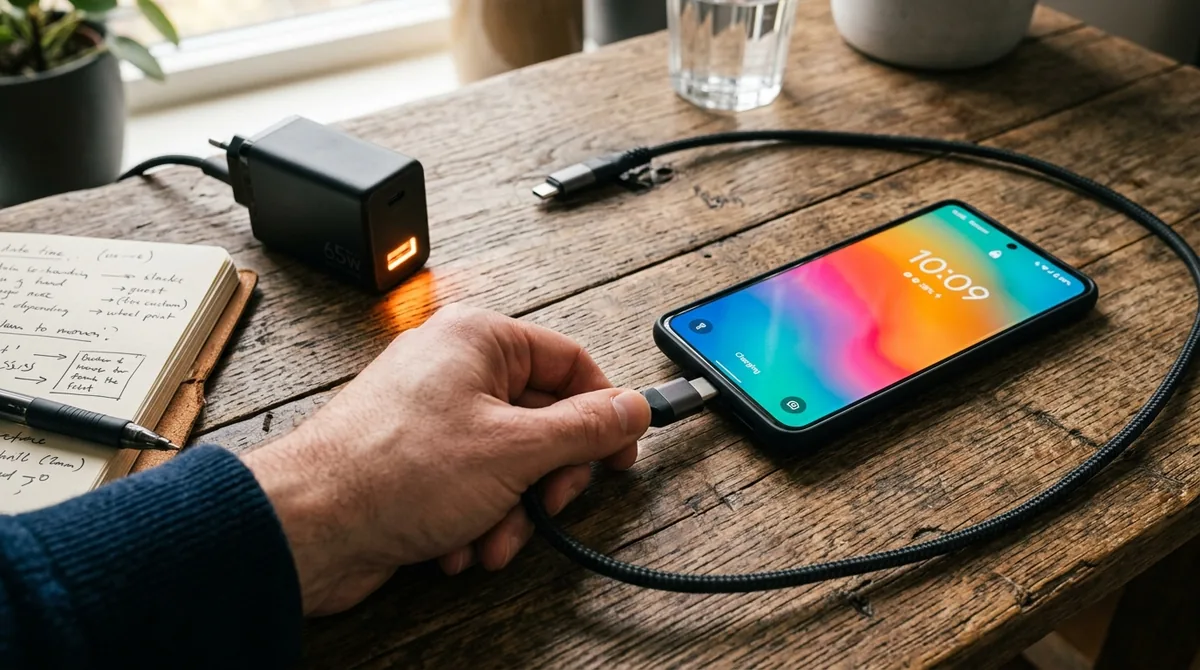
If your phone is two or more years old and none of the software fixes help, the battery itself may simply be worn out. Android 14 and later include a battery health readout on some devices:
- Pixel: Settings > Battery > Battery health shows the estimated capacity relative to when the phone was new.
- Samsung: Use the Samsung Members app > Support > Phone diagnostics > Battery status to check health.
- Other brands: Dialing codes like *#*#4636#*#* may show battery information on some devices, though support varies.
A battery at 80 percent or less of its original capacity will drain noticeably faster no matter what software tweaks you apply. At that point, your options are a battery replacement (often inexpensive at a repair shop or, on some models, through the manufacturer) or upgrading the phone.
Fix 12: When to Replace the Battery or the Phone

Software fixes have limits. Consider a replacement when:
- Battery health is under 80 percent and you are charging twice a day.
- The phone shuts off suddenly at 20–30 percent — a classic sign of a degraded cell.
- The back of the phone is bulging or the screen is lifting. Stop using it immediately — a swollen battery is a safety hazard. Do not puncture it or try to charge it; take it to a repair professional or recycle it at an authorized e-waste facility.
- The phone is so old it no longer receives security updates, making a new device the smarter investment.
A battery replacement at an authorized repair shop is usually far cheaper than a new phone and restores like-new battery life on an otherwise healthy device.
Android Battery Draining Fix: Which Solutions Help Most
| Fix | Difficulty | Typical Impact |
|---|---|---|
| Check battery usage (Fix 1) | Easy | Identifies the real culprit |
| Restrict background activity (Fix 2) | Easy | High — stops rogue apps |
| Adaptive Battery (Fix 3) | Easy | Moderate, improves over days |
| Screen settings (Fix 4) | Easy | High for heavy screen users |
| Dark mode (Fix 5) | Easy | Moderate on OLED screens |
| Location services (Fix 6) | Easy | Moderate |
| 5G / network (Fix 7) | Easy | Moderate to high in weak-signal areas |
| Updates (Fix 8) | Easy | Varies — fixes bug-driven drain |
| Safe mode test (Fix 9) | Medium | Diagnostic — confirms app cause |
| Clear cache (Fix 10) | Easy | Low to moderate |
| Battery health check (Fix 11) | Easy | Diagnostic — tells you when to replace |
| Replacement (Fix 12) | Repair shop | Restores like-new life |
One myth to retire: closing apps from the recents screen is not an Android battery draining fix — Android manages background processes efficiently, and force-closing apps that restart just burns more power. The real Android battery draining fix targets the apps that misbehave in the background: restrict them in Settings instead of swiping them away.
Battery and charging behavior is documented in Google’s Android Help Center, including how Adaptive Battery learns your patterns over a few days. Give any Android battery draining fix at least 48 hours before judging it — the system needs time to adapt.
Frequently Asked Questions — Android Battery Draining Fast Fix
Why is my Android battery draining so fast all of a sudden?
Sudden battery drain is almost always software-related: a recent app update with a bug, an app stuck syncing, or a new Android update that reset your battery optimization settings. Check Settings > Battery > Battery usage first — the culprit usually stands out immediately. Updating the offending app or restricting its background activity typically resolves it.
Does 5G drain battery faster than 4G?
Yes, 5G can use more power than LTE, particularly when the 5G signal is weak and the phone constantly searches for a stronger connection. If battery life matters more to you than maximum download speed, switching your preferred network type to LTE is a legitimate fix. The difference is most noticeable in areas with marginal 5G coverage.
Do battery saver apps actually work?
Most third-party “battery saver” apps do more harm than good. They often run constantly in the background themselves, show ads, and duplicate features Android already has built in. Android’s own Battery Saver mode (Settings > Battery > Battery Saver) and Extreme Battery Saver are far more effective and trustworthy. Avoid installing third-party battery apps.
Is it bad to charge my phone overnight?
Modern phones stop charging at 100 percent and trickle, so overnight charging will not ruin your battery in a night. However, keeping a battery at 100 percent for hours every night does accelerate long-term wear. Use Adaptive Charging (Pixel) or Protect battery (Samsung, which caps charging around 80–85 percent) to reduce this wear.
Why does my phone lose battery overnight when I am not using it?
Overnight drain of 5–10 percent is normal — the phone stays connected to the network, syncs email, and runs maintenance. Losing 20 percent or more overnight points to a rogue app, aggressive background sync, or weak signal causing the radio to work hard. Check battery usage in the morning, restrict the top background consumers, and make sure Wi-Fi is on (Wi-Fi uses less power than cellular for overnight syncing).
Should I close all my apps to save battery?
No — force-closing every app is counterproductive. Android manages memory efficiently, and reopening apps from scratch uses more power than resuming them from memory. Only force-close apps that are misbehaving (freezing, crashing, or showing up as battery hogs). For everything else, let Android manage it.
Which Android battery draining fix works fastest?
Restricting background activity for the top battery hog — usually a social or shopping app — shows results within a day. That single Android battery draining fix beats dimming the screen for most people, because one rogue app can out-drain the entire display.
Will an Android battery draining fix help a 4-year-old phone?
It helps, but chemistry is chemistry: lithium batteries lose roughly 20% capacity in 2–3 years. Apply the software steps first — if no Android battery draining fix gets you through the day, the battery itself is worn and a replacement (or new phone) is the honest answer.
Keep reading: the best Android battery draining fix often hides in background apps: How to Stop Apps Running in Background on Android, How to Stop Apps Running in Background on Samsung (Android), and How to Clear App Cache on Android (Without Losing Data).
Conclusion — Android Battery Draining Fast Fix
Fast battery drain on Android is rarely a mystery once you look at the battery usage screen — and it is rarely permanent. Start by identifying which apps are consuming power, restrict their background activity, enable Adaptive Battery, and tame your display and location settings. In most cases, those steps alone restore a full day of battery life. If your phone is several years old and the software fixes do not move the needle, a battery health check will tell you whether a simple, affordable battery replacement is the real answer. Work through the fixes in order, give each one a day to show results, and your phone should be lasting the way it used to.
Note: Menu names vary slightly between manufacturers and Android versions. Prices for battery replacement services change over time — check your manufacturer’s official support page or a reputable local repair shop for current pricing.


What do you think?
Share your experience or ask a question. A useful conversation starts with you.
Join the discussion