

Android Says “No Service”? 11 Fixes to Restore Your Signal
You glance at your phone and your stomach drops: where the signal bars should be, it just says “No Service.” No calls, no texts, no mobile data — your smartphone is suddenly a very expensive Wi-Fi-only tablet. When Android says no service, the cause ranges from a momentary network hiccup to a dead SIM card, and the fix is usually much simpler than you’d fear.
Before you assume the worst, work through these 11 fixes in order. They start with 10-second toggles and escalate to deeper network resets. In our experience, the overwhelming majority of “no service” cases are resolved by fixes 1 through 5.
Android Says No Service: What It Actually Means
When Android says no service, your phone’s cellular radio can’t establish a connection with any tower on your carrier’s network. That’s different from “No SIM” (the phone can’t see your SIM card at all) and different from having signal but no data (connected, but data isn’t flowing). The distinction matters because it narrows the suspects:
- Phone-side issues: airplane mode stuck on, corrupt network settings, bad APN configuration, outdated carrier settings, or a failing SIM.
- Account issues: unpaid bill, suspended line, or a plan change that hasn’t provisioned.
- Network issues: tower outage, maintenance, or simply no coverage where you are.
- Hardware issues: damaged SIM tray, failing cellular radio (rare).
Keep this list in mind as you troubleshoot — and note that if Android says no service everywhere you go (not just one location), the problem is almost certainly your phone, SIM, or account rather than coverage.
Fix 1: Toggle Airplane Mode On and Off
This is the fastest fix for the most common cause: your phone’s radio got stuck in a bad state. Toggling airplane mode forces the cellular radio to fully power down and re-register with the network from scratch.
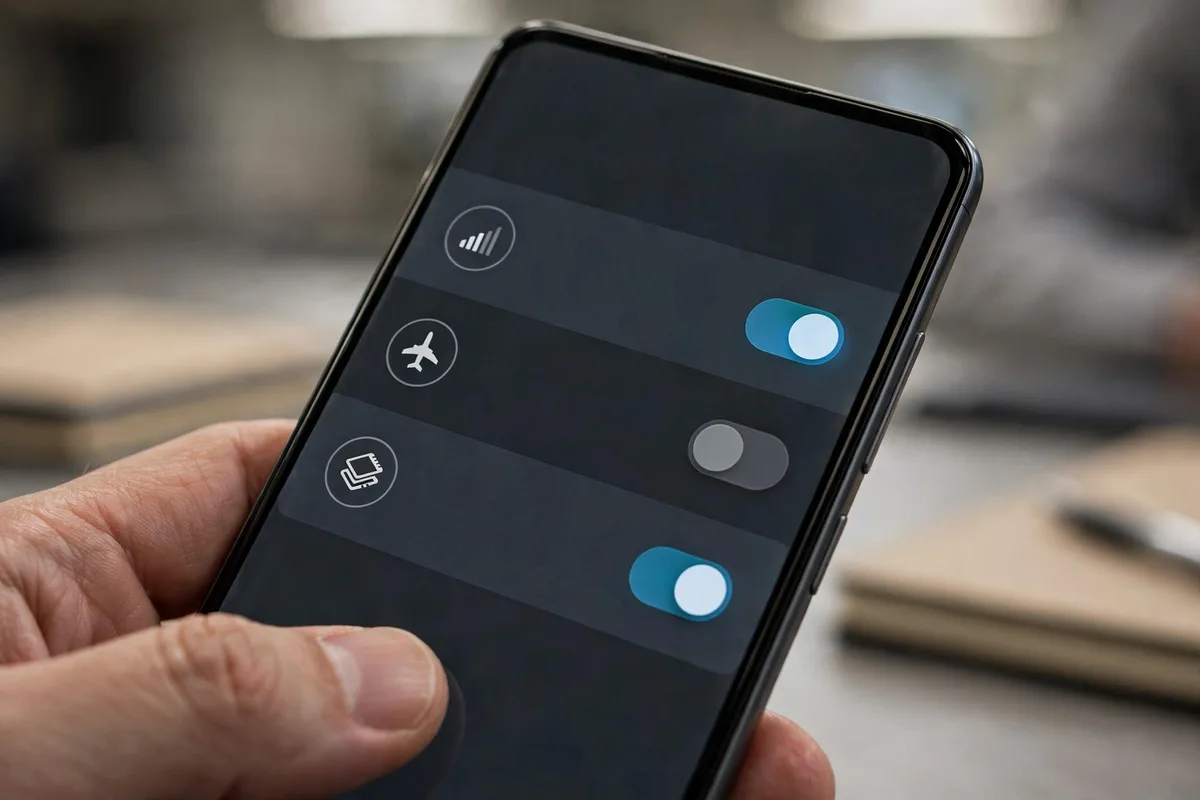
- Swipe down from the top to open Quick Settings.
- Tap Airplane mode to turn it ON. Wait 15–30 seconds.
- Tap it again to turn it OFF.
- Wait up to a minute for signal bars to return.
If Android says no service because of a stale network registration, this clears it instantly. It’s also worth toggling mobile data off and on in the same panel while you’re there.
Fix 2: Restart Your Phone
The old reliable. A restart clears temporary system state, reloads carrier configuration, and re-initializes the cellular radio. If toggling airplane mode didn’t help, a full restart often does — especially if your phone hasn’t been restarted in weeks.
- Hold Power and tap Restart.
- After booting, give the phone 1–2 minutes to find the network — registration isn’t instant.
Fix 3: Check for Outages and Coverage
Before tearing your phone apart (figuratively), rule out the network itself. When Android says no service in one specific area but worked fine elsewhere, it’s probably not your phone at all.
- Ask someone on the same carrier nearby if they have signal.
- Check your carrier’s outage map or status page (most major US carriers have one), or search social media for outage reports in your area.
- Try moving: step outside, go near a window, or walk a block. Buildings — especially concrete, metal, or underground structures — can kill signal entirely.
- If you’re traveling, confirm your plan includes coverage where you are; some prepaid plans have no roaming.
If it’s an outage, all you can do is wait — but at least you’ll stop troubleshooting a phone that isn’t broken.
Fix 4: Remove and Reseat Your SIM Card
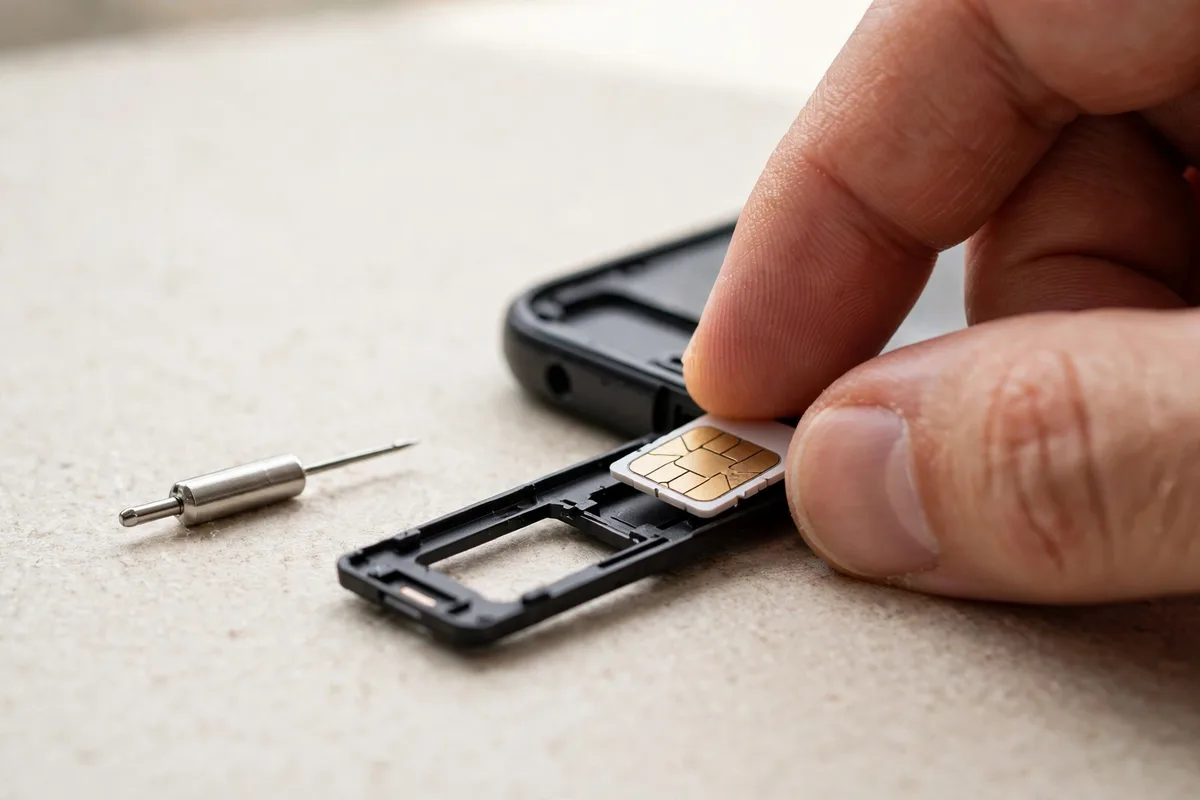
A SIM card that’s slightly unseated, dirty, or corroded is one of the top reasons Android says no service. The phone can’t authenticate with the network if it can’t reliably read the SIM.
- Power off the phone completely.
- Eject the SIM tray and remove the SIM card.
- Inspect it: wipe the gold contacts gently with a dry microfiber cloth, and check for cracks or deep scratches.
- Reseat it firmly in the tray — it should sit flat with no wobble — and slide the tray back in until flush.
- Power on and wait for registration.
While you’re at it, inspect the tray itself for bending. A bent tray is a surprisingly common culprit after a drop.
Fix 5: Test the SIM in Another Phone
This is the key diagnostic: it separates SIM/account problems from phone problems.
- Put your SIM in a different unlocked phone.
- If the other phone shows Android says no service too → the problem is your SIM card or account (skip to Fix 11 and contact your carrier for a free SIM replacement).
- If the other phone gets signal → your phone is the problem (continue with fixes 6–10).
Carriers replace faulty SIM cards free of charge at any store — it’s a 5-minute swap, and your number and plan transfer instantly. If you’re on eSIM rather than a physical SIM, our eSIM setup guide for US carriers covers re-provisioning steps that often fix eSIM-side “no service” issues.
Fix 6: Manually Select Your Network Operator
Sometimes the phone latches onto the wrong network — especially near borders, on cruise ships, or after traveling. Manually selecting your carrier forces a clean registration.
- Go to Settings > Network & internet > SIMs > your SIM > Network operators (wording varies by brand).
- Turn OFF “Automatically select network.”
- Wait for the available networks list to populate, then tap your carrier’s name.
- Wait a minute for registration.
If your carrier appears in the list but registration fails, that’s useful information for your carrier’s support team. If your carrier doesn’t appear at all, there’s genuinely no usable signal where you are — or the radio/SIM has a deeper problem.
Fix 7: Check and Reset Your APN Settings
APN (Access Point Name) settings control how your phone connects to your carrier’s data network. Wrong APNs usually cause “no data” rather than full “no service,” but corrupt APN profiles can occasionally break registration entirely.
- Go to Settings > Network & internet > SIMs > Access Point Names.
- Tap the three-dot menu and select “Reset to default.”
- Make sure the correct APN for your carrier is selected (check your carrier’s support site for the right values if none is selected).
- Restart the phone.
Don’t manually invent APN values — one wrong field breaks data completely. Reset-to-default is safe; manual entry should only copy values from your carrier’s official support page.
Fix 8: Reset Network Settings
This is the big hammer for phone-side network problems: it wipes all saved Wi-Fi networks, Bluetooth pairings, and cellular settings back to defaults, clearing any corrupt configuration behind the Android says no service error. It does not delete apps, photos, or files.
- Go to Settings > System > Reset options > Reset Wi-Fi, mobile & Bluetooth (on Samsung: Settings > General management > Reset > Reset network settings).
- Confirm and restart the phone.
- Reconnect to Wi-Fi afterward — you’ll need your Wi-Fi passwords again.
This fix resolves a large share of stubborn “no service” cases that survive SIM reseating, because it clears carrier provisioning data that a simple restart doesn’t touch.
Fix 9: Update Carrier Settings and System Software
Carriers push small configuration updates (“carrier settings”) that affect how your phone registers on the network. An outdated configuration can cause registration failures, especially after your carrier upgrades its towers.
- Go to Settings > System > System update and install any pending Android updates.
- On Pixel phones, carrier settings update automatically — but you can trigger a check by going to Settings > Network & internet > SIMs and tapping your carrier.
- On Samsung, check Settings > Software update for both system and carrier updates.
- Restart after updating.
Google’s official guidance on mobile network issues also recommends keeping the phone updated as a first-line step — it’s genuinely one of the most effective.
Fix 10: Check for eSIM Provisioning Problems
If you use eSIM (increasingly common on Pixels and newer Galaxies), “no service” can mean the eSIM profile is corrupt or de-provisioned — which looks identical to a dead physical SIM.
- Go to Settings > Network & internet > SIMs and check whether your eSIM profile shows as active.
- If it shows an error or is missing, delete the profile and re-add it: scan your carrier’s QR code again or use their app to re-download the eSIM.
- Contact your carrier if re-adding fails — they may need to reset the eSIM on their end (common after too many profile downloads).
Never delete an eSIM profile while traveling without a way to re-download it — you’ll need Wi-Fi and your carrier’s QR code or app.
Fix 11: Contact Your Carrier (and Know When It’s the Phone)
If Android says no service after fixes 1–10, it’s time to call in the professionals — but go in informed:
- Contact your carrier first. Ask them to check: Is the line active and in good standing? Is the SIM/eSIM provisioned correctly? Is there a network issue on their end? They can also push a fresh activation to your line.
- Get a new SIM. If the SIM is more than a few years old, just replace it — it’s free and rules out SIM degradation.
- If the carrier says everything is fine on their end and a new SIM doesn’t help, you’re likely looking at a hardware fault in the phone’s cellular radio — especially if the phone was dropped or exposed to water. That’s a repair-shop or manufacturer-support conversation.
One more consideration: if your phone is several years old and struggling with signal generally, it may be time to move on. Our guide on when to upgrade your phone helps you decide whether a repair is worth it.
Quick Comparison: Which Fix Fits Your Situation?
| Fix | Time | What It Rules Out |
|---|---|---|
| 1. Airplane mode toggle | 1 min | Stuck radio state |
| 2. Restart | 3 min | Temporary system glitch |
| 3. Check outage/coverage | 5 min | Network-side problem |
| 4. Reseat SIM | 5 min | Bad SIM contact |
| 5. SIM in another phone | 10 min | SIM/account vs. phone |
| 6. Manual network select | 5 min | Wrong network registration |
| 7. Reset APN | 5 min | Corrupt data configuration |
| 8. Reset network settings | 10 min | Deep settings corruption |
| 9. Update software | 15 min | Outdated carrier config |
| 10. eSIM re-provision | 15 min | Corrupt eSIM profile |
| 11. Carrier support | Varies | Account/hardware fault |
How to Prevent “No Service” Problems
A few habits reduce the odds of seeing Android says no service on your screen:
- Restart your phone weekly. It prevents the stale-registration issues behind most “no service” episodes.
- Keep software updated. Carrier settings updates fix registration bugs silently in the background.
- Handle the SIM tray gently. Eject it only when needed, and never force it.
- Know your coverage. If you regularly visit dead zones, consider a carrier with better coverage there — or enable Wi-Fi calling as a backup.
- Set up Wi-Fi calling. When Android says no service but you have Wi-Fi, Wi-Fi calling keeps you reachable. Find it under Settings > Network & internet > Calls.
FAQ
Why does my Android say no service when I have full bars on Wi-Fi?
Wi-Fi and cellular are completely separate radios. Full Wi-Fi bars just mean your internet works over Wi-Fi — when Android says no service, that message is about the cellular connection to your carrier’s towers. Your phone can have perfect Wi-Fi and zero cellular signal simultaneously.
Will a factory reset fix “no service”?
It can, if the cause is deep software corruption — but it’s overkill as an early step. Reset network settings (Fix 8) achieves most of what a factory reset would for cellular issues without wiping your data. Only factory reset for “no service” after your carrier confirms the line and SIM are fine. And if you do reset, set up your new Android properly afterward with backups enabled.
Why does my phone say no service after I changed carriers?
Your phone may be carrier-locked to the old carrier, or the new carrier’s provisioning hasn’t completed. First, confirm the phone is unlocked. Then verify the new SIM/eSIM is activated — new lines can take minutes to hours to provision. If it persists past a day, the new carrier’s support needs to check the activation.
Can a phone suddenly lose the ability to get signal?
Yes — though it’s uncommon. A failed update can corrupt the modem firmware, and physical damage (drops, water) can kill the cellular radio while everything else works. If Android says no service right after an update or a drop, and a new SIM doesn’t help, suspect hardware or modem firmware.
Does “no service” mean my phone is blocked or blacklisted?
A blacklisted (stolen-reported) phone typically shows signal but can’t make calls — or shows “emergency calls only” — rather than plain “no service.” If you bought the phone secondhand and suspect blacklisting, check the IMEI on your carrier’s or the CTIA’s stolen-phone checker. True “no service” with a known-good SIM and account is rarely blacklisting.
Conclusion
When Android says no service, resist the urge to panic or immediately factory reset. The fix ladder is short: toggle airplane mode, restart, check for outages, reseat the SIM, and test the SIM in another phone. Those five steps diagnose the problem in minutes and fix it in most cases.
For the stubborn remainder, manual network selection, APN resets, and the full network-settings reset clear out deeper corruption — and your carrier’s support team handles the rest. And once you’re back on the network, turn on Wi-Fi calling: it’s the safety net that keeps you reachable the next time the towers go quiet.


What do you think?
Share your experience or ask a question. A useful conversation starts with you.
Join the discussion