
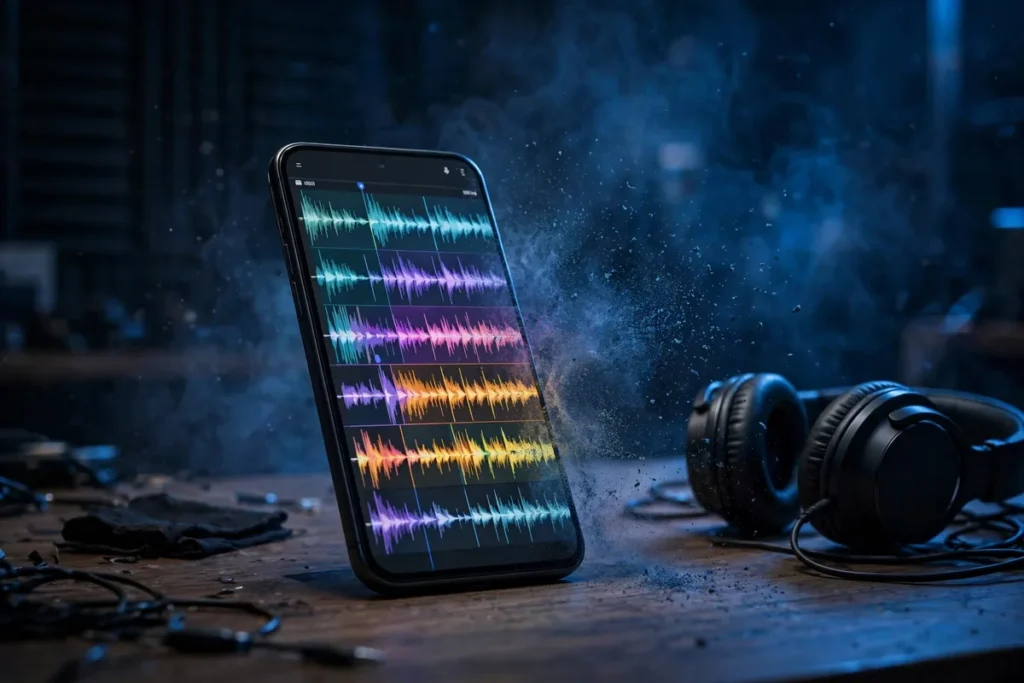
You filmed the perfect moment, but the audio is ruined by wind, traffic, or a chatty crowd. Pixel’s Audio Magic Eraser uses AI to separate and suppress unwanted sounds, rescuing videos that would otherwise be unwatchable. It identifies distinct sound layers — speech, music, wind, crowd noise — and lets you turn down the ones you don’t want. These audio magic eraser tips show you how to clean up any video’s soundtrack in minutes. See the Google Photos help center for official documentation.
This guide covers the essential audio magic eraser techniques for 2026: how the AI separation works, step-by-step cleanup, and the pro scenarios where it saves the day.
Audio Magic Eraser: How the AI Works

Audio Magic Eraser is powered by on-device machine learning that understands sound.
The Technology
- Sound separation: the AI identifies distinct audio sources in your video’s soundtrack.
- Categorized layers: sounds are grouped into Speech, Music, Wind, and Noise (crowd, traffic, nature).
- Independent volume: each layer gets its own slider; reduce or mute unwanted layers.
- On-device processing: everything happens on the phone, no uploads needed.
The result is like having a mixing board for your video’s audio. This is the foundation of all audio magic eraser workflows.
Audio Magic Eraser: Step-by-Step
- Open the video in Google Photos.
- Tap Edit, then Audio (or the Audio Magic Eraser suggestion).
- The AI analyzes the audio and presents sound categories.
- Adjust each slider: reduce Noise and Wind, keep Speech clear.
- Preview and save.
First-Time Tips
- Let it analyze fully: the AI needs a few seconds; don’t rush the sliders.
- Start with presets: try the automatic enhancement before manual tweaking.
- Use headphones: you will hear the difference much more clearly.
This basic workflow handles 80% of noisy videos. Mastering it is the core audio magic eraser skill.
Clean Up Wind Noise

Wind is the most common video audio killer, and Audio Magic Eraser handles it beautifully.
- Identify the Wind layer: the AI usually separates wind automatically.
- Reduce aggressively: wind can often be cut 80-90% without affecting speech.
- Combine with positioning: for future videos, shield the mic with your hand.
Beach videos, hiking clips, and outdoor events all benefit. These audio magic eraser wind techniques rescue the videos people actually take.
Remove Crowd and Background Chatter
Busy environments create layered noise the AI can untangle.
- Crowd layer: reduce background conversations while keeping your subject’s voice.
- Traffic: street noise separates cleanly from speech in most cases.
- Music bleed: background music can be lowered without killing dialogue.
The key is that the AI distinguishes YOUR audio from THEIR audio. Our screen recording guide covers capturing clean audio from the start.
Audio Magic Eraser: Quick Comparison Table

| Noise Type | AI Handling | Manual Effort |
|---|---|---|
| Wind | Excellent | Minimal |
| Crowd chatter | Very good | Low |
| Traffic | Good | Low |
| Music bleed | Moderate | Medium |
| Echo/reverb | Limited | High |
Enhance Speech Clarity
Beyond removing noise, the tool can boost what matters.
- Speech slider: raise dialogue above the remaining background.
- Auto levels: the AI normalizes volume for consistent listening.
- Multiple speakers: the AI treats all speech as one layer; it cannot isolate individuals.
For vloggers and interviewers, these audio magic eraser speech techniques are transformative.
Audio Magic Eraser: Before You Film
Prevention beats cure; capture cleaner audio from the start.
- Get close: the closer the mic to the subject, the better the signal-to-noise.
- Block wind: use your body or hand as a windbreak.
- Choose position: put your back to the noise source when possible.
- External mics: a cheap lavalier mic outperforms any AI cleanup.
These habits reduce how much cleanup you need. Our photo editing apps guide covers the visual side of video polish.
Process Multiple Videos Efficiently
Cleaning a batch of clips from an event takes strategy.
- Triage: identify which videos actually need cleanup.
- Batch similar: apply similar slider settings to videos from the same location.
- Save copies: keep originals; you can always re-process.
- Back up: cleaned videos are worth preserving; see our backup guide.
These audio magic eraser batch workflows save hours on event videography.
Troubleshoot Issues
Option not appearing
Audio Magic Eraser requires Pixel 8 or newer and an updated Google Photos app. The video needs an audio track; silent videos show no option.
AI misidentifies sounds
Unusual sounds may land in the wrong category. Try the manual sliders and listen carefully; the categories are a starting point, not gospel.
Audio sounds artificial
Over-aggressive noise reduction creates artifacts. Back off the sliders until it sounds natural; some background is better than robotic audio.
Processing takes too long
Long videos need more time. Process on Wi-Fi with the phone plugged in; the AI is computationally intensive.
Audio Magic Eraser: Creative Uses
Beyond cleanup, the separation enables creativity.
- Isolate ambience: keep just the crowd noise for atmosphere B-roll.
- Music videos: reduce dialogue to feature background music.
- ASMR: clean up everything except the subtle sounds.
These audio magic eraser creative applications turn a utility into an artistic tool.
Related Guides
- How to Screen Record on Android
- Best Photo Editing Apps for Android 2026
- How to Backup Your Android Phone
Audio Magic Eraser: Concert and Event Videos
Live events create the most challenging audio.
- Bass overload: concerts distort phone mics; the AI can tame some distortion.
- Crowd singing: separate the performance from audience participation.
- Announcements: clean up PA system echoes in large venues.
Results vary with extreme volumes, but moderate cases improve dramatically. These audio magic eraser event techniques salvage memories from loud nights.
Audio Magic Eraser: Interviews and Podcasts
Spoken-word content demands clean audio.
- Street interviews: remove traffic while preserving both voices.
- Podcast field recording: clean up cafe ambience for remote episodes.
- Video calls: process recorded calls to remove household noise.
Content creators on a budget use this as a free audio engineer. These audio magic eraser creator workflows democratize quality production.
Audio Magic Eraser: Family Videos
The videos that matter most are often the noisiest.
- Birthday parties: kids screaming, music playing, chaos reigning; the AI finds the signal.
- Holiday gatherings: separate conversation from kitchen clatter.
- Baby’s firsts: isolate those precious first words from background TV.
These are the videos you will watch in twenty years. The audio magic eraser family use case is emotionally the most important one.
Compare With Desktop Audio Tools
Adobe Audition / Audacity
More powerful and precise, but require skill, time, and a computer. The phone AI handles 80% of cases in seconds.
Dedicated noise removal apps
Third-party Android apps exist, but none match the Pixel’s integrated AI quality.
Professional services
Overkill for personal videos; the free on-device tool suffices.
The audio magic eraser occupies the sweet spot: good enough for almost everything, instant, and free.
Audio Magic Eraser: Limitations to Know
Honest expectations prevent disappointment.
- Severe distortion: clipped, blown-out audio cannot be restored.
- Single-mic reality: phones have limited mics; the AI works with what exists.
- Reverb: room echo is the hardest problem; results are modest.
- Overlapping speech: the AI cannot separate two people talking at once.
Understanding these audio magic eraser limits helps you know when to accept the audio as-is.
Audio Magic Eraser: Share Cleaned Videos
Clean audio makes videos worth sharing.
- Social uploads: cleaned videos perform better; viewers leave when audio is bad.
- Family sharing: grandparents appreciate clear audio more than 4K video.
- Archives: cleaned versions are the ones to preserve long-term.
The effort pays off in viewership and longevity. These audio magic eraser sharing tips close the loop from capture to audience.
Wedding Videography on a Budget
Couples filming their own weddings rely heavily on cleanup.
- Ceremony audio: outdoor ceremonies battle wind and traffic; the AI helps significantly.
- Speeches: reception toasts compete with clinking glasses and chatter.
- Vows: the most important audio of the day deserves the cleanup effort.
While not a replacement for professional audio, these techniques elevate DIY wedding videos remarkably.
Nature and Outdoor Videos
Wind and wildlife create unique challenges.
- Hiking narration: wind reduction makes trail commentary listenable.
- Wildlife: isolate animal sounds from wind and handling noise.
- Water: streams and waves can be tamed or featured as desired.
Outdoor creators consider this tool indispensable. The phone becomes a field recorder with post-production built in.
Classroom and Lecture Recording
Students record lectures in challenging acoustic environments.
- HVAC hum: the constant drone of air conditioning separates cleanly.
- Shuffling: paper and movement noise reduces well.
- Distance: lecturer’s voice can be boosted relative to room noise.
Better lecture audio means better study material. This practical application helps thousands of students daily.
Real Estate Video Tours
Agents filming property walkthroughs need clean narration.
- Empty rooms: echo in unfurnished spaces is challenging but improvable.
- Street noise: open-house traffic fades with the noise slider.
- Voiceover clarity: crisp narration sells properties; muddy audio loses buyers.
The professional polish translates directly to perceived property value.
Fitness and Instructional Videos
Instructors filming workouts or tutorials battle gym noise.
- Gym ambience: clanking weights and music separate from instruction.
- Outdoor coaching: wind reduction for sports coaching videos.
- Voiceover: record clean instruction over B-roll using the speech boost.
Fitness creators on YouTube and TikTok use these techniques to sound professional without a studio.
Travel Vlogging Essentials
Travel vloggers film in the noisiest environments on Earth.
- Markets and streets: the chaos of foreign bazaars can be tamed to feature your narration.
- Transport: train, plane, and boat noise separates from commentary.
- Restaurants: review videos benefit enormously from chatter reduction.
The difference between amateur and professional travel content is often just clean audio. This tool closes that gap for free, making it one of the highest-value features on the Pixel for creators.
FAQ
Can it fix audio that’s completely blown out?
No. If the microphone clipped severely, the waveform is destroyed and no AI can reconstruct it. Prevention (lower recording levels, distance from loud sources) is the only fix.
Does it work on slow-motion videos?
Yes, though the audio in slow-motion is often already altered. Results are best on normal-speed footage with natural audio.
Which phones support Audio Magic Eraser?
Pixel 8, 8 Pro, and newer, including the Pixel 9 series. It requires the Google Photos app; some features may come to other Android phones later.
Does it work on videos from other cameras?
Yes, if the video is in Google Photos. The AI processes any video file, not just Pixel-captured ones.
Can it remove copyrighted background music?
It can reduce music volume, but not reliably eliminate it. For copyright-sensitive uploads, replace the audio track entirely.
Does processing reduce video quality?
No, Audio Magic Eraser only modifies the audio track. Video quality is preserved; the save creates a new file with cleaned audio.
Can I adjust individual voices?
No, all speech is treated as one layer. The AI separates sound TYPES, not individual speakers.
Is there a limit to video length?
Very long videos may hit processing limits. For hour-long footage, consider splitting into segments before processing.
Pixel’s Audio Magic Eraser vs Samsung’s Audio Eraser
Google no longer has this trick to itself. Samsung’s Galaxy AI includes its own Audio Eraser (available on the Galaxy S25 series and newer, via One UI 7), and the two tools invite comparison:
- Where to find it: On Samsung, open a video in the Gallery app > Edit (pencil icon) > Audio Eraser. Like the Pixel version, it analyzes the soundtrack and presents adjustable sound categories.
- Sound categories: Samsung separates voices, music, wind, crowd, noise, and nature — a slightly more granular split than Pixel’s Speech/Music/Wind/Noise grouping. In practice, both isolate wind and crowd noise effectively; Samsung’s “nature” category is handy for outdoor footage where you want to keep birdsong but cut wind.
- Processing location: Both run on-device using each brand’s AI silicon (Tensor G4/G5 vs Snapdragon 8 Elite). Neither uploads your video for processing.
- Availability: Pixel’s tool works on Pixel 8 and newer through Google Photos, so it processes videos from any camera. Samsung’s lives in the Gallery editor on recent flagships — convenient, but tied to Samsung’s app.
If you own a recent phone from either brand, you already have a capable audio cleanup tool — check which one your phone offers before downloading anything third-party. The Pixel version remains the more flexible of the two (any video in Google Photos, more devices supported), while Samsung’s is the more deeply integrated into its own gallery workflow.
Conclusion
The audio magic eraser turns noisy, unusable videos into clean, shareable memories that you will actually want to watch and share with others. The AI separates wind, crowd, traffic, and chatter into adjustable layers, letting you rescue the audio you want and silence the rest. It will not fix everything, but it fixes the common cases beautifully. The next time wind ruins a perfect moment, you will know exactly where to go for help.


What do you think?
Share your experience or ask a question. A useful conversation starts with you.
Join the discussion