

You copy an address, then copy a phone number, and the address is gone. Android’s default clipboard holds one item; Gboard’s clipboard history holds many. Enable it once and every copy is saved to a browsable, searchable, pinnable history. These gboard clipboard history tips show you how to set it up and the workflows that make copy-paste actually powerful. See the Gboard help center for official documentation.
This guide covers the essential gboard clipboard history techniques for 2026: enabling the clipboard manager, pinning important clips, and pro tips for power users.
Gboard Clipboard History: What It Is
Gboard includes a full clipboard manager built into the keyboard.
Features
- Multiple clips: stores recent copies, not just the last one.
- Pin important: keep frequently used clips permanently.
- Search: find old clips quickly.
- Images: recent versions store copied images too.
- Auto-clear: unpinned clips expire after an hour (configurable).
It’s the clipboard Android should have by default. These gboard clipboard history fundamentals unlock a new level of productivity.
Gboard Clipboard History: Enable It
- Open Gboard in any app (tap a text field).
- Tap the clipboard icon in the toolbar (or the three dots > Clipboard).
- Toggle Show recently copied text and images.
- Optionally enable Save screenshots to clipboard.
Access the Clipboard
Tap the clipboard icon anytime to see your history. Tap any clip to paste it. This is the core gboard clipboard history workflow.
Pin Important Clips
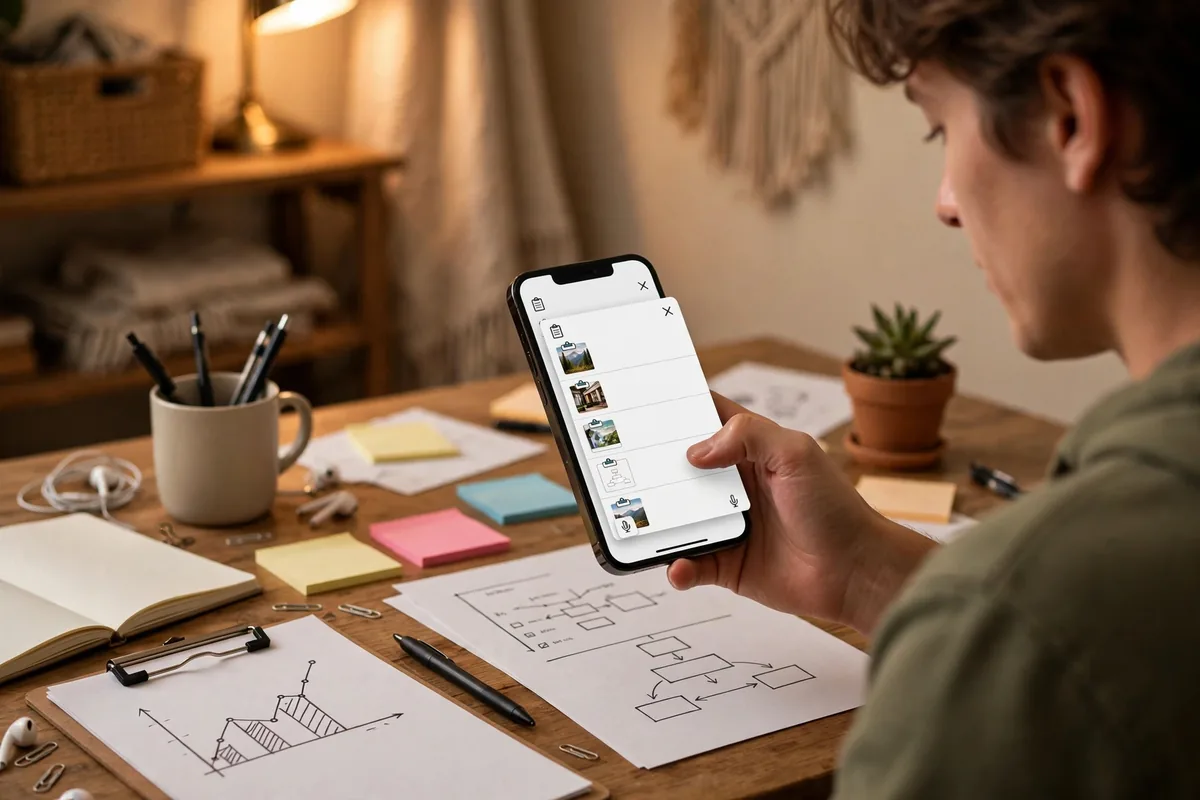
Pinned clips survive the auto-clear and stay at the top.
- Open the clipboard manager.
- Long-press a clip and tap Pin.
- Pinned clips appear in a dedicated section.
What to Pin
- Email addresses: your own and frequent contacts.
- Addresses: home, work, frequently visited.
- Templates: common phrases, signatures, hashtags.
- Codes: 2FA backup codes, frequent passwords (with caution).
Pinning transforms the clipboard from a buffer into a personal snippet library. Our keyboard guide covers more Gboard power features.
Gboard Clipboard History: Copy Multiple Items Workflow
The real power is copying several things before pasting.
- Copy item 1 (address).
- Copy item 2 (phone number).
- Copy item 3 (email).
- Open the destination, tap clipboard, paste each in order.
No more app-switching between every copy. These gboard clipboard history batch workflows save enormous time on forms and registrations.
Gboard Clipboard History: Quick Comparison Table
| Feature | Gboard Clipboard | Default Android |
|---|---|---|
| Multiple items | Yes | No (one only) |
| Pin clips | Yes | No |
| Images | Yes | No |
| Search | Yes | No |
| Auto-clear | Configurable | N/A |
Screenshots to Clipboard
Gboard can automatically save screenshots to the clipboard.
- In clipboard settings, enable Save screenshots in clipboard.
- Take a screenshot; it appears in clipboard history.
- Paste directly into chats, emails, or documents.
This eliminates the screenshot-to-gallery-to-share dance. These gboard clipboard history screenshot tips streamline visual sharing.
Gboard Clipboard History: Privacy Considerations
Clipboard data is sensitive; understand the protections.
- On-device: Gboard clipboard stays on your phone by default.
- Sensitive content: Gboard can exclude password fields from history.
- Auto-clear: the hourly expiry limits exposure if your phone is compromised.
- Don’t pin passwords: use a proper password manager instead; see our password guide.
These gboard clipboard history privacy practices keep convenience from becoming risk.
Sync Across Devices
Gboard can sync clipboard across your Android devices.
- Enable sync: in Gboard settings, turn on clipboard sync.
- Same account: devices must use the same Google account.
- Copy on phone, paste on tablet: your clips travel across devices.
The sync is encrypted and convenient. These gboard clipboard history sync features extend productivity across devices.
Troubleshoot Issues
Clipboard icon missing
Update Gboard, then check toolbar customization (three dots > drag clipboard to toolbar).
Clips disappear too fast
Pin important ones. The auto-clear is by design; pinned clips persist.
Images not saving
Enable image clipboard in settings. Some apps block image copying.
Sync not working
Verify the same Google account on both devices and that sync is toggled on.
Gboard Clipboard History: Power User Tips
- Edit clips: long-press to edit a clip before pasting.
- Delete selectively: swipe away clips you don’t need.
- Keyboard shortcut: on physical keyboards, the clipboard is accessible via Gboard.
- Combine with translate: copy foreign text, translate, then pin the translation.
These gboard clipboard history advanced techniques separate casual users from power users.
Related Guides
- Best Keyboards for Android: Gboard vs SwiftKey
- Best Password Managers for Android 2026
- Android Accessibility: 12 Features Worth Using
Gboard Clipboard History: Form Filling Superpowers
Online forms are the killer application for clipboard history.
- Registration forms: copy name, email, phone, address once; paste each where needed.
- Job applications: the same details repeated across dozens of forms.
- Shipping: addresses for different recipients, all pinned and ready.
The tedium of form-filling drops dramatically. These gboard clipboard history form workflows are the most practical benefit.
Gboard Clipboard History: For Students
Students copy constantly.
- Research: collect quotes from multiple sources before writing.
- Citations: pin citation formats for consistent referencing.
- Study groups: share copied materials efficiently.
Academic work involves heavy copying; the history makes it manageable. These gboard clipboard history education uses support learning.
Gboard Clipboard History: For Professionals
Workplace copying is relentless.
- Emails: pin your signature, common responses, and contact details.
- Reports: collect data points from various sources.
- Customer service: pin frequent answers for quick responses.
The time savings compound daily. These gboard clipboard history professional applications boost productivity measurably.
Gboard Clipboard History: Messaging Power
Chat apps benefit enormously.
- Frequent phrases: pin greetings, farewells, and common replies.
- Links: pin frequently shared URLs.
- Emojis: copy complex emoji combinations once, reuse forever.
Messaging becomes faster and more consistent. These gboard clipboard history communication tips streamline social interaction.
Gboard Clipboard History: Code and Technical Text
Developers and technical users copy specialized content.
- Commands: pin frequently used terminal commands.
- Snippets: store code templates for reuse.
- IDs: API keys and identifiers (with caution; prefer secure storage).
While not a replacement for proper snippet managers, the clipboard handles quick needs. These gboard clipboard history technical uses serve power users.
Gboard Clipboard History: Travel Essentials
Travelers juggle bookings and details.
- Confirmation numbers: pin flight, hotel, and rental confirmations.
- Addresses: hotel addresses in the local language.
- Emergency contacts: pin important numbers for quick access.
Having everything pinnable reduces travel stress. These gboard clipboard history travel preparations keep trips smooth.
Gboard Clipboard History: Accessibility Benefits
Clipboard history aids users with various needs.
- Reduced typing: less typing means less strain for motor impairments.
- Memory support: pinned clips compensate for memory difficulties.
- Consistency: pre-written text ensures accurate communication.
Our accessibility guide covers more empowering features. These gboard clipboard history accessibility benefits matter.
Organize Clips by Category
As your pinned collection grows, organization helps.
- Naming: Gboard doesn’t support custom names, so use the first line as a label.
- Order: pinned clips appear in pin order; pin in priority sequence.
- Prune regularly: remove outdated clips monthly to keep the list useful.
- Group by use: pin work items together, personal items together.
A tidy clipboard is a fast clipboard. The few minutes of maintenance pay off in daily speed.
Share Clips Between Apps
Moving content between apps is the core use case.
- Browser to notes: collect web findings into a note-taking app.
- Chat to email: forward important messages by copying and pasting.
- App to app: any text transfer benefits from multi-item history.
The universal nature of copy-paste means these techniques apply everywhere. Master the pattern once; use it in every app.
Clipboard and Voice Input
Combine clipboard with voice for maximum speed.
- Dictate then pin: speak a phrase, copy it, pin for reuse.
- Voice corrections: dictate, copy the result, edit in clipboard, paste.
- Multilingual: dictate in one language, translate, pin the result.
The combination of voice input and clipboard management covers both creation and reuse. Few users exploit both together.
Backup Your Important Clips
Pinned clips live on your device; protect the important ones.
- Critical templates: copy pinned essentials into a note as backup.
- New phones: pinned clips don’t transfer automatically; document them before switching.
- Sync: enable sync to preserve clips across your own devices.
The few seconds of backup prevent painful reconstruction later.
Clipboard Etiquette in Shared Devices
On shared phones, clipboard awareness matters.
- Clear after use: delete sensitive clips when done on shared devices.
- Don’t pin secrets: shared devices shouldn’t have pinned passwords.
- Guest mode: use guest mode for true separation on shared phones.
Respect for others’ privacy extends to clipboard hygiene.
Integrate With Task Management
Connect clipboard to your productivity system.
- Todo apps: copy tasks from various sources into your todo list.
- Notes: build notes from clipped fragments.
- Reminders: pin addresses and details for upcoming events.
The clipboard becomes an inbox for actionable text. Process it like email: capture, then organize.
Clipboard for Social Media Managers
Social media work involves repetitive text.
- Hashtag sets: pin different hashtag groups for different content types.
- Bios: pin profile bios for cross-platform consistency.
- CTAs: pin call-to-action phrases for posts.
The consistency improves brand presentation. Social media managers save hours weekly with a well-organized clipboard.
Clipboard for Customer Support
Support agents reuse responses constantly.
- Greetings: pin professional opening messages.
- Solutions: pin step-by-step fixes for common issues.
- Escalations: pin handoff templates.
Response times drop and quality rises. The clipboard becomes a personal knowledge base for frontline workers.
Clipboard for Real Estate Agents
Agents handle property details constantly.
- Listing descriptions: pin templates for property features.
- Addresses: pin office and frequently shown property addresses.
- Contact info: pin your details for quick sharing.
The mobile-heavy workflow of real estate suits clipboard power users. Agents who master these techniques respond faster than competitors.
FAQ
Can I change how long clips are kept?
The auto-clear timing isn’t user-configurable, but pinning bypasses it entirely. Pin anything you want to keep; let the rest expire naturally.
Does the clipboard work with stylus input?
Yes, copied text from stylus handwriting recognition appears in the clipboard like any other copied text.
Can I share a clip directly from the clipboard?
Yes, long-press a clip and look for the share option. You can send clips to any app without pasting first, which is handy for forwarding content quickly.
Does gboard clipboard history work in all apps?
Yes, it works anywhere Gboard is the active keyboard. Some secure apps (banking) may block clipboard access.
How many clips does it store?
Gboard stores recent unpinned clips (typically the last several, cleared hourly) plus all pinned clips indefinitely.
Can I recover cleared clips?
No, once auto-cleared, unpinned clips are gone. Pin anything important immediately.
Does it work on Samsung Keyboard?
No, this is Gboard-specific. Samsung Keyboard has its own clipboard features; install Gboard for this functionality.
Is clipboard data backed up to Google?
Only if you enable sync. Otherwise it stays on-device. Even with sync, it’s encrypted.
Can apps read my clipboard history?
Apps can only access the clipboard when they’re in the foreground (Android 10+ restriction). Background clipboard snooping is blocked.
Pair Clipboard History With Google Translate
Copy text in another language and you do not need to switch apps: with Gboard open, tap the Translate icon in the suggestion strip, and the last clip is translated inline — then tap it to paste the translation. It works on pinned clips too, so a saved foreign address or product name is one tap from English. The translation runs through Google Translate, so its 100+ supported languages carry over. For travelers, pin your hotel address in the local language and its translation side by side.
Recover Clips You Accidentally Deleted
Unpinned clips vanish after one hour, and a deleted clip is gone for good — there is no trash can. Two habits prevent losses: pin anything you will need tomorrow (pinned clips survive the hourly cleanup and stay until you unpin them), and for truly critical text, paste it into Keep or Notes rather than trusting the clipboard. Screenshots you tap “copy” on land in the clipboard too, and they expire on the same one-hour clock. Think of clipboard history as a short-term tray, not storage.
Conclusion
Gboard clipboard history turns copy-paste from a one-item juggling act into a proper productivity tool. Enable it, pin your frequent clips, and start copying multiple items before pasting them all. It’s one of those features that, once used, makes every other keyboard feel broken and every copy-paste workflow feel primitive by comparison. These gboard clipboard history tips ensure you never lose a copied item again, no matter how many things you’re juggling.


What do you think?
Share your experience or ask a question. A useful conversation starts with you.
Join the discussion