
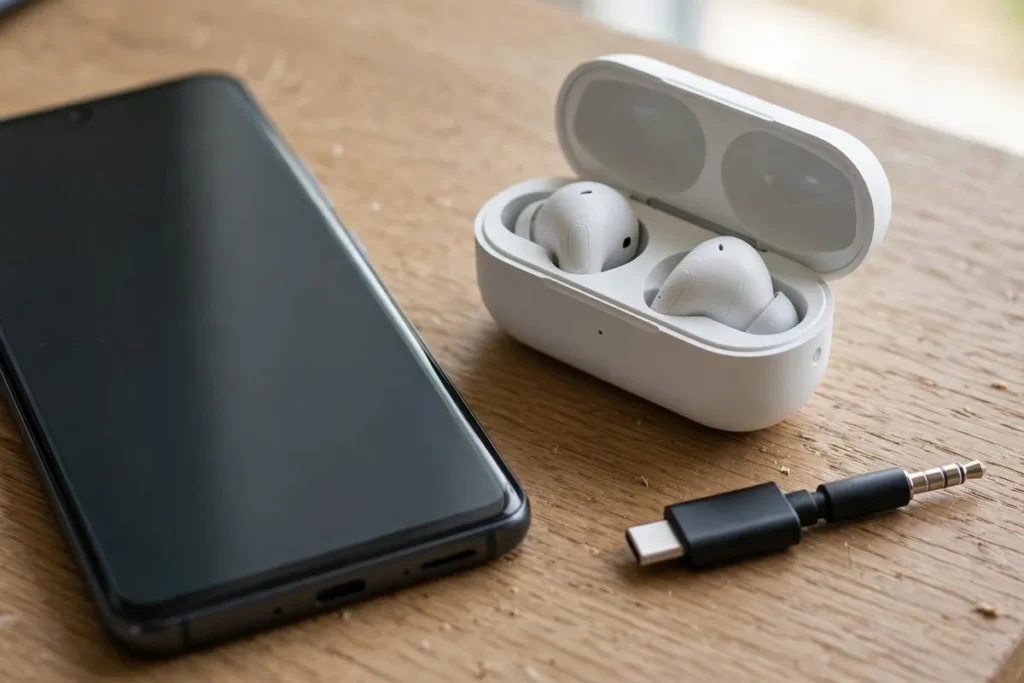
Fix Android Headphone Jack Not Working: 8 Fixes
Nothing is more frustrating than plugging in your earphones and hearing silence. A headphone jack not working Android is one of the most common audio complaints on phones that still ship with a 3.5mm port — including many Samsung Galaxy A-series, Motorola, Xiaomi, and budget Pixel models. Before you assume the worst and book a repair, work through these 8 proven fixes in order. Most headphone jack problems are caused by lint in the port, a software glitch, or a misbehaving setting — all fixable at home in minutes.
Why Your Headphone Jack Stops Working on Android
The 3.5mm jack is a mechanical connector: a metal plug slides into a spring-loaded socket, and tiny contacts carry the left, right, and microphone signals. Over time, pocket lint packs into the bottom of the port, the contacts oxidize, or the internal switch that detects the plug gets stuck. When that happens, your phone either routes sound to the speakers, stays silent, or shows the headphone icon even with nothing plugged in.
Software can cause the same symptoms. An app that grabbed exclusive audio focus, a Bluetooth device still connected in the background, or a corrupted audio setting can make a perfectly healthy jack look dead. That is why this guide starts with the easy physical checks before moving into software. When a headphone jack not working Android is your problem, the order matters: check hardware first, then settings, then apps, then system-level resets.
A quick diagnostic trick: plug your earphones into a different device. If they work there, the problem is your phone. If they are dead everywhere, the earphones are the issue and no phone fix will help. Keep this in mind as you work through the steps below.
Headphone Jack Not Working Android: Clean Out Lint and Debris
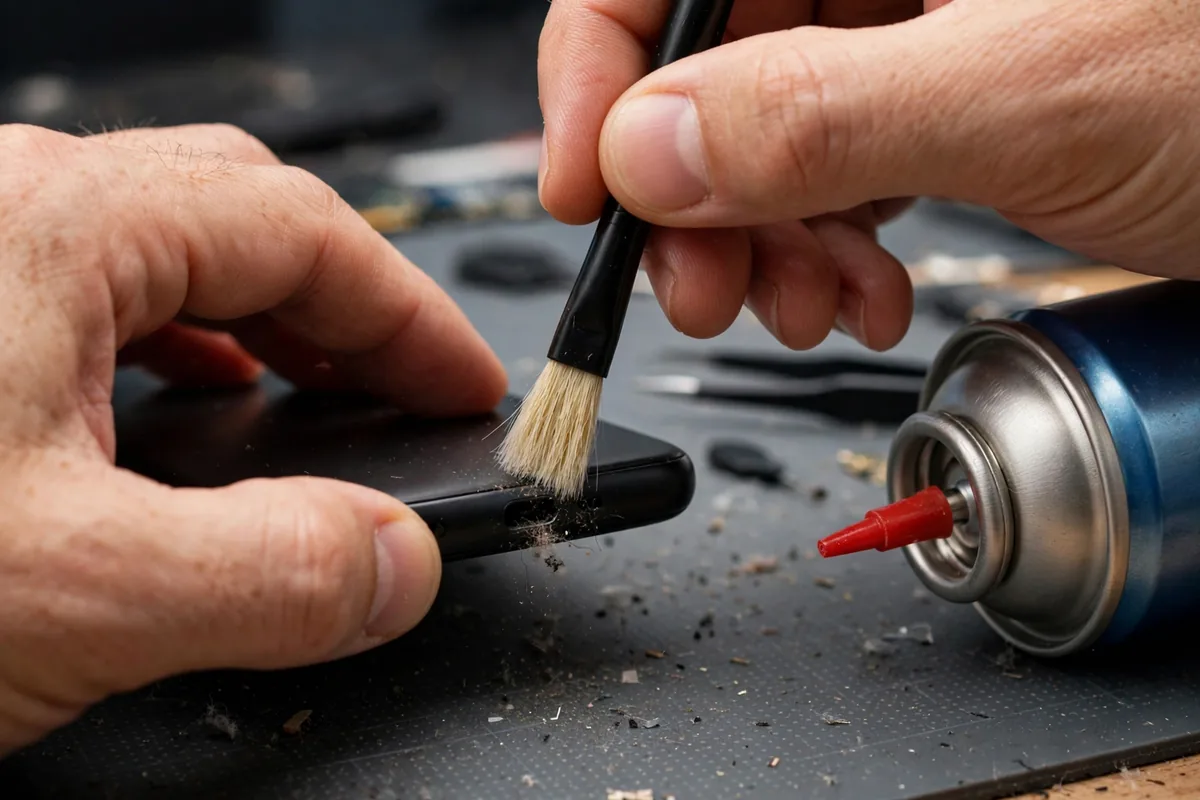
The number one cause of headphone jack not working Android issues is a port packed with pocket lint. Lint compresses into a dense felt pad at the bottom of the socket, preventing the plug from seating fully. You may notice the plug does not click in as deeply as it used to, or you have to twist it to get sound in one ear.
Here is the safe way to clean it:
- Power off the phone or at least stop playing audio before you start.
- Use a wooden or plastic toothpick — never a metal pin, needle, or paperclip. Metal can scratch the contacts or short the pins.
- Shine a flashlight into the port to see what is inside.
- Gently scrape the bottom and walls of the jack with the toothpick, twisting slightly. Pull debris out; do not push it deeper.
- Follow with a short burst of compressed air (can held upright, quick bursts) to blow out loose fibers. If you do not have compressed air, a firm puff from a straw works.
- Plug in slowly and listen. The plug should seat with a satisfying click, about 1-2mm deeper than before.
For headphone jack not working Android cases, this single step resolves the issue more often than any other fix. Repeat it every few months if you carry your phone in a pocket without a case covering the port. A simple dust plug costs almost nothing and prevents the problem entirely.
Fix 2: Test a Different Pair of Earphones and Check the Plug

After cleaning, rule out the earphones themselves. Try at least two different 3.5mm headsets: one basic pair and one with a microphone (4-pole TRRS plug). If one pair works and the other does not, the dead pair has a broken cable or plug — an extremely common failure point near the jack of the earphones themselves.
Also inspect the plug for corrosion or damage. A bent or green-tinged plug will cause intermittent sound. Wiggle the plug gently while audio plays: if sound cuts in and out, the socket’s internal contacts may be loose, and you may need professional repair. If the plug feels loose even in a clean port, the spring contacts inside the phone jack are worn — software cannot fix that.
One more check: some phones ship with adapters or have CTIA vs. OMTP wiring differences. If you are using an adapter (USB-C to 3.5mm) or a headset from an old Nokia-era phone, the microphone ground ring may be wired differently, muting the audio. Stick to standard CTIA earphones for testing.
Fix 3: Restart Your Phone
It sounds too simple, but a restart clears the audio subsystem state, kills stuck audio-focus holders, and re-initializes the jack-detection switch. If headphone jack not working Android trouble started right after an app install or a system update, a reboot alone often brings it back.
Hold the power button, tap Restart (not just power off and on — use the actual Restart option so the kernel reloads cleanly). After the phone boots, plug in your earphones before opening any music app and play a system sound, like a ringtone from Settings > Sound. If audio comes through, some app was holding the audio pipeline hostage. If it is still silent, keep going.
Fix 4: Check Volume Levels, Do Not Disturb, and Audio Balance

Android has separate volume streams for media, calls, ringtones, and alarms. With earphones plugged in, press a volume button and tap the three-dot menu to open the full volume panel. Make sure the Media slider is actually turned up — it can sit at zero while the ringtone slider looks fine.
Next, check Do Not Disturb: on some skins it can suppress media audio in edge cases. Turn DND off and retest. Then go to Settings > Accessibility > Audio and check the balance slider. If the balance is pushed fully left or right and your earphones have a damaged channel, you may hear nothing in one setup and silence in another. Center the balance and enable Mono audio temporarily as a test — if mono sound appears, one channel of your earphones or jack is failing.
Also open Settings > Sound and look for any “audio enhancement” or Dolby-style effects. Occasionally these DSP features glitch after updates and mute wired output. Toggle them off and retest.
Fix 5: Turn Off Bluetooth and Unpair Old Devices
A classic cause of headphone jack not working Android: the phone is still routing audio to a Bluetooth device. Android remembers and auto-connects to paired headphones, speakers, and car systems — even ones in another room. The moment you plug in wired earphones, the phone may stubbornly keep sending sound over Bluetooth.
Fix it properly:
- Open Settings > Connected devices > Bluetooth and toggle Bluetooth off entirely, then plug in and test.
- If that works, the jack was fine all along. Re-enable Bluetooth afterward, but forget devices you no longer own so they cannot hijack audio again.
- Check for Bluetooth audio apps (like absolute volume bugs): some users fix stubborn routing by enabling Developer options > Disable absolute volume and toggling it.
This is also why your phone sometimes shows the headphone icon but plays through the speaker — the audio routing table got confused. A Bluetooth toggle plus a reboot resets it cleanly.
Fix 6: Clear the Audio App Cache and Update Your Apps
If the headphone jack works in some apps but not others — say YouTube plays fine but Spotify is silent — the problem is app-level. A corrupted cache or a buggy update in your music app can break wired output while everything else works.
Start by clearing the cache of the misbehaving app: Settings > Apps > [app name] > Storage > Clear cache (do NOT clear data yet — that wipes downloads and logins). If you want a full walkthrough of doing this safely across apps, see our guide on how to clear the app cache on Android. After clearing, force-stop the app and reopen it.
Then update everything: open the Play Store, tap your profile, and update all apps — audio frameworks ship inside app updates more often than people realize. If a specific app broke after its own update, check its reviews; you may need to wait for a hotfix or temporarily use an alternative player to confirm the jack itself is healthy.
Fix 7: Boot Into Safe Mode to Rule Out Third-Party Apps
Equalizer apps, “volume booster” apps, call recorders, and even some launchers install audio effects that intercept the output pipeline. If headphone jack not working Android persists and you recently installed any audio-related app, Safe Mode will expose it.
To enter Safe Mode: press and hold the power button, then long-press the Power off option until you see “Reboot to safe mode,” and tap OK. In Safe Mode, only system apps run. Plug in your earphones and play audio. If sound works in Safe Mode, a third-party app is the culprit. Reboot normally, then uninstall recently added audio apps one by one — starting with equalizers, boosters, and anything that asked for audio or accessibility permissions.
This test is decisive: hardware faults persist in Safe Mode, software faults disappear. If silence continues even in Safe Mode, you are likely looking at a hardware problem or a deep system issue, and the next fix is your best software option.
Fix 8: Reset App Preferences or Factory Reset as a Last Resort
If nothing above worked, escalate in two stages. First, the gentle one: Reset app preferences (Settings > System > Reset options > Reset app preferences). This restores default handlers, re-enables disabled system apps, and clears the audio-routing defaults without deleting any data. Many users report this alone fixes headphone jack not working Android after a major OS upgrade.
If the jack is still dead, consider a factory reset — but treat it as the final software step. Back up everything first (photos, chats, authenticator codes — do not skip this). Go to Settings > System > Reset options > Erase all data (factory reset). Set the phone up fresh, do NOT restore apps automatically at first, and test the jack with nothing installed. If wired audio works on a clean system, restore your apps gradually to find the offender.
When even a factory reset does not help, the fault is hardware: a broken solder joint, a dead audio codec, or a physically damaged jack. At that point, contact the manufacturer’s service center rather than attempting a DIY board repair.
Keeping Your Phone Fast and Healthy Helps Too
Audio glitches often travel with broader system sluggishness — background apps fighting over resources can delay or break audio routing. General phone health matters more than people think for peripherals like wired audio. If your device feels slow overall, follow our tips to speed up your Android phone — killing resource hogs and trimming background processes can stabilize audio behavior as a side benefit.
Similarly, a phone struggling with power management may throttle or misbehave in odd ways. If you also notice rapid battery drain alongside audio issues, our guide to fix Android battery draining issues walks through the most common culprits. Healthy power behavior and healthy audio behavior go hand in hand.
When Hardware Repair Is the Only Answer
Be honest with the evidence: if lint cleaning, multiple earphones, Safe Mode, and a factory reset all fail, the 3.5mm socket or its connection to the motherboard is damaged. Common physical causes include bent internal contacts from yanking the cable, liquid damage, or a cracked solder joint from a drop.
Check your warranty first — many manufacturers cover jack failures within the warranty period unless there is obvious physical damage. Out of warranty, a jack replacement at a reputable shop is usually inexpensive because the part itself is cheap; most of the cost is labor. Avoid “miracle” fixes like jamming foil into the port — they risk shorting the audio codec and turning a small repair into a dead motherboard.
For authoritative device-specific guidance, check Google’s Android help and Samsung’s official support pages for your exact model before booking a repair.
FAQ
Headphone jack not working Android, but Bluetooth works — why?
Because wired and wireless audio use completely separate pipelines. Bluetooth audio is processed digitally and sent over the air, while the 3.5mm jack relies on the analog audio codec and the physical socket. When Bluetooth works but a headphone jack not working Android situation persists, the fault is almost always in the analog path: lint in the port, damaged contacts, or the jack-detection switch stuck. Clean the port first, then test in Safe Mode.
My phone shows the headphone icon with nothing plugged in. How do I fix it?
This is the classic stuck-detection-switch symptom. Lint or moisture inside the port is tricking the phone into thinking earphones are connected, so it mutes the speakers. Clean the port thoroughly with a toothpick and compressed air as described in Fix 1. If it persists, plug and unplug a 3.5mm plug 10-15 times firmly to exercise the switch, then reboot. Persistent cases after cleaning usually need a jack replacement.
Why does sound only come from one earbud on Android?
One-sided audio usually means a broken earphone cable, a dirty plug, or the balance slider pushed to one side. Test the earphones on another device first. If they work elsewhere, check Settings > Accessibility > Audio balance and center it, then clean your phone’s jack. If the problem follows the earphones to every device, replace the earphones — no phone setting can fix a severed wire.
Can a software update cause a headphone jack not working Android problem?
Yes, though it is uncommon. Major OS upgrades occasionally introduce audio-routing bugs or reset audio effect settings that mute wired output. If the jack died right after an update, try resetting app preferences first, then check for a follow-up patch — manufacturers usually fix audio regressions quickly. Safe Mode testing helps confirm whether the issue is system-level or caused by an incompatible third-party app.
Should I use a USB-C to 3.5mm adapter instead of repairing the jack?
Adapters are a fine temporary workaround, but buy a quality one with a built-in DAC — cheap passive adapters rely on the phone’s analog passthrough, which many newer phones no longer support. A good USB-C DAC adapter costs little and often sounds better than the built-in jack. Still, if your phone has a real 3.5mm port, repairing it is usually cheap and restores full functionality.
Conclusion
A headphone jack not working Android looks alarming, but the fix is usually simple: clean the lint out of the port, test with known-good earphones, restart the phone, and check Bluetooth and volume settings. Those four steps resolve the vast majority of cases in under ten minutes. The deeper software steps — clearing caches, Safe Mode, and resetting app preferences — catch the stubborn remainder. Only when every software avenue is exhausted should you conclude the jack itself is damaged and seek a repair. Work through this guide in order, and you will either have your music back or know with confidence that it is time to visit a service center.


What do you think?
Share your experience or ask a question. A useful conversation starts with you.
Join the discussion