

Your WhatsApp chats hold years of conversations, photos, voice messages, and documents — memories and important records you cannot afford to lose. Knowing how to back up WhatsApp on Android properly means a lost phone, a factory reset, or an upgrade to a new device never costs you a single message. Yet many people discover too late that their backup was never actually running.
This 2026 guide walks through the complete backup setup: Google Drive backups step by step, local backups as a second safety net, end-to-end encrypted backups for maximum privacy, the settings that control what gets backed up and how often, and how to fix backups that fail. Set this up once, verify it works, and your chat history protects itself from then on.
How to Back Up WhatsApp on Android: Why It Matters
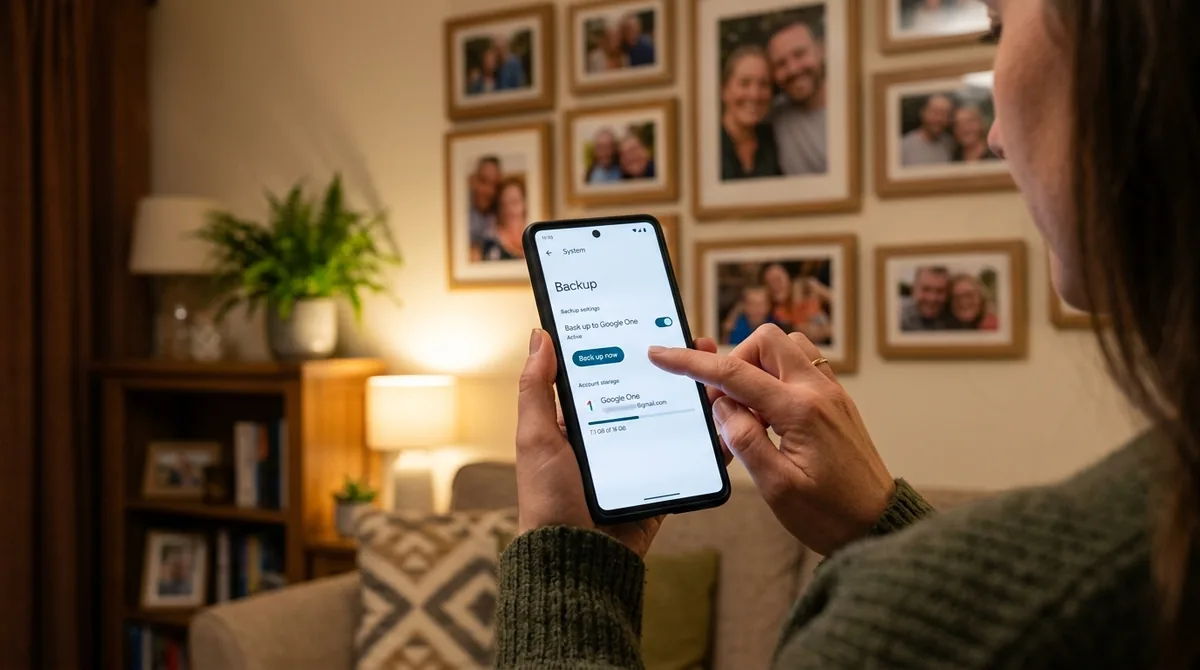
Unlike many messaging apps that store everything on company servers, WhatsApp keeps your messages primarily on your phone. If the phone is lost, stolen, damaged, or wiped, your chats go with it — unless you have a backup. A backup is also essential when switching phones: it is the mechanism that carries your history to the new device.
Consider what lives in a typical WhatsApp account: family conversations, work discussions, photos never saved elsewhere, voice notes, shared documents, and business records. Recreating any of that from memory is impossible. A backup that runs automatically in the background is cheap insurance for all of it.
Understanding WhatsApp's Two Backup Types
WhatsApp on Android maintains two kinds of backups, and understanding both helps you build a reliable safety net:
- Google Drive backup: Your chats (and optionally media) are uploaded to your Google Drive account on a schedule you choose — daily, weekly, or monthly. This is the backup used when restoring to a new phone. It requires a Google account and an internet connection.
- Local backup: WhatsApp automatically saves a backup file to your phone's internal storage every day (typically around 2:00 AM). These local files are useful as a fallback but live on the same phone — they do not help if the phone is lost or destroyed.
The Google Drive backup is the important one for how to back up whatsapp on android — the local backup is a nice bonus. Set up both, but rely on the Drive backup for real protection.
How to Set Up Google Drive Backup: Step by Step

Before You Start: Checklist
- A Google account added to your phone (Settings > Passwords & accounts).
- The Google Drive app installed and signed in (it usually is by default).
- Enough free space in Google Drive for the backup. WhatsApp backups do not count against the standard 15 GB quota on most current plans, but verify in your Drive storage settings if you are near the limit.
- A stable Wi-Fi connection for the first backup, which can be large.
The Setup Steps
- Open WhatsApp and tap the three-dot menu (top right), then Settings.
- Tap Chats, then Chat backup.
- Under "Google Drive settings," tap Google Account and select the account to use. If none is listed, tap "Add account" and sign in.
- Tap Back up to Google Drive and choose a frequency: Daily, Weekly, Monthly, or Never. Daily is strongly recommended — a weekly backup can lose up to six days of messages if your phone dies.
- Choose the network: Wi-Fi or Wi-Fi or cellular. Wi-Fi only is the safe choice unless you have an unlimited data plan — the first backup especially can be hundreds of megabytes or several gigabytes.
- Decide on Include videos. Videos make backups dramatically larger. If storage or upload time is a concern, leave this off — photos and documents are usually the important part.
- Tap Back Up to run your first backup immediately. Do not close WhatsApp or let the phone sleep during this first run.
Verifying the Backup Worked
After the backup completes, the Chat backup screen shows "Last backup" with a date, time, and size. Check that this timestamp is recent and the size looks plausible (not 0 KB). Make it a habit to glance at this screen occasionally — a backup that silently stopped running months ago is worse than no backup, because it gives false confidence.
End-to-End Encrypted Backups
Standard Google Drive backups are protected by Google's security, but WhatsApp also offers end-to-end encrypted backups, which add a password or 64-digit encryption key that only you know. With this enabled, neither Google nor WhatsApp can read your backup contents.
Should You Enable It?
If your chats contain sensitive personal, financial, or business information, yes. The trade-off is responsibility: if you forget the password and lose the encryption key, the backup is permanently unrecoverable — WhatsApp cannot reset it for you. There is no "forgot password" link for encrypted backups.
How to Enable Encrypted Backup
- Go to WhatsApp Settings > Chats > Chat backup.
- Tap End-to-end encrypted backup, then Turn on.
- Choose to create a password (memorable but strong) or use the 64-digit encryption key (maximum security, must be written down and stored safely).
- Tap Create and wait for the encrypted backup to complete.
Store the password in a password manager, not just in your memory. WhatsApp's official FAQ has the full details on encrypted backups. If you ever need to restore, you will be asked for it — and without it, the backup is useless.
Changing or Disabling Encryption
You can change the password or turn encryption off from the same screen. Turning it off requires the current password. If you change phones, keep the password accessible during the transition — you will need it at restore time.
Local Backups: Your Second Safety Net
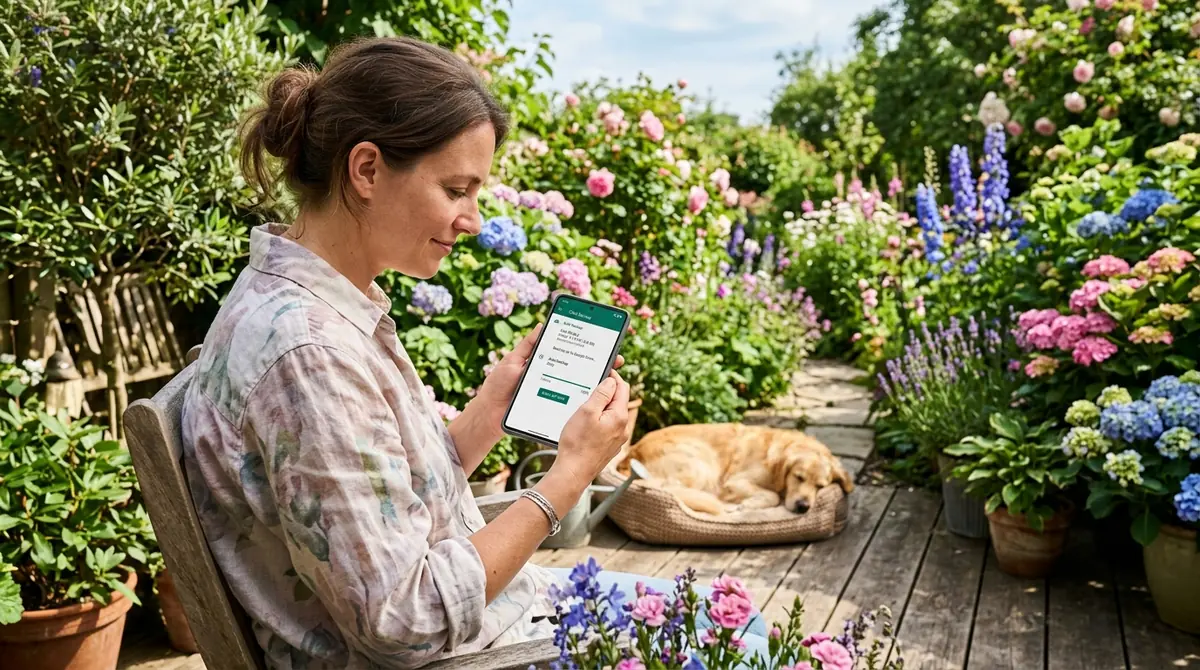
WhatsApp creates a local backup automatically every day, stored in your phone's internal storage (in the WhatsApp/Databases folder). You do not need to configure this — it just happens. These files are kept for roughly the last seven days, with older ones overwritten.
Local backups are useful in specific scenarios: restoring chats after reinstalling WhatsApp on the same phone without using Drive, or recovering a slightly older version of your chat history. To restore from a local backup, the backup file must be in the correct folder before you reinstall and verify your number — WhatsApp will detect it and offer to restore.
The limitation is obvious: if the phone is gone, so is the local backup. Treat it as a complement to the Drive backup, never the primary plan.
Managing Backup Size and Storage
WhatsApp backups can grow surprisingly large — a common surprise for anyone learning how to back up whatsapp on android — especially with years of photos and videos. If your backup is taking too long or running into limits:
- Exclude videos. This single setting often cuts backup size by more than half. Videos shared in chats usually exist elsewhere or matter less than photos and documents.
- Clean up large chats. In WhatsApp Settings > Storage and data > Manage storage, you can see which chats consume the most space and delete large files selectively — forwarded videos and memes are the usual suspects.
- Review forwarded media. The "larger than 5 MB" filter in Manage storage quickly surfaces space hogs.
- Check Drive space. If your Google Drive is nearly full from other files, the WhatsApp backup may fail. Free up Drive space or review your storage plan.
Fixing Failed or Stuck Backups
Backup Won't Start or Freezes
- Check your connection. Switch to stable Wi-Fi. Backups over weak or captive-portal Wi-Fi (hotels, airports) often stall.
- Keep WhatsApp open and the phone awake. The first backup especially can take a long time. Plug in the charger, keep the screen on, and do not switch apps.
- Verify your Google account. Go to the Chat backup screen and confirm the correct Google account is selected. If you recently changed your Google password, re-authenticate.
- Update WhatsApp and Google Drive. Outdated versions can have backup bugs. Update both from the Play Store.
- Check available Drive storage. A full Drive blocks new backups silently.
"Couldn't Complete Backup" Errors
This generic error usually traces to one of three things: no connectivity during the backup window, insufficient Drive space, or a corrupted local database. Work through the steps above, and if the error persists, try toggling the backup frequency to "Never," restarting the phone, then setting the frequency back to Daily and running a manual backup.
Backup Is Stuck at a Certain Percentage
Large media files can make progress appear frozen. Give it time on Wi-Fi — a multi-gigabyte first backup can take an hour or more. If it is stuck for hours with no progress, cancel, exclude videos, and retry. Excluding videos almost always unblocks it.
Google Account Issues
If the backup screen says no Google account is available, make sure you are signed into Google Drive and that the account has not been removed from the phone. Corporate or school Google accounts sometimes have Drive disabled by administrators — use a personal Google account for WhatsApp backups instead.
Backup Best Practices
- Daily frequency, Wi-Fi only. This is the set-and-forget configuration at the heart of how to back up whatsapp on android that protects you best.
- Enable encrypted backups if your chats contain anything sensitive — and store the password in a password manager immediately.
- Verify monthly. Open the Chat backup screen once a month and confirm "Last backup" is recent. Automated systems fail silently; a thirty-second check catches it.
- Before big changes, back up manually. Updating your phone's OS, switching devices, or reinstalling WhatsApp — always tap "Back Up" manually first and wait for it to finish.
- Keep your phone number in mind. WhatsApp backups are tied to your phone number and Google account. If you change numbers, use WhatsApp's "Change number" feature (Settings > Account > Change number) before moving, so your backup stays linked correctly.
FAQ
Where are WhatsApp backups stored on Android?
Google Drive backups are stored in your Google Drive account, in a hidden app-data section you cannot browse directly (it does not appear as a normal file). Local backups are stored in your phone's internal storage under WhatsApp/Databases. You manage both through WhatsApp's Settings > Chats > Chat backup screen, not through a file manager.
How often should WhatsApp back up?
Daily. The difference between daily and weekly is up to six days of potentially lost messages. Set it to daily over Wi-Fi and forget about it — the incremental backups after the first full one are small and quick.
Do WhatsApp backups include photos and videos?
Photos are included by default. Videos are only included if you enable "Include videos" in the Chat backup settings. Voice messages, documents, and other attachments are included with the chat backup. Statuses are not backed up.
What happens to my backup if I change my Google account?
Backups are tied to the specific Google account selected in the Chat backup settings. If you switch accounts, WhatsApp will start fresh backups under the new account — the old backup remains under the old account but WhatsApp will not use it for restores. When restoring, you must be signed into the same Google account that created the backup.
Can I back up WhatsApp without Google Drive?
The local daily backup happens automatically without Drive, but it stays on your phone. For off-device protection without Google Drive, your options are limited on Android — the Drive backup is the designed path. Make sure the Google account you use is one you will keep long-term.
Why is my WhatsApp backup so large?
Years of photos, videos, voice messages, and documents accumulate. The fastest way to shrink it is disabling "Include videos" and using Settings > Storage and data > Manage storage to delete large forwarded files. A backup that is mostly text and photos is typically a few hundred megabytes; adding videos can push it into multiple gigabytes.
Conclusion
Learning how to back up WhatsApp on Android comes down to three actions: set the Google Drive backup to daily over Wi-Fi, run the first backup and verify it completes, and consider end-to-end encryption for sensitive chats. Add a monthly thirty-second check of the "Last backup" timestamp, and manually back up before any phone change. Do this once, and your years of conversations, photos, and voice messages are safe no matter what happens to the phone in your pocket.




What do you think?
Share your experience or ask a question. A useful conversation starts with you.
Join the discussion