
When the google play store not working properly, it brings your entire app ecosystem to a halt — no new app downloads, no updates, sometimes not even opening the store at all. Play Store problems come in many forms: the app crashes on launch, downloads hang indefinitely, error codes appear, or updates refuse to install.
This guide covers 12 fixes ordered from quickest to most involved. Identify your symptom, work through the fixes in order, and test the Play Store after each step. Most Play Store issues resolve within the first few fixes.
Fix 1: Check Your Internet Connection
The Play Store needs a stable connection to function. Before anything else:
- Confirm you are connected to Wi-Fi or mobile data.
- Open a browser and load a webpage to verify the connection actually works.
- If pages load slowly or not at all, restart your router or toggle airplane mode on and off.
The Play Store is particularly sensitive to unstable connections — downloads may hang or fail where web browsing still limps along. A genuinely stable connection is the foundation for everything else.
Fix 2: Restart Your Phone
A simple restart clears temporary glitches in Play Store services, Google Play Services, and the download manager. Hold the Power button, tap Restart, and open the Play Store once the phone boots. This resolves a remarkable number of google play store not working cases, especially ones that appear suddenly.
Fix 3: Clear the Play Store Cache
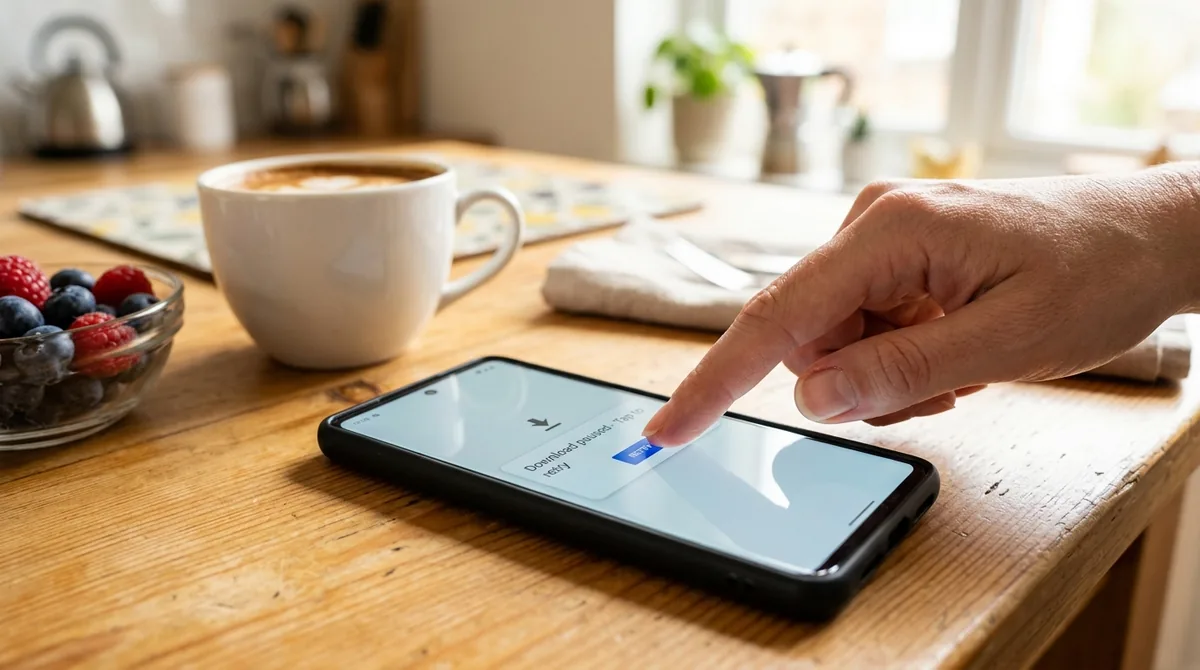
Corrupted cached data is the most common cause of google play store not working. Clearing it is safe and takes seconds:
- Go to Settings > Apps.
- Find Google Play Store (tap See all apps if needed).
- Tap Storage & cache.
- Tap Clear cache.
Open the Play Store and test. Your installed apps, purchase history, and account are unaffected — only temporary files are removed.
Fix 4: Clear Play Store Data
If clearing the cache did not help, take the stronger step of clearing the Play Store's data:
- Go to Settings > Apps > Google Play Store.
- Tap Storage & cache.
- Tap Clear storage (or Clear data).
This resets the Play Store app to its fresh state. You will need to accept the terms again on next launch, but your installed apps and Google account remain intact. This fix resolves persistent crashes, blank screens, and update failures.
Fix 5: Clear Google Play Services Cache

The Play Store depends heavily on Google Play Services, a background system component. If Play Services has corrupted data, the Play Store malfunctions even when the store app itself is fine.
- Go to Settings > Apps.
- Tap the filter/menu and enable Show system apps.
- Find Google Play Services.
- Tap Storage & cache > Clear cache.
Do not tap Clear data / Manage space for Google Play Services unless specifically instructed — that can disrupt many apps. Cache clearing is sufficient and safe.
Also clear the cache for Download Manager in the system apps list, since stalled downloads often involve this component.
Fix 6: Check Date and Time Settings
Incorrect date and time settings cause Play Store connection failures. Google's servers validate security certificates against your phone's clock — if the clock is wrong, the Play Store cannot establish a secure connection.
- Go to Settings > System > Date & time.
- Enable Set time automatically (or Automatic date & time).
- Enable Set time zone automatically.
After correcting the time, restart the Play Store and test. This fix is surprisingly common for "no connection" errors when the internet otherwise works fine.
Fix 7: Remove and Re-add Your Google Account
Account sync issues can break the Play Store. Removing and re-adding your Google account forces a fresh authentication:
- Go to Settings > Passwords & accounts (or Settings > Accounts).
- Tap your Google account.
- Tap Remove account and confirm.
- Restart your phone.
- Go back to Settings > Passwords & accounts > Add account > Google and sign in again.
Before removing: Make sure you know your Google account password, and confirm your contacts, calendar, and other data are synced (check Account sync before removing). Your data is stored in Google's cloud and will re-sync when you sign back in.
Fix 8: Check Available Storage Space
The Play Store needs free space to download and install apps. If storage is nearly full, downloads hang or fail:
- Go to Settings > Storage and check free space.
- If you have less than 1–2 GB free, delete unused apps, move photos to cloud storage, and clear large app caches.
- Empty the trash in your gallery and file manager.
After freeing space, retry your download or update. The Play Store sometimes fails silently when storage is the issue, showing only a perpetual "downloading" state.
Fix 9: Disable VPN or Proxy
VPNs and proxy servers can interfere with the Play Store's connection to Google's servers, causing slow downloads, errors, or blank pages.
- Disconnect any active VPN (check Quick Settings or Settings > Network & internet > VPN).
- Check for proxy settings under Settings > Network & internet > Wi-Fi, tap your connected network, expand Advanced, and make sure Proxy is set to None.
- Test the Play Store with the VPN/proxy disabled.
If the Play Store works without the VPN, the issue is with your VPN service or its server location — try a different server or contact the VPN provider.
Fix 10: Check for System Updates
An outdated Android system can cause Play Store incompatibilities, especially with newer Play Store versions:
- Go to Settings > System > System update.
- Install any available update.
- Also update Google Play Services — open the Play Store (if it opens), or check Google's Play Store help for update steps through your manufacturer's app store.
Keeping the system current ensures the Play Store's underlying frameworks work correctly.
Fix 11: Uninstall Play Store Updates
The Play Store updates itself automatically, and occasionally a bad update causes problems. You can roll it back to the factory version:
- Go to Settings > Apps > Google Play Store.
- Tap the three-dot menu in the top right.
- Tap Uninstall updates.
- Confirm.
This reverts the Play Store to the version that shipped with your phone. Open the Play Store — it will work with the older version and update itself again in the background, usually to a fixed version. This is particularly effective when Play Store problems started immediately after a Play Store update.
Fix 12: Reset App Preferences
If you have disabled system components or changed many settings, conflicting configurations can break the Play Store:
- Go to Settings > System > Reset options.
- Tap Reset app preferences.
- Confirm.
This restores all default app settings, re-enables disabled apps, and resets permissions — without deleting any personal data. It is especially useful if Download Manager or another system component was accidentally disabled.
Google Play Store Not Working? Common Error Codes Explained
Error 403 / 492 / 495 / 504
These are typically download or cache errors. Clear the Play Store cache and data (Fixes 3–4), clear Download Manager cache, and check your connection.
Error 491 / 498
Account or cache issues. Clear Play Store cache, remove and re-add your Google account (Fix 7), and ensure you have free storage space.
Error 501
Usually an account authentication problem. Remove and re-add your Google account.
Error 505
App compatibility issue — often a duplicate permission conflict. Clear the Play Store cache; if installing a specific app triggers it, the app itself may need an update from its developer.
Error 911 / 919 / 920 / 923 / 927 / 941
Various download and installation failures. The general sequence works: check connection, clear Play Store cache and data, check storage space, restart.
"Download pending" forever
This usually means the Play Store's download queue is stuck. Clear the Play Store cache, cancel all pending downloads, restart the phone, and try downloading one app at a time. Check that auto-update apps is not clogging the queue — pause auto-updates temporarily.
"Insufficient storage" when you have space
Clear the Play Store cache and data, then restart. This error sometimes appears due to corrupted storage reporting rather than actual full storage.
Play Store Won't Open At All
If tapping the Play Store icon does nothing or it crashes instantly:
- Force stop the Play Store (Settings > Apps > Google Play Store > Force stop).
- Clear cache, then clear data.
- Uninstall Play Store updates (Fix 11).
- Restart the phone.
- Check date and time settings (Fix 6).
- As a last resort, remove and re-add your Google account (Fix 7).
Work through these in order — the vast majority of google play store not working cases that "won't open" resolve by step 3.
Preventing Future Play Store Problems
- Keep auto-updates on for the Play Store and Play Services — updates include bug fixes.
- Maintain free storage space — at least 2–3 GB at all times.
- Keep date and time automatic — never set the clock manually.
- Avoid disabling system apps like Download Manager or Google Play Services.
- Restart your phone weekly — prevents the accumulation of temporary glitches.
Play Store Region, Payment, and Account Issues
Some Play Store problems are account-related rather than technical:
- Wrong country/region: If you moved countries, your Play Store region may not match your location, blocking certain apps and payment methods. Change it under Play Store Settings > General > Account and device preferences > Country and profile (you can only change this once per year).
- Payment declines: If purchases fail, check your payment method under Play Store Settings > Payments & subscriptions > Payment methods. Expired cards are the most common cause.
- Family Library issues: Shared purchases depend on the family manager's settings — check Settings > Family if shared apps are not appearing.
- Parental controls: If downloads are blocked unexpectedly, check whether parental controls were enabled: Play Store Settings > Family > Parental controls.
Play Store on Multiple Devices
If you use several Android devices with one Google account:
- App sync: Purchased apps are tied to your account, not your device — reinstall them freely on new phones.
- Auto-install: The Play Store can auto-install new apps on all your devices. Manage this under Play Store Settings > General > Manage apps on your devices.
- One device misbehaving: Play Store problems are almost always device-specific. Fixing one phone does not affect the others, and vice versa.
FAQ
Why is my Google Play Store not working all of a sudden?
Sudden Play Store failures are most often caused by corrupted cache data, a bad automatic Play Store update, or connection issues. Clear the Play Store cache first, then try uninstalling Play Store updates to roll back to the factory version. Check that your date/time is set automatically.
How do I fix Play Store download pending?
Cancel all pending downloads, clear the Play Store cache, and restart your phone. Then download one app at a time. Also check that you have free storage space and a stable connection. Pausing auto-updates temporarily can unclog the download queue.
Will clearing Play Store data delete my installed apps?
No. Clearing the Play Store's cache or data only affects the Play Store app itself — its temporary files and settings. Your installed apps, purchase history, and Google account are completely safe.
Why does the Play Store say "no connection" when my internet works?
This is usually a date/time problem — incorrect clock settings break the secure connection to Google's servers. Enable automatic date and time. It can also be caused by VPN/proxy interference or overly aggressive firewall or ad-blocking apps.
Should I uninstall updates for the Play Store?
Yes, it is safe and often effective. Uninstalling updates reverts the Play Store to its factory version, which resolves problems introduced by a buggy automatic update. The Play Store will update itself again in the background afterward.
My Play Store works on Wi-Fi but not mobile data (or vice versa). Why?
Check whether downloads are restricted to Wi-Fi: open the Play Store, tap your profile icon, go to Settings > Network preferences > App download preference and Auto-update apps, and make sure your preferred network type is allowed. Also check for VPN, proxy, or Data Saver settings affecting one connection type.
Conclusion
A google play store not working is disruptive, but the fix is almost always in this list. Start with the fundamentals — connection, restart, cache clearing — and work toward account and system-level fixes only if needed. The Play Store is deeply integrated with Google Play Services, the download manager, and your Google account, so problems can originate in any of those layers — but the systematic approach in this guide covers them all.
Keep your system updated, maintain free storage, leave date/time on automatic, and most Play Store problems will never appear in the first place.


What do you think?
Share your experience or ask a question. A useful conversation starts with you.
Join the discussion