
Few things are more frustrating than opening the Play Store and seeing your apps stuck on "Download pending" or "Updating" with no progress in sight. When you are dealing with android apps not updating, the cause can range from a temporary Play Store hiccup to a full storage drive or a misconfigured network setting. The good news is that almost every update problem can be fixed without any special tools — you just need to work through the right steps in the right order.
This guide walks you through ten fixes that actually work, starting with the quickest and easiest solutions and moving toward deeper troubleshooting for stubborn cases. Whether a single app refuses to update or every app on your phone is frozen in the update queue, you will find a solution below.
Android Apps Not Updating? Why It Happens
Before diving into fixes, it helps to understand what typically goes wrong. App updates on Android are managed by the Google Play Store (or your phone manufacturer's own app store on some devices), and that process depends on several moving parts working together: your internet connection, available storage, your Google account authentication, and the Play Store's own background services.
The most common culprits behind failed updates include a glitch in the Play Store app itself, corrupted cache data in Google Play Services, and a phone that has run out of free storage space. Network issues are another frequent cause — weak Wi-Fi, restrictive public networks, or an active VPN can all interrupt downloads. Sometimes the problem is on Google's side, such as a temporary server outage, or your phone's date and time settings may be out of sync, which breaks the secure connection the Play Store relies on.
Less obvious causes include auto-update settings that pause updates under certain conditions, battery optimization features that kill background downloads, and a Google account that has become desynchronized. Identifying which of these is affecting you makes the fix much faster, which is why the steps below are ordered from most likely to least likely.
Quick Checks: Five Minutes That Solve Most Cases
Before you start clearing caches and re-adding accounts, run through these quick checks. A surprising number of update problems disappear at this stage.
- Check your internet connection. Open a browser and load a page, or run a speed test. Updates can stall on very slow connections or captive Wi-Fi networks (like hotel or airport Wi-Fi that requires a sign-in page).
- Look at your storage. Go to Settings > Storage and check how much free space you have. If you have less than 1 GB free, updates will often fail silently or hang indefinitely.
- Pause other downloads. If several apps are updating at once, they share bandwidth. Pause all but one to see if the queue unblocks.
- Check Google's service status. On rare occasions, Play Store servers have issues. A quick web search for "Google Play Store down" will tell you if others are reporting problems.
- Restart your phone. A simple reboot clears temporary system states that can block the Play Store. If you have not restarted in a while, try this first.
If none of these resolve the issue, move on to the ten fixes below.
10 Fixes That Actually Work
Fix 1: Force Stop and Restart the Play Store
The Play Store app can get stuck in a bad state, especially after an interrupted download. Force-stopping it and reopening gives it a clean start. Go to Settings > Apps > Google Play Store, tap "Force stop," and confirm. Then reopen the Play Store and try your update again. This takes about ten seconds and fixes a large share of transient update failures.
Fix 2: Clear the Play Store Cache (and Google Play Services Cache)
Over time, the Play Store accumulates cached data that can become corrupted — a leading cause of android apps not updating. Clearing the cache removes this temporary data without deleting your apps or settings. Go to Settings > Apps > Google Play Store > Storage & cache, then tap "Clear cache." Do the same for "Google Play Services," which handles much of the download work behind the scenes. After clearing both, reopen the Play Store — you may need to accept the terms again — and retry the update.
Fix 3: Free Up Storage Space
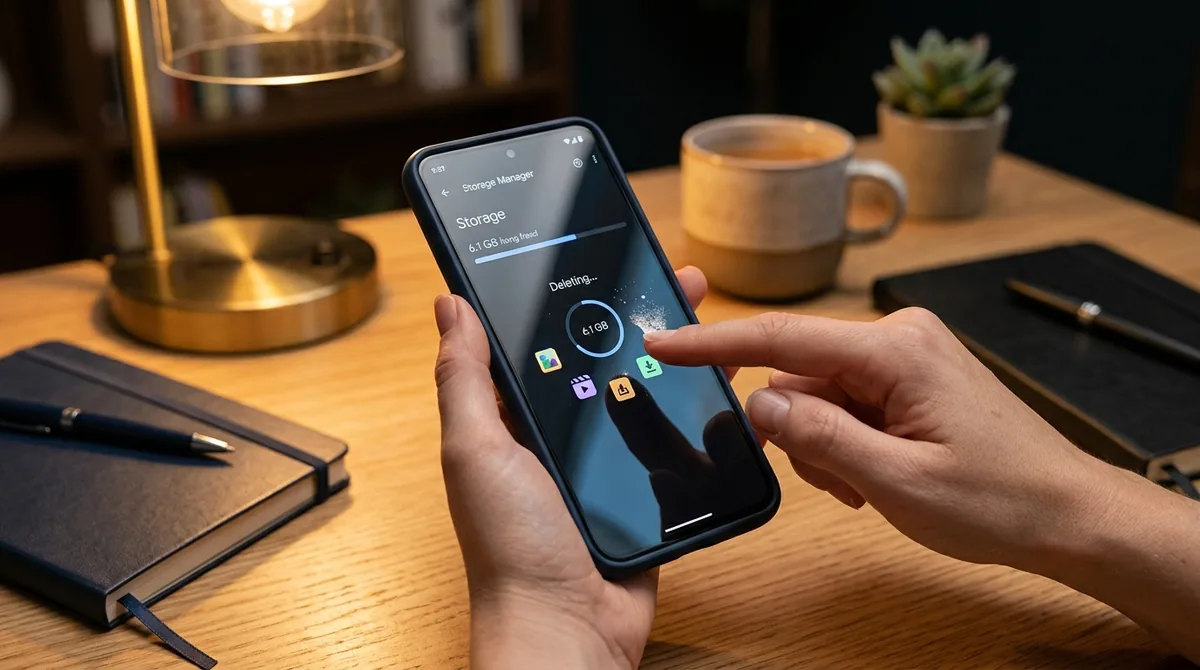
This is the single most common reason android apps not updating becomes a persistent problem. App updates often need significantly more temporary space than the app itself occupies, because the new version downloads alongside the old one before replacing it. Aim to keep at least 2–3 GB free. Delete unused apps, move photos and videos to cloud storage or a computer, and clear out your Downloads folder. In Settings > Storage, many phones offer a "Free up space" or "Clean up" button that removes junk files, old screenshots, and cached media safely.
Fix 4: Switch Your Network Connection
If you are on Wi-Fi, try switching to mobile data (or vice versa). Some Wi-Fi networks — particularly workplace, school, or public networks — block or throttle Play Store traffic, leaving android apps not updating. To test, turn off Wi-Fi temporarily and attempt the update over mobile data. If it works, the problem is your Wi-Fi network, not your phone. Also check whether "Download over Wi-Fi only" is enabled in the Play Store settings, which can pause updates when you are on mobile data.
Fix 5: Pause Auto-Updates and Update Manually
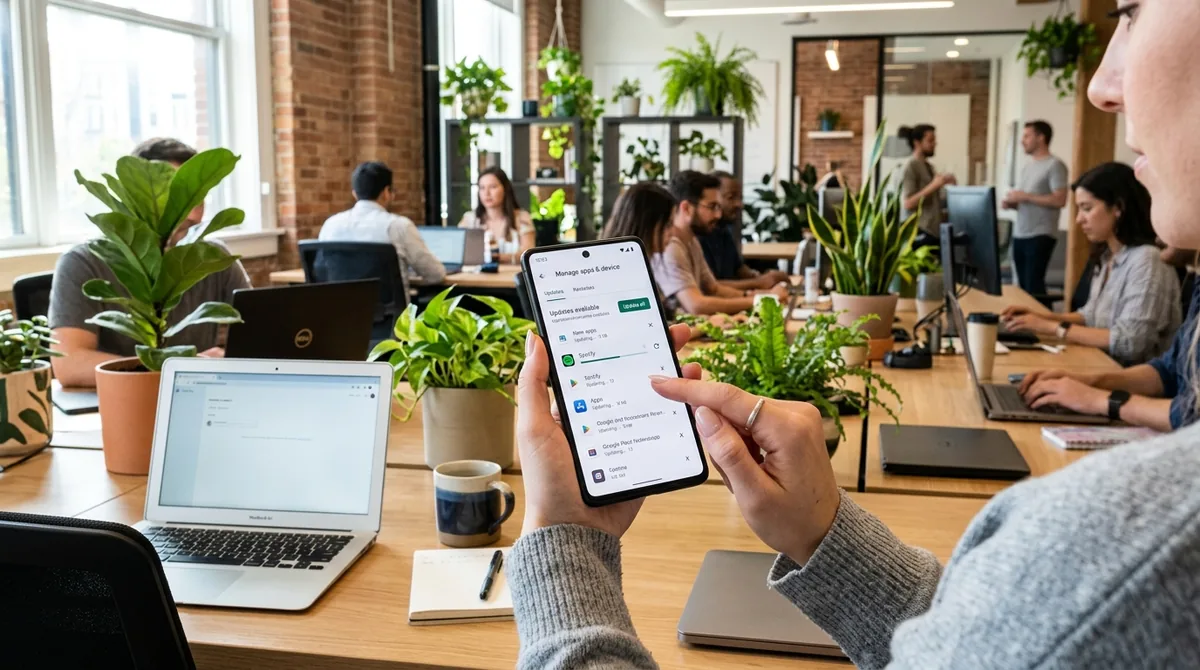
A long queue of auto-updating apps can jam, with one stuck app blocking everything behind it. Open the Play Store, tap your profile icon, and go to Manage apps & device. Under "Updates available," tap "Cancel all" to clear the queue, then update apps one at a time. If a specific app is the troublemaker, you can identify it this way and deal with it individually while the rest update normally.
Fix 6: Remove and Re-Add Your Google Account
If the Play Store cannot authenticate your Google account properly, updates will fail. Removing the account and adding it back refreshes the authentication tokens. Go to Settings > Passwords & accounts (or "Accounts"), select your Google account, and tap "Remove account." Then restart your phone and add the account back through the same menu. Note that this will temporarily remove synced data like contacts and calendar events from the phone, but they will sync back once you re-add the account. Your apps and files are not affected.
Fix 7: Check Your Date and Time Settings
This one catches people off guard. The Play Store uses secure, time-sensitive connections, and if your phone's clock is significantly wrong, the servers will reject the connection. Go to Settings > System > Date & time and make sure "Automatic date & time" and "Automatic time zone" are both enabled. If they already are, toggle them off and back on to force a re-sync.
Fix 8: Turn Off Your VPN or Proxy
VPNs and proxy servers can interfere with Play Store downloads, especially if the VPN endpoint is in a region where certain apps are restricted or if the VPN connection is unstable. Temporarily disable your VPN and try the update again. If it succeeds, consider switching VPN servers or adding the Play Store to your VPN's split-tunneling exceptions so updates can proceed while the VPN protects your other traffic.
Fix 9: Update Google Play Services and the Play Store Itself
Sometimes the updater itself needs updating. Google Play Services is the background component that handles downloads, and an outdated version can cause failures. You can check for a Play Services update by going to Settings > Apps > Google Play Services and looking at the app details page, which sometimes links to the Play Store listing. The Play Store app also updates itself — in the Play Store, tap your profile icon, go to Settings > About, and tap "Update Play Store" to check for a new version (see Google's Play Store help for details).
Fix 10: Uninstall and Reinstall the Problem App
If only one specific app refuses to update while everything else updates fine, the app's own installation may be corrupted. Uninstall the app (long-press its icon and select Uninstall, or find it in Settings > Apps), then reinstall it fresh from the Play Store. This gives you the latest version directly. Just be aware that uninstalling deletes the app's local data, so make sure anything important is backed up or synced to an account first.
When Nothing Works: Advanced Troubleshooting
If you have tried all ten fixes and updates still fail, a few deeper options remain.
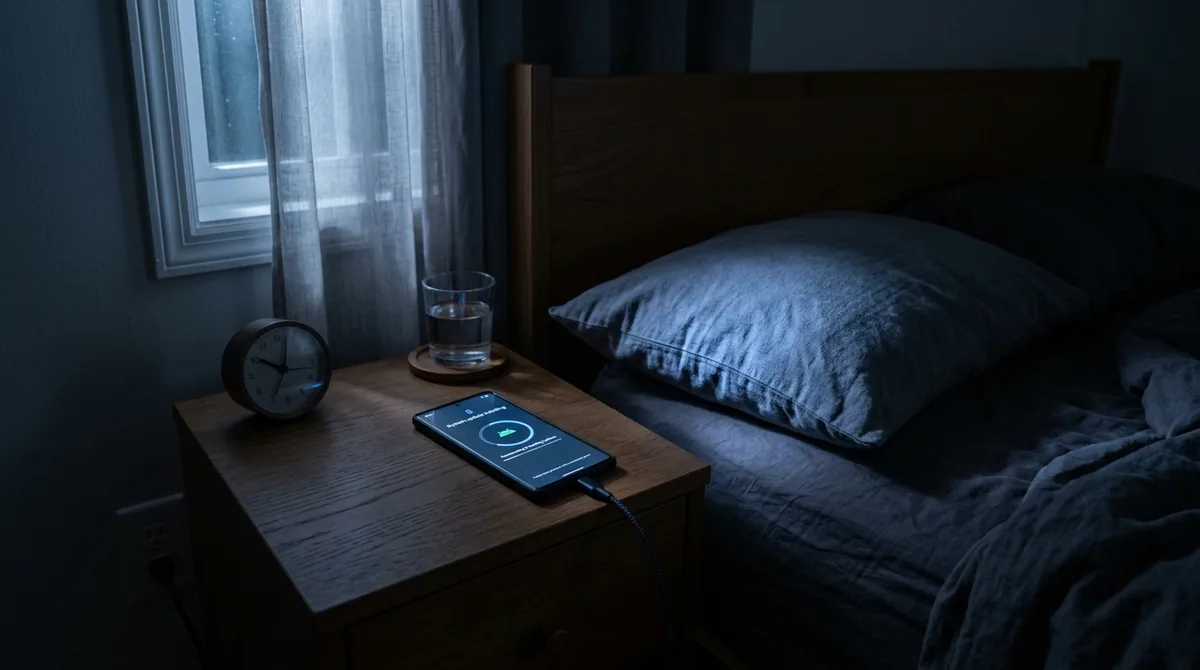
Update your Android system. Go to Settings > System > System update and install any pending OS updates. Older system versions can develop compatibility issues with newer Play Store components.
Check in Safe Mode. Booting into Safe Mode disables all third-party apps temporarily. If updates work in Safe Mode, a third-party app — often a "phone cleaner," aggressive battery saver, or firewall app — is interfering. Uninstall recently added utility apps one by one to find the culprit.
Clear data (not just cache) for the Play Store. As a step beyond Fix 2, you can tap "Clear storage" or "Clear data" on the Play Store app. This resets the app completely, including your Play Store settings, so you will need to re-accept terms and reconfigure preferences. It is more disruptive than clearing cache but resolves deeper corruption.
Factory reset as a last resort. If every app on the phone fails to update and nothing else helps, a factory reset will restore the system to a clean state. Back up everything important first — photos, messages, app data — then go to Settings > System > Reset options > Erase all data. This is drastic, but it resolves essentially any software-level cause.
How to Prevent App Update Problems in the Future
Once your updates are flowing again, a few habits will keep them that way:
- Keep auto-updates enabled over Wi-Fi. In the Play Store settings, set apps to auto-update when connected to Wi-Fi. This spreads updates out over time instead of letting them pile up into a giant queue.
- Maintain free storage. Make it a habit to keep at least a few gigabytes free. Turn on cloud photo backup so old photos do not accumulate on the device.
- Restart your phone weekly. A regular reboot prevents the slow accumulation of stuck background processes.
- Keep the OS updated. Install system updates when they arrive — they include fixes for Play Store and Play Services components.
- Be cautious with "cleaner" and "booster" apps. Aggressive optimization apps are a frequent cause of broken background services. Android manages its own memory and background tasks well without them.
FAQ
Why does the Play Store say "Download pending" forever?
"Download pending" usually means the app is waiting its turn in the update queue, your connection is too slow, or the Play Store's background service is stuck. Cancel all pending updates, force-stop the Play Store, clear its cache, and retry. If it still hangs, check your storage space and try switching from Wi-Fi to mobile data.
Will clearing the Play Store cache delete my apps or purchases?
No. Clearing the cache only removes temporary files. Your installed apps, purchase history, and Google account are all safe. Even the more aggressive "Clear data" option on the Play Store does not touch your installed apps — it only resets the Play Store app's own settings and preferences.
Why do some apps update while others fail?
When only certain apps fail, the problem is usually specific to those apps rather than your phone. The app's update package may be corrupted in the cache, the developer may have published a problematic update, or the app may require a newer Android version than your phone runs. Try Fix 5 (manual one-at-a-time updates) to identify the problem app, then uninstall and reinstall it.
How much free storage do I need for app updates to work?
There is no fixed number, but keeping at least 2–3 GB free is a safe guideline to keep android apps not updating errors away. Large apps and games can need considerably more temporary space during an update, since the new version downloads in full before replacing the old one. If storage is tight, the Play Store may fail updates without a clear error message.
Can I update my apps without using the Play Store?
Some phone manufacturers (like Samsung) have their own app stores that can update certain apps, and some apps offer in-app updaters. However, for most apps installed from the Play Store, the Play Store is the update mechanism. Sideloading update files from outside the Play Store is not recommended — it bypasses Google's security scanning and can expose your phone to malware.
Why do my app updates keep pausing on mobile data?
The Play Store has a setting that restricts downloads to Wi-Fi. Open the Play Store, tap your profile icon, go to Settings > Network preferences > App download preference, and check what it is set to. If it says "Over Wi-Fi only," updates will pause whenever you are on mobile data. Change it to "Over any network" or "Ask me every time" if you want updates on cellular data (watch your data usage).
Conclusion
Android apps not updating is almost always fixable with the steps in this guide. Start with the quick checks — a restart, a storage check, and a network switch resolve most cases in minutes. If the problem persists, work through the ten fixes: clearing caches, refreshing your Google account, and verifying your date and time settings cover the vast majority of deeper issues. And if a single app is the holdout, a clean reinstall will get you the latest version. Keep auto-updates on, maintain free storage, and restart your phone regularly, and you will rarely see that stuck "Updating" spinner again.


What do you think?
Share your experience or ask a question. A useful conversation starts with you.
Join the discussion