

How to Print from an Android Phone: Wireless, USB, and Cloud Options
Boarding passes, shipping labels, school forms, concert tickets — sooner or later you need ink on paper, and your phone is the device with the file. Learning how to print from Android phone hardware is straightforward once you know the three paths: wireless printing over Wi-Fi, direct USB printing, and cloud printing services. No computer required for any of them.
In this guide, you will learn how to print from Android phone devices step by step — setting up your printer, printing documents and photos, and fixing the failures that make people give up and email files to themselves instead.
Before You Start: What You Need

- A printer that supports Wi-Fi, Wi-Fi Direct, or USB OTG printing. Most printers sold since 2015 support at least one wireless method.
- Both devices on the same Wi-Fi network for wireless printing (or use Wi-Fi Direct, which needs no router).
- The printer manufacturer’s app (HP Smart, Epson iPrint, Canon PRINT) — optional but recommended; these apps add scanning, ink monitoring, and firmware updates.
- The file you want to print — PDF, photo, web page, or document — open on your phone.
Android’s built-in printing framework (Settings > Connected devices > Printing) handles the system-level work. If you have never printed from your phone, enable the Default Print Service there first — it discovers network printers automatically.
Method 1: How to Print from Android Phone Wirelessly (Wi-Fi)
Wireless is the method you will use 95% of the time. If you only learn one answer for how to print from Android phone hardware, make it this one. Here is how to print from Android phone to a Wi-Fi printer:
Step 1: Connect the printer to Wi-Fi
Use the printer’s control panel: Settings > Network > Wireless Setup Wizard, select your Wi-Fi network, and enter the password. The printer should show a solid wireless icon when connected. (Do this once — it stays connected.)
Step 2: Enable printing on your phone
- Go to Settings > Connected devices > Connection preferences > Printing.
- Tap Default Print Service and turn it On.
- Your phone scans the network. Your printer should appear within 30 seconds.
Step 3: Print
- Open the document, photo, or web page.
- Tap the three-dot menu > Print (in Chrome: menu > Share > Print; in Photos: menu > Print).
- Select your printer at the top, adjust copies, color, and paper size.
- Tap the print icon. Done.
Wi-Fi Direct (no router needed)
If there is no Wi-Fi network — a hotel, a client’s office — use Wi-Fi Direct: enable it on the printer (usually under Network settings), then on your phone go to Settings > Wi-Fi > Wi-Fi Direct and connect to the printer. Print normally; the phone talks to the printer directly. Slower than infrastructure Wi-Fi but works anywhere, which makes it the most versatile offline option for how to print from Android phone devices.
Manufacturer apps: worth installing
- HP Smart: auto-discovers HP printers, prints PDFs/photos, scans with the phone camera, shows ink levels, and handles setup for new printers.
- Epson iPrint: similar for Epson, plus remote printing to Epson Connect-enabled printers.
- Canon PRINT: Canon’s equivalent with creative print templates.
These apps often succeed where the system print service struggles, especially with older printers. If wireless printing fails, install the manufacturer’s app before troubleshooting further.
Method 2: USB Printing (OTG Cable)

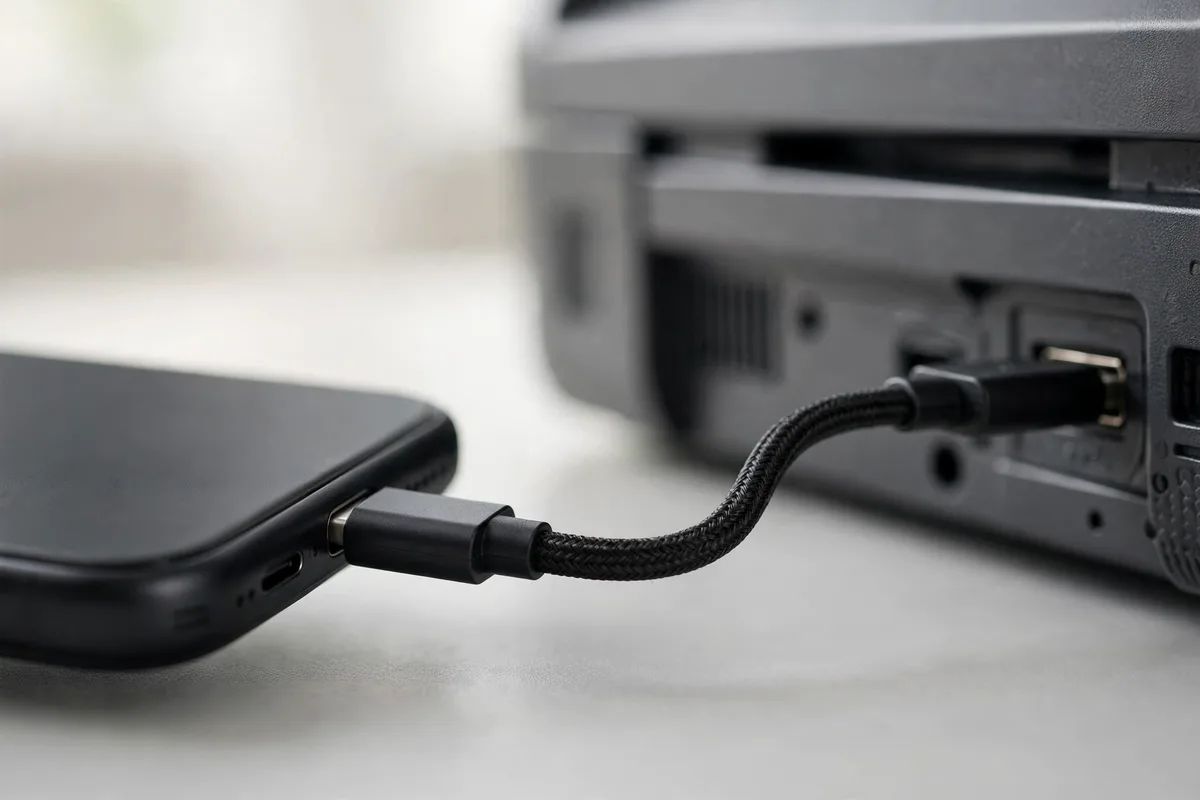
No Wi-Fi? No problem. Most Android phones support printing over USB with an OTG (On-The-Go) adapter — a $5 dongle that lets your phone act as a USB host.
- Connect the phone to the printer with an OTG adapter + USB cable.
- Open the manufacturer’s app (HP Smart, Epson iPrint, Canon PRINT) — the system print service sometimes works over USB, but the apps are more reliable.
- The app detects the USB printer. Select your file and print.
USB printing is rock-solid and fast, making it the best fallback when wireless refuses to cooperate. Keep an OTG adapter in your bag if you print from other people’s printers regularly.
Method 3: Cloud and Email Printing
Email-to-print (HP ePrint and similar)
Many HP printers have a unique email address (find it in HP Smart or on a printed info page). Email a document to that address as an attachment, and the printer prints it — from anywhere in the world. No phone-to-printer connection needed at all. Epson (Epson Connect Email Print) and Canon (PIXMA Cloud Link) offer equivalents.
Google Drive + manufacturer cloud
Upload the file to Google Drive, then print from the manufacturer’s app, which can pull files directly from Drive, Dropbox, or OneDrive. Useful when the file lives in the cloud and you are standing at the printer with only your phone.
What about Google Cloud Print?
Google discontinued Cloud Print in 2021. If an old guide tells you to use it, that guide is outdated — the methods above are its replacements.
Printing Photos vs. Documents: Settings That Matter
- Photos: Use photo paper, select Best quality, and choose Borderless if your printer supports it. In Google Photos, tap Print and pick paper size before sending — phone screens lie about colors, so do a test print first for anything important.
- Documents: Black & white / grayscale saves color ink dramatically. Draft or Normal quality is fine for internal documents; reserve Best for client-facing materials.
- Double-sided: Enable two-sided printing in the print dialog to halve paper use. Most modern printers do this automatically with a duplexer.
- PDFs: Always prefer PDF over Word or web pages for printing — what you see is what prints, with no reflow surprises.
Troubleshooting: When Printing Fails
Printer not found on the network
The classic. Fix sequence: (1) restart the printer, (2) restart the phone’s Wi-Fi, (3) confirm both are on the same network — phones on 5 GHz and printers on 2.4 GHz is the number one cause, and they cannot see each other across bands on some routers, (4) re-run the printer’s wireless setup wizard. If it still fails, install the manufacturer’s app, which uses its own discovery.
Print job stuck in queue
Open the manufacturer’s app and cancel all pending jobs, then restart the printer. On the phone, go to Settings > Connected devices > Printing > Default Print Service and toggle it off and on. Stuck jobs almost always clear with this reset.
“Printer offline” but it is on
The printer lost its Wi-Fi lease (common after router reboots). Print a network configuration page from the printer’s panel to confirm its IP address, or simply re-run wireless setup. Assigning the printer a static IP in your router settings prevents recurrences.
Everything prints too small or cut off
Check paper size in the print dialog (Letter vs. A4 mismatch is the usual suspect) and enable Fit to page. For web pages, use Chrome’s Print preview to catch layout issues before wasting paper.
Colors look wrong
Phone screens are vivid; printers are honest. For photos, enable the manufacturer’s photo enhancement in its app, use genuine photo paper, and accept that a $80 inkjet will never match a lab print. For accurate color, calibrate expectations, not the printer.
Printing from Specific Apps: Gmail, Docs, and Chrome
Knowing how to print from Android phone system menus is half the battle — each app hides the print option in a slightly different place:
- Gmail: Open the email, tap the three-dot menu > Print. Attachments print from their own preview screen (tap the attachment > menu > Print).
- Google Docs / Sheets / Slides: Tap the three-dot menu > Share & export > Print. For Sheets, set the print area first on a computer if the output looks wrong — the mobile app’s sheet-printing options are limited.
- Chrome: Menu > Share > Print. Use the preview to check that the page does not span 12 pages of navigation menus; enable Simplified view when offered.
- Google Photos: Open the photo > three-dot menu > Print. Choose paper size and whether to fill the page.
- Files by Google: Long-press a PDF > three-dot menu > Print.
If an app has no print option at all, use Share > Save as PDF (or Print > Save as PDF) and then print the PDF from the Files app. Every Android phone can produce a PDF from anything printable — that two-step trick covers the stubborn apps.
Saving Ink and Money: Print Smarter
Printing from your phone is convenient; printing wisely is cheap:
- Draft mode for everyday documents uses roughly half the ink of Normal mode with perfectly readable output.
- Grayscale for anything that does not need color — a single black cartridge outlasts color sets by multiples.
- Two-sided printing halves paper costs; enable it by default in your print settings.
- Print only the pages you need. In the print dialog, set a page range instead of printing all 14 pages for the 2 you wanted.
- Third-party ink saves 50–70% but can clog printheads on long-idle printers. If you print rarely, genuine cartridges clog less; if you print weekly, compatibles are fine.
- Laser vs. inkjet: If you print mostly black-and-white documents, a monochrome laser printer costs less per page and never dries out. Inkjets win for photos.
A family that prints 30 pages a month can easily cut printing costs in half with draft mode, duplex, and page ranges — the phone just makes it convenient to print in the first place.
Security: Think Before You Print
- Public printers (hotels, libraries): your document may sit in the printer’s memory or output tray. Collect prints immediately and avoid sensitive documents on shared machines.
- Wi-Fi Direct connections are unencrypted by default on some printers — fine for boarding passes, not for financial statements.
- Clear the print queue on shared printers after use.
- Keep your printer’s firmware updated — manufacturers patch real vulnerabilities in network printers regularly, and the app will notify you.
For the rest of your wireless life, our guide to casting Android to TV covers the entertainment side of phone-to-device connections, and our Android backup guide ensures the documents you print also survive a dead phone. If printing is part of a paperless workflow, pair it with a good note-taking app.
Google documents Android printing at Android support.
FAQ
How do I print from my Android phone to a wireless printer?
Connect the printer to your Wi-Fi, enable Default Print Service under Settings > Connected devices > Printing, then open any document or photo, tap menu > Print, select the printer, and tap print.
Can I print from Android without Wi-Fi?
Yes. Use Wi-Fi Direct (printer creates its own network your phone joins), a USB OTG cable with the manufacturer’s app, or email-to-print services like HP ePrint that work over the internet.
Why can’t my phone find my printer?
They are usually on different Wi-Fi bands (phone on 5 GHz, printer on 2.4 GHz) or different networks entirely. Put both on the same network, restart both, and install the manufacturer’s app (HP Smart, Epson iPrint, Canon PRINT) for more reliable discovery.
Do I need an app to print from Android?
Not strictly — Android’s built-in Default Print Service handles basic printing, which is the simplest answer to how to print from Android phone models of any brand. But manufacturer apps (HP Smart, Epson iPrint, Canon PRINT) add reliability, ink monitoring, scanning, and setup wizards, so installing yours is strongly recommended.
Can I print a text message conversation from Android?
Yes. Screenshot the conversation (or use a scrolling screenshot for long threads), then print the image files via any method above. For legal purposes, some carriers also provide official message transcripts on request.
Is Google Cloud Print still available?
No — Google shut down Cloud Print in 2021. Use Android’s built-in print service, manufacturer apps, or email-to-print instead.
Can I print from my Android phone to a printer at a different location?
Yes, if the printer supports email-to-print (HP ePrint, Epson Connect). Email the document to the printer’s address and it prints remotely. Alternatively, share the file with someone near the printer via cloud storage and have them print it — low-tech but bulletproof.
Conclusion
Once set up, knowing how to print from Android phone hardware pays off daily: wireless printing for the everyday, Wi-Fi Direct or USB OTG when networks fail you, and email-to-print when you are nowhere near the printer. Install your manufacturer’s app, get both devices on the same Wi-Fi band, and the “email it to myself and print from the computer” era of your life is officially over.




What do you think?
Share your experience or ask a question. A useful conversation starts with you.
Join the discussion