
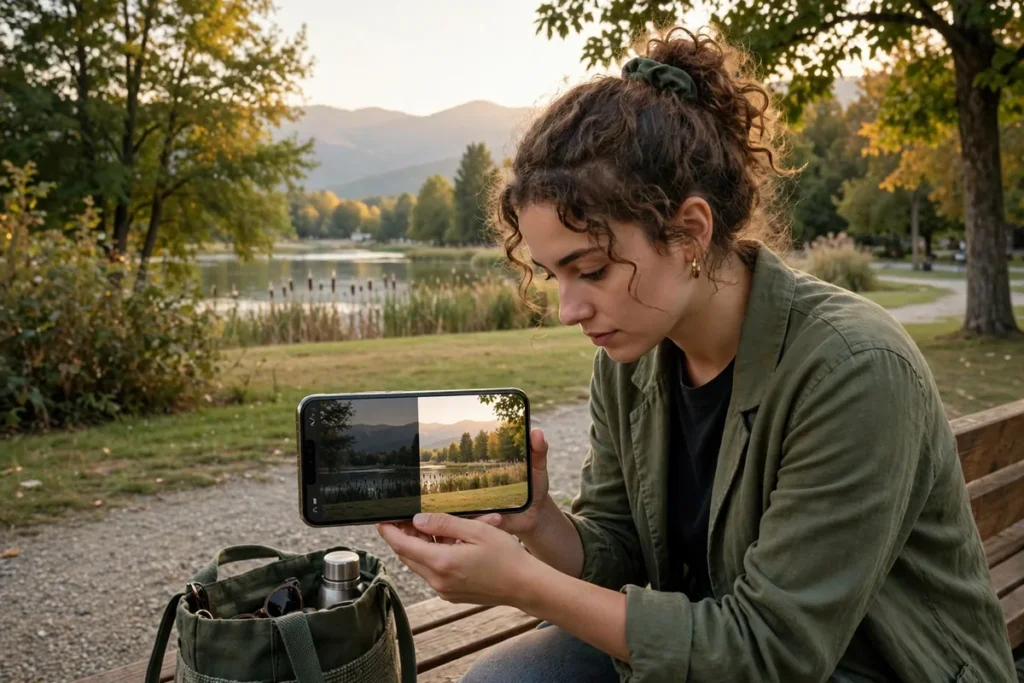
That perfect shot with a stranger wandering through the background, the beach photo with trash cans in frame, the group picture where someone blinked: these used to be ruined photos. Google’s Magic Eraser and Magic Editor change that with AI that removes distractions, reimagines scenes, and fixes faces after the fact. These magic eraser magic editor tips turn your Pixel into a photo rescue studio that fits in your pocket. See the Google Photos help center for official documentation.
This guide covers 8 practical magic eraser magic editor tips for 2026: removing objects cleanly, using Magic Editor’s generative features, fixing group photos, and the settings that produce the most natural results. Whether you shoot on a Pixel or use Google Photos on another Android, these magic eraser magic editor tips will salvage shots you thought were lost.
Remove Distractions With Magic Eraser

Magic Eraser is the headline feature: circle an unwanted object and AI removes it, reconstructing the background.
How to Use It
- Open the photo in Google Photos and tap Edit.
- Tap Tools, then Magic Eraser.
- Circle or brush over the unwanted object; AI removes it and fills the background.
Getting Clean Removals
- Zoom in before circling for precise selection around complex edges.
- Work in passes: remove large objects first, then clean up small remnants.
- Camouflage mode desaturates distracting background objects instead of removing them, useful when removal would look unnatural.
- Simple backgrounds (sky, walls, sand) erase flawlessly; busy patterns need more care.
The first time you erase a photobomber from an otherwise perfect shot, you will understand why these magic eraser magic editor tips matter. For photos beyond saving, our deleted photo recovery guide covers rescue options.
Magic Eraser Magic Editor Tips: Reimagine With Magic Editor
Magic Editor goes beyond removal into generative transformation: reposition subjects, resize elements, and restyle skies.
- Open a photo in Google Photos and tap Edit, then Magic Editor (the sparkle icon).
- Tap or circle a subject to select it.
- Drag to reposition, pinch to resize, or choose contextual suggestions like Sky, Golden hour, or Stylized.
What Magic Editor Can Do
- Move subjects: shift a person away from the edge for better composition.
- Resize elements: make the subject larger or shrink background clutter.
- Sky replacement: swap dull skies for dramatic sunsets with realistic relighting.
- Style transfer: apply artistic looks while keeping the photo recognizable.
The results are startlingly natural when used with restraint. This is the most futuristic of all magic eraser magic editor tips, and it runs entirely in the cloud on most devices.
Fix Faces in Group Photos

Someone always blinks. Magic Editor’s face tools can swap in better expressions from other shots in the burst.
- Open the group photo in Magic Editor.
- Tap a face; the app suggests alternate expressions captured moments apart.
- Choose the best version for each person.
This works because Pixel cameras capture multiple frames per shot. The feature assembles the ideal group photo from moments that never coexisted. It is one of those magic eraser magic editor tips that feels like time travel, and it rescues the group shots that matter most.
Magic Eraser Magic Editor Tips: Quick Comparison Table
| Tool | What It Does | Best For |
|---|---|---|
| Magic Eraser | Remove objects | Distractions, photobombers |
| Camouflage | Desaturate distractions | Busy backgrounds |
| Magic Editor move | Reposition subjects | Composition fixes |
| Sky tools | Replace skies | Dull weather shots |
| Face swap | Fix expressions | Group photos |
Clean Up Scanned Documents and Whiteboards
Magic Eraser is not just for people; it cleans documents too.
- Erase shadows and fingers from photographed documents.
- Remove glare spots from whiteboard captures.
- Clean backgrounds behind product photos for listings.
After cleanup, the result looks professionally scanned. Pair this with a proper backup strategy so your cleaned documents survive phone upgrades; our Android backup guide covers the complete approach.
Perfect Portraits With Background Control
Portrait mode plus AI editing gives studio-like control.
- Shoot in Portrait mode for natural depth data.
- In Google Photos editor, adjust blur strength and focus point after the fact.
- Use Magic Eraser to remove background distractions the blur missed.
- Try Color pop to desaturate the background while keeping the subject vivid.
The combination produces portraits that rival dedicated cameras for social media purposes. These magic eraser magic editor tips for portraits work on older photos too; the AI processes any image in your library, not just new captures.
Magic Eraser Magic Editor Tips: Batch-Edit Event Photos
Weddings, parties, and vacations generate hundreds of photos needing the same fixes.
- Identify the repeat offenders: exit signs, trash cans, and strangers appear across many shots.
- Edit one photo well, then replicate the approach; Magic Eraser remembers nothing between photos, but your technique transfers.
- Prioritize ruthlessly: fully edit the 20 photos you will share or print; quick-pass the rest.
- Use Magic Editor presets for consistent sky and lighting fixes across a set.
An hour of focused editing transforms an event album from raw captures to shareable memories. Our photo editing apps roundup covers complementary tools for the finishing touches.
Know the Limits: When AI Editing Fails
Honest expectations prevent disappointment.
- Complex patterns: chain-link fences, intricate textiles, and text defeat background reconstruction.
- Hands and faces: generative edits sometimes produce uncanny fingers or warped features; zoom in to check.
- Low resolution: heavy crops of already-small images leave little data for the AI to work with.
- Over-editing: stacked edits accumulate artifacts; prefer fewer, bolder changes.
When Magic Eraser struggles, try Camouflage mode instead, or accept a tasteful crop. These magic eraser magic editor tips work best when you collaborate with the AI rather than demanding miracles.
Related Guides
- Best Photo Editing Apps Android: 10 Top Picks
- Recover Deleted Photos Android: 6 Methods That Work
- Best Android Phones 2026: 9 Top Picks
Magic Eraser Magic Editor Tips: Unblur Old and Shaky Photos
Google Photos’ Unblur tool rescues blurry shots using AI trained on sharp image pairs.
- Open a blurry photo and tap Edit > Tools > Unblur (Pixel 7 and newer, or Google One subscribers).
- Adjust the intensity slider; the AI reconstructs plausible sharp detail.
- Combine with Magic Eraser afterward for distracting background cleanup.
Unblur works miracles on slightly missed focus and mild motion blur, though it cannot fix extreme blur where no detail exists. Old scanned family photos benefit enormously; faces emerge from the haze of decades-old prints. This is one of the most emotionally powerful magic eraser magic editor tips, restoring photos people thought were lost to time and shaky hands.
Best Practices for Natural-Looking Results
AI editing is invisible when done well and obvious when overdone. Follow these principles.
- Less is more: remove one or two distractions, not twelve; heavily edited photos develop a synthetic sheen.
- Check at 100% zoom: artifacts hide at thumbnail size and scream at full resolution.
- Match the light: Magic Editor’s sky replacements include relighting, but manually moved subjects may need brightness tweaks to match.
- Keep skin natural: aggressive smoothing triggers uncanny valley; preserve texture.
- Save originals: always keep the unedited version; tastes and tools improve.
The goal is photos that look like better captures, not digital paintings. These magic eraser magic editor tips for restraint separate skilled editors from filter abusers.
Magic Eraser Magic Editor Tips: Enhance Videos Too
Still-photo tools get the glory, but video enhancement matters just as much.
- Stabilization: Google Photos’ video stabilizer smooths shaky footage remarkably well.
- Audio Magic Eraser: separates voices from background noise in video audio (covered in our audio guide).
- Filters and trims: basic color correction and trimming live in the same editor.
- Export frames: pull stills from video for Magic Eraser treatment when the perfect moment exists only in motion.
A shaky, noisy clip becomes a watchable memory with ten minutes of these tools. Mobile videographers should learn the photo and video editors as one continuous toolkit.
Prepare Edits for Sharing and Printing
Different destinations need different finishing.
- Social media: export at the platform’s preferred dimensions; slight sharpening survives compression better.
- Printing: keep maximum resolution; check edits at print size (a 4×6 print hides flaws a poster reveals).
- Archiving: save edited versions alongside originals with clear filenames.
- Watermark personal work: if sharing widely, a subtle watermark protects your edits.
These finishing magic eraser magic editor tips ensure your hard editing work actually looks good where it lands, not just in the editor.
Magic Eraser Magic Editor Tips: Create Stunning Collages and Cinematic Photos
Beyond fixing flaws, Google Photos offers creative transformations worth exploring.
- Cinematic photos: the app auto-generates 3D-like cinematic versions of 2D shots; find them in the Creations section and share the most dramatic ones.
- Collages: select up to 9 photos for auto-arranged collages with intelligent layouts.
- Panorama stitching: while not Magic Editor per se, the panorama mode in the camera pairs with AI cleanup for sweeping landscapes.
- Seasonal styles: holiday and seasonal filters apply tasteful, non-cheesy transformations.
These creative features turn editing from corrective to expressive. The best magic eraser magic editor tips include knowing when to stop fixing and start creating.
Restore Very Old Photos With AI
Family archives of faded prints deserve the full treatment.
- Photograph the print using Google’s PhotoScan app for glare-free captures.
- Unblur and sharpen in Google Photos to recover lost detail.
- Magic Eraser removes creases, spots, and damage marks.
- Colorize black-and-white ancestors with Magic Editor’s colorization suggestions.
The result can be startling: great-grandparents in lifelike color from a cracked sepia print. This restoration workflow is among the most meaningful magic eraser magic editor tips, connecting generations through rescued images.
Magic Eraser Magic Editor Tips: Edit on the Web Too
These tools are not phone-only. At photos.google.com, open any photo and click Edit: Magic Eraser, Unblur, and portrait lighting are all available in the browser, with a bigger screen and a mouse for precise selections. Edits sync back to your phone instantly through your Google account. Strategy: do heavy cleanup sessions on desktop, where circling a complex edge with a mouse beats a fingertip, and keep quick fixes on the phone. Wedding albums and vacation batches go faster this way; the phone stays the tool for the single shot you want fixed before posting.
Magic Eraser Magic Editor Tips: Keep Edits Print-Worthy
AI edits look flawless on a phone screen and can reveal flaws in a print. Work from the original full-resolution file for anything you might print: in Google Photos, download the original before major edits rather than editing a compressed preview. After erasing, zoom to 100% and inspect edges for smearing or repeated texture patterns. Avoid stacking multiple generative edits on the same area; artifacts compound with each pass. And always keep the unedited original. Google Photos saves edits non-destructively, but export a backup copy before ambitious reimaginings. These magic eraser magic editor tips are the difference between an edit that survives a 5×7 print and one that only survives Instagram.
Magic Eraser Magic Editor Tips: Know When to Leave a Photo Alone
Not every imperfection needs erasing. A candid photo’s messy background is context; a child’s scraped knee is the story of that afternoon. Over-cleaned photos develop a waxy, artificial look that viewers sense instantly even when they cannot name it. Use the three-second test: show the edited photo to someone briefly. If they notice the edit, you went too far. The best AI editing is invisible, and restraint is a skill these magic eraser magic editor tips should teach alongside technique. Some photos are perfect because of their flaws, not despite them.
FAQ
Do magic eraser magic editor tips work on non-Pixel phones?
Magic Eraser works in Google Photos on any Android phone, though some features require a Google One subscription on non-Pixels. Magic Editor’s full generative features are Pixel-first but expanding.
Are edited photos marked as AI-modified?
Google is implementing content credentials that mark AI-edited images. Magic Editor creations may carry metadata indicating AI involvement, which matters for journalism and legal contexts.
Can Magic Eraser remove watermarks?
Technically sometimes, but removing watermarks from others’ photos violates copyright and terms of service. Use these tools on your own photos.
Why does my edited photo look blurry in spots?
Background reconstruction invents pixels; on complex areas the invention is visibly softer than real detail. Zoom to 100% to inspect before sharing important edits.
Is there a limit to how many photos I can edit?
No hard limit, though Magic Editor’s cloud processing may queue during peak times. Magic Eraser runs on-device on Pixels and has no meaningful limits.
Can I undo AI edits later?
Google Photos’ editor is non-destructive until you save a copy; the original remains in your library. Always save edits as a copy to preserve the untouched original.
Can I use these tools commercially?
For your own client work, yes, with disclosure where appropriate. Check Google’s terms for the specific features, and be aware that AI-edited images may carry content credentials affecting commercial use.
Do AI edits work on RAW photos?
Google Photos processes JPEGs and HEICs most reliably. RAW files should be developed to a standard format first, then edited with the AI tools.
Conclusion
These 8 magic eraser magic editor tips turn frustrating near-misses into keepers: erase the photobombers, reimagine dull skies, fix the blinked eyes, and clean up the backgrounds. The tools reward experimentation, so practice on unimportant photos before tackling the ones that matter. Used with restraint and checked at full zoom, AI photo editing produces results indistinguishable from careful manual work. Master these magic eraser magic editor tips and every photo in your library gets a second chance at perfection.


What do you think?
Share your experience or ask a question. A useful conversation starts with you.
Join the discussion