

Facebook Messenger is one of those apps where a missed notification has real consequences — a friend waiting on a reply, a group chat making plans without you, a Marketplace buyer moving on. When you find Messenger app notifications not working on Android, the cause is usually a mix of Messenger’s own chat-level controls (mutes, message requests, chat heads) and Android’s battery optimization, which is notoriously aggressive toward messaging apps.
This guide walks through every layer: Messenger's internal notification settings, per-chat mutes, Android notification channels, battery and data restrictions, and the account-level quirks that can silence the app.
Check Messenger's Internal Notification Settings First
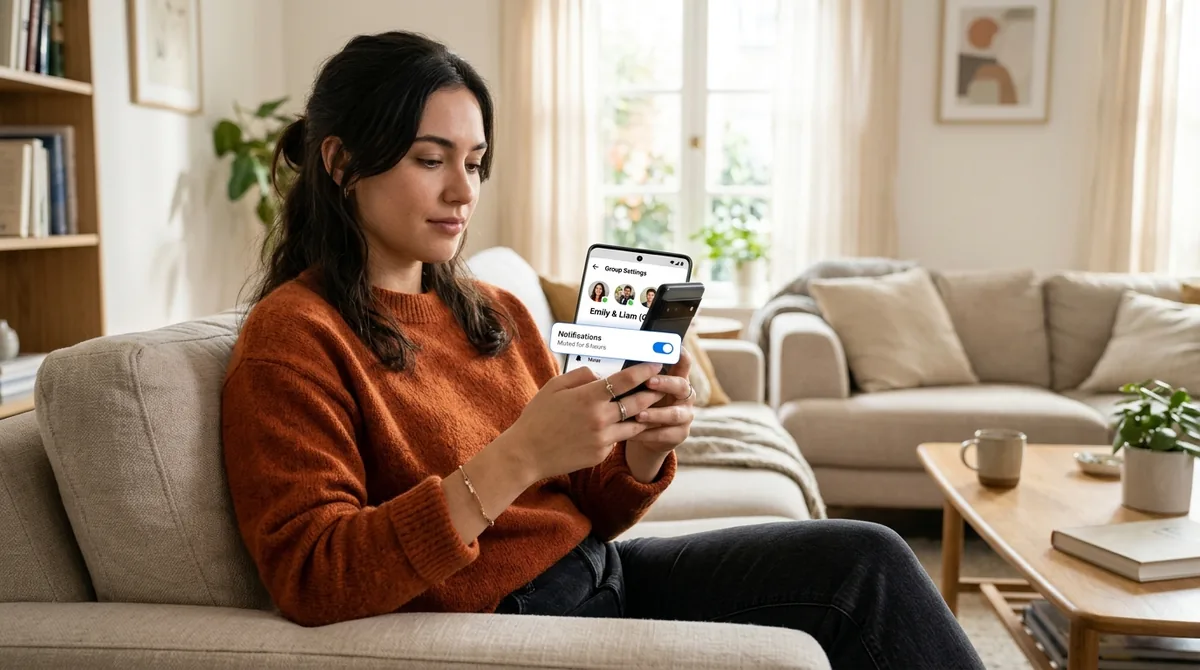
Messenger has its own notification preferences that operate independently of Android's system settings, and they are the most common culprit. Open Messenger, tap the menu (three lines, top left), then the gear icon for Settings, and tap Notifications & sounds.
Review each toggle:
- Notifications master switch — if this is off, nothing else matters.
- Message previews — controls whether notification content shows; if previews are off, notifications may appear blank and be easy to miss.
- Sound and vibration toggles — notifications may be arriving silently.
- In-app sounds — separate from push notification sounds.
Also check Chat heads (floating bubbles) settings if you use them — on Android 11+, this is governed by the system Bubbles setting too (Settings > Notifications > Bubbles), and both layers need to agree.
Messenger occasionally resets these preferences after major updates, so if notifications broke right after an update, this screen is the first place to look.
Unmute Chats, Groups, and Message Requests
Messenger lets you mute at multiple levels, and mutes are easy to forget:
Muted Conversations
Open your chat list and look for the muted-bell icon on conversations. Long-press any muted chat and choose Unmute if you want its notifications back. Group chats are the usual victims — someone mutes a noisy group for a weekend and forgets for six months.
Message Requests and Spam
Messages from people who are not your friends land in Message Requests (menu > Message requests), and the Spam folder holds more. By default, these generate limited or no notifications. If you are expecting a message from a non-friend — a Marketplace contact, for example — check these folders directly. You can adjust notification behavior for message requests in Messenger's notification settings.
Muted Stories and Calls
Messenger separates message, story, and call notifications. If calls ring but messages do not (or vice versa), check the per-type toggles in Notifications & sounds rather than assuming the whole app is broken.
Review Android Notification Channels for Messenger
Messenger defines several Android notification channels — typically for chats, calls, stories, and general alerts. In App info > Notifications (long-press the Messenger icon > App info > Notifications):
- Confirm the master toggle is on.
- Tap into each channel and verify it is enabled with importance set to Default or higher. A channel set to Silent delivers without banner or sound.
- Check Allow notification dot for icon badges.
- Verify lock screen visibility if alerts are missing on the lock screen specifically.
On Android 13+, also confirm Messenger was granted the notification permission — if you denied it at install, the system toggle in App info will be off.
Messenger App Notifications Not Working on Android? Defeat Battery Optimization
This is the big one for messaging apps. Android's Doze mode and Adaptive Battery throttle background apps, and Messenger needs constant background presence to deliver real-time message alerts. The telltale symptom: messages arrive the moment you open Messenger, in a sudden flood, and you are never notified while the app is closed.
Fix it decisively:
- Long-press Messenger > App info > Battery > Unrestricted.
- App info > Mobile data & Wi-Fi > enable Background data (and unrestricted data usage if you use Data Saver or metered Wi-Fi).
- On Samsung: remove Messenger from Settings > Battery > Background usage limits sleeping/deep-sleeping lists; disable "Put unused apps to sleep" if it keeps re-adding Messenger.
- On Xiaomi: set Messenger to "No restrictions" in the Security/battery settings and grant autostart permission.
- On OnePlus/Oppo/Huawei/Vivo: check the manufacturer's battery optimization and background-management settings for Messenger.
Also exempt Google Play services from battery optimization, since Messenger's pushes travel through Firebase Cloud Messaging. Messaging apps are the category most visibly harmed by aggressive power management — do not leave Messenger on "Optimized."
Check Data Saver, VPNs, and Network Restrictions

Messenger needs background data access to receive pushes. If Data Saver is on (Settings > Network & internet > Data Saver), add Messenger to the unrestricted list. VPN apps, firewall apps, and DNS-based ad blockers can also disrupt Messenger's persistent connection — if notifications broke when you installed or configured one, disconnect it temporarily to test.
If Messenger notifies you on mobile data but not on Wi-Fi (or the reverse), the network is interfering. Corporate and school networks sometimes restrict the connections messaging apps use; Private DNS set to an aggressive provider can also cause issues — try switching it to Automatic as a test.
Account and Login Issues
Messenger notifications depend on an active, healthy login session:
- Logged out or session expired: If Messenger logged you out silently (after a password change, for instance), pushes stop. Open the app and confirm you are logged in; re-login if prompted.
- Multiple devices: Being logged into Messenger on several phones can cause notifications to route to only the most recently active device.
- Facebook account issues: Security holds, password resets, or account reviews on the linked Facebook account can pause Messenger functionality. Check the Facebook app or website for security prompts.
- "Active" vs. background: Some users report notifications only while Messenger appears active — this is almost always battery optimization (see above), not an account issue, but verify the login first since it is quick.
App Health: Cache, Updates, Reinstall
When settings check out, treat it as an app problem:
- Clear cache: App info > Storage & cache > Clear cache. Safe — does not log you out or delete chats.
- Update Messenger in the Play Store. Meta ships notification-related fixes regularly, and also occasionally ships notification-related bugs — check recent reviews if problems started with a specific version.
- Check notification channels again after updating — updates can add channels with quiet defaults.
- Reinstall as a final measure: uninstall, reinstall from the Play Store, log back in, and re-grant the notification permission and battery exemption. This forces a fresh push registration, which fixes the cases where everything looks right but nothing arrives.
Note: if you use Messenger Lite or an older version, consider switching to the current full app — outdated clients lose push support over time.
Do Not Disturb, Focus Mode, and Bedtime
Phone-level quiet modes still apply to Messenger. Check:
- Android Do Not Disturb — including forgotten schedules (Settings > Sound > Do Not Disturb > Schedules).
- Focus mode (Digital Wellbeing) — if Messenger is on the distracting-apps list with a schedule, its notifications pause on a timer.
- Bedtime mode — mutes notifications overnight.
- Messenger's own quiet-hours-like features, if enabled.
If notifications vanish only during certain hours, a schedule — in the phone or in the app — is almost certainly responsible.
Test Methodically
Do not guess — verify. After making changes:
- Have a friend send you a test message while Messenger is fully closed (swiped away from recents).
- Check whether the notification arrives promptly, late, or not at all.
- Check Notification history (Settings > Notifications > Notification history) to see whether Android received it even if it was not displayed.
- Test a voice/video call separately — calls use a different channel and sometimes work when message notifications do not, which narrows the diagnosis.
Late-or-burst arrival means battery optimization is still throttling. Absence from history means delivery failure (registration, network, or account). Presence in history without display means a visibility setting (channel importance, Do Not Disturb, lock screen).
Messenger Across Multiple Devices and the Facebook Connection
Messenger's notification routing gets complicated when you are logged in on several devices. Being signed into Messenger on two phones, a tablet, and Facebook on desktop means pushes may route to only the most recently active device — your old phone stays silent while your tablet pings. If you upgraded phones recently, log out of Messenger on the old device (or remotely via Facebook > Settings > Security > active sessions) so delivery targets the phone in your pocket.
The link to your Facebook account matters too. Messenger rides on Facebook's identity system, so security events on Facebook — a password change, an unrecognized-login alert, a temporary restriction — can pause Messenger's push delivery without any warning inside Messenger itself. If notifications died around the time of any Facebook security prompt, open the Facebook app or website and clear the security check first.
Also review Facebook's own notification settings if you have both apps installed. Facebook and Messenger notifications are separate, but users sometimes disable alerts in one app expecting it to affect the other, or enable "notification dots" in Facebook while wondering why Messenger's badge is missing. Keep the two apps' settings mentally separate: this guide's fixes apply to Messenger's toggles and channels only.
Finally, Messenger Kids and supervised accounts have additional parental-control restrictions that can suppress notifications by design. If the affected account is a supervised teen account, check the parental supervision settings in the Meta Accounts Center before assuming a malfunction.
FAQ
Messenger app notifications not working on Android while other apps work — why?
Single-app failure means the problem is in Messenger's configuration: its internal notification toggles, a muted conversation, its notification channels, or battery optimization targeting Messenger specifically. Other apps working proves your phone's system settings are fine.
Why do Messenger messages only arrive when I open the app?
This is the classic battery-optimization symptom. Android is putting Messenger to sleep, so it cannot receive pushes until launched. Set Messenger to Unrestricted battery usage, enable background data, and remove it from any manufacturer sleeping-app lists.
Why am I not getting notifications for one specific chat?
That chat is probably muted. Look for the muted-bell icon in your chat list, long-press the conversation, and unmute it. Also check whether the sender's messages are landing in Message Requests or Spam instead of your main inbox.
Do chat heads affect notifications?
Chat heads (bubbles) are a display feature, not a delivery requirement — notifications work without them. But if you rely on bubbles and they stopped appearing, check both Messenger's chat-head setting and Android's system Bubbles setting (Settings > Notifications > Bubbles), plus the notification channel importance.
Why did Messenger notifications stop after an update?
Updates can reset Messenger's internal notification preferences, add new notification channels with quiet defaults, or break push registration. Review Notifications & sounds inside Messenger, check App info > Notifications channels, and if needed reinstall to force fresh registration.
Can I get Messenger notifications without the Facebook app installed?
Yes. Messenger works as a standalone app and its notifications are independent of the Facebook app. You do not need Facebook installed for Messenger push notifications to function.
Conclusion
Messenger notifications not working on Android usually comes down to three things: Messenger's own internal toggles (including forgotten mutes), Android notification channels set too quietly, and battery optimization putting the app to sleep. The internal settings are the most overlooked — people check the phone's settings thoroughly while Messenger's own Notifications & sounds screen sits with a disabled toggle.
Work it in order: in-app settings and mutes first, then Android channels and permissions, then the decisive battery exemption (Unrestricted, background data on, off every manufacturer sleeping list). Test with a real message from a friend with the app closed, and use Notification history to distinguish delivery failure from display failure. Messaging is real-time communication — with these layers configured correctly, Messenger will be too. And once alerts are reliable, consider setting custom sounds for your most important chats so priority messages stand out instantly. If problems return after a Messenger app update, recheck the battery exemption first, since updates occasionally reset background permissions silently. Also verify Messenger's notification channels after major Android version upgrades.
If you still find Messenger app notifications not working on Android after all this, see why are my app notifications not working for system-wide diagnosis and app notifications not showing on Android for visibility layers. Messenger’s official site links to current app downloads and help.


What do you think?
Share your experience or ask a question. A useful conversation starts with you.
Join the discussion