
Android Stuck on Logo or Bootloop? 9 Fixes to Get It Booting Again
Few things are as stressful as pressing your phone’s power button and watching it freeze on the manufacturer’s logo forever. If your Android stuck on logo screen problem has you staring at the same Samsung, Pixel, or Motorola logo on repeat — powering on, freezing, and sometimes restarting in an endless loop — don’t panic. This is one of the most common Android failures, and in most cases it’s fixable at home without a repair shop.
An Android stuck on logo screen usually means the phone’s software can’t finish loading the operating system. It gets partway through the boot process and stalls, or it crashes and reboots — a behavior known as a bootloop. The good news: unless there’s physical damage to the motherboard or storage chip, at least one of the nine fixes below will almost certainly get your phone booting again. We’ve ordered them from the simplest (takes 30 seconds, no data loss) to the most advanced (full firmware flash), so start at the top and work your way down.
What an Android Stuck on Logo Screen Means (and Why It Happens)
Before jumping into fixes, it helps to understand what’s actually going wrong. When you power on and end up with an Android stuck on logo screen, the phone goes through a boot sequence: the bootloader loads, the kernel starts, system services initialize, and finally the launcher appears. An Android stuck on logo screen means something in that chain is broken.
The most common causes include:
- A failed or interrupted software update. If an OTA update lost power or connection mid-install, system files can be left half-written.
- A corrupt app or bad system tweak. Aggressive “optimizer” apps, root modifications, or a misbehaving update to a system component can break the boot chain.
- Full or failing storage. When internal storage is completely full or the flash memory is degrading, Android can’t write the temporary files it needs to finish booting.
- A faulty SD card. A dying or counterfeit microSD card can hang the media-scanning step during boot.
- Hardware failure. In rarer cases, a damaged power IC, loose battery connector, or failing storage chip keeps the phone from completing boot.
Knowing the likely cause matters because it points to the right fix. A phone that started bootlooping right after an update needs different treatment than one that died after being dropped in water. That said, the fixes below cover all of these scenarios — start simple and escalate only if needed.
Before You Start: What You’ll Need
You don’t need much, but having these ready will make the process smoother:
- A charger and cable you trust. Many cases of an Android stuck on logo screen are actually power-delivery problems. Plug the phone into its original charger for at least 20 minutes before doing anything else.
- A computer (for the advanced fixes). Fixes 7 and 8 need a Windows PC or Mac.
- Your Google account credentials. If you end up factory resetting, you’ll need to sign back in, and Factory Reset Protection (FRP) may ask for the last-synced Google account.
- Patience. Some steps — like a cache wipe or firmware flash — take 10 to 20 minutes. Don’t interrupt them.
One more thing: if your data isn’t backed up, prioritize the non-destructive fixes first (fixes 1–5). Backing up your Android phone regularly is the single best insurance against situations like this, but we’ll get to data-preservation tactics in each step.
Fix 1: Force Restart the Phone (30 Seconds, No Data Loss)
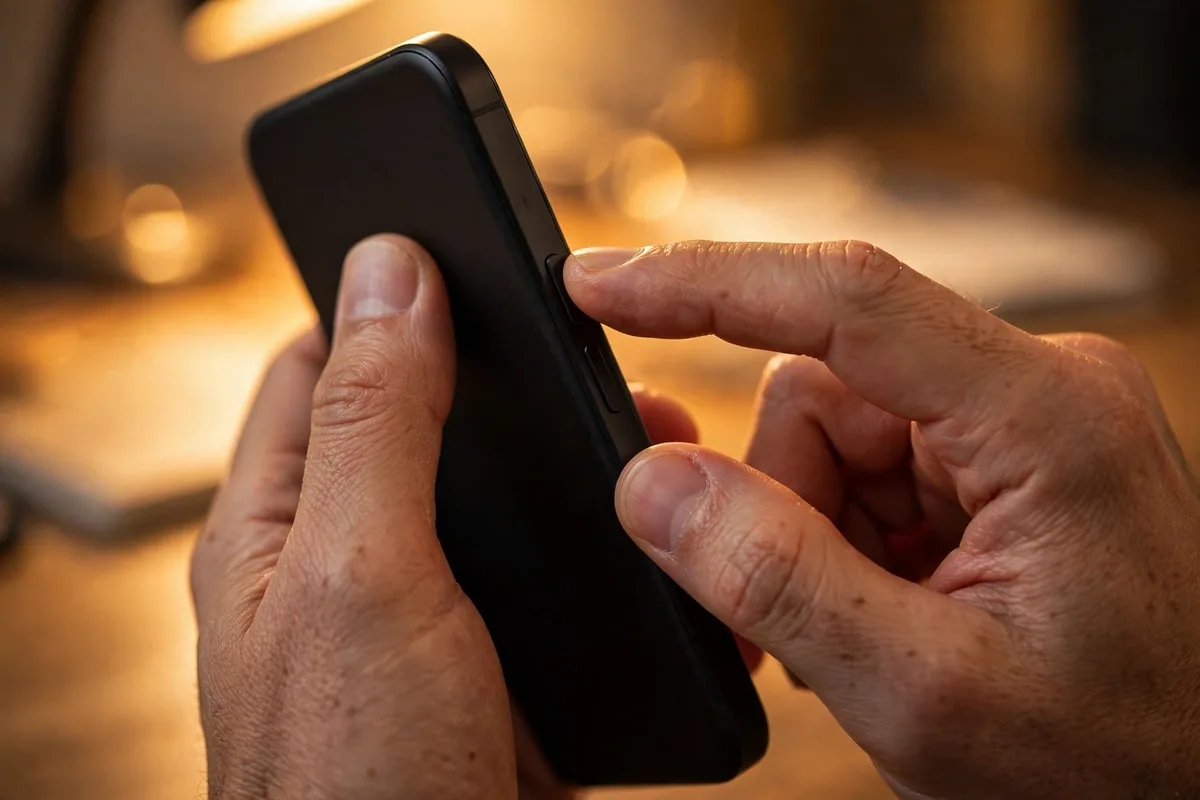
This sounds too simple, but a force restart resolves a surprising number of Android stuck on logo screen cases. A normal reboot can’t run because the system never finished loading — a force restart cuts power at the hardware level and restarts the boot sequence from scratch.
How to do it:
- Press and hold the Power button and the Volume Down button together.
- Keep holding for 10–20 seconds — ignore anything on screen.
- Release when the phone vibrates or the screen goes black, then let it boot normally.
On Samsung phones with Bixby, it’s Power + Volume Down. On older phones with removable batteries, simply pop the battery out for 30 seconds. If the phone boots normally after this, you were likely dealing with a one-time system hiccup. To reduce the odds of it happening again, check out our guide on how to speed up your Android phone — a bloated, laggy system is more prone to boot stalls.
Fix 2: Charge It Properly and Try Again
A phone with a deeply discharged or failing battery can get stuck on the logo because it doesn’t have enough power to complete the boot sequence — booting is one of the most power-hungry things a phone does. This is especially common with older devices.
- Connect the phone to its original charger and cable.
- Leave it charging for at least 30 minutes without touching it.
- While still plugged in, try the force restart from Fix 1.
If the phone only boots while plugged in, your battery is likely dying. Also try a different cable and wall adapter to rule out a faulty charger — cheap third-party cables often can’t deliver stable current during boot.
Fix 3: Boot Into Safe Mode
If the Android stuck on logo screen problem is caused by a third-party app, Safe Mode can bypass it. Safe Mode loads only the core system apps, skipping everything you installed. If the phone boots fine in Safe Mode, you know a downloaded app is the culprit.
How to enter Safe Mode (method varies slightly by brand):
- With the phone powered off, press and hold the Power button until the logo appears.
- Immediately press and hold Volume Down until the phone finishes booting.
- You’ll see “Safe mode” in the bottom corner if it worked.
On some phones (Pixel, Motorola), you can also long-press the “Power off” option on the power menu and tap “OK” when prompted to reboot into Safe Mode — though that requires getting past the logo first.
Once in Safe Mode, uninstall any apps you installed or updated right before the problem started — especially “RAM booster,” antivirus, or theming apps. Then restart normally. If the bootloop is gone, reinstall your apps one at a time to find the offender.
Fix 4: Remove the SD Card and SIM Card
A corrupt or counterfeit microSD card is a classic cause of an Android stuck on logo screen — Android scans external storage early in the boot process, and a bad card can hang that step indefinitely. A damaged SIM can occasionally cause similar stalls on some devices.
- Power the phone off completely (force restart and immediately hold Power to shut down, or let the battery drain if you must).
- Eject the SIM/SD tray and remove both the SD card and SIM card.
- Try booting the phone with no cards inserted.
If the phone boots normally, you’ve found your culprit. Test the SD card in a computer with a card reader — if the computer can’t read it either, the card is dead. Replace it with a card from a reputable brand, and be wary of suspiciously cheap high-capacity cards. If the card works fine in a PC, back up its contents, reformat it to exFAT or FAT32, and reinsert it.
Fix 5: Wipe the Cache Partition From Recovery Mode
The cache partition holds temporary system files. When these get corrupted — often after an update — the phone can hang at the logo. Wiping the cache partition deletes only temporary files, not your photos, apps, or personal data, making it one of the safest advanced fixes.
How to wipe the cache partition:
- Power off the phone completely.
- Press and hold Power + Volume Up (Samsung: Power + Volume Up + Home/Bixby on older models; Pixel: Power + Volume Down, then select Recovery with volume keys).
- When the Android robot or manufacturer logo appears, release the buttons.
- In the recovery menu, use the volume keys to highlight “Wipe cache partition” and press Power to select it.
- Confirm, wait for it to finish, then select “Reboot system now.”
Note: on newer Samsung phones running recent Android versions, the cache partition option has been removed — the system manages cache differently. If you don’t see the option, skip to Fix 6.
This fix resolves the Android stuck on logo screen issue in a large share of post-update bootloops, so it’s worth trying even if the previous steps didn’t work.
Fix 6: Uninstall Problematic Apps via Safe Mode or ADB
If Safe Mode (Fix 3) let the phone boot but you’re not sure which app is responsible, it’s time for a systematic cleanup. A single misbehaving app — especially one with device-admin permissions or accessibility access — can absolutely leave your Android stuck on logo screen on every normal boot.
In Safe Mode:
- Go to Settings > Apps and sort by “Last updated” or “Last used.”
- Uninstall anything installed or updated just before the bootloop began.
- Pay special attention to launchers, icon packs, “phone cleaner” apps, and anything granted Device admin or Accessibility permissions.
- Restart normally and test.
Via ADB (if you can’t reach Safe Mode): If USB debugging was enabled before the problem, you can remove apps from your computer:
- Install Android platform tools on your PC.
- Boot the phone into recovery or bootloader and connect it via USB.
- Run
adb devicesto confirm the connection, thenadb shell pm uninstall --user 0 <package.name>for the suspect app.
This is more technical, but it’s a genuine data-saving option when the phone won’t boot far enough for Safe Mode.
Fix 7: Factory Reset From Recovery Mode (Erases Data)
If nothing above worked, a factory reset is the next step. This wipes all user data and returns the phone to its out-of-box software state, which eliminates any software cause of an Android stuck on logo screen. This erases your photos, apps, and files on internal storage — so only do this after exhausting fixes 1–6.
- Boot into recovery mode (same button combo as Fix 5).
- Select “Wipe data/factory reset” and confirm.
- When finished, select “Reboot system now.”
- The first boot after a reset takes longer than usual — give it up to 10 minutes.
After the reset, sign in with your Google account. If you had backup enabled, your apps and settings will restore automatically. This is why setting up a new Android phone properly — including turning on Google One backup — matters so much; it turns a disaster into a 20-minute inconvenience. If the phone still won’t boot after a factory reset, the problem is almost certainly in the firmware itself or the hardware.
Fix 8: Flash the Stock Firmware (Advanced)
When a factory reset doesn’t fix an Android stuck on logo screen, the system image itself is likely corrupted beyond what a reset can repair — a reset only wipes user data, not the system partition. Reflashing the official stock firmware rewrites everything.
What you need: a computer, the correct firmware file for your exact model number and region, and the manufacturer’s flashing tool (Odin for Samsung, Mi Flash Tool for Xiaomi, or fastboot for Pixel/Motorola).
General process (Samsung/Odin example):
- Download the correct firmware from a trusted source (SamMobile, the manufacturer’s site, or Google’s factory images page for Pixel).
- Boot the phone into Download Mode (Power + Volume Down, or Power + Volume Up + Volume Down depending on model).
- Load the firmware files into Odin and flash — never interrupt this process.
- The phone will reboot automatically when finished.
Warnings: flashing the wrong firmware can permanently brick your phone (“hard brick”), which is worse than a bootloop. Double-check the model number in Download Mode against the firmware file. Also note that flashing may trip Knox on Samsung phones, voiding warranty features. If you’re not confident, a repair shop will do this for a modest fee.
Fix 9: Get Professional Help (Possible Hardware Failure)
If you’ve tried everything and your Android is still stuck on logo screen, you’re likely looking at a hardware problem: a failing storage chip (eMMC/UFS), a damaged power management IC, or a loose internal connection. No software fix can repair these.
- Under warranty? Contact the manufacturer first — describe the troubleshooting you’ve done. Don’t mention rooting or unofficial firmware if applicable.
- Out of warranty? A reputable independent repair shop can diagnose board-level issues. Ask for a quote before authorizing work; if the repair costs more than half the phone’s value, it’s usually smarter to replace it.
- Data recovery: if the storage chip is intact, a specialist may be able to extract your photos and files even if the phone won’t boot.
Quick Comparison: Which Fix Should You Try?
| Fix | Difficulty | Data Loss Risk | Fixes What |
|---|---|---|---|
| 1. Force restart | Very easy | None | Temporary system hang |
| 2. Proper charging | Very easy | None | Power delivery issues |
| 3. Safe Mode | Easy | None | Bad third-party app |
| 4. Remove SD/SIM | Easy | None | Corrupt SD card |
| 5. Wipe cache partition | Medium | None | Corrupt system cache |
| 6. Uninstall apps / ADB | Medium | None | Misbehaving app |
| 7. Factory reset | Medium | Yes — total | Deep software corruption |
| 8. Flash stock firmware | Hard | Yes — total | Corrupt system image |
| 9. Professional repair | N/A | Possible | Hardware failure |
How to Prevent Your Android Getting Stuck on the Logo Again
Once your Android stuck on logo screen is fixed and the phone is booting normally, a few habits will keep it that way:
- Keep automatic backups on. Google One backup means a factory reset is an inconvenience, not a catastrophe.
- Don’t interrupt updates. Keep the phone charged above 50% (or plugged in) during system updates, and never force-restart mid-update.
- Avoid “optimizer” and cleaner apps. They cause more boot problems than they solve.
- Buy genuine SD cards from reputable sellers — counterfeit cards are a top cause of boot hangs.
- Keep 10–15% of storage free. A completely full phone can’t complete its boot sequence reliably.
- Install updates promptly but cautiously. If a brand-new update is bricking phones (it happens), wait a few days and check forums before installing.
FAQ
How long should I wait on the logo screen before assuming it’s stuck?
Give it at least 10–15 minutes on the first occurrence, especially after a system update — the “optimizing apps” step can look like a freeze. If the logo hasn’t changed after 15 minutes, or the phone is visibly rebooting in a loop, it’s genuinely stuck and you should start with Fix 1.
Will I lose my photos if my Android is stuck on logo screen?
Not necessarily. If your Android stuck on logo screen responds to fixes 1 through 6, those are all non-destructive — your data stays intact. You only risk data loss with a factory reset (Fix 7) or firmware flash (Fix 8). If your photos were syncing to Google Photos, they’re safe regardless.
Why does my phone keep bootlooping after a factory reset?
If an Android stuck on logo screen survives a factory reset, the system partition itself is damaged (which a reset doesn’t touch) or there’s a hardware fault. The next step is flashing stock firmware (Fix 8); if that fails too, it’s a hardware issue (Fix 9).
Can a virus cause a phone to be stuck on the logo?
Genuine Android malware rarely causes bootloops — it’s designed to stay hidden, not break the phone. Far more common culprits are corrupt updates, bad apps with deep system permissions, and failing storage. That said, if you sideload apps from shady sources, all bets are off.
Is it worth repairing a phone stuck in a bootloop?
It depends on the phone’s age and value. If it’s under two years old and the fix is software (free, at home), absolutely. For hardware repairs on a 3+ year old budget phone, compare the repair quote against a replacement — our guide to budget Android phones can help you decide.
Conclusion
An Android stuck on logo screen is alarming, but it’s one of the most fixable serious phone problems. Start with the 30-second force restart, work through Safe Mode and the cache wipe, and only escalate to a factory reset or firmware flash if the gentle fixes fail. In the large majority of cases, one of the first six fixes gets the phone booting again with all your data intact.
The real lesson: turn on automatic backups today, while your phone works. The next time something goes wrong — and with phones, something always eventually goes wrong — you’ll be restoring from a backup instead of reading troubleshooting guides in a panic.


What do you think?
Share your experience or ask a question. A useful conversation starts with you.
Join the discussion