

Deleted photos by accident? Acting fast to recover deleted photos Android devices hold is critical — every new photo, app install, or system write risks overwriting the data you want back. The good news: most deleted pictures are not gone at all; they sit in a trash or recycle bin for 30 to 60 days. This 2026 guide walks you through how to recover deleted photos Android phones hide in Google Photos trash, manufacturer recycle bins, forgotten cloud backups, and SD cards — plus desktop recovery software for the hard cases. Follow the methods in order — each step to recover deleted photos Android users try takes only a few minutes — and finish with the automatic-backup setup that makes this scare a one-time event.

Act Fast: Why Time Matters More Than Anything Else
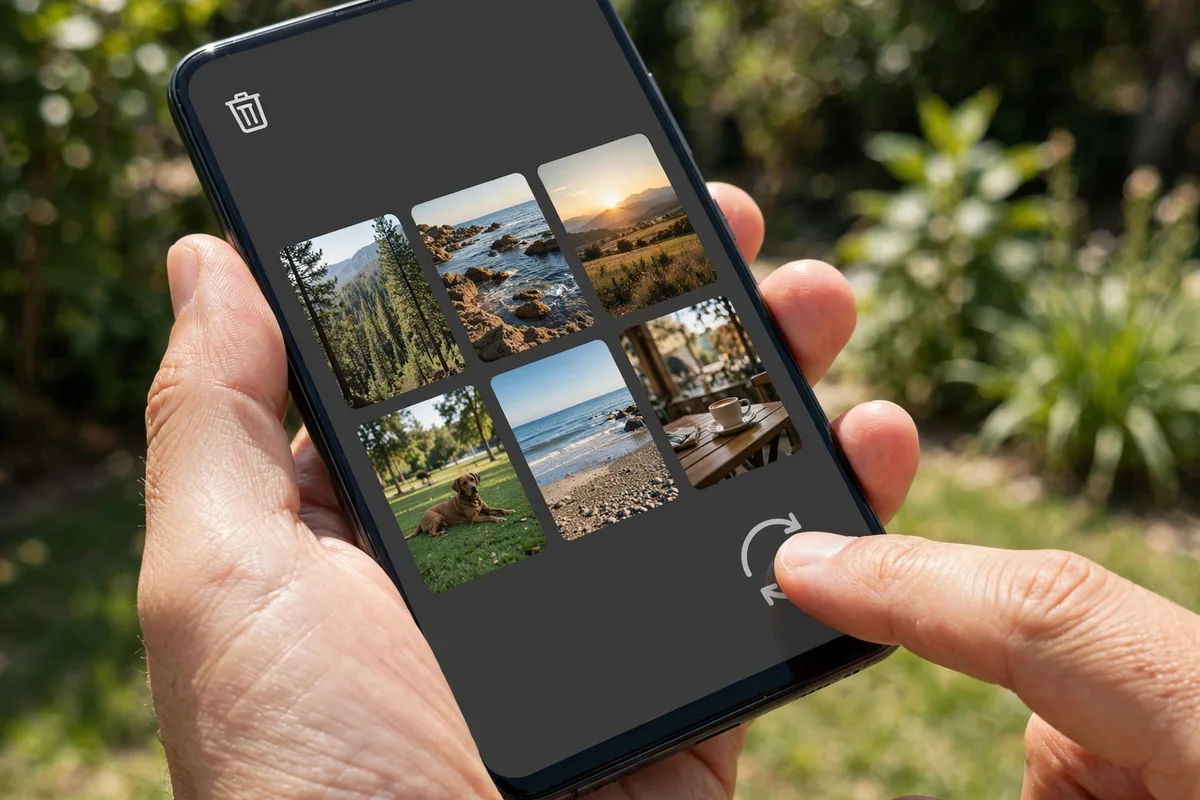
Deleted photos follow a predictable lifecycle, and where yours sits on it determines everything:
- Trash / recycle bin (days 1–60): Most gallery apps move deleted photos to a trash folder instead of erasing them. Recovery is trivial — a few taps.
- Recently overwritten storage (days to weeks): Once the trash empties, the photo’s data may still physically exist on the storage until new data overwrites it. Recovery is possible but uncertain, and every new photo, app install, or download reduces your chances.
- Overwritten or encrypted beyond recovery: Modern Android phones use file-based encryption and aggressive storage management. Once the underlying blocks are overwritten, no software on earth brings the photo back.
So the single most important step, right now: stop using the phone as much as possible. Do not take new photos, do not install apps, avoid large downloads. Every write to storage risks overwriting the deleted data. If the photos are on a removable SD card, you can even power the phone off and remove the card until you are ready to attempt recovery.
Also, resist the urge to install five different “photo recovery” apps from the Play Store immediately. Many are low-quality, ad-stuffed, or outright scams, and installing them writes data to the very storage you are trying to rescue. Read this guide first, try the safe methods, and only then consider tools — carefully.
Method 1: Check Google Photos Trash (60 Days)
Pro tip: before you try anything else, open Google Photos trash on a computer at photos.google.com — the bigger screen makes it easier to spot what you need. Most people who recover deleted photos Android galleries lose find everything right here, and each recover deleted photos Android attempt from trash restores originals in one tap — the easiest recover deleted photos Android win there is.
For the large majority of Android users, Google Photos is the gallery app — and it keeps deleted photos and videos in the trash for 60 days before permanent deletion. If your photos were deleted within the last two months, this is almost certainly where they are.
- Open the Google Photos app.
- Tap Library at the bottom, then Trash (on some versions: Collections > Trash).
- Browse or search for the photos you want back.
- Long-press to select one or more photos, then tap Restore. They return to their original location in your library.
A few important details:
- The 60-day clock starts at deletion. After that, items are permanently deleted and Google cannot recover them — there is no “super trash.”
- If backup was turned off, deleted items stay in trash for only 30 days instead of 60.
- Items deleted from trash manually, or deleted while the trash was being emptied, are gone immediately.
- Photos deleted from Google Photos on one device are removed from trash across all synced devices — check quickly rather than hoping another device still has them.
If Photos was not your gallery app, or the trash is empty, move on to the next methods — but do not skip this check. Even Samsung and OnePlus users often have Google Photos backing up silently in the background.
Method 2: Check Your Manufacturer’s Gallery Recycle Bin

Most phone makers ship their own gallery app alongside (or instead of) Google Photos, and nearly all of them include a recycle bin. If you deleted photos from the manufacturer’s app, check its trash separately — it is independent of Google Photos’ trash.
Samsung Gallery (Recycle Bin)
- Open the Samsung Gallery app.
- Tap the three-line menu, then Recycle bin (or Trash).
- Select the photos and tap Restore. Samsung keeps items here for 30 days.
Note: the Recycle bin must be enabled to work — check Gallery > Menu > Settings and make sure Recycle bin is toggled on. If it was off when you deleted the photos, they bypassed the bin entirely.
Other manufacturers
- OnePlus / OPPO / Realme Gallery: Look for Recently deleted in the gallery’s albums or settings — typically 30 days of retention.
- Xiaomi / Redmi / POCO (MIUI Gallery): Open Gallery, tap Albums, scroll to Trash bin (30 days).
- Motorola / Pixel / Nokia: These typically rely on Google Photos (Method 1).
Also check My Files / File Manager apps: some have their own trash. On Samsung, open My Files > three-dot menu > Trash (or Recycle bin). Photos deleted through a file manager rather than a gallery app may be sitting there.
If app behavior seems off — for example, a gallery app that crashes when you open the trash — our guide on why apps keep crashing on Android walks through the cache-clearing and update steps that resolve most gallery glitches.
Method 3: Check Cloud Backups You May Have Forgotten
Many users discover that a cloud backup was quietly saving their photos all along. Before attempting anything technical, check every backup service tied to your accounts:
- Google Photos backup: Open Google Photos on any device or visit photos.google.com on a computer and sign in with every Google account you own. Photos backed up before deletion remain in the library even after you delete the local copy — check Library, Archive (photos you may have archived rather than deleted), and shared albums.
- Samsung Cloud / OneDrive: Samsung Gallery can sync to Microsoft OneDrive. Check the OneDrive app or onedrive.live.com under Photos and the OneDrive recycle bin.
- Google One / Google Drive: Some users back up device folders to Drive manually. Search Drive for image file names or browse Drive > Trash.
- Dropbox, Amazon Photos, iCloud (via web): If you ever installed these and enabled camera upload, your photos may be there.
- WhatsApp / Telegram / Messenger backups: Photos shared in chats often survive as chat media even after you delete the gallery copy. Check the relevant chat’s media gallery, and remember that our guides to fixing Messenger and other messaging apps cover media and storage settings that affect what gets saved.
This step feels tedious, but it has the highest success rate of any “advanced” method — most “permanently deleted” photos turn out to be sitting in a cloud account the user forgot they enabled.
Method 4: SD Card Recovery with Desktop Software
If your photos were stored on a removable microSD card, you have the best shot at deep recovery — you can remove the card, stop all writes to it, and scan it from a computer. This does not work for internal storage on modern phones (encryption and USB protocols block raw access), but SD cards are a different story.
Procedure:
- Stop using the card immediately. Power off the phone and remove the microSD card.
- Insert the card into your computer using a card reader. Do not format it if Windows or macOS prompts you to.
- Run a reputable recovery tool and scan the card. Well-known options include Disk Drill, Recuva (Windows), PhotoRec (free and open-source), and R-Studio. Feature sets and pricing change, so check the developers’ official sites for current details.
- Preview found files before recovering, and save recovered files to your computer’s drive — never back onto the same SD card, or you will overwrite the very data you are rescuing.
Honest caveats:
- Recovery software finds file fragments. You may get back partial images, corrupted files, or thumbnails instead of full-resolution photos.
- Success rates drop sharply the longer the card has been used since deletion and the fuller the card is.
- If the card was formatted as adoptable/internal storage (encrypted by the phone), desktop tools cannot read it — the encryption key lives on the phone.
- Avoid “free unlimited recovery” tools from unknown developers; many are bundled with adware or produce fake “found files” to upsell you.
For photos on internal storage (no SD card), be skeptical of any tool or app claiming deep recovery without root access. Android’s file-based encryption and the MTP/USB protocol mean desktop software cannot perform the raw block-level scan that real recovery requires. Apps that claim otherwise are typically scanning thumbnails and caches — which, to be fair, sometimes turns up usable copies, but it is not true deleted-file recovery.
Method 5: Check Thumbnails, Caches, and Synced Devices
Even when the original is gone, smaller copies often survive in places you would not think to look:
- Thumbnail caches: Gallery apps generate thumbnails stored in hidden cache folders (such as
.thumbnails). These are low-resolution, but a small copy beats no copy. A file manager set to show hidden files can reveal them. - Other devices: Old phones, tablets, or a computer you once synced with may hold copies. Check any device where you ever signed into Google Photos or copied photos via USB.
- Shared albums and sent copies: If you ever shared the photos via a Google Photos shared album, email attachment, or social media post, the shared copy still exists. Social platforms compress images, but the memory is preserved.
- Google Takeout: If you ever exported your Google data, check old Takeout archives on your computer or Drive — they may contain photo archives from years past.
What to Do If the Photos Are Truly Permanently Deleted
Sometimes every method fails: the trash emptied months ago, no backup existed, and the storage has been heavily reused. Here is the realistic picture:
- Accept what is recoverable and move on. No reputable tool can recover data from encrypted internal storage after it has been overwritten. Anyone promising otherwise — especially services demanding upfront payment — should be treated as a scam.
- Professional data recovery labs (like DriveSavers or Ontrack) can sometimes recover from physically damaged SD cards or failed storage, but they cannot defeat modern phone encryption either, and services typically cost hundreds of dollars. Only consider this for irreplaceable data on removable media.
- Check with your carrier or manufacturer support as a last resort — occasionally, carrier cloud backup services (like Verizon Cloud) were enabled by default on older plans and hold copies users forgot about.
- Do not factory reset the phone hoping it will help. A reset wipes encryption keys and overwrites storage, destroying any remaining chance of recovery.
The hard truth is that prevention is worth a hundred recovery attempts. Which brings us to the most valuable section of this guide.
Prevention: Set Up Automatic Backup So This Never Happens Again
Five minutes of setup today eliminates this entire category of panic. Here is the backup stack we recommend:
- Turn on Google Photos backup: Open Google Photos, tap your profile picture > Photos settings > Backup, and toggle Backup on. Choose Storage saver quality for unlimited-ish efficiency or Original quality if you have Google One storage. Verify it is actually backing up by checking for the “Backup complete” status.
- Back up device folders too: In the same Backup settings, enable backup for device folders like Screenshots, Downloads, and WhatsApp Images — these are the folders most people forget.
- Add a second backup for precious photos: Enable Samsung Gallery sync to OneDrive, or Amazon Photos (free unlimited full-resolution storage for Prime members — check current Prime benefits), so a single service failure cannot wipe you out.
- Periodically export irreplaceable photos: Once or twice a year, copy your most important photos to a computer or external drive. Cloud services are convenient, but the 3-2-1 rule (three copies, two media types, one off-site) is the gold standard for a reason.
- Enable your gallery’s recycle bin: Make sure Samsung Gallery’s Recycle bin or your manufacturer’s equivalent is toggled on, so accidental deletions always get a 30-day safety net.
Also consider freeing space proactively: a full phone leads to desperate deletions. Our guide to clearing app cache on Android reclaims gigabytes without touching your photos, and managing background apps keeps the phone running smoothly so you are never forced into hasty storage purges.
Recover Deleted Photos Android: Method Comparison
| Method | Time Window | Success Likelihood | Cost |
|---|---|---|---|
| Google Photos trash | 60 days (30 if backup off) | Very high | Free |
| Manufacturer gallery recycle bin | ~30 days | Very high | Free |
| Cloud backups (forgotten accounts) | Indefinite | High — often overlooked | Free |
| SD card desktop recovery | Weeks–months, shrinking daily | Moderate; partial files common | Free–paid tools |
| Internal storage “recovery” apps | Short | Low — mostly thumbnails/caches | Free–paid (many are scams) |
| Thumbnails, shared copies, old devices | Indefinite | Moderate — lower quality | Free |
| Professional lab recovery | Varies | Low for encrypted phones | Expensive |
A hard truth: no app can recover deleted photos Android storage has already overwritten. Recovery software only works when the original data blocks are still intact — which is why airplane mode plus do-not-install-anything is the first move. Every minute of normal phone use after deletion lowers the odds that you will recover deleted photos Android forensics could otherwise rescue.
Google documents the current trash and backup behavior in the Android Help Center, since retention windows change. Verify the 60-day Google Photos window and your manufacturer’s recycle-bin policy there before you assume a photo is gone — most people trying to recover deleted photos Android files find them still recoverable.
Frequently Asked Questions — How To Recover Deleted Photos Android
How long do deleted photos stay in Google Photos trash?
60 days if backup is turned on, 30 days if backup is off. After that they are permanently deleted and cannot be recovered by you or by Google support.
Can I recover photos deleted over a year ago?
Only if a copy exists somewhere else — an old cloud backup, a synced device, a shared album, or an exported archive. Data deleted from the phone itself a year ago has long since been overwritten and is not recoverable by any software.
Do photo recovery apps on the Play Store actually work?
Mostly no, at least not as advertised. Without root access, they cannot scan raw storage on modern encrypted phones. At best they find thumbnails and cached copies; at worst they are adware or scams. The reputable path for deep recovery is desktop software scanning a removable SD card.
Will a factory reset help me recover deleted photos?
No — it does the opposite. A factory reset wipes encryption keys and overwrites storage, permanently destroying any recoverable remnants. Never factory reset a phone you are trying to recover data from.
Does Google keep my deleted photos after I empty the trash?
Google states that permanently deleted items are removed from its systems, though residual copies may persist briefly in backup systems before being purged. There is no user-facing way to retrieve photos after the trash is emptied, and Google support cannot restore them for you.
How do I stop this from happening again?
Enable Google Photos backup (including device folders), add a second cloud backup for important photos, keep your gallery’s recycle bin enabled, and periodically copy irreplaceable photos to a computer or external drive. Five minutes of setup prevents nearly every photo-loss scenario.
Can I recover deleted photos Android trash no longer shows?
Sometimes. Check your manufacturer’s gallery recycle bin, any SD card with desktop recovery software, and old cloud backups you may have forgotten. If you can still recover deleted photos Android forensics tools find, stop using the phone immediately — every write risks overwriting them permanently.
How do I recover deleted photos Android backups missed?
Look beyond Google Photos: Samsung Cloud, OneDrive, Dropbox camera uploads, and WhatsApp media folders often hold copies. To recover deleted photos Android users thought were unsynced, search every cloud account on a computer — duplicates hide in surprising places.
Keep reading: never lose photos again: How to Back Up Your Android Phone: The Complete 2026 Guide, How to Stop Apps Running in Background on Android, and How to Clear App Cache on Android (Without Losing Data) — the backup guide means you will never need to recover deleted photos Android mishaps cause.
Conclusion — How To Recover Deleted Photos Android
Recovering deleted photos on Android is usually straightforward if you act within the trash window: check Google Photos trash (60 days), your manufacturer’s gallery recycle bin (about 30 days), and any cloud backups you may have forgotten. For SD cards, careful desktop recovery can sometimes rescue more, but treat internal-storage “miracle” apps with deep skepticism. And whatever the outcome, let the scare convert into prevention — automatic backup, enabled recycle bins, and occasional offline copies mean you will never have to read a guide like this in a panic again.


What do you think?
Share your experience or ask a question. A useful conversation starts with you.
Join the discussion