
Signal users choose the app for privacy — which makes missed notifications especially unwelcome. When you notice Signal app notifications not working on Android, the cause is usually not mysterious: Signal is unusually dependent on background execution, and Android’s battery optimization is unusually aggressive toward exactly that. Add Signal’s own notification settings and its optional alternative push setup, and there are several distinct layers to check.
This guide covers them all: Signal's internal notification preferences, Android notification channels, the critical battery exemption, background data, and the less common issues like registration and relay settings.
Start Inside Signal's Notification Settings
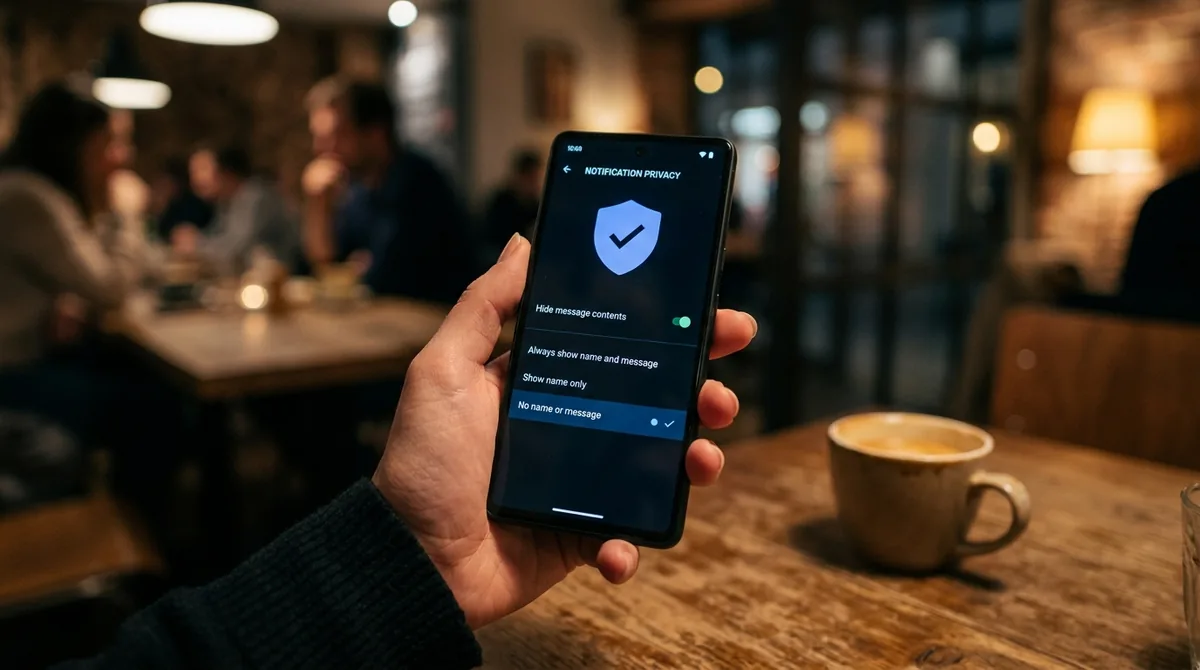
Signal's in-app notification controls are the first stop. Open Signal, tap your profile icon (top left), and go to Settings > Notifications.
Check each option:
- Notifications master toggle at the top.
- Show / preview options — Signal lets you control how much message content appears in notifications (name only, name and message, or no name or message). If set to the most private option, notifications still arrive but appear nearly blank — which many users interpret as "not working."
- Sound and vibrate settings per notification type.
- In-chat sounds — separate from push notification sounds.
- Repeat alerts — whether Signal re-notifies for unacknowledged messages.
Signal also distinguishes between message notifications and call notifications — if calls ring but messages do not, the message-specific toggles are where to look. After Signal updates, revisit this screen; updates occasionally reset preferences.
Understand Signal's Privacy-Oriented Notification Design
Signal deliberately minimizes what appears in notifications for privacy. The "No name or message" option shows only that a message arrived, with no sender or content. On the lock screen, combined with Android's "Hide content" lock screen setting, Signal notifications can become effectively invisible — a single generic entry with no identifying information.
If your complaint is that Signal notifications are "not showing" rather than not arriving, check this interaction: Signal's content-visibility setting multiplied by Android's lock-screen content setting. For usable alerts, set Signal to show at least the sender name, and set Android's lock screen notifications to "Show content" (Settings > Notifications > Notifications on lock screen).
Signal App Notifications Not Working on Android: The Battery Exemption Fix
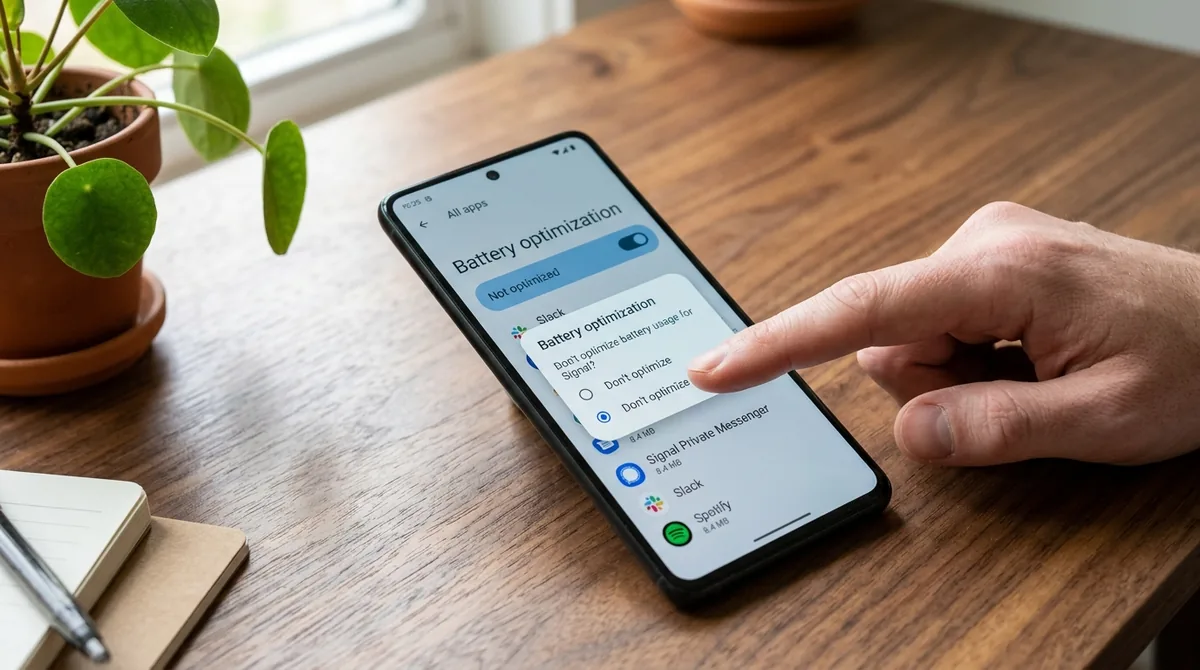
This is the fix that resolves the majority of Signal notification failures. Signal maintains its own background connection for message delivery, and Android's Doze mode plus Adaptive Battery throttle exactly this kind of persistent background work. The symptom is diagnostic: messages arrive in a flood when you open Signal, and you are never notified in real time.
Do not leave Signal on "Optimized." Exempt it fully:
- Long-press the Signal icon > App info > Battery > Unrestricted.
- App info > Mobile data & Wi-Fi > enable Background data.
- If Data Saver is on, add Signal to the unrestricted list.
Then handle your manufacturer's extra power manager, which can override Android's own setting:
- Samsung: Settings > Battery > Background usage limits — remove Signal from sleeping/deep-sleeping lists; turn off "Put unused apps to sleep" if it keeps re-adding Signal.
- Xiaomi: Battery saver set to "No restrictions" for Signal, plus autostart permission in the Security app.
- OnePlus/Oppo: Battery optimization exemptions and deep-optimization toggles.
- Huawei: App launch set to manual with "Run in background" enabled.
- Vivo: Per-app background power consumption set to allow.
Signal's developers have long documented that aggressive vendor power managers are the top cause of delayed Signal messages. If you use one of these phones, the vendor setting matters as much as Android's.
Background Data and Network Access
Signal cannot receive messages while closed if it cannot use data in the background. Verify App info > Mobile data & Wi-Fi > Background data is enabled. On metered Wi-Fi networks, also enable unrestricted data usage for Signal.
VPNs, firewalls, and DNS-based ad blockers can interfere with Signal's connection to its servers. Signal is more sensitive to this than most apps because of its real-time messaging architecture. If notifications broke when you installed or configured a VPN or filter, disconnect it temporarily to test. Similarly, try switching Private DNS to Automatic if you use a custom provider.
Restrictive networks (corporate, school, some public Wi-Fi) may block the connections Signal needs. The test: disable Wi-Fi and check whether messages arrive promptly on mobile data. If they do, the network is the barrier.
Check Android Notification Channels and Permissions
In App info > Notifications, review Signal's channels:
- Master toggle on.
- Each channel (messages, calls, etc.) enabled with importance at Default or higher — Silent importance means no banner and no sound.
- Allow notification dot enabled if you use icon badges.
- Lock screen visibility allowed.
On Android 13+, confirm Signal holds the notification permission — a denial at install time silences everything. Also check Settings > Notifications > Bubbles if you expect floating conversation bubbles.
Registration, Number Changes, and Reinstallation
Signal ties its identity to your phone number and its push registration to the app installation. Several identity-related events break notifications:
- Reinstalling or moving phones: Signal must re-register. If registration was interrupted, notifications fail silently. Open Signal and confirm it shows as registered and connected; if in doubt, the in-app re-registration flow (triggered by reinstalling and verifying your number) rebuilds it cleanly.
- Number change: If you changed your phone number, update it in Signal (Settings > Account > Change phone number) so the registration matches.
- Restoring from backup: Transfers can leave push registration in a broken state. A fresh install with number verification is more reliable than a transferred copy for notification delivery.
- Linked devices: Signal Desktop or other linked devices do not normally steal phone notifications, but if message sync behaves oddly across devices, unlink and re-link them.
If everything else looks correct, reinstalling Signal and verifying your number forces a completely fresh registration — the strongest fix for "settings are perfect but nothing arrives."
Do Not Disturb, Focus Mode, and Quiet Hours
System quiet modes apply to Signal like any app:
- Android Do Not Disturb and its schedules (Settings > Sound > Do Not Disturb > Schedules).
- Focus mode (Digital Wellbeing) with Signal on the distracting list.
- Bedtime mode overnight.
- Any per-conversation mute inside Signal — long-press a chat and check for mute settings, including custom mute durations you may have set and forgotten.
If notifications disappear only at certain hours, a schedule is the cause. If one conversation is silent while others notify, that conversation is muted.
When Signal Uses Its Own Push Path
Most Signal installs on standard Android phones receive pushes through Firebase Cloud Messaging via Google Play services. Keep Play services healthy: updated, exempt from battery optimization (find it under system apps), and with a clean cache (App info > Storage & cache > Clear cache).
On de-Googled phones or devices without Play services, Signal falls back to its own background polling, which is far more vulnerable to battery optimization — the Unrestricted exemption becomes absolutely essential, and some delay is inherent to the polling design. If you run Signal without Play services, expect to manage this tradeoff deliberately.
Testing and Diagnosis
Verify rather than guess:
- Have a contact send you a message with Signal fully closed.
- Note whether it arrives instantly, late, in a burst on open, or never.
- Check Notification history (Settings > Notifications > Notification history) — presence means delivery worked and the issue is display; absence means delivery failed.
- Test a Signal voice/video call separately — calls and messages use different channels.
Burst-on-open means battery optimization is still throttling Signal. Instant arrival after the exemption means you fixed it. Persistent absence from history after all fixes points to registration or network-level blocking.
Disappearing Messages, View-Once Media, and Notification Quirks
Signal's privacy features interact with notifications in ways that surprise users. Disappearing messages (per-conversation timers) do not change notification behavior by themselves — you are still notified on arrival. But view-once media is different: Signal may show only a generic "new message" notification without preview for view-once content, by design, to prevent the media from being exposed in the notification shade or on the lock screen.
Screen lock (Signal > Settings > Privacy > Screen lock) adds another layer: when enabled, Signal's content is hidden in the Android recents screen, and on some phones this combines with notification privacy settings to produce minimal alerts. If your Signal notifications seem unusually bare compared to other apps, check both the in-app Screen lock setting and the notification content-visibility option together.
Sealed sender and Signal's other metadata protections do not affect notification delivery — they operate at the protocol level, invisibly. But proxy settings (Signal > Settings > Data and storage, or via the censorship-circumvention options) absolutely can: if you enabled a proxy to bypass network censorship, a dead or slow proxy breaks message delivery entirely. If notifications stopped after enabling a proxy, disable it temporarily to test, or switch to a working proxy address.
One more quirk: notification profiles and contact-specific tones. Signal lets you set custom notification sounds per conversation (open the chat > chat settings). If one contact's messages are silent while others ping, check that conversation's custom sound — it may be set to silent or to a tone file that no longer exists after a phone transfer, which fails silently.
FAQ
Signal app notifications not working on Android: why are messages delayed?
Delayed Signal messages are almost always caused by battery optimization — Doze mode and Adaptive Battery (plus manufacturer power managers) throttle Signal's background connection. Set Signal to Unrestricted battery usage and enable background data; on Samsung, Xiaomi, OnePlus, Huawei, Oppo, or Vivo, also exempt Signal in the manufacturer's battery manager.
Why do Signal notifications arrive but show no content?
Signal's privacy settings control notification content. In Signal > Settings > Notifications, check the show/preview option — "No name or message" produces blank-looking notifications by design. Also check Android's lock screen content setting, which can hide notification text independently.
Why did Signal notifications stop after reinstalling?
Reinstallation requires fresh push registration and number verification. If the verification flow was interrupted or the app was restored from a backup instead of set up fresh, registration may be incomplete. Reinstall cleanly, verify your number, and grant the notification permission when prompted.
Does Signal need Google Play services for notifications?
On standard Android phones, Signal uses Firebase Cloud Messaging through Play services for push delivery, so Play services must be healthy and unrestricted. On devices without Play services, Signal polls in the background instead — which works but is slower and far more sensitive to battery optimization.
Why do I get Signal notifications on Wi-Fi but not mobile data (or vice versa)?
That pattern indicates a network-level block: Data Saver restricting background data on one connection type, a firewall or DNS filter on the Wi-Fi network, or per-app data restrictions. Compare App info > Mobile data & Wi-Fi settings and test with Private DNS set to Automatic.
Can a muted chat in Signal block all notifications?
A muted conversation only silences that conversation — other chats notify normally. If every chat is silent, the cause is app-level (settings, battery, registration), not per-chat mutes. Check mutes only when the silence is limited to specific conversations.
Conclusion
Signal notifications not working on Android is, more often than not, a power-management problem. Signal's real-time messaging depends on background execution that Doze, Adaptive Battery, and manufacturer app-killers are designed to restrict — so the Unrestricted battery exemption, enabled background data, and removal from every vendor sleeping list are the core of the fix, not optional extras.
Layer on top of that Signal's own notification preferences (including its privacy-oriented content hiding), Android's notification channels, a healthy push registration, and attention to VPNs and restrictive networks. Test with a real message while the app is closed, and let the arrival pattern — instant, delayed, burst-on-open, or absent — tell you which layer still needs work. Signal can be as prompt as any messenger on Android; it just needs the background freedom to do its job. Keep Signal updated through its official site or your app store, since registration and push-handling fixes ship regularly. A quick settings review after each update keeps everything reliable.
If you still see Signal app notifications not working on Android even with the exemption, check push notifications not working on Android for FCM registration issues and why are my app notifications not working for system causes. Signal’s official site documents its notification and push options.


What do you think?
Share your experience or ask a question. A useful conversation starts with you.
Join the discussion