
Nothing is more frustrating than pulling out your Android phone to capture a moment and finding that your android camera not working properly. Whether the camera app refuses to open, shows a black screen, crashes on launch, or the front and rear cameras stop responding, these issues are surprisingly common across all brands — Samsung, Pixel, Motorola, OnePlus, Xiaomi, and more. The good news is that most camera problems are software-related and can be fixed at home without a repair shop visit.
This guide walks you through 10 fixes, starting with the quickest and easiest solutions and progressing to deeper troubleshooting steps. Work through them in order — many users find their camera is back up and running after the first few steps.
Fix 1: Force Stop and Restart the Camera App
The simplest fix is often the most effective. If the camera app is misbehaving — freezing, showing a black screen, or crashing — it may just need a clean restart.
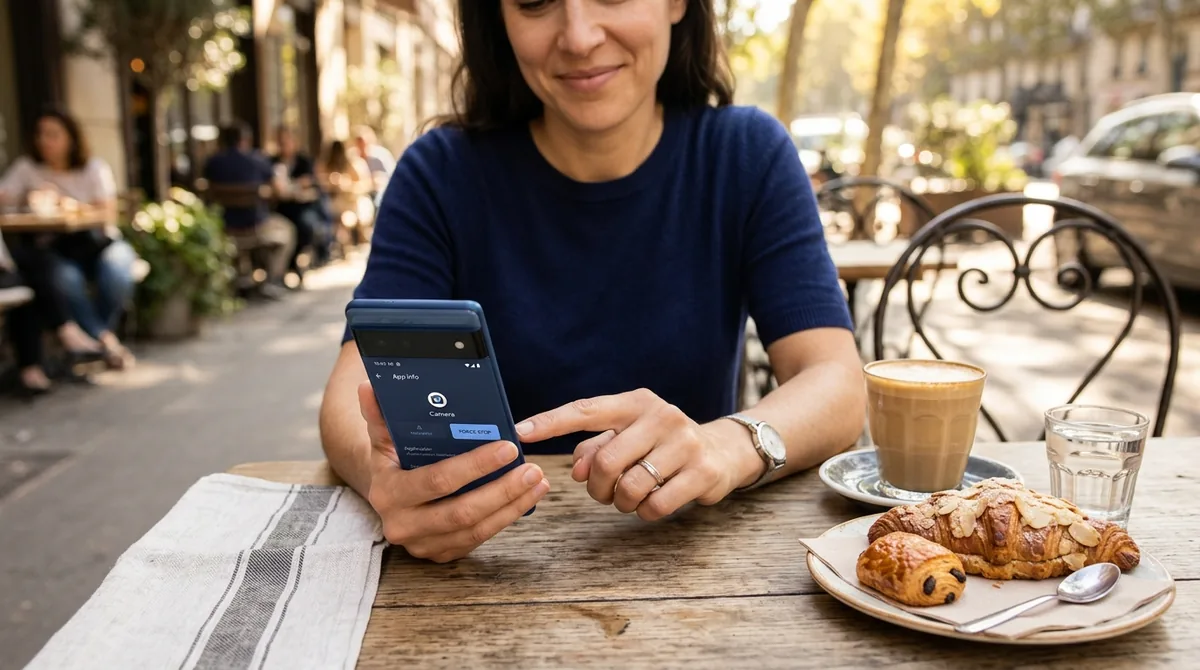
To force stop the camera app on most Android phones:
- Open Settings and go to Apps.
- Find and tap Camera (or your camera app's name).
- Tap Force stop.
- Go back to your home screen and open the camera again.
This closes the app completely, clearing any temporary glitch in its process. If you use a third-party camera app, force stop that app too. This simple action resolves the majority of temporary camera glitches.
Fix 2: Restart Your Phone
If force stopping the app did not help, restart your entire phone. A reboot clears temporary memory states, resets hardware connections, and resolves conflicts between apps and system services that may be blocking camera access.
To restart:
- Hold the Power button (or Power + Volume Up on newer phones).
- Tap Restart.
- Once the phone boots up, open the camera app and test it.
Restarting takes less than a minute and resolves a surprisingly large number of Android issues, including camera failures. Do not skip this step — it is one of the most reliable fixes available.
Fix 3: Clear the Camera App's Cache
Over time, the camera app accumulates cached data that can become corrupted. Clearing this cache does not delete your photos or settings — it only removes temporary files, forcing the app to rebuild them fresh.
- Go to Settings > Apps > Camera.
- Tap Storage & cache (or Storage).
- Tap Clear cache.
- Open the camera app and test.
On some phones, you may need to tap See all apps first to find the camera app. Clearing the cache is completely safe and takes seconds. If the camera still does not work, you can also try Clear data (sometimes called Clear storage) — but note this resets the camera app's settings to defaults, so you will need to reconfigure things like photo resolution and storage location afterward.
Fix 4: Check App Permissions
Your camera app needs permission to access your camera hardware. If permission was revoked — sometimes after a system update or by accident — the app cannot function.
- Go to Settings > Apps > Camera.
- Tap Permissions.
- Make sure Camera permission is set to Allow.
- Also check the Microphone permission if you record videos.
While you are here, check permissions for any third-party camera apps you use. On Android 12 and later, also make sure that camera access is not disabled system-wide: swipe down to open Quick Settings and confirm that Camera access is turned on (not blocked). If you see a green privacy indicator icon showing camera use by another app, that app may be holding the camera hostage — see Fix 7.
Fix 5: Update Your Camera App and Android System
Outdated software is a common cause of android camera not working — app updates fix bugs, and system updates often include camera driver improvements.
Update the camera app
- Open the Google Play Store.
- Tap your profile icon and select Manage apps & device.
- Under Updates available, look for your camera app and tap Update.
If you use a manufacturer's camera app (like Samsung Camera), updates may come through the Galaxy Store or system updates instead.
Update your Android system
- Go to Settings > System > System update (or Settings > Software update on Samsung).
- Tap Check for update.
- If an update is available, download and install it.
System updates frequently resolve camera issues because they include fixes for the camera hardware drivers. Keep both your apps and your operating system current.
Fix 6: Boot into Safe Mode
Safe Mode starts your phone with only the pre-installed system apps running. This is a powerful diagnostic tool: if the camera works in Safe Mode, a third-party app is the reason for android camera not working.
To enter Safe Mode:
- Hold the Power button until the power menu appears.
- Long-press Power off until you see Reboot to safe mode.
- Tap OK.
Your phone will restart with "Safe mode" shown at the bottom of the screen. Test the camera. If it works fine in Safe Mode, restart your phone normally and investigate which third-party app is interfering — start with recently installed camera filters, flashlight apps, barcode scanners, or video chat apps. Uninstall suspicious apps one at a time and test the camera after each removal.
Fix 7: Check for Conflicting Apps
Only one app can use the camera at a time. If another app is running in the background and holding onto the camera, your camera app will fail or show a black screen.
Common culprits include:
- Video calling apps (Zoom, Skype, WhatsApp calls left running)
- Flashlight apps that keep the LED active
- Social media apps with camera access
- Barcode or QR scanner apps
To find the conflict:
- Check Android's privacy indicator — if a green camera icon appears in the status bar when you are not using the camera, some app is using it.
- Go to Settings > Privacy > Permission manager > Camera to see which apps have camera access.
- Revoke camera permission from apps that do not need it.
You can also check your recent apps and close anything camera-related.
Fix 8: Free Up Storage Space
The camera app needs free storage to function properly. If your phone is nearly full, the camera may refuse to open, fail to save photos, or crash.
- Go to Settings > Storage to check how much free space you have.
- If you have less than 1 GB free, delete unnecessary files.
- Move photos and videos to cloud storage or a computer.
- Uninstall apps you no longer use.
- Clear cached data from large apps.
Try to keep at least 2–3 GB of free space for smooth camera operation. After freeing space, restart the phone and try the camera again.
Fix 9: Reset App Preferences
If you have changed many system settings over time, conflicting configurations can interfere with the camera. Resetting app preferences restores all default app settings without deleting any of your data.
- Go to Settings > System > Reset options (on Samsung: Settings > General management > Reset).
- Tap Reset app preferences.
- Confirm.
This resets all app permissions, default apps, and disabled apps to their original state. It does not delete personal files, photos, or app data. After the reset, you will need to re-grant permissions as apps request them, but camera issues caused by permission conflicts often disappear.
Fix 10: Factory Reset as a Last Resort
If none of the above fixes work, a factory reset will restore your phone to its original software state, eliminating any software issue that could be affecting the camera. Only do this if you have exhausted every other option.
Back up everything first:
- Photos and videos: use Google Photos or copy them to a computer.
- Contacts and messages: sync with your Google account.
- Important files: copy them to cloud storage or a PC.
To factory reset:
- Go to Settings > System > Reset options > Erase all data (factory reset).
- Follow the prompts to confirm.
After the reset and initial setup, test the camera before reinstalling your apps. If the camera works after a factory reset but breaks again later, a specific app you installed is the cause — install apps one at a time to identify it.
If the camera still does not work after a factory reset, the problem is almost certainly hardware-related. At that point, contact your manufacturer's support or visit an authorized repair center.
Android Camera Not Working? Common Error Messages Explained
"Camera Failed" or "Can't Connect to Camera"
This usually means another process is blocking the camera or the camera service crashed. Force stop the camera app, restart your phone, and check for conflicting apps.
Black Screen
A black screen typically indicates a permission issue, a conflicting app holding the camera, or corrupted app data. Clear the cache, check permissions, and look at the privacy indicator.
"Warning: Camera Busy"
Another app is using the camera. Close recent apps and check which apps have camera permission.
Camera App Keeps Crashing
Corrupted cache or data is the most likely cause. Clear the cache first, then clear data if needed. An outdated app or system can also cause crashes.
Blurry Photos
If the camera opens but photos are blurry, the issue may be a dirty lens rather than software. Clean the lens gently with a microfiber cloth. Also check that autofocus is not stuck — tap the screen to focus manually.
Preventing Future Camera Problems
Once your camera is working again, these habits will help keep it reliable:
- Keep your system and apps updated. Updates include bug fixes and driver improvements.
- Do not install sketchy camera or flashlight apps. Stick to reputable developers.
- Maintain free storage space. Keep at least a few gigabytes free.
- Restart your phone periodically. A weekly restart keeps things running smoothly.
- Review app permissions regularly. Revoke camera access from apps that do not need it.
FAQ
Why is my Android camera showing a black screen?
A black screen usually means the camera app cannot access the camera hardware. The most common causes are a conflicting app holding the camera, revoked permissions, or corrupted cache data. Start by force stopping the camera app, clearing its cache, and checking that camera permission is allowed. Also look for a green privacy indicator in the status bar — if another app is using the camera, that app is the likely cause.
Why does my camera app keep crashing?
Camera crashes are most often caused by corrupted cached data or an outdated app. Clear the camera app's cache first, then update the app from the Play Store. If crashes continue, check that your phone has enough free storage space and try booting into Safe Mode to rule out third-party app interference.
Why does my front camera work but not the rear camera (or vice versa)?
If one camera works and the other does not, the problem could be software or hardware. Try the fixes in this guide first — especially clearing the camera app data and updating the system. If only one lens fails consistently after a factory reset, the hardware module for that lens may be damaged, and you should contact a repair center.
Will clearing camera data delete my photos?
No. Clearing the camera app's cache or data only affects the app's temporary files and settings. Your photos and videos are stored separately in your gallery or device storage and will not be deleted. However, clearing data will reset camera settings like resolution, grid lines, and storage location to defaults.
How do I know if my camera problem is hardware or software?
Boot into Safe Mode and test the camera. If it works in Safe Mode, the issue is software — a third-party app is interfering. If it fails in Safe Mode too, try a factory reset. If it still fails after a factory reset, the camera hardware is likely damaged and needs professional repair.
My camera stopped working after an Android update. What should I do?
When android camera not working starts right after an Android update, outdated app data or driver conflicts are usually to blame. Clear the camera app's cache and data, check for a follow-up system update (manufacturers often release quick patches), and make sure camera permissions are still granted. If nothing helps, contact your manufacturer's support — they may be aware of the issue.
Conclusion
An android camera not working is one of those problems that feels urgent but is usually fixable in minutes. Start with the quick wins — force stopping the app, restarting the phone, and clearing the cache — before moving on to deeper steps like Safe Mode diagnosis and permission resets. Most camera issues resolve well before a factory reset is needed.
Keep your software updated, manage your app permissions, and maintain free storage space to prevent problems from recurring. And if your camera still refuses to work after trying everything, a hardware repair from an authorized service center will get you back to capturing life's moments.


What do you think?
Share your experience or ask a question. A useful conversation starts with you.
Join the discussion