

You plug in your phone expecting a quick top-up, and an hour later the battery has barely moved. Slow charging on Android is one of those problems that creeps up gradually — until one day you realize your phone takes three hours to do what it used to do in one. The good news: a slow charging android fix is usually straightforward, because the cause is almost always in the charging chain — cable, adapter, port, software, or habit.
This guide covers 10 ways to speed up charging, ordered from the most common culprits to the deeper settings. Before you start, note your baseline: plug in, check the lock screen or battery settings for the estimated time to full, and compare after each change.
Slow Charging on Android: How Fast Charging Actually Works
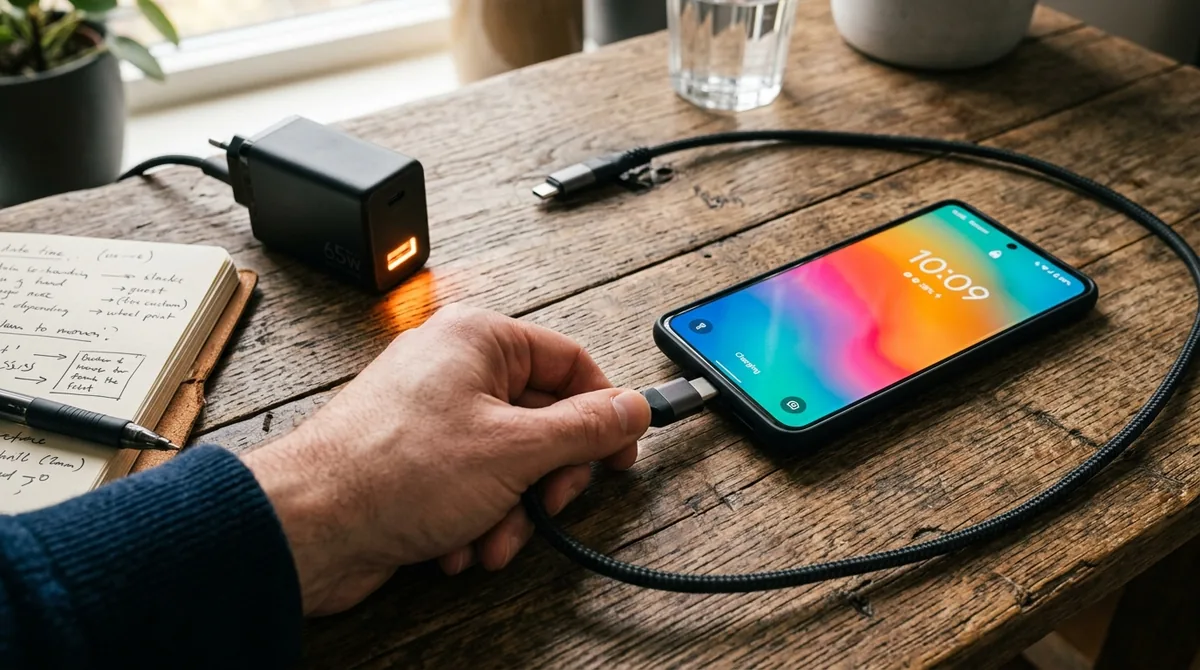
A quick primer makes every fix below make sense. Charging speed is determined by the weakest link in a chain:
Wall outlet → adapter (brick) → cable → phone port → phone's charging circuitry → battery
Your phone and adapter negotiate a charging speed using a protocol (USB Power Delivery, Qualcomm Quick Charge, or a manufacturer's proprietary standard like Samsung's Super Fast Charging). If any link cannot handle the negotiated speed — a cheap cable, a low-wattage brick, a dirty port — the phone silently falls back to slow charging. No error, no warning; just a long wait.
Also know: charging naturally slows as the battery fills. The last 20% (80→100%) always charges slower than the first 50% — that is battery chemistry protecting itself, not a problem.
Way 1: Check Your Cable First
The cable is the number-one cause of slow charging, full stop. Cables degrade: internal wires fray from bending, connectors corrode, and cheap cables were never capable of fast charging to begin with.
How to test: borrow a known-good cable — ideally the one that came with your phone — and compare charging speed. If the phone suddenly charges fast, your old cable was the bottleneck. Replace it.
What to buy: look for cables explicitly rated for your phone's fast-charging standard and wattage (e.g., 5A-rated for 45W+ charging). USB-IF certified cables are the safest bet. Avoid bargain-bin cables with no wattage rating — many are wired only for slow 5W charging despite having the right connector shape.
Cable care: unplug by gripping the connector, not yanking the cord. Avoid tight bends near the ends. A cable that only fast-charges at certain angles is internally broken — replace it immediately.
Way 2: Use the Right Adapter

The brick matters as much as the cable. Common scenarios:
- Using an old 5W brick (from ancient phones) with a modern phone: you will get a trickle charge, period.
- Using a laptop's USB port: most deliver 2.5–7.5W — fine overnight, useless for a quick top-up.
- Mismatched fast-charging standards: a Qualcomm Quick Charge brick will not trigger Samsung's Super Fast Charging or vice versa at full speed, though basic fast charging usually still works.
The fix: use the adapter that came with your phone, or buy one rated for your phone's maximum wattage and its charging protocol. Check your phone's specs: if it supports 45W Super Fast Charging 2.0, you need a 45W PPS-capable adapter — a generic 45W brick without PPS support will charge slower.
Way 3: Clean the Charging Port
Pocket lint is the silent killer of charging speed. Over months, lint compacts into the USB-C port, preventing the connector from seating fully. The phone still charges — but the fast-charging negotiation pins may not make contact, so it defaults to slow charging.
How to clean safely:
- Power off the phone.
- Shine a flashlight into the port — you will often see the lint packed at the bottom.
- Gently scrape it out with a wooden or plastic toothpick. Never use metal (paperclips, needles) — you can short the pins.
- A few short bursts of compressed air help dislodge loose debris.
You will be amazed how much comes out. After cleaning, the cable should click in firmly with no wobble.
Way 4: Make Sure Fast Charging Is Enabled

Some phones let you toggle fast charging off — and it occasionally gets disabled by updates, battery-saver modes, or accident.
- Samsung: Settings > Battery > Charging settings — ensure Fast charging and Super fast charging are on.
- Pixel: fast charging is automatic, but Adaptive charging can slow overnight charging deliberately (by design — it finishes by your alarm time).
- OnePlus/Xiaomi/Others: check Settings > Battery for fast-charging toggles.
Also check whether a battery-saver mode is limiting charge speed — some aggressive saver modes cap charging wattage, a hidden cause of slow charging on android.
Way 5: Stop Using the Phone While Charging
Every watt the screen, processor, and radios consume is a watt not going into the battery. Heavy use while charging — gaming, video streaming, video calls — can cut net charging speed dramatically, and in extreme cases the battery percentage barely moves.
For the fastest charge: turn the screen off and leave the phone alone. Airplane mode while charging is the enthusiast's trick — with radios off and the screen dark, nearly all incoming power goes to the battery. You will be surprised how much faster it fills.
Way 6: Cool It Down
Heat is the enemy of fast charging. Phones deliberately throttle charging speed when they get hot to protect the battery — so a phone baking in sunlight or wrapped in a thick case charges slower by design.
- Charge on a hard, cool surface — not on a bed, couch, or under a pillow.
- Remove thick cases while charging.
- Keep the phone out of direct sunlight while plugged in.
- Do not game or run intensive apps while charging (heat from the processor stacks with heat from charging).
If your phone shows a temperature warning while charging, take it seriously: unplug, let it cool, and address the heat source before continuing.
Way 7: Restart Your Phone and Update Software
Software glitches are a genuine cause of slow charging on android: a stuck power-management process may fail to handshake with the adapter, leaving you on fallback slow charging.
- Restart the phone and test charging immediately after boot.
- Update the system: Settings > System > System update — charging and power-management fixes ship regularly.
- Update apps too, particularly the manufacturer's companion apps that manage charging features.
If slow charging started right after a system update, check the manufacturer's forums — charging regressions happen, and they are usually acknowledged and patched quickly.
Way 8: Check Battery Health and Age
Batteries degrade. After 2–3 years of daily charging, a battery's internal resistance rises, and the phone's battery-management system charges it more conservatively — which reads as "slow charging."
Check your battery health:
- Pixel: Settings > Battery > Battery health.
- Samsung: Settings > Battery > Battery protection > Battery health (on newer models) or via the Samsung Members app diagnostics.
- Below roughly 80% of original capacity, degradation is significant.
If health is poor and the phone is otherwise fine, a battery replacement (manufacturer or authorized shop) restores both capacity and charging speed. It is far cheaper than a new phone.
Way 9: Rule Out Background Drain
Sometimes the phone is charging fast — but something is consuming power nearly as quickly, so the net gain looks slow. A rogue app syncing, uploading, or running location in the background can mask healthy charging.
Check Settings > Battery > Battery usage while charging. If an app shows heavy consumption during a charging session, force-stop it or restrict its background activity. Malware or cryptominers are the extreme version of this — a phone that drains abnormally even while plugged in deserves a Play Protect scan and an audit of recently installed apps.
Way 10: Test Methodically to Isolate the Fault
When you have tried everything, isolate variables one at a time:
- Different cable + same adapter → cable test.
- Same cable + different adapter → adapter test.
- Different wall outlet → rules out a faulty outlet or power strip.
- Charge while powered off → rules out software entirely. If it charges fast while off but slowly while on, the cause is software or background drain.
- A friend's identical phone with your cable and adapter → isolates phone vs. accessories.
This process takes 15 minutes and gives you a definitive answer about which component to replace — instead of guessing and buying parts blindly.
Charging Myths Worth Debunking
- "You must drain to 0% before charging." False — that was nickel-battery advice. Lithium batteries prefer partial charges; 20–80% cycling is ideal.
- "Overnight charging destroys batteries." Modern phones with adaptive charging handle it fine. Without adaptive features, it adds mild wear — not destruction.
- "Third-party chargers are all dangerous." Reputable certified third-party chargers are perfectly safe. Uncertified no-name chargers are the risk.
- "Fast charging ruins batteries." Fast charging adds some wear versus slow charging, but manufacturers engineer for it — the phone manages heat and tapering automatically. Using your phone's designed fast charging normally is fine.
Building a Reliable Charging Setup
Once you have diagnosed the problem, it is worth assembling a charging setup that stays fast:
- One quality adapter matched to your phone's protocol and wattage — keep it as your primary.
- One certified spare cable — cables are consumables; having a known-good spare makes future diagnosis instant.
- A dedicated charging spot on a hard, cool surface, away from direct sun.
- Battery protection enabled (80–85% limit) for daily use.
Total cost is modest, and it eliminates the entire category of "why is my phone slow to charge" mysteries. The most expensive charging problem is the one you diagnose by buying random parts — a methodical test plus one good cable and adapter costs less than two wrong guesses.
FAQ
Why does my phone charge slowly only sometimes?
Intermittent slow charging usually means a loose connection (lint in the port, worn cable), a heat-throttled session, or background activity consuming power during that particular charge. If it is fast with one cable and slow with another, the cable is degrading. Consistent slowness points to the adapter or a settings issue.
Is it bad to use my phone while charging?
Not dangerous with a quality charger, but it slows charging significantly and generates extra heat — the combination of processor heat plus charging heat accelerates battery wear. For quick top-ups, leave the phone alone. For casual use, it is fine.
Should I charge to 100% or stop at 80%?
For maximum battery lifespan, 80–85% daily limits are genuinely better — lithium batteries degrade faster when held at 100%. Most phones now offer a built-in charge limit (Settings > Battery > Battery protection). Charge to 100% when you need the range (travel days); otherwise let the limiter do its job.
Why does wireless charging feel slower than wired?
It is — wireless charging is inherently less efficient (energy lost as heat in the coils), typically delivering noticeably less power than the phone's wired maximum. It is also more heat-sensitive: misalignment on the pad throttles speed further. Wireless is for convenience; wired is for speed.
My phone says "charging slowly" — what does that mean?
That message means the phone negotiated only basic charging (typically 5W) instead of a fast-charging protocol — the textbook signature of slow charging on android. The usual causes: a cable or adapter that does not support fast charging, lint blocking the negotiation pins, or fast charging disabled in settings. Work through Ways 1–4.
Can a software update really fix slow charging?
Yes. Charging negotiation is software-driven, and manufacturers periodically fix handshake bugs, thermal-throttling logic, and protocol compatibility in updates. If slow charging appeared after an update, the next patch is also the most likely fix — which is why staying current matters.
Conclusion
A slow charging android fix almost always comes down to the chain: cable, adapter, port, settings, heat, habits. Start with the physical — swap the cable, check the brick, clean the port — because hardware causes the majority of cases. Then verify fast charging is enabled, cool the phone down, and stop fighting the charger by gaming through the charge.
Ten minutes of methodical checking usually restores the fast charging your phone was designed for. And once it is back, the habits in this guide — quality accessories, clean ports, sane charge limits — keep it fast for the life of the phone.


What do you think?
Share your experience or ask a question. A useful conversation starts with you.
Join the discussion