
A dead touchscreen turns a smartphone into an expensive paperweight. When android touchscreen not responding strikes — taps ignored, swipes unregistered, ghost touches firing on their own — the panic is understandable. But before assuming the worst, know this: a large share of touchscreen failures are software problems, and several can be fixed without touching the screen at all.
This guide gives you 9 fixes in escalating order, plus techniques for controlling your phone when the screen will not cooperate. Because here is the cruel irony of touchscreen troubleshooting: most fixes require using the touchscreen. We will address that first.
Android Touchscreen Not Responding? Control Your Phone Anyway

Before fixing anything, you need input. Try these in order:
- Physical buttons: power, volume up/down still work. You can force-restart, navigate recovery mode, and (with patience) do a lot via button combinations.
- USB mouse (OTG): most Android phones support USB On-The-Go. Plug a USB mouse in via a USB-C OTG adapter and a cursor appears — full point-and-click control, no touch needed. This is the single most useful trick for a dead screen.
- Voice control: if "Hey Google" / "OK Google" voice activation was enabled before the failure, you can issue commands hands-free.
- Find My Device: from a computer, you can ring, lock, or erase the phone remotely (see Google's Android help for the official steps) — useful for backup and security even if you cannot fix the screen.
- Connect to a computer: USB file transfer may still work for backing up photos and files.
Get a USB OTG adapter and a mouse if you do not have one — it transforms every subsequent step from "impossible" to "easy."
Fix 1: Force Restart the Phone
A frozen touch controller is often just crashed software. A force restart power-cycles everything, including the touch digitizer's firmware state.
How: hold Power + Volume Down together for 10–15 seconds (Samsung: Power + Volume Down for ~10 seconds; Pixel: hold Power for 30 seconds). The phone will vibrate and reboot. Test the screen immediately after boot — before opening any apps.
If touch works after restart but dies again later, you are dealing with an intermittent software or app conflict, not dead hardware. The fixes below target exactly that.
Fix 2: Remove the Screen Protector and Case

This resolves more "dead touchscreen" cases than anyone expects:
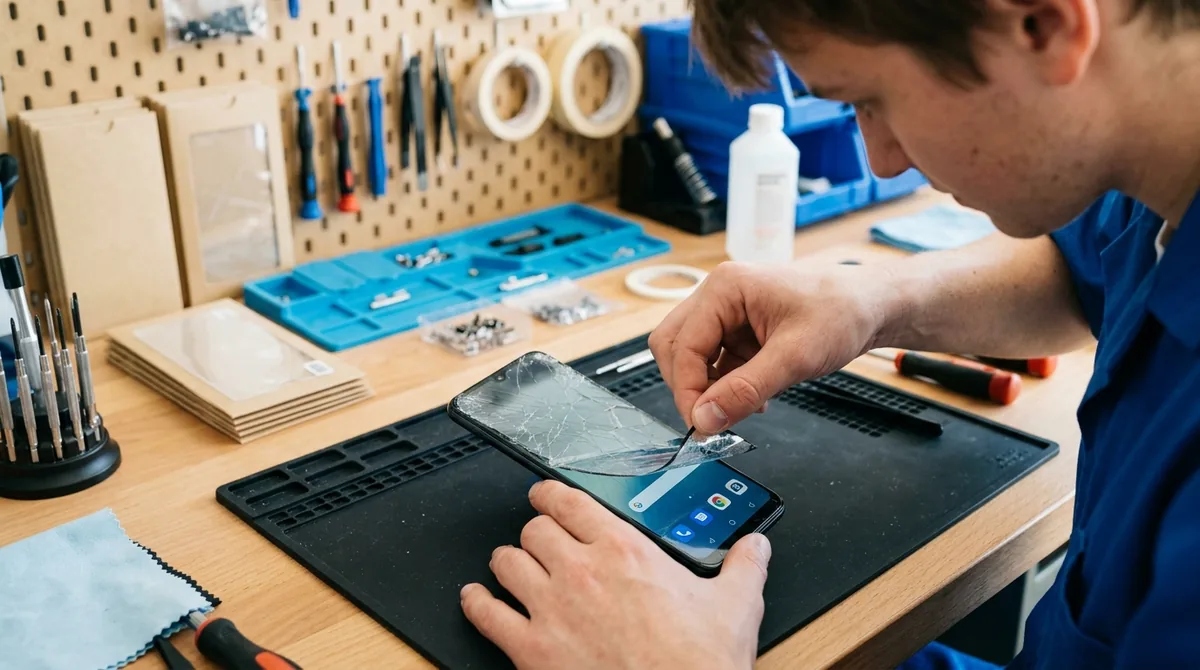
- Screen protectors: thick tempered-glass protectors, poorly aligned protectors, and protectors with air bubbles over the sensor areas can deaden touch sensitivity or create dead zones. Peel it off and test the naked screen.
- Cases: some cases press on screen edges, and magnetic cases or mounts can interfere with the digitizer. Remove the case entirely and test.
- Water and moisture: a wet screen — rain, sweat, humidity — confuses capacitive touch badly. Dry the screen thoroughly with a soft cloth. (Capacitive screens detect the electrical properties of your finger; water creates false signals.)
Many phones also have a touch sensitivity setting (Settings > Display > Touch sensitivity on Samsung) designed for use with screen protectors — enable it if you reinstall a protector.
Fix 3: Clean the Screen
Oils, lotions, food residue, and grime build up an insulating film that degrades capacitive sensing. Power off the phone and wipe the screen with a slightly damp microfiber cloth, then dry it completely.
Avoid harsh chemicals, window cleaner, and abrasive pads — they damage oleophobic coatings. A microfiber cloth slightly dampened with water handles nearly everything.
Fix 4: Boot Into Safe Mode
If touch works in Safe Mode but not normally — the classic android touchscreen not responding pattern — a third-party app is interfering — screen overlays, "touch booster" utilities, screen recorders with touch indicators, accessibility services, and even some launchers can hijack or break touch input.
Entering Safe Mode without touch: this is tricky but doable:
- Hold the power button to bring up the power menu.
- If you have a USB mouse connected via OTG, long-press Power off with the mouse and tap the Safe Mode prompt.
- Alternative: some phones enter Safe Mode by holding Volume Down during boot — power off, then power on while holding Volume Down until boot completes.
In Safe Mode, test touch thoroughly. If it works, restart normally and uninstall recently added apps one at a time — especially anything with overlay permission (Settings > Apps > Special app access > Display over other apps) or accessibility access.
Fix 5: Check for Ghost Touches and Their Causes
Ghost touches — the screen registering taps you did not make — are a touchscreen problem too, and they have specific causes:
- Charging interference: cheap or faulty chargers inject electrical noise that the digitizer misreads as touches. If ghost touches happen only while plugged in, unplug and test — then replace the charger.
- Moisture: as above, water on the screen creates phantom inputs. Dry it.
- Damaged digitizer: after drops, the touch layer can develop faults that fire randomly in one region. Note where the ghost touches occur — a consistent zone suggests localized hardware damage.
- Software: restart first; a glitched touch driver produces phantom input that a reboot clears.
Fix 6: Free Up Memory and Storage
An overworked phone can present as android touchscreen not responding: the screen is fine, but the system is so bogged down that it cannot process input. Symptoms: touches register with long delays, or the phone responds minutes later all at once.
- Restart (clears RAM).
- Free storage: keep at least 10% free (Settings > Storage). A critically full phone slows to a crawl.
- Check battery usage for a rogue app pinning the CPU (Settings > Battery > Battery usage).
- Clear cached data of heavy apps.
If the phone is merely slow to respond rather than truly dead, this is your fix category.
Fix 7: Update Software (Using Alternative Input)
Touch drivers ship with system updates, and manufacturers do fix digitizer bugs. Updating with a broken screen requires creativity:
- With a USB mouse via OTG, navigate to Settings > System > System update normally.
- Or connect to Wi-Fi and let auto-update handle it overnight (ensure auto-update is enabled).
- Update apps via the Play Store the same way.
If touch died immediately after a system update, check manufacturer forums for known digitizer regressions — these do happen, and the fix is usually the next patch. Rolling back is generally not practical on modern phones.
Fix 8: Factory Reset via Recovery Mode
When software corruption is suspected and you cannot use the screen, recovery mode lets you reset using only buttons:
- Power off completely.
- Hold the recovery combination (Power + Volume Up on most phones; Samsung: Power + Volume Up while connected to a computer via USB on newer models).
- In the recovery menu, use Volume keys to navigate to Wipe data/factory reset and Power to select.
- Confirm, wait, then select Reboot system now.
Warning: this erases everything. Only do this after attempting backup via computer USB connection or confirming your data is synced to your Google account. Test touch on the clean setup before restoring apps — working touch on a fresh system proves software was the cause.
Fix 9: Diagnose Hardware Failure
If touch fails identically in Safe Mode, after factory reset, with the protector removed and the screen clean — it is hardware. Common hardware causes:
- Digitizer failure: the touch layer itself has died, sometimes while the display underneath works perfectly (you can see everything; you just cannot touch it).
- Loose display connector: after drops, the ribbon cable connecting the screen assembly can work loose. Sometimes pressing firmly (but gently) around the screen edges temporarily restores touch — a telltale sign.
- Water damage: corrosion on the digitizer connector progresses over days or weeks after exposure.
- Screen replacement needed: on most modern phones the digitizer is fused to the display — they replace as one unit.
Your options: manufacturer warranty (touch failures without physical damage are typically covered), authorized repair, or reputable third-party shops. Get quotes: screen assembly replacement is one of the more expensive repairs, and on budget phones it can exceed the device's value — in which case, data recovery plus a new phone is the rational path.
Preventing Touchscreen Problems
- Use quality screen protectors, properly aligned, and replace them when cracked.
- Keep the phone dry; even "water-resistant" ratings degrade over time.
- Avoid cheap chargers — electrical noise affects more than charging speed.
- Do not press excessively hard; modern capacitive screens need only light contact.
- Keep software updated for driver fixes.
- Use a case that does not press on the display edges.
Touch Problems After a Screen Replacement
A special case: touch issues that appear right after a third-party screen replacement. This is unfortunately common, and the causes are specific:
- Incompatible digitizer: aftermarket screens vary wildly in quality. A cheap replacement may have a digitizer with poor sensitivity, dead zones, or offset mapping.
- Missing calibration: some replacements need software calibration the shop skipped.
- Damaged connector during repair: ribbon cables tear easily; a partially seated connector causes intermittent touch.
If touch degraded after a repair, take it back to the shop promptly — reputable shops warranty their work. Describe the symptoms precisely (dead zones, offset taps, intermittent failure) and mention when it started. If the shop is uncooperative, a manufacturer-authorized service center can install a genuine display assembly, though at higher cost. This is one repair where genuine parts genuinely matter.
FAQ
Why does my touchscreen work sometimes and not others?
When android touchscreen not responding comes and goes, it usually means software (an app conflict, a driver glitch cleared by reboot) or a marginal hardware connection (loose connector affected by temperature or flex). Track the pattern: if reboots always fix it temporarily, lean software. If pressing the screen edges changes behavior, lean hardware.
Can a cracked screen still have working touch?
Often, yes — if the crack is in the outer glass but the digitizer layer beneath is intact, touch keeps working. But cracks let in moisture and dust that degrade the digitizer over time, and any crack over the touch layer can create dead zones. A cracked-but-working screen is living on borrowed time; back up your data.
Why does my screen go crazy only when charging?
Electrical noise from the charger interferes with the capacitive digitizer. This is a classic symptom of cheap, uncertified, or failing chargers. Switch to the manufacturer's charger (or a certified equivalent) and the ghost touches should stop. If they persist with a good charger, the phone's charging circuitry may have an issue.
Is there a way to test which part of the screen is dead?
Yes. With touch partially working (or via OTG mouse), open a drawing or notes app and drag across the entire screen — dead zones show as gaps in the line. Some manufacturers include hardware test menus (Samsung Members diagnostics, or dialer codes on some brands) with dedicated touch tests. Mapping the dead area helps repair shops quote accurately.
My touch works but is inaccurate — taps register in the wrong place. What causes that?
Misaligned touch mapping is usually software: a recent update's digitizer calibration, a screen replacement with a mismatched part, or an overlay app offsetting input. Try Safe Mode to rule out apps, check for updates, and if it followed a third-party screen replacement, the shop likely installed an incompatible digitizer — take it back.
Should I try to reseat the display connector myself?
Only if you have the tools, a guide for your exact model, and acceptance of the risk. Modern phones are glued and fragile inside; a DIY attempt can easily turn a loose connector into a torn ribbon cable. For most people, professional repair is the right call for internal hardware.
Conclusion
When android touchscreen not responding is the problem, work the fixes in order: force restart, strip the protector and case, clean and dry the screen, test in Safe Mode, and remember the OTG-mouse trick that makes every step possible with a dead screen. Software fixes resolve a large share of cases — and when they don't, the systematic elimination (Safe Mode → factory reset → still dead) gives you a confident hardware diagnosis instead of an expensive guess.
The touchscreen is your phone's primary sense. Treat failures methodically, back up early, and do not ignore the warning signs of intermittent issues — they rarely fix themselves, but they are very fixable when addressed promptly.


What do you think?
Share your experience or ask a question. A useful conversation starts with you.
Join the discussion