
SIM Card Not Detected Android: 9 Proven Fixes (2026)
You pop in a SIM card — or wake up to find the one already in your phone suddenly unrecognized — and your Android greets you with “No SIM card” or “SIM card not detected.” No calls, no texts, no mobile data. It is alarming, but in most cases the fix is simple.
A SIM card not detected Android error usually comes down to a dirty or misaligned SIM, a software glitch, or a carrier-side issue — not a dead phone. Work through these 9 proven fixes in order, from the 30-second checks to the deeper resets, and you will very likely have your signal back without a trip to the repair shop.
What to Do When the SIM Works in Another Phone
If your SIM works fine in a different phone but shows “No SIM” in yours, the card is not the problem — the SIM tray or reader is. Start by powering the phone fully off, not just restarting, then eject the tray and inspect it under good light. A tray that sits even slightly warped from a drop will not press the SIM’s gold contacts firmly against the reader pins. Try reseating the SIM with a tiny piece of tape on the back to add pressure; if the phone suddenly detects it, you have found your culprit and a replacement tray (usually $5 to $12 online for your exact model) is the permanent fix.
Next, check for reader pin damage. Look inside the empty slot with a flashlight — the six small spring contacts should all spring back when nudged gently with a toothpick. A bent or flattened pin means the phone needs a repair shop, because SIM readers are soldered to the motherboard. As a workaround, ask your carrier for an eSIM conversion if your phone supports it; eSIM profiles for most US carriers activate through Settings > Network & internet > SIMs > Add SIM and bypass the physical reader entirely. That workaround costs nothing and takes about ten minutes.
Why Android Shows “SIM Card Not Detected”
Understanding the cause helps you pick the right fix. The common culprits behind a SIM card not detected Android message:
- Loose or misaligned SIM: the card shifted in its tray, especially after a drop.
- Dirty contacts: dust or oxidation on the SIM’s gold contacts breaks the connection.
- Damaged SIM or tray: a bent tray or scratched SIM from rough handling.
- Software glitch: a temporary modem or system hiccup after an update.
- Wrong network settings: corrupted APN or network configuration.
- Carrier-side problems: an unactivated SIM, account suspension, or network outage.
- Hardware failure: a damaged SIM reader — rare, but possible after water damage or drops.
Start with the physical checks — they resolve the majority of cases.
9 Fixes for the SIM Card Not Detected Android Error
Fix 1: Restart Your Phone
It sounds too simple, but a restart reinitializes the modem and re-reads the SIM. Hold the power button, tap Restart, and wait. If the SIM card not detected Android message was caused by a temporary software hiccup, this alone often clears it. Do this first before touching anything physical.
Fix 2: Reseat the SIM Card
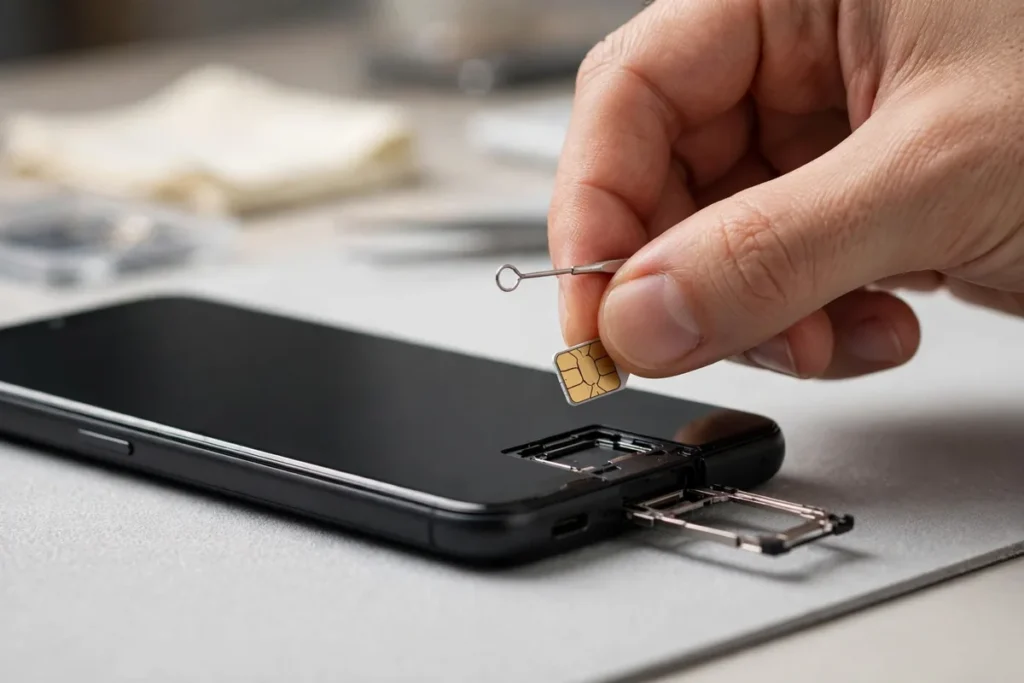
Power off the phone completely. Use the SIM ejector tool (or a straightened paperclip) to pop the tray, remove the SIM, and reinsert it carefully — making sure it sits flat in the tray cutout with the gold contacts facing the right way. Push the tray back in firmly until it clicks. Power on and check. A surprising number of “SIM card not detected” cases are just a card that shifted a fraction of a millimeter.
Fix 3: Clean the SIM and Tray
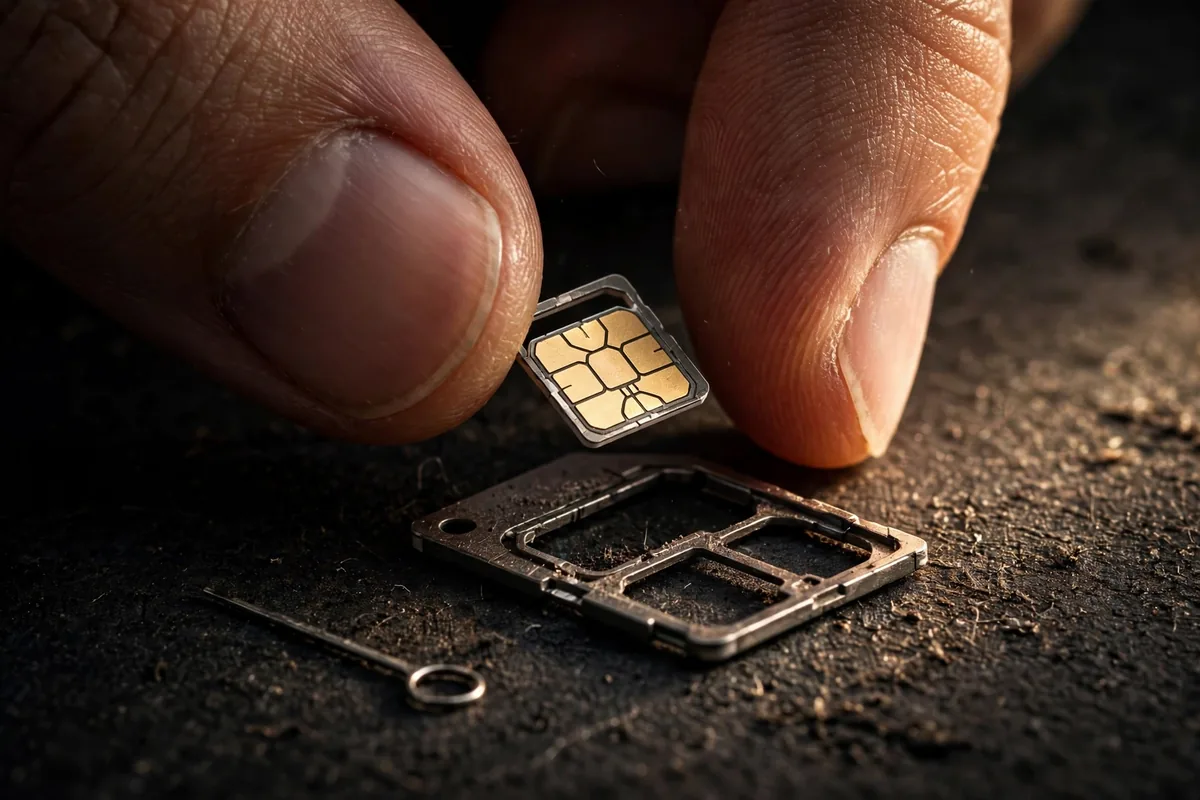
Dust and oxidation on the gold contacts are classic causes. Gently wipe the SIM’s gold contacts with a soft, dry, lint-free cloth. For stubborn grime, a cotton swab lightly dampened with isopropyl alcohol works — let it dry fully before reinserting. Blow (do not spit) into the empty SIM slot to clear dust, or use a can of compressed air held at a distance. Never use water or abrasive materials.
Fix 4: Try the SIM in Another Phone
This isolates whether the problem is the SIM or your phone. Put the SIM in a different unlocked phone: if it works there, your phone’s SIM reader or software is the issue. If it fails there too, the SIM itself is likely damaged or deactivated — skip to Fix 8 (carrier) and ask for a replacement SIM, which carriers usually provide free. When borrowing a phone for this test, make sure it is carrier-unlocked; a locked phone rejecting your SIM tells you nothing about the SIM’s health.
Fix 5: Toggle Airplane Mode and Re-Select the Network
Sometimes the modem just needs a kick. Turn Airplane mode on for 30 seconds, then off, and let the phone re-register on the network. Then go to Settings > Network & internet > SIMs > your SIM > and verify Mobile data is enabled. Also try Settings > Network & internet > SIMs > Preferred network type and switch between 5G/4G/3G modes — a phone stuck hunting for an unavailable network type can report the SIM as undetected.
Fix 6: Reset Network Settings
If the SIM card not detected Android error appeared after a system update, corrupted network configuration is a strong suspect. Resetting network settings clears cellular, Wi-Fi, and Bluetooth configs without touching your apps or data:
- Go to Settings > System > Reset options.
- Tap Reset Wi-Fi, mobile & Bluetooth and confirm.
- Restart the phone and re-check the SIM.
You will need to re-enter Wi-Fi passwords afterward. Google’s official guidance for mobile data problems at support.google.com/android covers similar ground if you want the official walkthrough.
Fix 7: Check for System and Carrier Updates
An outdated modem firmware or carrier settings bundle can break SIM detection, especially on newer networks. Check Settings > System > System update for Android updates, and look for a carrier settings update prompt (sometimes under Settings > Network & internet > SIMs). Install everything pending, then restart. If you recently switched carriers, also confirm your phone is carrier-unlocked — a locked phone will reject other carriers’ SIMs.
Fix 8: Contact Your Carrier
If the SIM works in no phone, or everything above failed, call your carrier. Ask them to check: (1) whether the SIM is activated and provisioned on your line, (2) whether your account is in good standing (suspended lines show SIM errors), and (3) whether there is a network outage in your area. Request a free replacement SIM — they are cheap for carriers to issue and instantly rule out a damaged card. If you are considering ditching physical SIMs altogether, our eSIM on Android setup guide for US carriers walks through the digital alternative.
Fix 9: Factory Reset (Last Resort)
When a SIM card not detected Android error survives everything else and the SIM works in other phones, deep software corruption is likely. A factory reset wipes the slate clean: Settings > System > Reset options > Erase all data. Back up everything first with our Backup Android Phone guide — photos, messages, and app data included, since a reset erases the entire internal storage. After the reset completes, insert the SIM before signing into your Google account so the phone provisions the cellular connection during initial setup. If the error persists after a reset, the SIM reader hardware is damaged — time for professional repair.
Setting Up a New Phone? Avoid SIM Issues From the Start
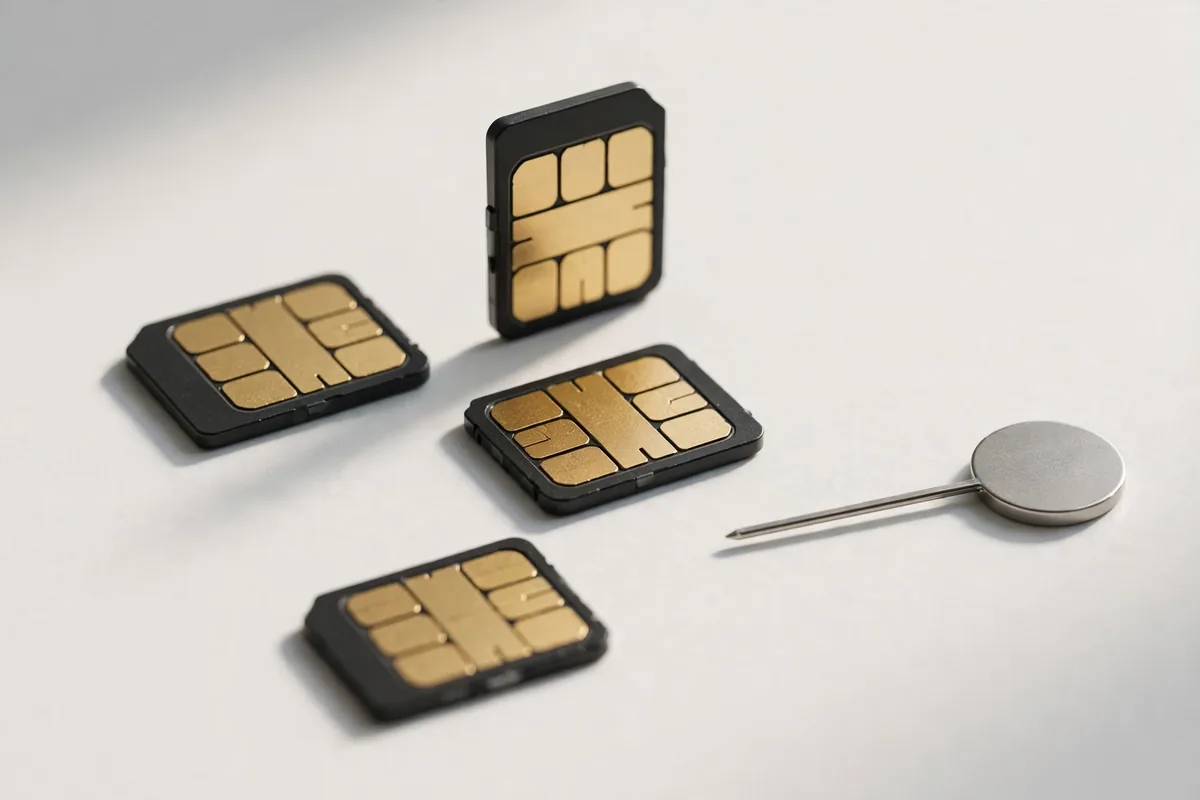
Many SIM problems begin during setup — wrong tray, wrong SIM size, or skipped activation. If you are unboxing a device, follow our New Android Phone Setup guide’s 11 essential steps, which cover SIM insertion and carrier activation in the right order. And if your phone is old enough that the SIM tray is loose or the reader is flaky, it may be telling you something — see When to Upgrade Your Phone for the signs.
eSIM vs Physical SIM: Should You Switch?
If SIM card problems keep recurring, an eSIM (embedded SIM) eliminates the physical card entirely — no tray, no contacts, no damage. Here is how the options compare for Android users dealing with the SIM card not detected Android error:
- eSIM pros: nothing to lose, damage, or misalign; switch carriers by scanning a QR code; store multiple carrier profiles and switch in settings; great for travelers (add a local data plan without hunting for a SIM shop).
- eSIM cons: not all phones support it (mostly flagships from the last few years); switching phones requires transferring the profile; some smaller carriers still do not offer eSIM.
- Physical SIM pros: universal compatibility; easy to move between phones in seconds; simple to replace at any carrier store.
If your phone supports eSIM and your carrier offers it, converting is the permanent fix for physical SIM issues. Our eSIM on Android guide covers US carrier setup step by step. Dual-SIM users can even run one physical SIM plus one eSIM for the best of both worlds.
Preventing Future SIM Card Problems

Once you have fixed the SIM card not detected Android error, keep it fixed:
- Power off before swapping SIMs. Hot-swapping stresses the tray mechanism and can corrupt the SIM state.
- Use the proper ejector tool. Paperclips work in a pinch, but a proper SIM tool is less likely to bend the tray.
- Store spare SIMs properly. Keep unused SIMs in their original card holder — loose SIMs in pockets get scratched.
- Avoid cheap tray replacements. Third-party SIM trays often fit poorly and cause intermittent detection failures. Buy OEM if yours is damaged.
- Keep software updated. Modem firmware updates regularly fix SIM detection bugs, especially around new network rollouts.
- Do not force the tray. If the SIM tray resists, stop and realign — forcing it bends the internal pins, and bent reader pins mean a repair bill. The tray should slide in with light, even pressure.
FAQ
Why does my phone suddenly say SIM card not detected?
The most common sudden causes are a software glitch (fixed by restart), the SIM shifting after a drop, or a carrier-side deactivation. If it happened right after a system update, reset network settings. If it happened after a drop, reseat and inspect the SIM and tray.
Can a dirty SIM card cause the SIM card not detected Android error?
Yes — it is one of the top causes. Oxidation and dust on the gold contacts interrupt the connection. A gentle wipe with a dry lint-free cloth (or isopropyl alcohol for stubborn grime) fixes it more often than people expect.
Will a factory reset fix SIM card not detected?
It can fix software-caused cases, but it will not help a physically damaged SIM, bent tray, or dead SIM reader. Always try reseating, cleaning, testing the SIM in another phone, and resetting network settings first — factory reset is the last resort.
How do I know if my SIM card is damaged or my phone is?
Put the SIM in another unlocked phone. Works there = your phone is the problem (software or SIM reader). Fails there too = the SIM is damaged or deactivated; get a free replacement from your carrier.
Should I switch to eSIM to avoid SIM card problems?
eSIM eliminates physical SIM issues entirely — no tray, no contacts, no damage. Most US carriers and recent Android flagships support it. Check our eSIM on Android guide to see if your phone and carrier qualify.
My SIM card not detected Android error comes and goes — what does that mean?
Intermittent detection almost always means a physical connection problem: a loose tray, dirty contacts, or a SIM that shifts as the phone moves. It is rarely software. Reseat the SIM carefully, clean the contacts, and inspect the tray for bending. If the tray does not sit flush, replace it — intermittent contact will only get worse.
Can a phone case cause SIM card detection problems?
Rarely, but yes. Oversized or poorly molded cases can press against the SIM tray area and prevent the tray from seating fully — especially on phones where the tray sits near the case edge. If the SIM card not detected Android error started right after you put on a new case, remove the case and test. Similarly, a swollen battery (a serious safety issue — stop using the phone and get it serviced) can warp the frame enough to unseat the tray.
Conclusion
A SIM card not detected Android error feels serious but is usually a quick fix: restart, reseat the SIM, clean the contacts, and reset network settings — in that order. Those four steps resolve the overwhelming majority of cases. If they do not, your carrier can verify activation and issue a free replacement SIM, and only persistent failure after a factory reset points to hardware repair. Work the list methodically, stay patient through the checks, and you will almost certainly be back on the network today — calling, texting, and browsing like nothing ever happened.


What do you think?
Share your experience or ask a question. A useful conversation starts with you.
Join the discussion