
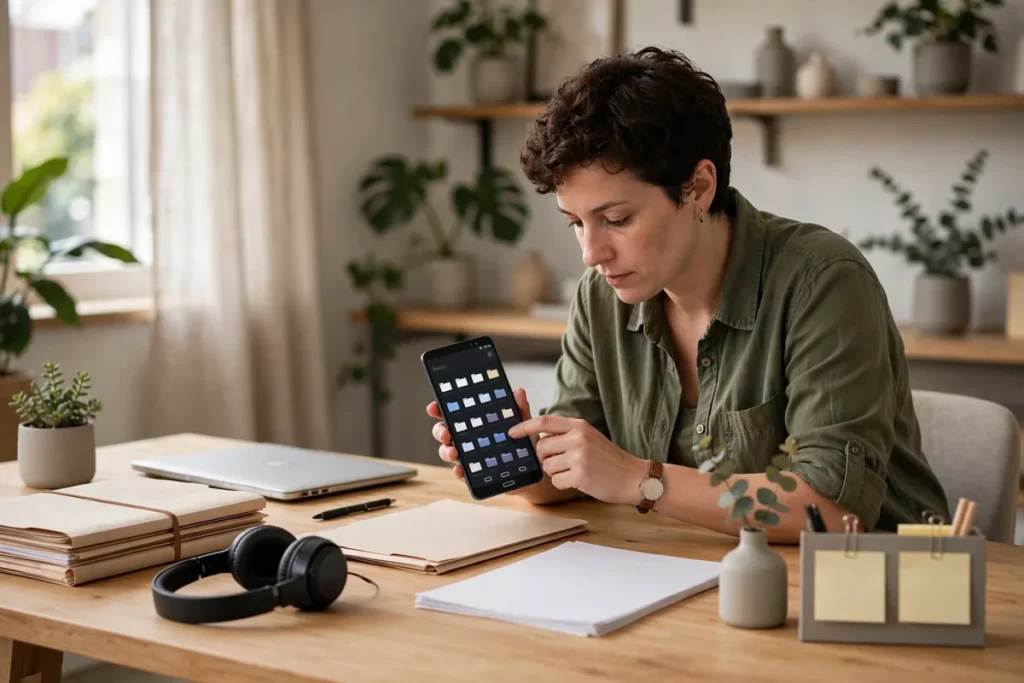
Your phone’s file manager sees everything: downloaded documents, received videos, personal photos saved outside the gallery. When you hand your phone to someone to show a photo or lend it for a call, those files are one curious tap away. The files by google safe folder feature fixes this with a PIN-protected vault built right into Google’s free file manager. Anything you move inside becomes invisible to other apps and requires your PIN to open. See the Files by Google help center for official documentation.
This guide explains files by google safe folder setup step by step, how to move files in and out, the critical limitations around backups and encryption, and how it compares to other private-storage options. If you want private files on Android without installing a sketchy third-party vault app, these files by google safe folder tips are exactly what you need.
What Safe Folder Is and How It Protects You
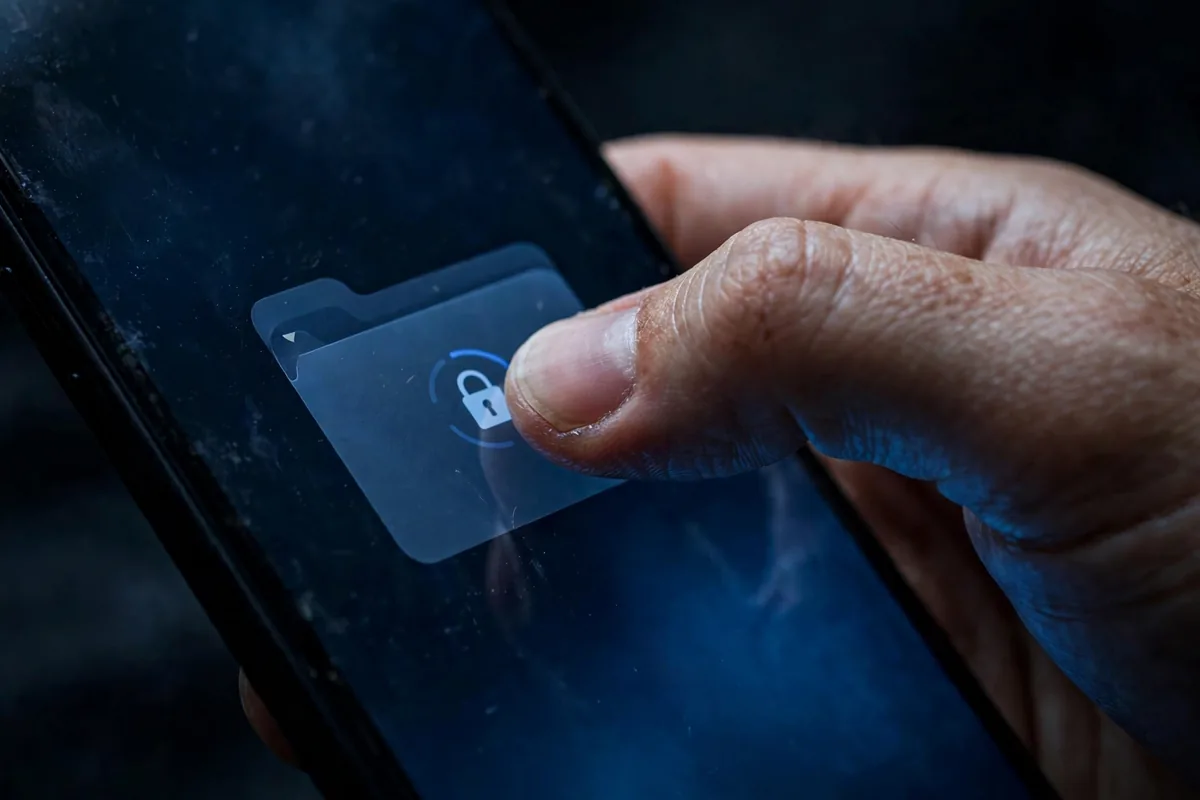
Safe Folder is a private directory inside the Files by Google app, guarded by a 4-digit PIN or your screen lock.
The Protection Model
- PIN gate: opening the folder requires your PIN every time; there is no biometric option in most versions.
- Hidden from other apps: files inside do not appear in gallery apps, media players, or other file managers.
- Encrypted at rest: on modern Android versions, the folder benefits from file-based encryption tied to your credentials.
- No cloud sync: Safe Folder contents stay on the device; they are never uploaded to Google Drive automatically.
This local-only design is both its strength and its weakness. It means Google never sees your private files, but it also means a lost phone without backups equals lost files. Understanding this trade-off is the foundation of using the files by google safe folder wisely.
Set Up Safe Folder in Two Minutes
You only do this once, and it takes less time than reading this section.
- Open the Files by Google app (install it from the Play Store if your phone uses a different file manager).
- Tap Safe Folder in the app’s main navigation.
- Choose a 4-digit PIN you will remember; confirm it.
- Optionally link it to your Google account for PIN recovery (recommended unless you have a strong reason not to).
PIN Recovery Decision
Linking recovery to your Google account lets you reset a forgotten PIN via email verification. Without it, a forgotten PIN means permanent lockout. For most people, enabling recovery is the right call; the convenience far outweighs the theoretical risk. This is one of those files by google safe folder setup choices that feels minor until the day you need it.
Move Files Into Safe Folder
Move Individual Files
- Browse to the file in Files by Google.
- Tap the three-dot menu (or long-press) and select Move to Safe Folder.
- Enter your PIN to confirm.
Move in Bulk
- Long-press one file, then tap additional files to select a batch.
- Tap the three-dot menu and choose Move to Safe Folder.
- Authenticate once for the entire batch.
What to Move First
Start with the obvious: personal photos saved outside the gallery, sensitive PDFs (tax documents, medical records), private videos, and anything you would be embarrassed to explain. A ten-minute initial sweep handles 90% of the need. For broader file hygiene, our storage cleanup guide helps you organize everything else.
Files by Google Safe Folder: View and Manage Protected Files
Inside the folder, management works like a mini file manager.
- Browse and preview: tap files to view them after PIN entry; documents, images, and videos all preview inline.
- Move files out: select items and choose Move out of Safe Folder to return them to normal storage.
- Rename inside: organize with clear names since search within the folder is basic.
- Delete permanently: deletions inside Safe Folder skip the trash; they are immediate.
The PIN session stays open briefly after entry, so you can browse multiple files without re-entering it constantly. It locks again when you leave the folder or after a short timeout.
Critical Limitation: No Automatic Backup
This is the most important thing to understand about the files by google safe folder.
The Backup Reality
- Safe Folder contents are excluded from Google One device backups and Google Photos backup.
- If your phone is lost, stolen, or factory-reset, Safe Folder files are gone permanently.
- There is no cloud copy, no recovery, no exceptions.
Your Options
- Accept the risk for files you can afford to lose or replace.
- Manually back up: periodically move copies out, back them up encrypted elsewhere, then move them back.
- Use a second layer: for irreplaceable documents, keep encrypted copies in a secure cloud service separately.
Make this decision consciously per file type. Ephemeral private photos might be fine local-only; your only copy of a signed contract is not. Our Android backup guide details full-device strategies that complement Safe Folder’s local-only nature.
Files by Google Safe Folder: Quick Comparison Table
| Feature | Safe Folder | Google Photos Locked Folder | Third-Party Vault |
|---|---|---|---|
| Lock type | PIN | Biometric | Various |
| Cloud backup | No | Optional | Often yes |
| Hides from gallery | Yes | Yes | Yes |
| Free | Yes | Yes | Often freemium |
| File types | All | Photos/videos | Various |
Safe Folder vs. Locked Folder: Which to Use
Google offers two private spaces, and they serve different needs.
- Safe Folder (Files by Google): protects any file type, PIN-gated, local-only. Best for documents, downloads, and mixed media.
- Locked Folder (Google Photos): protects photos and videos, biometric-gated, with optional cloud backup. Best for camera-roll privacy.
Many privacy-conscious users run both: photos in the Locked Folder, documents in Safe Folder. They do not conflict, and together they cover every file type. These files by google safe folder plus Locked Folder combinations give complete on-device privacy without a single third-party app.
Organize Inside Safe Folder
The folder’s organization tools are basic, so impose your own system.
- Use subfolders: create folders like Documents, Personal, and Work inside Safe Folder.
- Name files clearly: “Tax-2025-final.pdf” beats “document(3).pdf” when you need it urgently.
- Purge regularly: private clutter accumulates; review quarterly and delete what you no longer need.
A little structure prevents the folder from becoming a digital junk drawer you are afraid to open. The files by google safe folder works best as a curated vault, not a dumping ground.
What Happens When You Switch Phones
Phone upgrades require manual migration for Safe Folder contents.
- Before wiping the old phone: move Safe Folder files out to normal storage (or copy them to a computer).
- Transfer normally: use your preferred migration method for the now-unprotected files.
- Re-protect on the new phone: set up Safe Folder fresh and move the files back in.
The Order Matters
Never factory-reset before confirming the files exist outside Safe Folder. There is no recovery after a wipe. Add this step to your upgrade checklist alongside everything in our new phone setup guide.
Files by Google Safe Folder: App Permissions and Gallery Hiding
Safe Folder’s hiding works because of how Android’s media scanning interacts with it.
- Gallery apps cannot see Safe Folder contents; the files are excluded from the media store.
- Other file managers may see the encrypted container but cannot open it without the PIN.
- USB file transfer to a computer shows the device’s normal storage; Safe Folder contents remain inaccessible without unlocking on the phone first.
This is genuine protection, not security theater. However, remember that screenshots and screen recordings made while the folder is open can capture its contents; the PIN guards access, not the display.
Troubleshooting Common Issues
“I forgot my PIN”
If you linked Google account recovery during setup, tap Forgot PIN and verify via email. Without recovery linked, there is no reset path; the files remain locked permanently.
“Safe Folder doesn’t appear in my app”
Update Files by Google from the Play Store. On some devices the feature rolls out gradually; clearing the app’s cache can trigger its appearance.
“Moved files still show in my gallery”
The media store sometimes caches thumbnails. Restart the phone or clear the gallery app’s cache; the files themselves are protected, only stale thumbnails linger.
“Can I use biometrics instead of PIN?”
Most versions require the PIN specifically. Some newer releases accept screen-lock biometrics as an alternative; check your app’s Safe Folder settings for the option.
Files by Google Safe Folder: Sharing Files Securely
Sometimes private files need to leave the vault temporarily. Do it safely.
- Move out, share, move back: the clean workflow is moving the file out, sharing it, then returning it to Safe Folder. Never share directly from inside.
- Use expiring links: when sharing via Drive afterward, set link expiration so access ends automatically.
- Prefer encrypted channels: for sensitive documents, share through end-to-end encrypted messaging rather than email.
The vault protects files at rest; your sharing habits protect them in transit. These files by google safe folder workflows keep the two from undermining each other.
Automate Privacy With Routines
Combine Safe Folder with Android’s automation for effortless privacy.
- Downloaded files triage: make it a weekly habit to review Downloads and move sensitive items into Safe Folder before they accumulate.
- Screenshot sweep: screenshots of boarding passes, QR codes, and confirmations often contain sensitive data; move or delete them after use.
- Before lending your phone: a 30-second check that sensitive files are vaulted beats any amount of anxiety.
These routines take minutes and become automatic. The files by google safe folder is most effective when vaulting is a habit, not a project.
Files by Google Safe Folder: Family and Shared Devices
On shared family tablets or phones, Safe Folder keeps personal boundaries intact.
- Each user profile gets its own Files app data, so Safe Folder contents do not cross profiles.
- Kids’ devices: parents can vault sensitive documents away from curious young users.
- Guest access: combine with Android’s screen pinning when handing the device to someone briefly.
For family-wide digital safety, our digital wellbeing guide covers parental controls that complement on-device privacy.
When to Upgrade to Stronger Protection
Safe Folder covers everyday privacy. Recognize when you need more.
- Journalists and activists: use verified encrypted containers like those recommended by digital security organizations.
- Business secrets: corporate MDM solutions offer managed encryption with remote wipe.
- Legal documents: consider hardware-backed keystores and dedicated security apps.
For 99% of people, the files by google safe folder plus good habits is the right level. Knowing where its boundaries lie is part of using it well.
Related Guides
- Free Up Storage Space Android: 11 Smart Ways
- Backup Android Phone: 7 Ways to Protect Your Data
- Android App Permissions: 7 Powerful Privacy Tips
FAQ
Is files by google safe folder truly secure?
It uses Android’s file-based encryption tied to your credentials, which is strong protection against casual access and most theft scenarios. It is not designed to resist forensic analysis by determined experts; for that threat level, use dedicated encrypted containers.
Can I change my Safe Folder PIN?
Yes, open Safe Folder, tap the settings or three-dot menu, and choose the PIN change option. You will need to enter the current PIN first.
Does Safe Folder work on SD cards?
Safe Folder operates on internal storage. Files on adoptable or portable SD card storage should be moved to internal storage before adding them to Safe Folder.
What happens if I uninstall Files by Google?
Your Safe Folder data remains in its encrypted location but becomes inaccessible without the app. Reinstalling Files by Google and entering your PIN restores access.
Can other apps detect that I use Safe Folder?
Other apps cannot see inside, but the Files by Google app itself obviously shows the Safe Folder entry. There is no stealth mode that hides the folder’s existence from someone browsing your apps.
Can law enforcement compel me to unlock Safe Folder?
Legal obligations vary by jurisdiction. Technically, the PIN is knowledge-based, which has different legal standing than biometrics in many places. Consult a lawyer for advice specific to your situation.
Does Safe Folder protect against malware?
Safe Folder protects against other apps reading your files, but malware with broad device permissions operates at a different level. Keep your phone’s security patches current and avoid sideloading untrusted apps.
Conclusion
The files by google safe folder is the simplest trustworthy way to PIN-protect private files on Android: no third-party vault apps with questionable privacy policies, no subscriptions, just a secure folder in Google’s own free file manager. Set it up in two minutes, move your sensitive files in, and make the conscious backup decision rather than discovering the local-only limitation during a crisis. Combined with Google Photos’ Locked Folder for camera-roll privacy, these files by google safe folder practices give you complete, app-free control over what stays private on your phone.


What do you think?
Share your experience or ask a question. A useful conversation starts with you.
Join the discussion